Review orders and run a waitlist
Two ticket switches change what happens when someone orders a pass. Review before confirming holds each order until your team approves it. Offer a waitlist when full lets people queue once a pass sells out.
Make a pass need review
Use this for passes you hand out with care, such as VIP or press places.
-
In the sidebar, select Tickets and packages.
-
On the pass's row, select Edit.
-
Switch on Review before confirming.
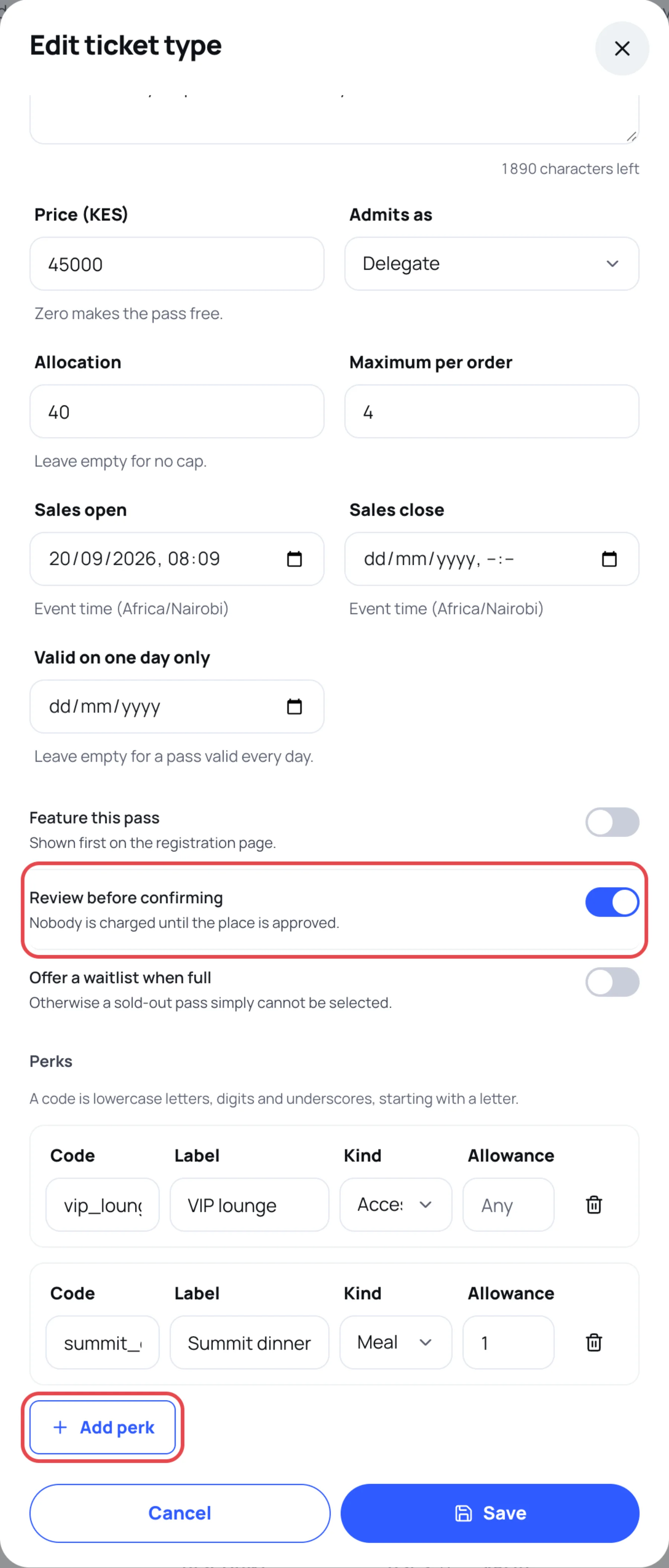
-
Select Save. The pass shows Reviewed in the Rules column.
What happens to a reviewed order
- The buyer submits their details. Nobody is charged.
- The order shows as Awaiting review under Attendees and orders, and holds its places until the date shown as Held until.
- When you approve a paid order, the buyer is asked to pay and the place is held while they do. A free order is confirmed straight away and gets its badge.
- When you reject it, the places are released and the buyer is told your reason.
- An order nobody reviews in time is released.
To approve or reject, see approve or reject an order.
Offer a waitlist
-
On the pass's row, select Edit.
-
Switch on Offer a waitlist when full.
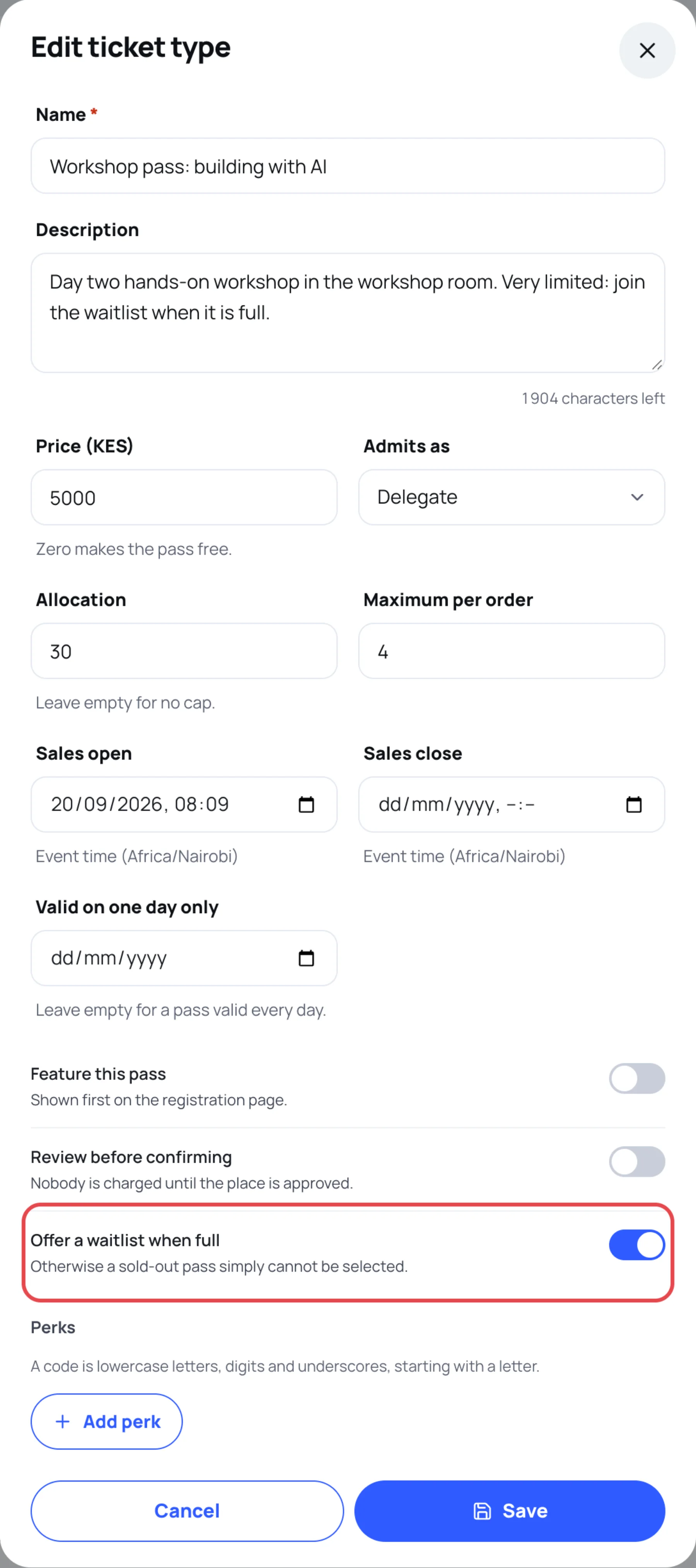
-
Select Save.
Without a waitlist, a sold-out pass simply cannot be selected. With one, the registration page lets people join the queue, and their order shows as Waitlisted.
How places pass to the waitlist
Zufest moves people off the waitlist on its own. You do not need to do anything.
- In order. The person who joined first is offered the next place.
- When a place frees up. For example when an order is cancelled, rejected or expires, or when you raise the pass's Allocation.
- No queue jumping. While anyone is waiting for a pass, a new buyer joins the back of the queue, even if a place has just freed up.
- What the person gets. A free order is confirmed. A paid order moves to Awaiting payment and the person is asked to pay within a limited time; if they do not, the place goes to the next in line. A pass that needs review moves to Awaiting review.
- People on the waitlist are told by notification when they are offered a place.
To see who is waiting, open Attendees and orders and select the Waitlisted tab. See find attendees and orders.
Last updated