Request exhibitor profiles
Exhibitors, sponsors and partners can fill in their own logo and description from a link you share, without an account. You check each profile, correct it if needed, and approve it. Nothing is published before that.
Choose who you are asking
-
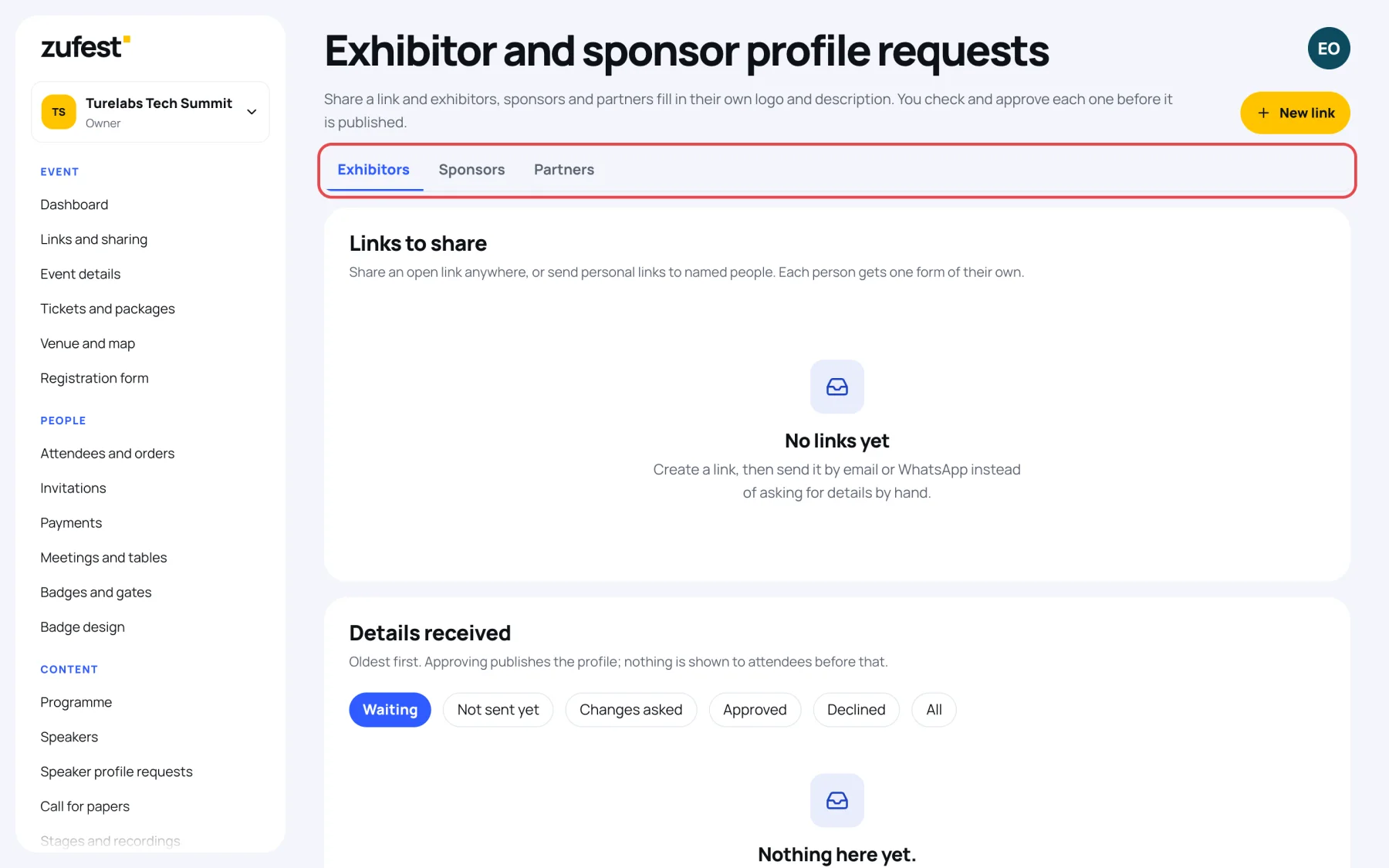
In the organiser sidebar, under Content, select Exhibitor profile requests.
-
Choose a tab: Exhibitors, Sponsors or Partners. Each has its own links and its own list of details received.
Create a link
-
On the tab you chose, select New link.
-
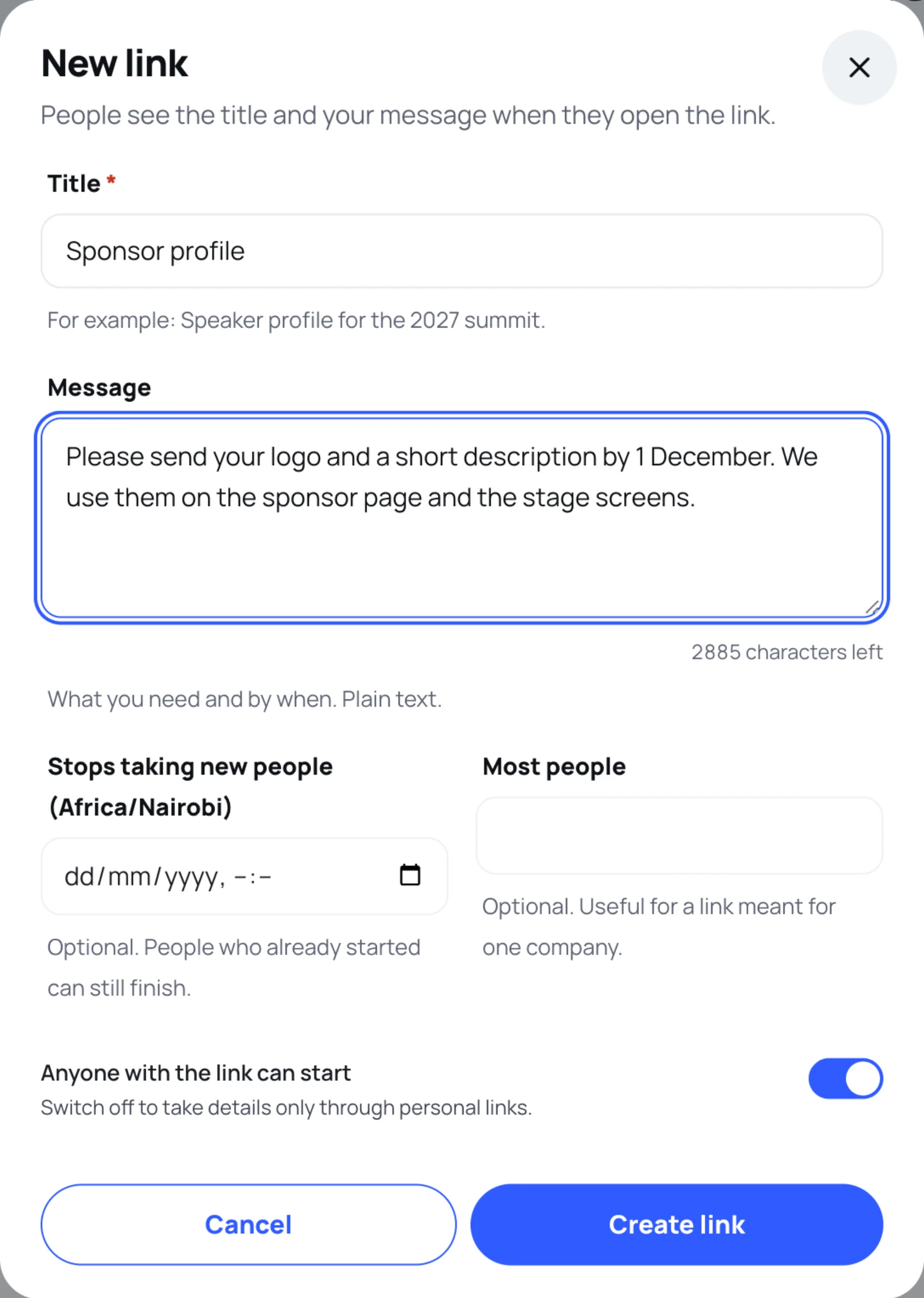
Keep or change the Title, for example "Sponsor profile", and write a Message saying what you need and by when.
-
Set Stops taking new people and Most people if you need to. Most people is useful for a link meant for one company.
-
Leave Anyone with the link can start on to share the link openly, or switch it off to take details only through personal links.
-
Select Create link, then Copy link on the new link and send it.
Send personal links
Select Send personal links to give named people a form of their own. Tick companies under Companies already on file (their form opens with what you already have, and approving it updates their stand), paste anyone else as a name and an email per line, and choose whether to email them now. One address gets one form per event and kind.
Approve a profile
Forms arrive under Details received, oldest first. Select Review on one.
- Check the logo, cover image, name, category, tagline, description, website and countries. Correct anything, then select Save edits.
- Under Publish as, choose A new exhibitor, or an existing stand to update. A stand whose name matches is already chosen, so the company is not listed twice.
- For a sponsor, choose the Sponsor tier. Partners are always the Partner tier.
- To let the company run its own stand, tick Also invite ... to manage the stand. The contact gets an email to join the stand team as a manager, with access to leads and the stand page.
- Select Approve and publish.
Approving publishes the stand as Approved, so attendees see it straight away under Exhibitors & sponsors in the event. For a sponsor it also creates the sponsor package, or keeps the existing package's value and currency, and the sponsor appears under its tier.
Open the approved form again to find it: View the listing shows the stand as attendees see it, and Edit on Exhibitors opens it on the Exhibitors and sponsors screen, where later changes are made.
If something is missing, write a Note to the person and select Ask for changes: they get an email with a link back to their form. Decline publishes nothing; the note is optional.
What the company sees is described in Fill in your stand from a link.
Last updated