Sign in and reset your password
Sign in once and your tickets, agenda and badge appear on every device you use. This page also covers what to do if you forget your password.
Sign in
-
Open app.zufest.com/login.
-
Enter your Email and Password.
-
Leave Keep me signed in for 90 days ticked on your own phone or laptop. Untick it on a shared computer.
-
Select Sign in.
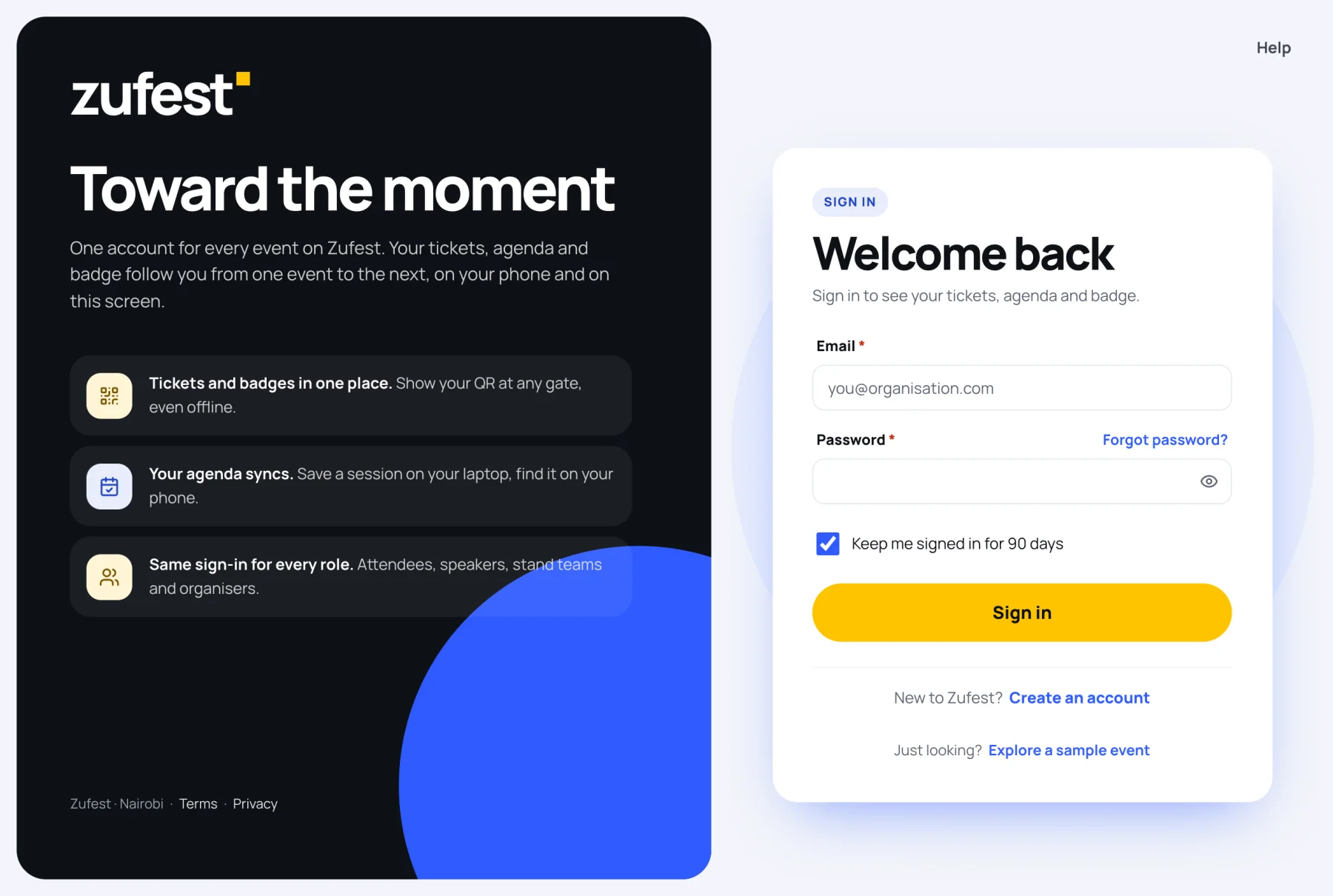
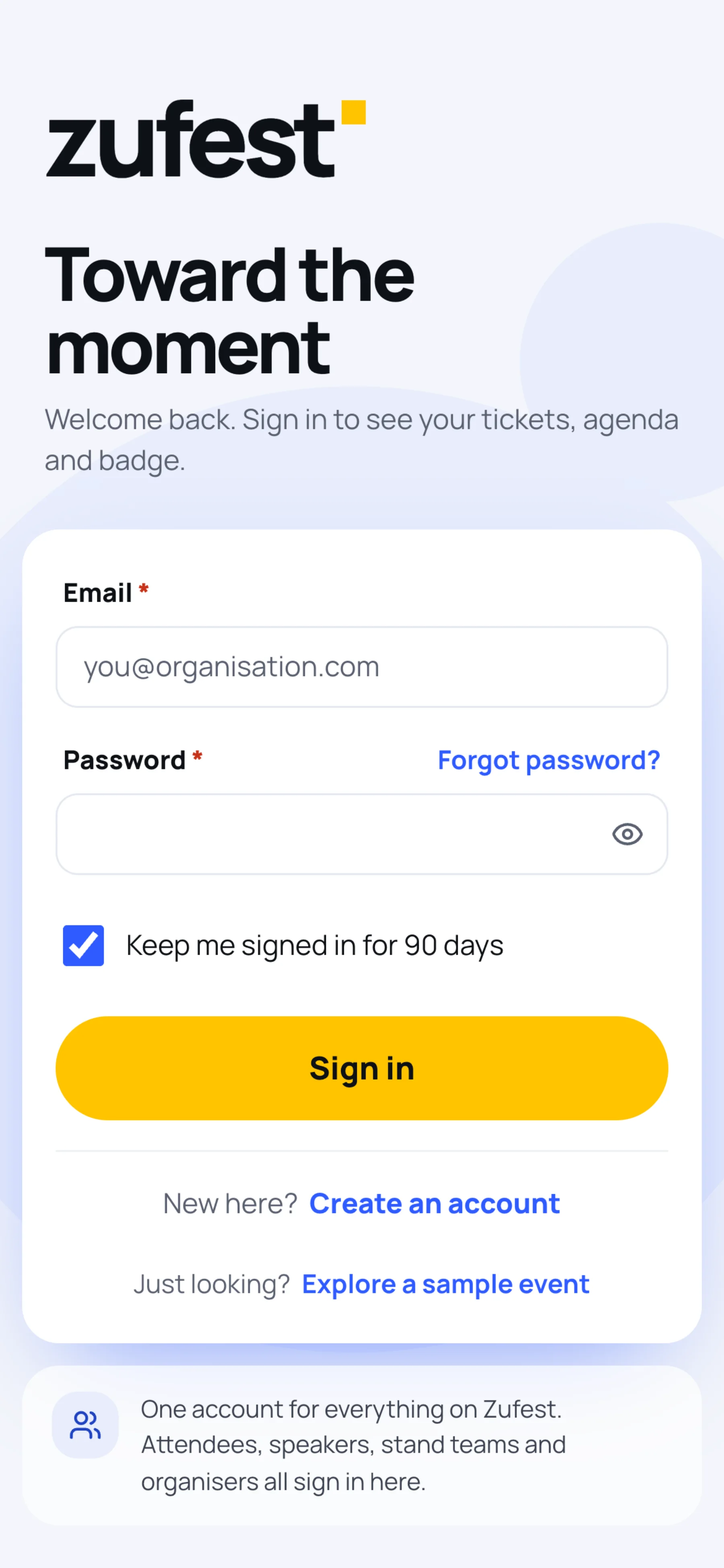
On a phone the same form sits under the Zufest logo.
If Zufest asks for a code
Organisation owners and admins can turn on two-factor sign-in. If you did, Zufest asks for a code from your authenticator app after your password. Type the six digits and select Verify and sign in. You can also select Use a recovery code. See Sign-in security.
Reset a forgotten password
-
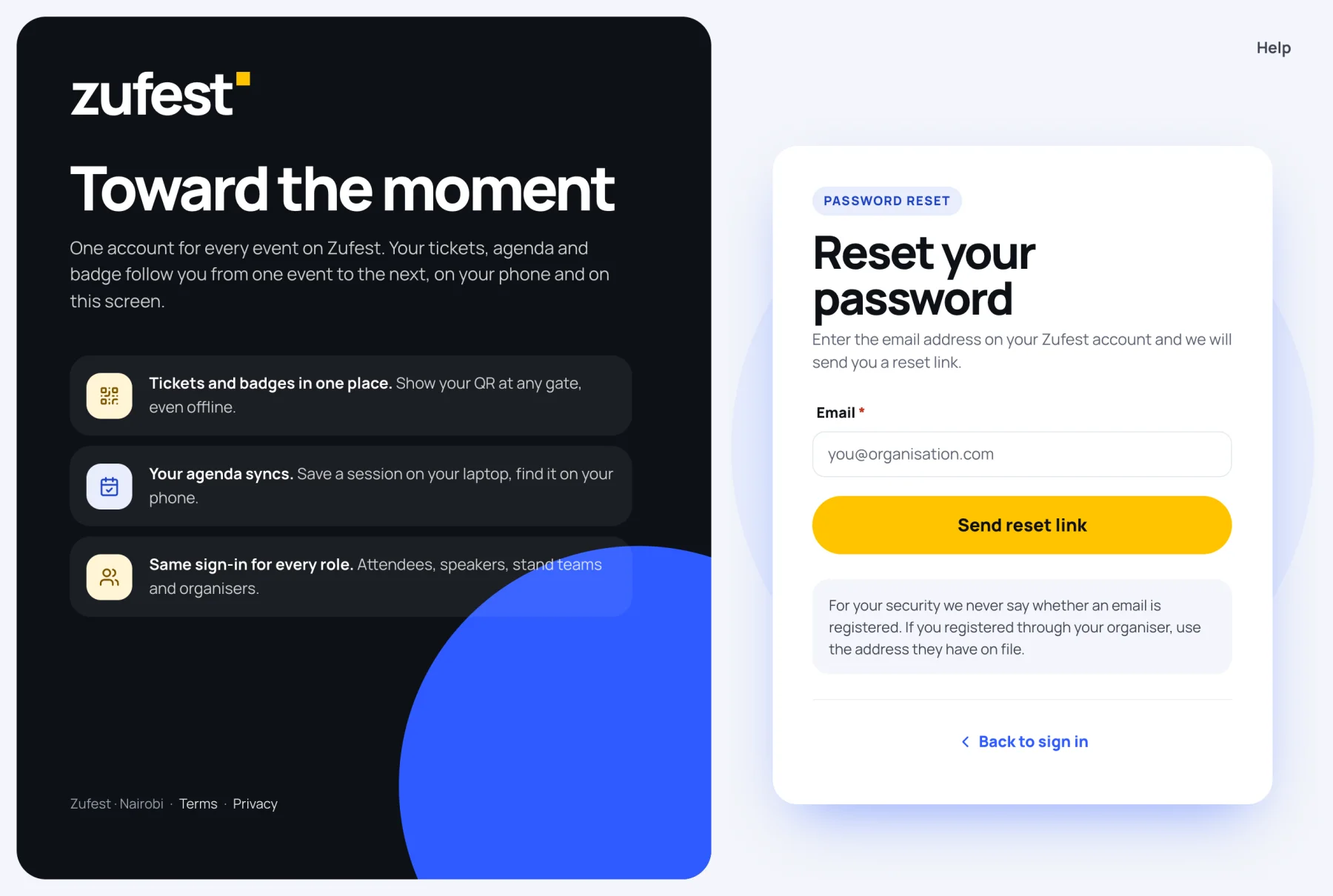
On the sign-in screen, select Forgot password?.
-
Enter the email address on your Zufest account.
-
Select Send reset link.
-
Open the email from Zufest and select the link. Reset links work once and expire after 60 minutes.
-
Enter a New password that meets the rules, type it again under Confirm new password, then select Save new password.
-
Sign in with your new password.
Sign out
- On a computer, select your initials at the top right. On a phone, open Me.
- Select Sign out.
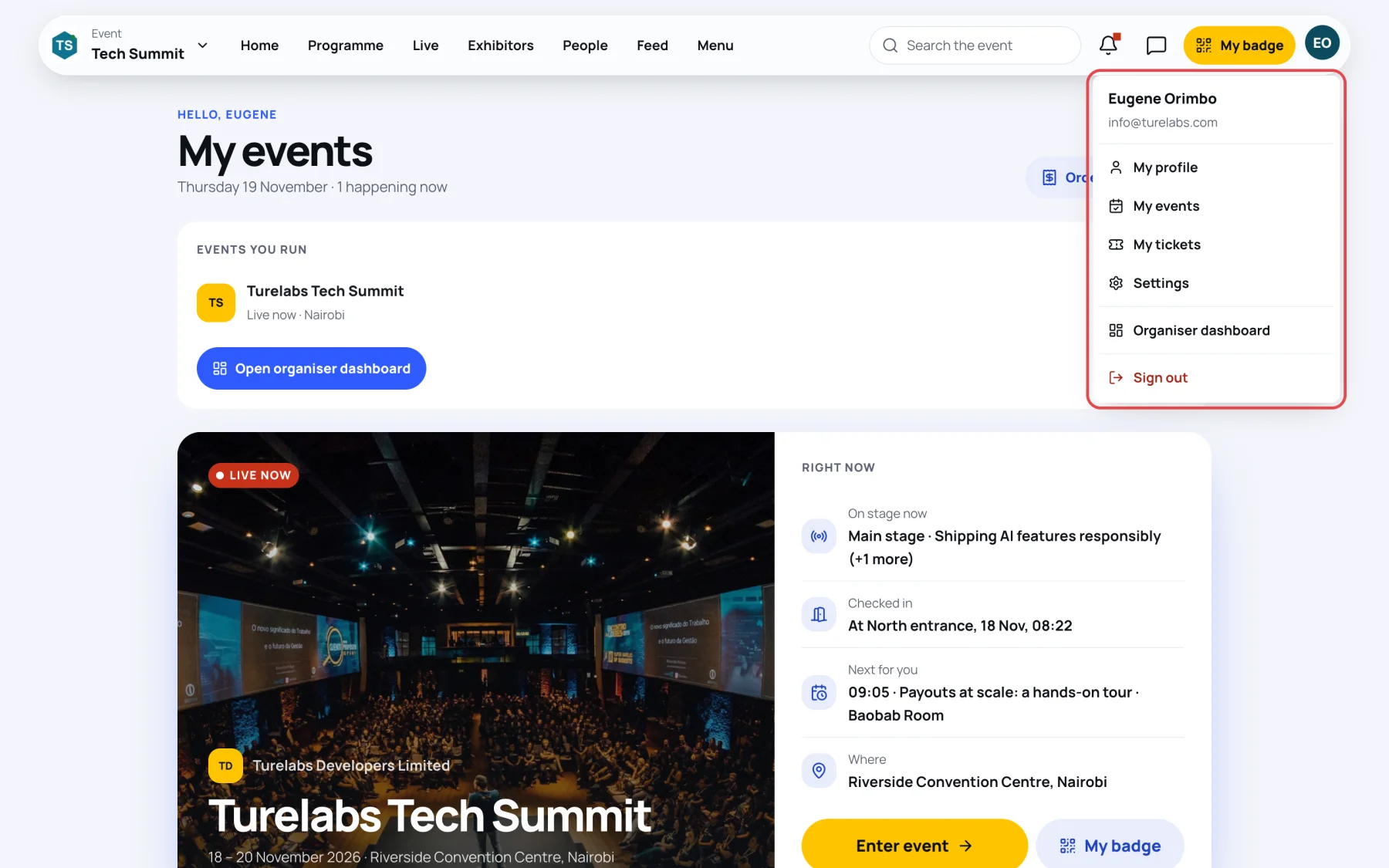
To sign out everywhere at once, for example after losing a phone, see Sign-in security.
Last updated