Create a survey
A survey collects feedback in several questions, for example at the end of a day or after the event. This page shows you how to build one.
Question types
| Type | What attendees give |
|---|---|
| Free text | A written answer |
| Single choice | One option from your list |
| Multiple choice | Any number of options from your list |
| Rating | A score |
| Net promoter score | How likely they are to recommend the event, on the usual 0 to 10 scale |
Build the survey
-
In the sidebar, under Content, select Polls, quizzes and surveys.
-
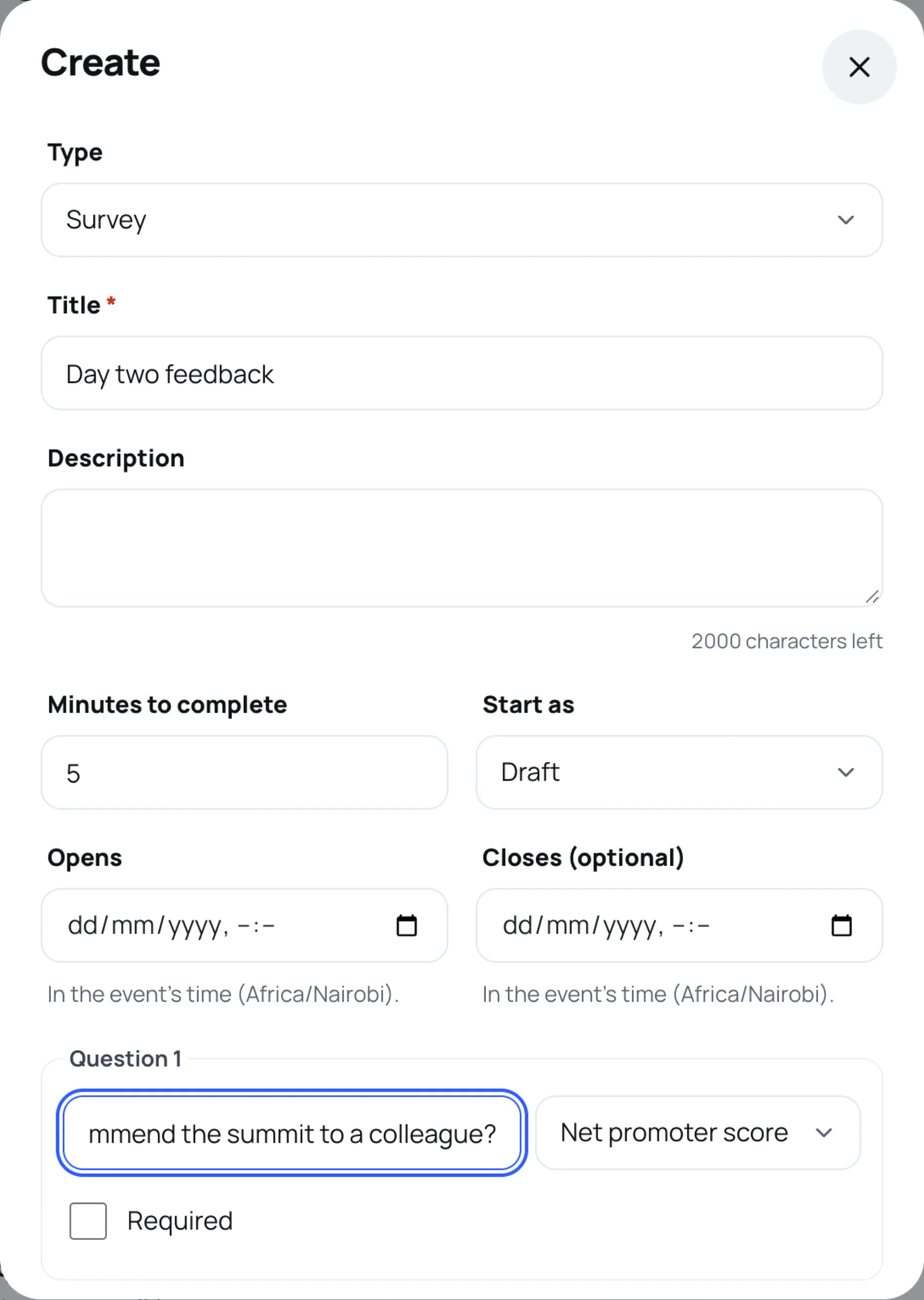
Select Create, then set Type to Survey.
-
Give it a Title, for example "Day two feedback", and an optional Description.
-
Set Minutes to complete. Attendees see it before they start, so keep it honest.
-
In Start as, choose Draft, Scheduled or Open.
-
Set Opens if you schedule it, and Closes (optional) if answers should stop at a set time.
-
Under Question 1, type the Prompt and choose its type beside it.
-
For a choice question, select Add option and type each choice. A choice question needs at least two.
-
Tick Required if attendees must answer it.
-
Select Add question for the next one.
-
Select Create.
Edit a survey that has answers
Select Edit on the survey's row. Questions that have answers keep their type and their existing choices. You can still reword them, add new questions or choices, and change the times and the status.
Close the survey
Select Close on its row when you have enough answers. The answers stay. Select Reopen if you want more.
Last updated