Set up a stand
Once a company is on the list, give its stand a booth number and tier, decide how prominent it is in the directory, and invite its team. The team then runs the stand themselves from the app.
Fill in the stand
-
Go to Exhibitors and sponsors and select Edit on the stand.
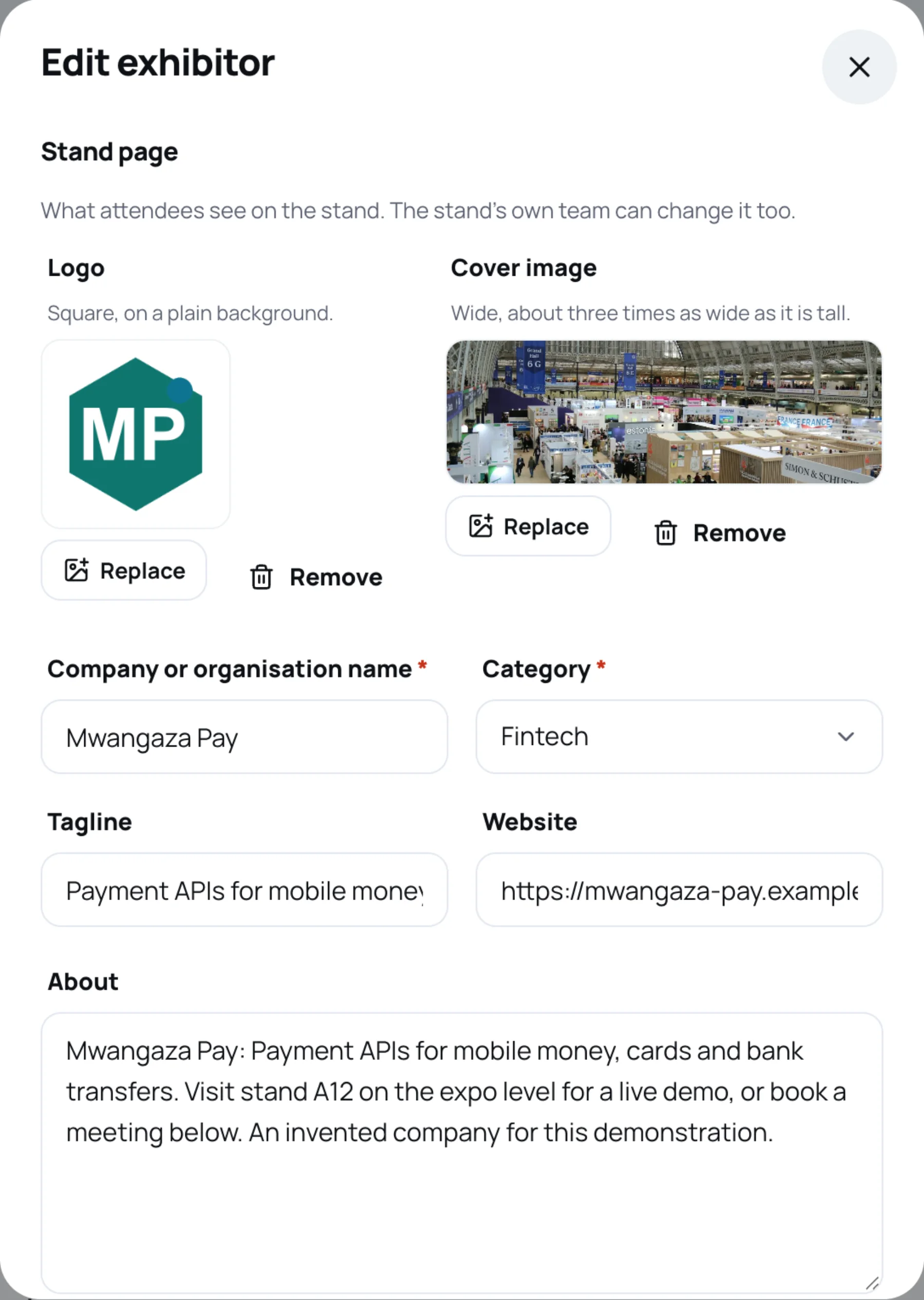
-
Under Stand page, check what attendees see on the stand: the logo and cover image (select Upload or Replace), the Company or organisation name, Category, Tagline, Website, About and Countries you work in. Only the name and category are required.
-
Under Placement and status, set the Booth number, for example
A12, and the Stand tier: Standard, Premium or Title. -
Choose how the stand is promoted:
- Featured in the directory lists the stand ahead of the others on the attendee exhibitor list.
- Sponsored placement shows the stand in a card marked Sponsored at the top of the exhibitor list. If several stands have it, the first by name is shown.
-
Select Save.
Attendees see the changes on the stand straight away. The stand's own managers can also edit its page from the app, and the last save wins, so agree who looks after it. Offers, brochures and the gallery are edited by the stand team only.
Invite the stand team
The stand team are the people who staff the stand: they edit its page, scan visitors and follow up leads.
-
Select Invite on the stand.
-
Type the person's Name and Email, and their Job title if you like.
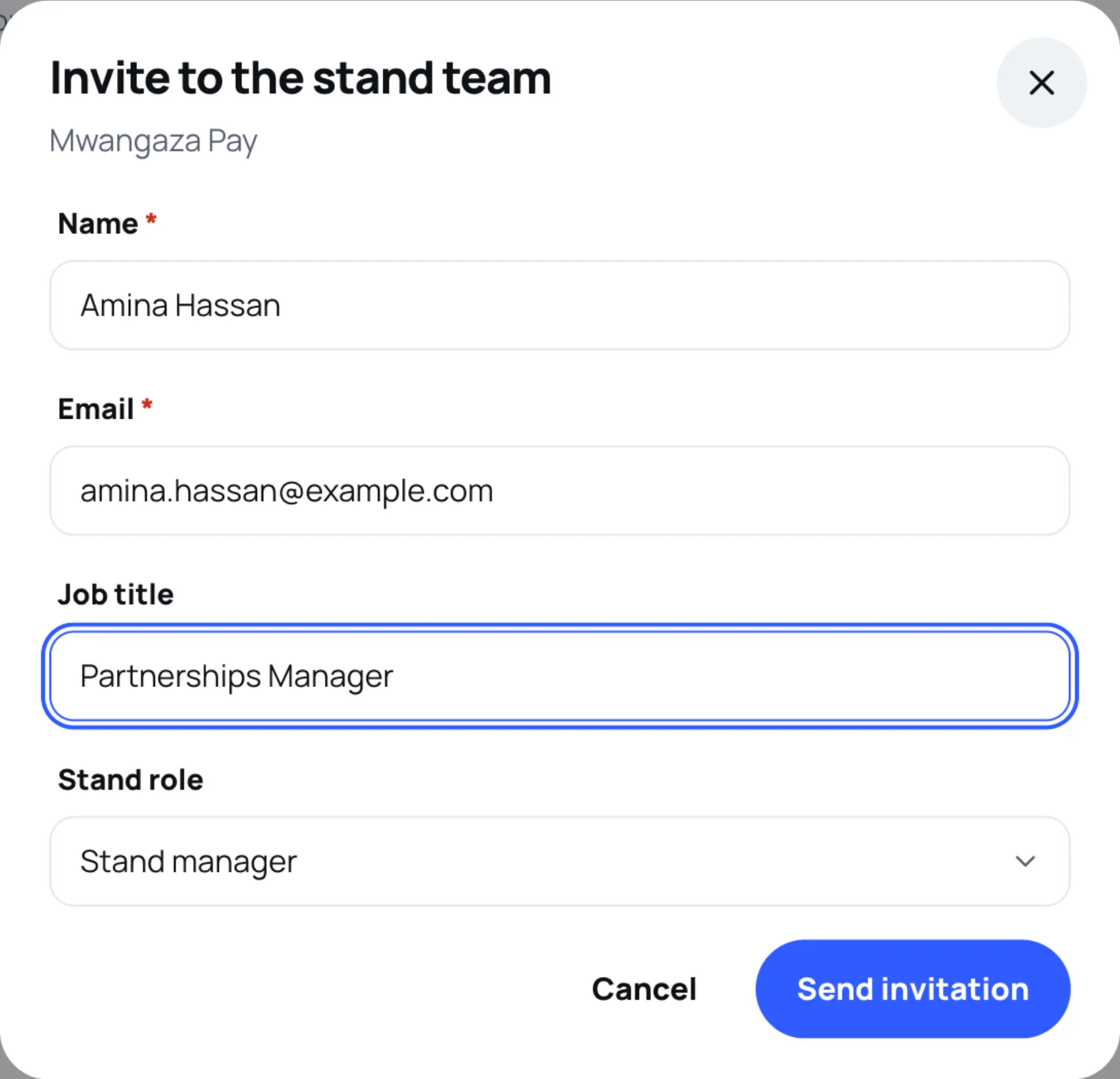
-
Choose their Stand role:
- Stand manager runs the whole stand: its page, team, leads and figures.
- Representative works with the stand's leads and figures, but cannot change the stand page or its team.
-
Select Send invitation.
The person receives an email. The invitation joins them to the stand only when someone with a verified account on that same email address accepts it, so a forwarded invitation does not let anyone else in.
What the team does next
From here the stand team takes over: they add their offers, brochures, team and meeting slots, and scan visitors at the event. Point them to Manage your stand and Your stand team.
Last updated