Your speaker profile
When you speak at an event on Zufest, you look after your own profile on the programme and your own sessions. There is no separate speaker portal: your tools appear in the same event app delegates use, once you sign in.
What delegates see
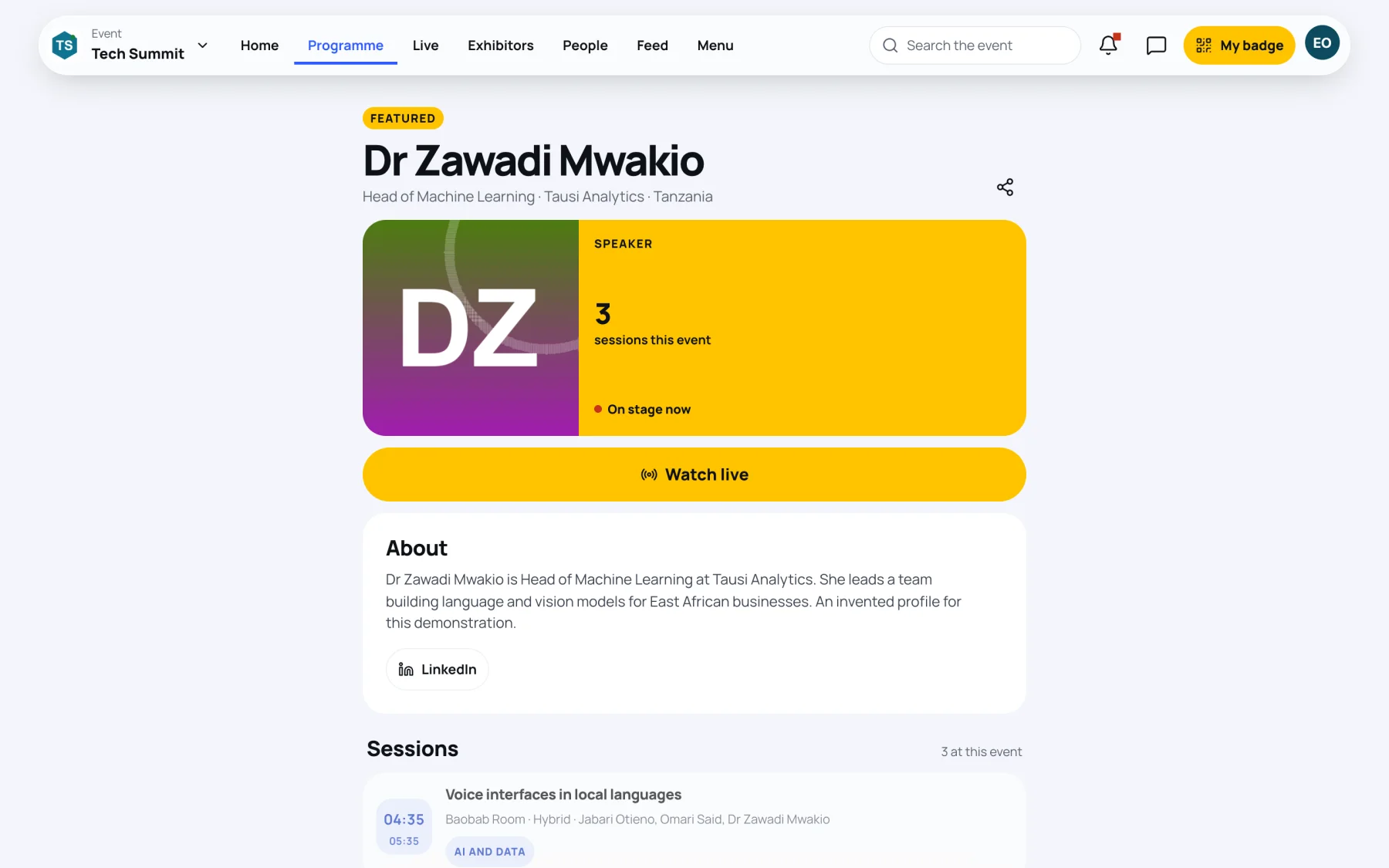
Delegates see your speaker page from the programme and from each of your sessions: your name, job title, organisation and country, your photo, your biography, your links and every session you speak at. They can Follow you to be reminded before each of your sessions.
Find your speaker tools
-
Open the event and go to Programme.
-
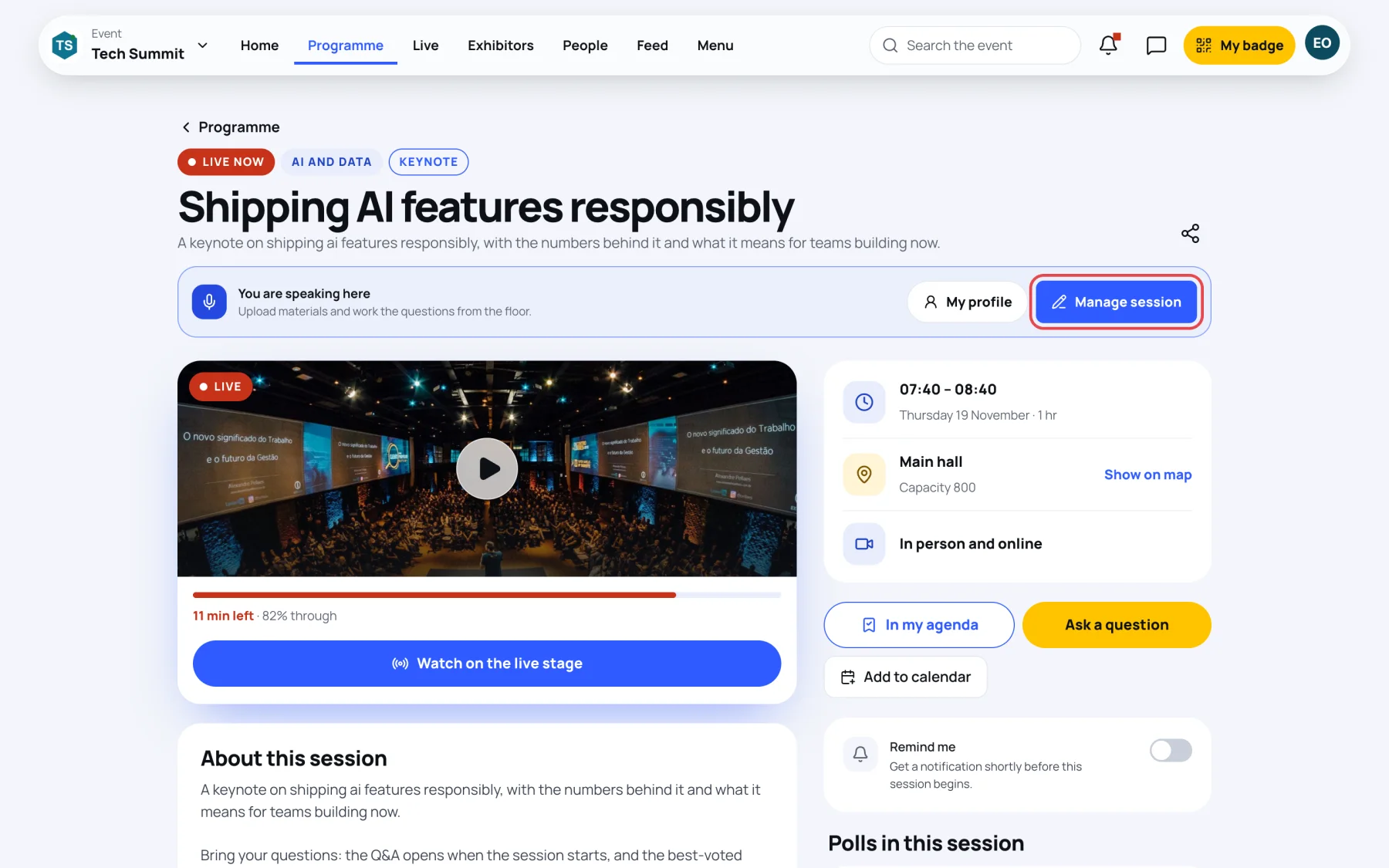
Open one of your sessions. Under its title is a bar that only you see: You are speaking here.
-
Select My profile to open Your speaker profile, or Manage session to work on that session. See share your session materials.
Check your sessions
Your speaker profile opens with your name, job title and organisation, then My sessions: every session you speak at, with its day, time and room.
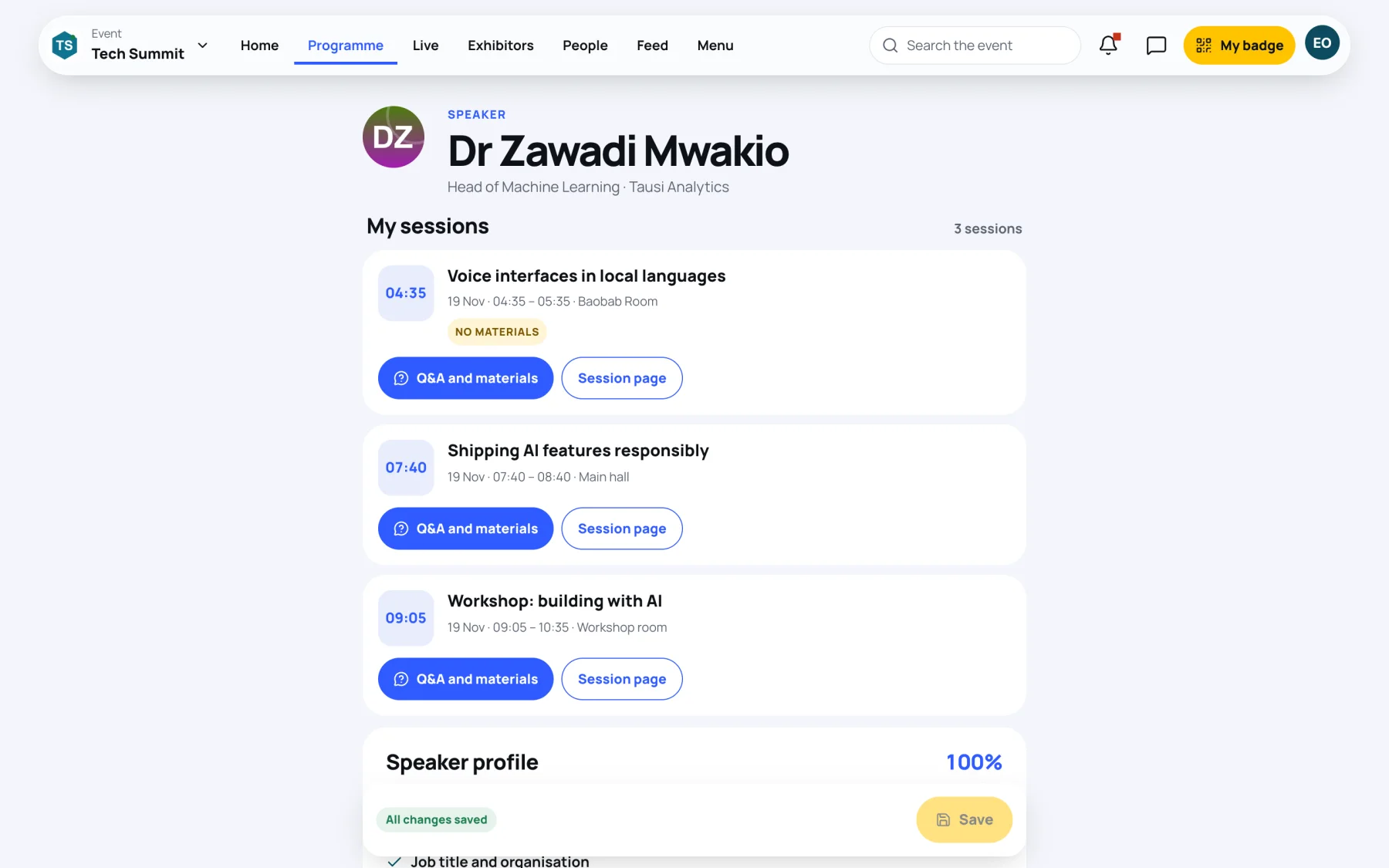
- Not yet published means delegates cannot see the session yet.
- No materials means nothing is attached to it, published or not.
- Q&A and materials opens Manage session for that session; Session page opens it as delegates see it.
Fill in your profile
-
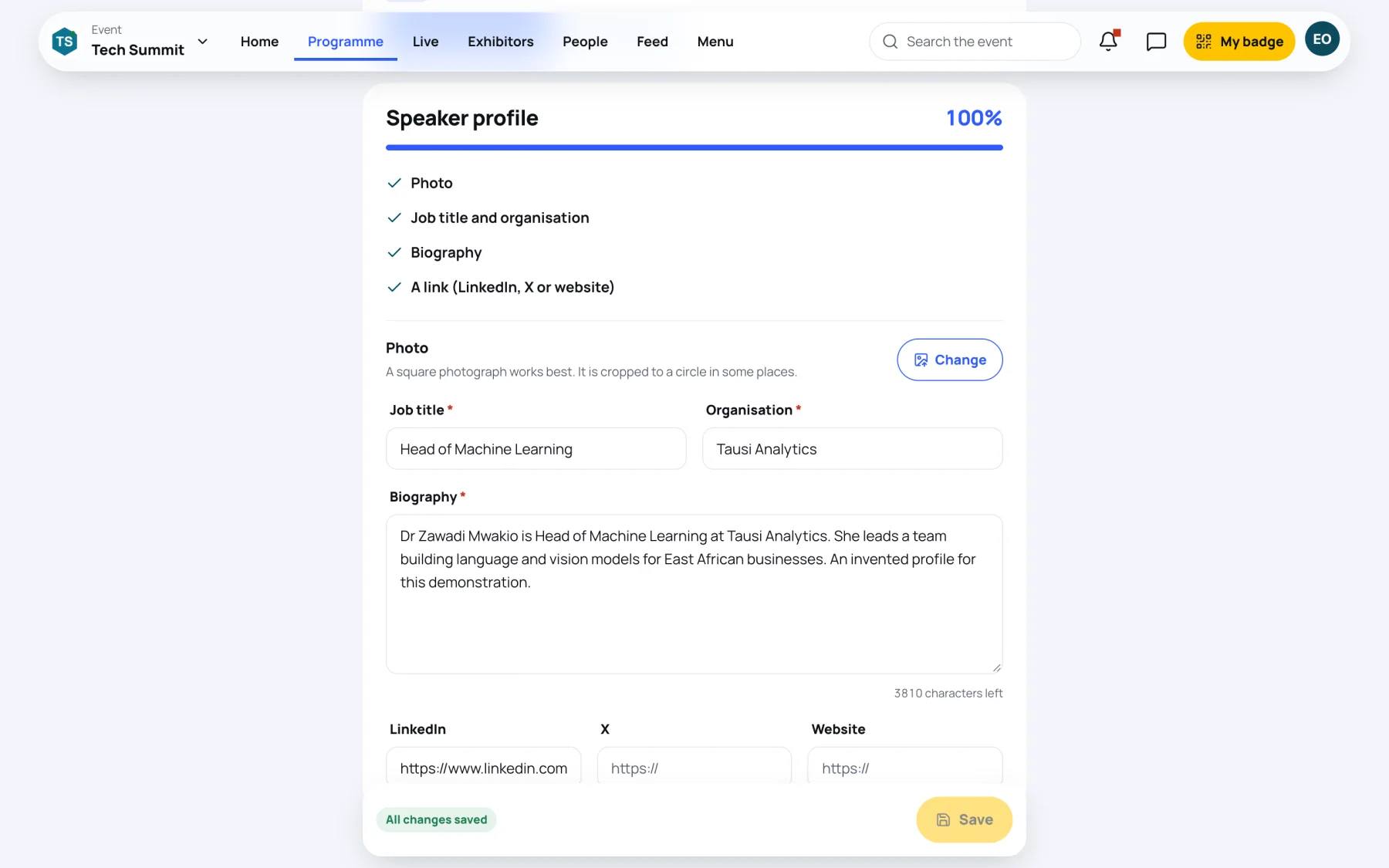
Under Speaker profile, the checklist shows what is done and what is still to do: Photo, Job title and organisation, Biography and A link (LinkedIn, X or website). The percentage beside the heading rises as you complete it.
-
Under Photo, select Add (or Change) and choose a picture. "A square photograph works best. It is cropped to a circle in some places." The headshot is saved as soon as it uploads.
-
Fill in Job title, Organisation and Biography. All three are needed. Write the biography in the third person, as it should read on the programme.
-
Add any of LinkedIn, X and Website. Each must be a full address starting with
https://. -
Select Save. Zufest confirms "Profile updated" and "The programme uses this immediately."
The bar at the bottom shows Unsaved changes until you save, and All changes saved afterwards.
If you have no account yet
If the organisers sent you a link to fill in your details instead, you do not need an account. See fill in your profile from a link.
Last updated