Meeting slots
Meeting slots let visitors book time with your team from your booth page, at the stand or on a video call. Every booking also lands in your leads.
What visitors see
On your booth page, visitors select Book a meeting. They see your open slots with the date, time and host, and slots already booked as Taken. They choose a slot, pick what they would like to discuss and how to meet (At the stand or Video call), add a note and decide whether to share their contact details with you.
If no slot is free, the sheet says "No slots available" and suggests sending an enquiry instead, so the visitor can still reach you.
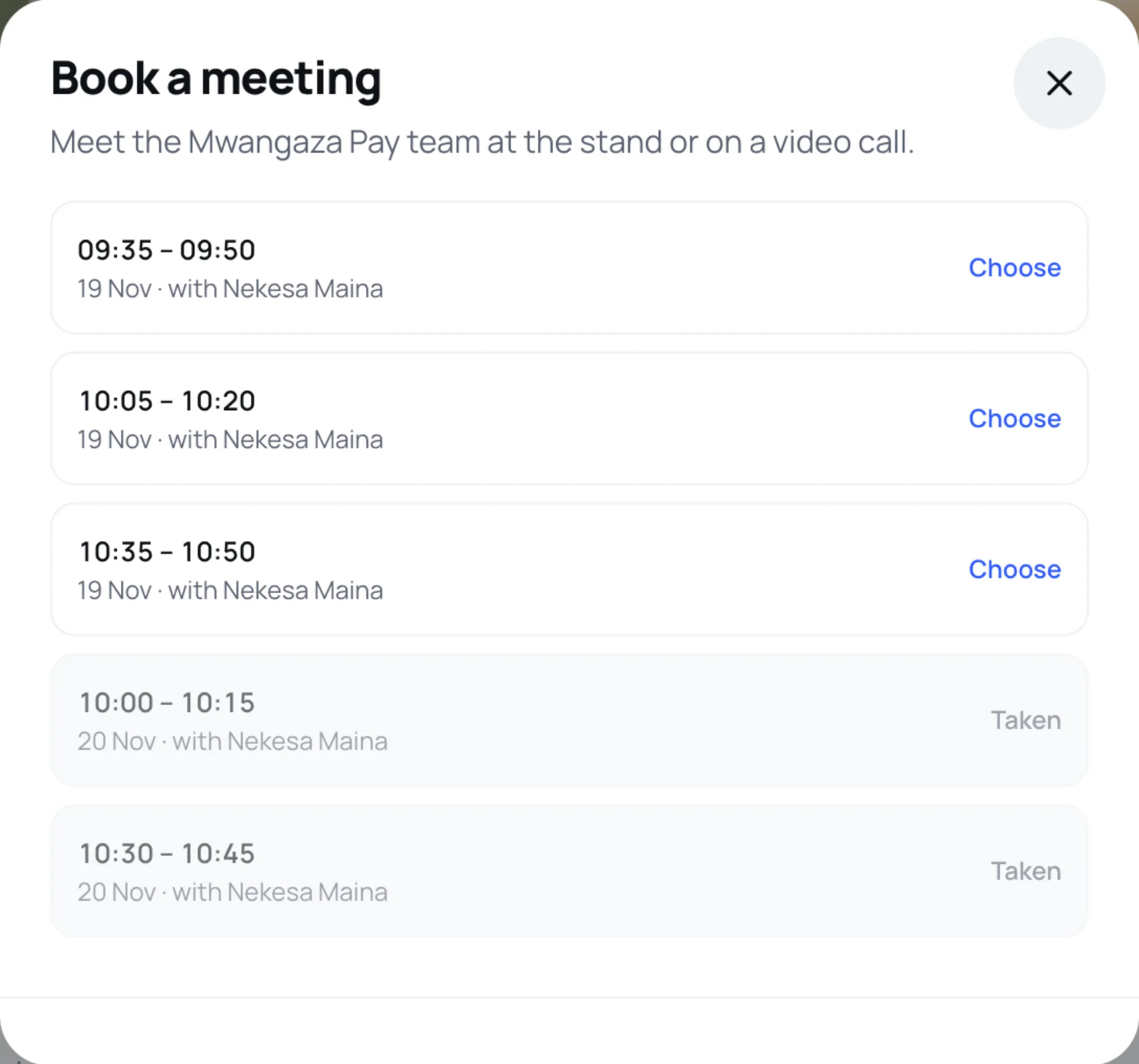
Under the booth's buttons, visitors also see how many slots are still available, or "All meeting slots are taken."
Add a slot
-
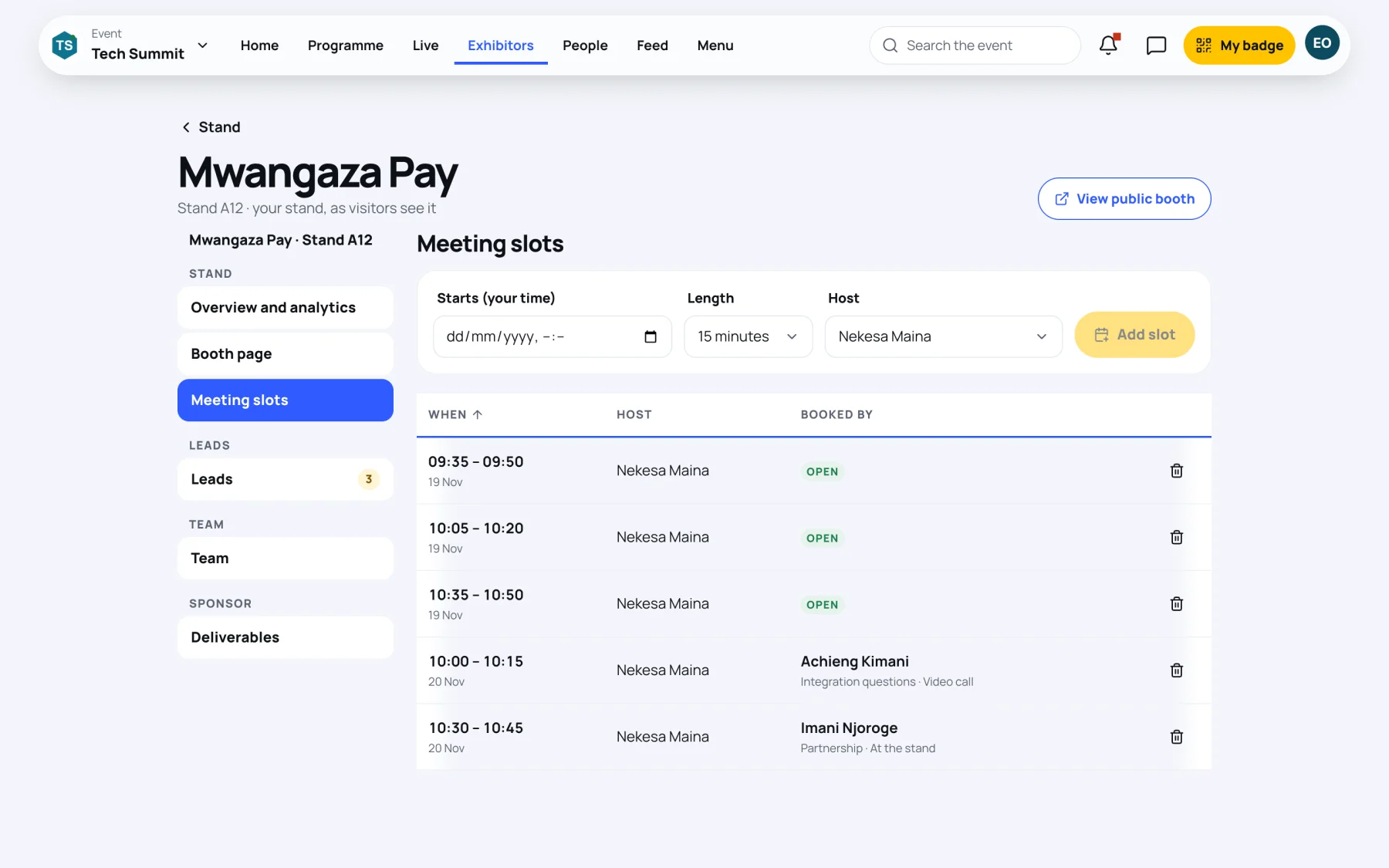
In your stand tools, select Meeting slots.
-
Choose when it Starts (your time). It must be in the future.
-
Choose the Length: 15, 20, 30, 45 or 60 minutes.
-
Choose the Host: the person on your team the visitor will meet.
-
Select Add slot. Zufest says "Slot added", and visitors can book it straight away.
See your bookings
Meeting slots on your booth lists every slot with When, Host and Booked by. A booked slot shows the visitor, the topic and how they want to meet: At the stand or Video call. Free slots show Open; slots that can no longer be booked, such as ones whose time has passed, show Not bookable.
Each booking also appears in Leads with the source Meeting booked, and your team is told. See follow up your leads.
Close or remove a slot
Select the bin button on a slot.
- A free slot is removed: Remove slot. "Visitors will no longer be able to book it."
- A booked slot is closed instead: Close slot. It is closed to new bookings and the visitor's meeting stays in the diary. Once closed, it has no bin button.
Last updated