Share photos
The Photos page gathers every photo posted to the event feed in one gallery. When the organisers run a photo contest, you enter and vote from here too.
Browse the gallery
-
Open the event, select Menu, then Photos.
-
Gallery shows the photos people have shared, newest first, with the name of the person who posted each one.
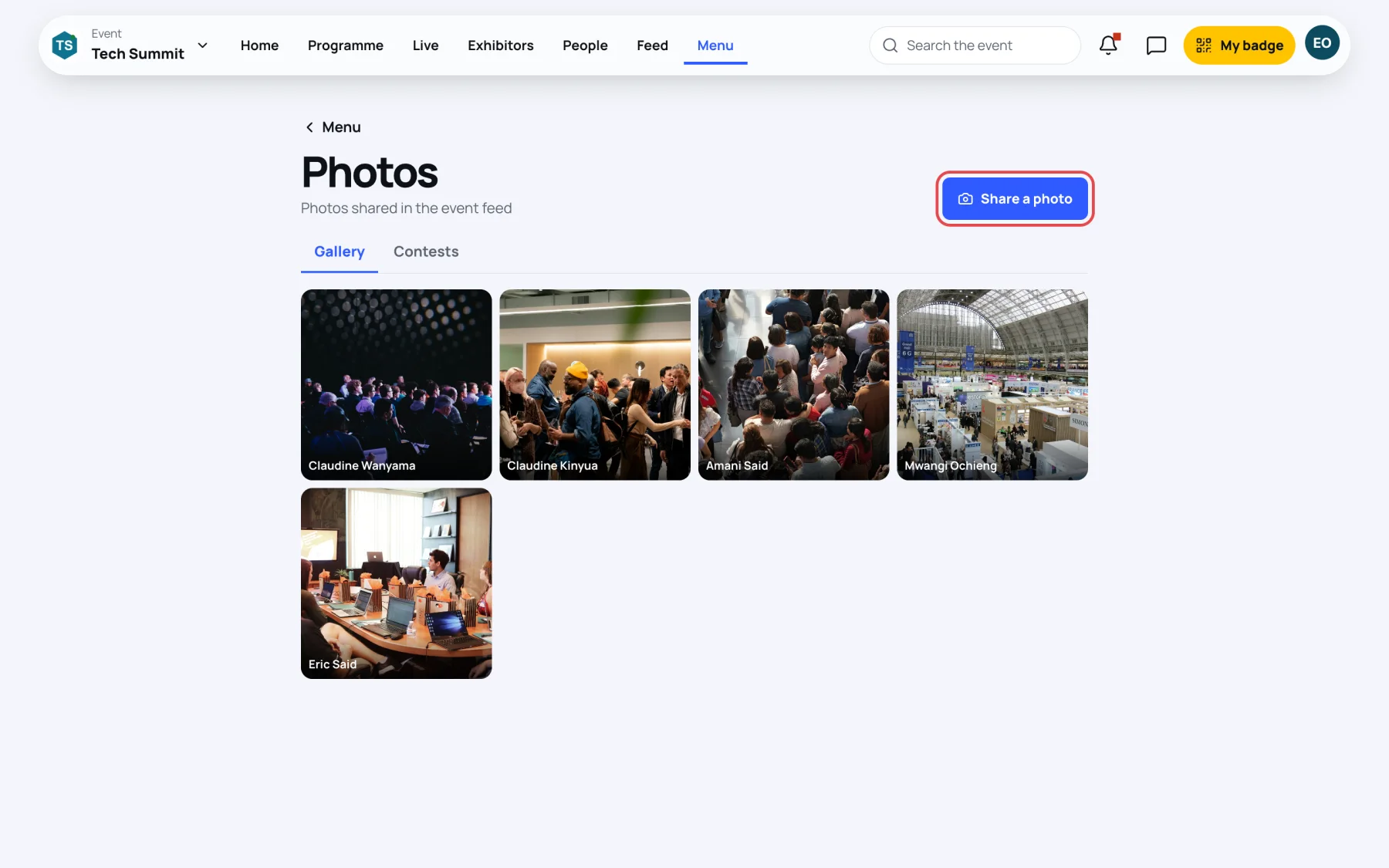
-
Select a photo to see it larger, with its caption.
-
Select Show more photos at the bottom to load older ones.
The gallery follows the same rules as the feed: you see the photos you could see in the feed, and nothing from people you have blocked or who have blocked you.
Share a photo
-
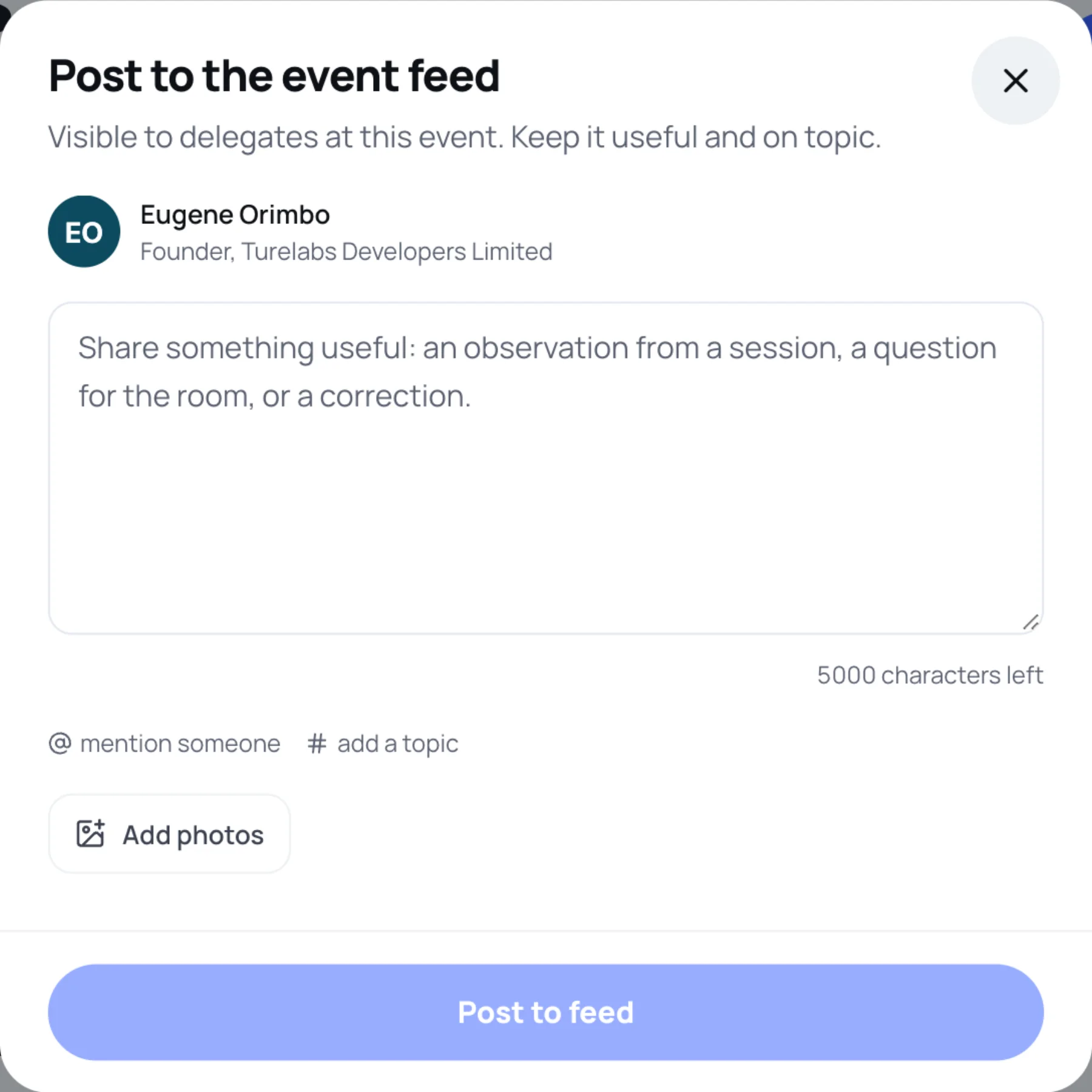
On the Photos page, select Share a photo. The feed's post window opens.
-
Select Add photos and choose one or more photos.
-
Optional: write a caption, mention someone with @, or add a topic with #.
-
Select Post to feed.
Your photo goes into the event feed and appears in the gallery.
Enter a photo contest
-
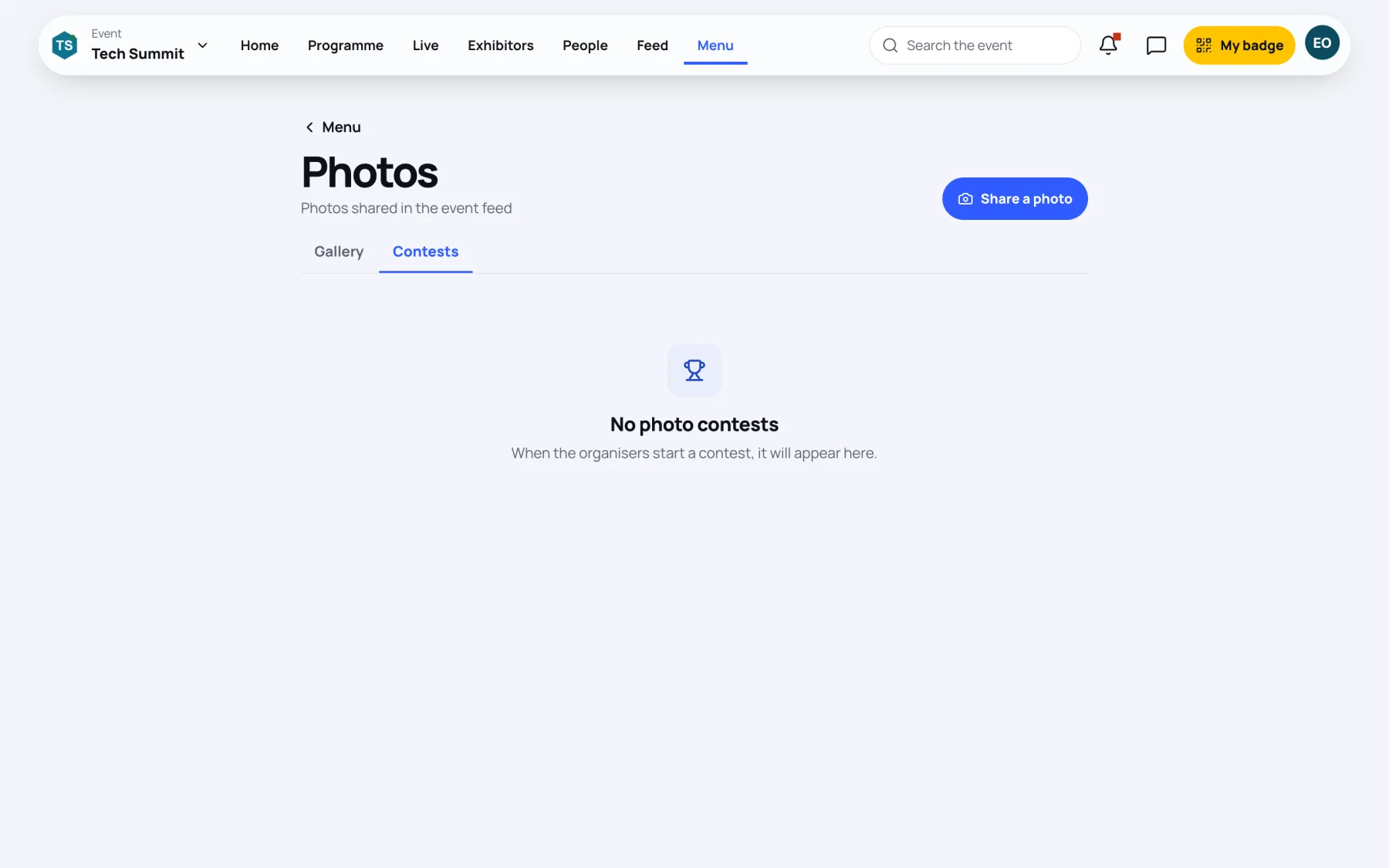
On the Photos page, select Contests. Each contest shows whether it Opens soon, is Open or is Closed, and its description.
-
On an open contest, select Enter a photo. The post window opens with the contest's hashtag already typed in.
-
Add your photo and select Post to feed.
Any photo you post with the contest's hashtag while the contest is open is an entry.
Vote for an entry
-
On the Contests tab, select See the entries.
-
Select the heart under a photo to vote for it. Select it again to take your vote back.
Entries are ranked by votes. When the organisers name a winner, the contest shows Winner: and the person's name, and the winning photo is marked Winner.
Last updated