Notifications
Zufest tells you when something needs you: a message, a connection request, a meeting, a session about to start or an announcement from the organisers. You read them in one place and choose which ones you get.
Read your notifications
-
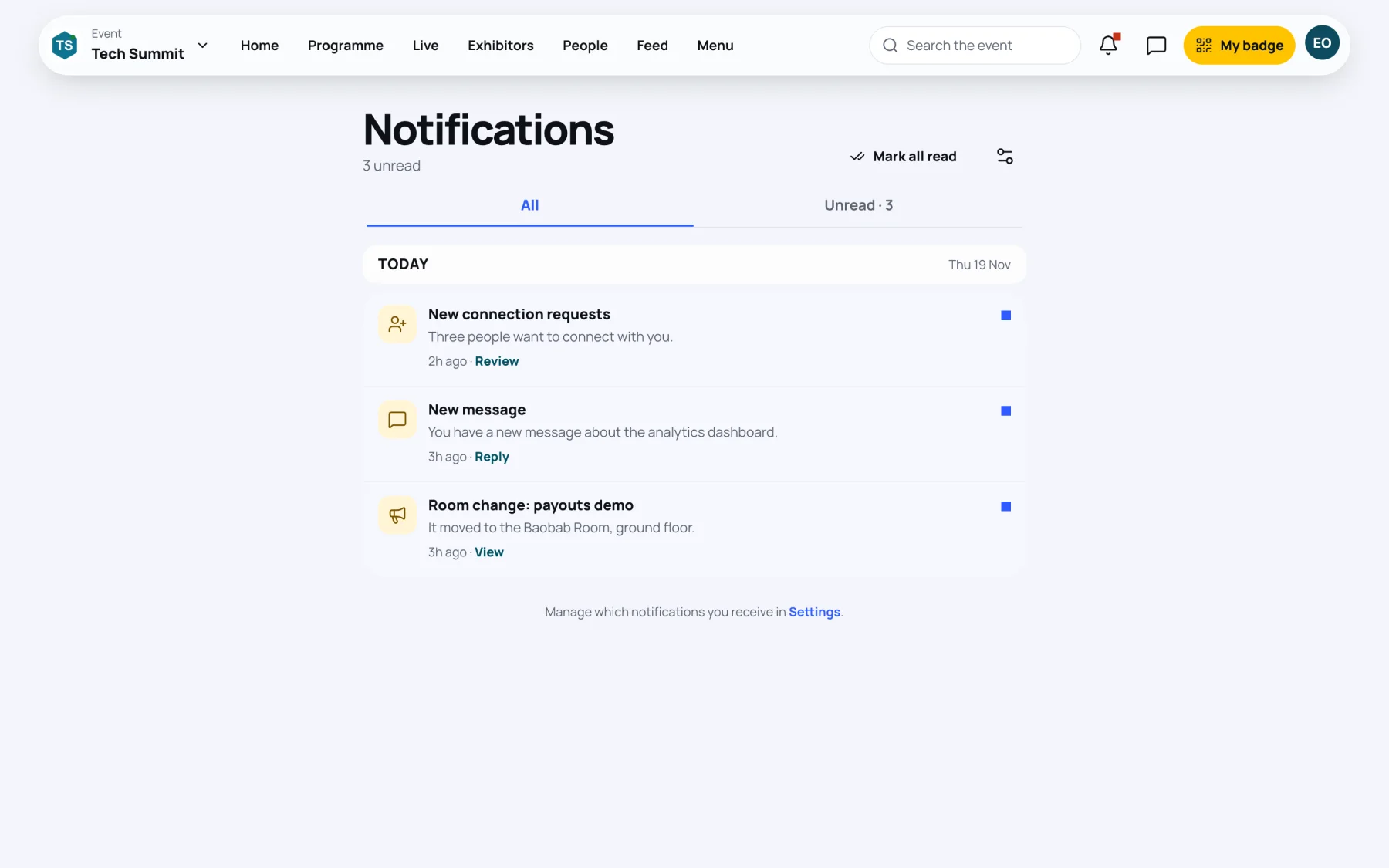
Select the bell in the top bar. A red dot means some are unread. On a phone, tap the bell at the top of the Home screen, or open Me, then Notifications.
-
Read the list. Today's notifications are first, then Earlier. A blue square marks an unread one.
-
Select a notification's link, such as Review, Reply or View, to open what it is about.
-
Select Unread to see only unread ones, or Mark all read to clear them.
Choose what you are told about
-
Open your account menu, then Settings. On a phone, open Me, then Privacy, notifications and your data.
-
Under Notifications, turn each switch on or off. Changes save as you go.
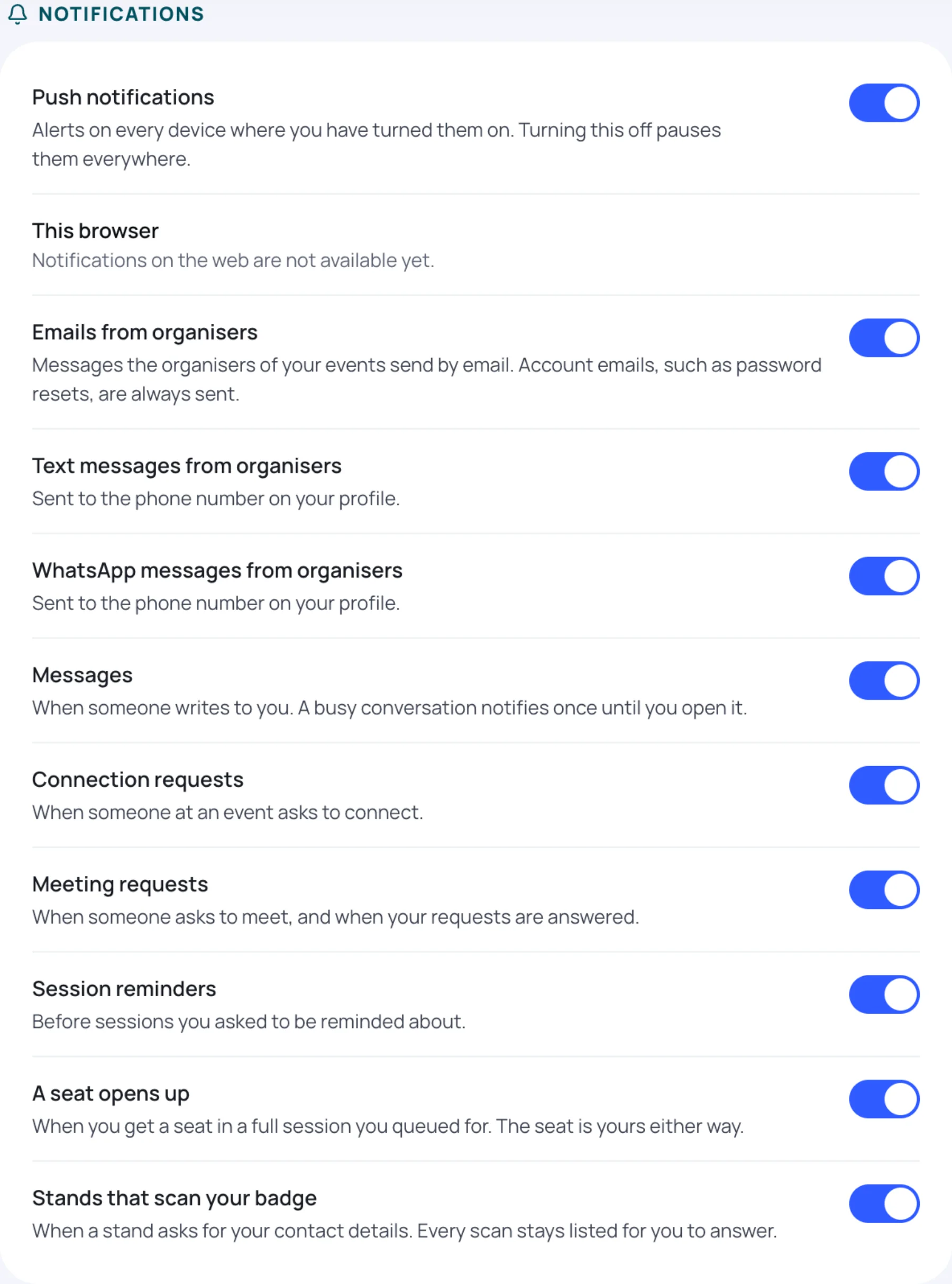
| Setting | What it controls |
|---|---|
| Push notifications | Alerts on every device where you have turned them on. Turning this off pauses them everywhere |
| This browser | Whether the browser you are using shows notifications |
| Emails from organisers | Messages the organisers of your events send by email |
| Text messages from organisers | Sent to the phone number on your profile |
| WhatsApp messages from organisers | Sent to the phone number on your profile |
| Messages | When someone writes to you. A busy conversation notifies once until you open it |
| Connection requests | When someone at an event asks to connect |
| Meeting requests | When someone asks to meet, and when your requests are answered |
| Session reminders | Before sessions you asked to be reminded about |
| A seat opens up | When you get a seat in a full session you queued for |
| Stands that scan your badge | When a stand asks for your contact details |
Turn on notifications in this browser
Under This browser, select Turn on and allow notifications when your browser asks. If it says notifications are blocked, allow them for Zufest in your browser's site settings, then reload the page. If it says notifications on the web are not available yet, they cannot be turned on in this browser for now.
Last updated