Create a quiz
A quiz asks several questions that each have a correct answer, and tells attendees how they did. This page shows you how to write one and choose how it is marked.
Write the quiz
-
In the sidebar, under Content, select Polls, quizzes and surveys.
-
Select Create, then set Type to Quiz.
-
Give it a Title, for example "Payments track quiz", and, if you like, a Description that attendees read before they start.
-
In Session, choose the session it belongs to, or leave Whole event.
-
In Start as, choose Draft, Scheduled or Open.
-
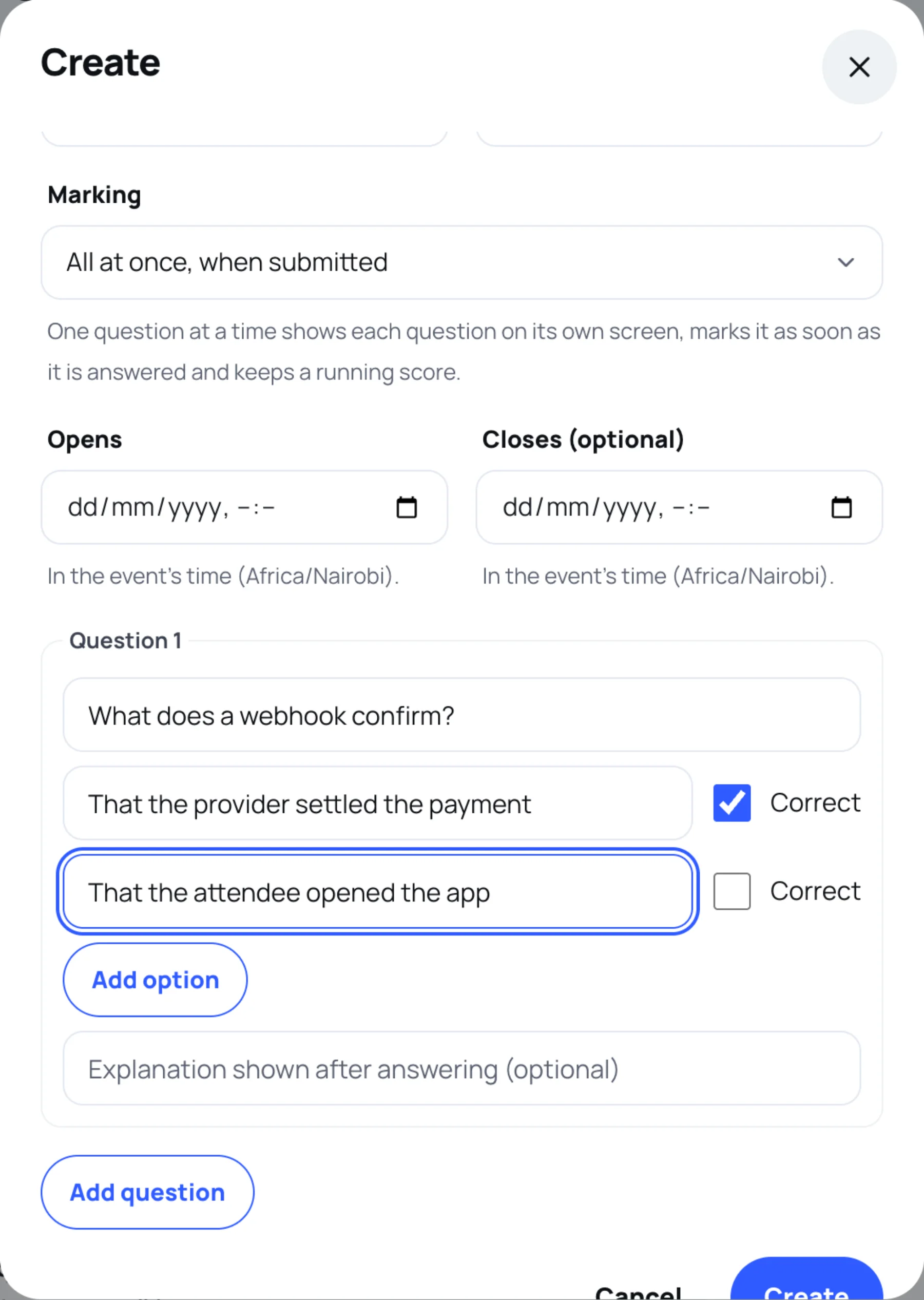
Choose the Marking:
- All at once, when submitted: attendees answer every question, then see their score.
- One question at a time, answer shown straight away: each question has its own screen, is marked as soon as it is answered and keeps a running score.
-
Set Opens if you schedule it. Closes (optional) stops new answers at that time. Both are in the event's time zone.
-
Under Question 1, type the Prompt and at least two options. Tick Correct beside the right answer.
-
Optionally, add an Explanation shown after answering. It is a good place to give the source or a short reason.
-
Select Add question for the next one, or Add option for more answers (up to eight per question).
-
Select Create.
Open and close the quiz
Quizzes move through the same states as polls: Draft, Scheduled, Open and Closed. Use the buttons on the quiz's row in the list. See Open, schedule and close a poll.
Edit a quiz people have taken
Select Edit. Once anyone has answered, the questions, options and correct answers stay as they are, and so does the marking, so every score stays fair. You can still reword prompts and explanations, and change the times and the status.
Last updated