Scan at the gate
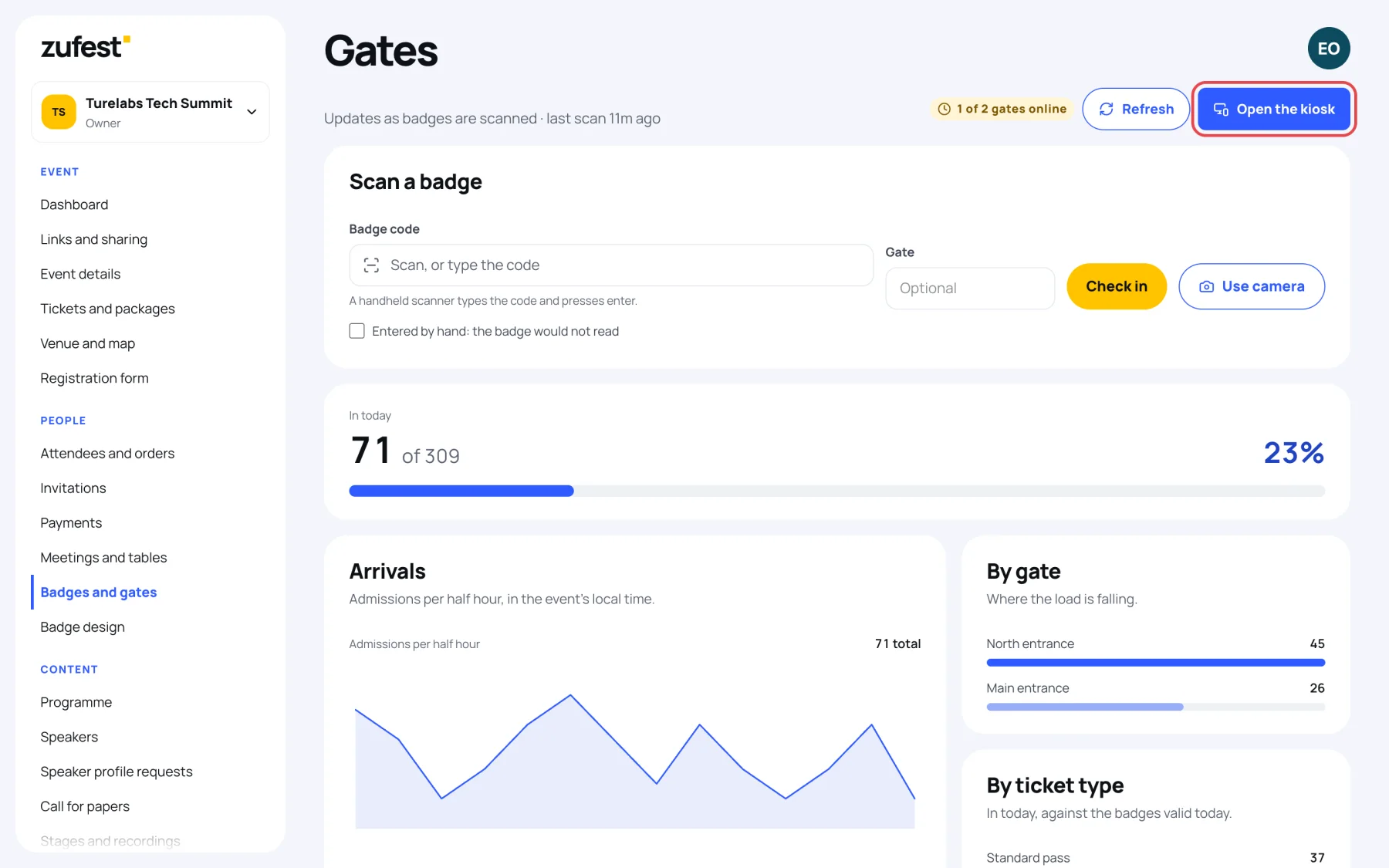
The Gates screen is where your door team checks people in. Scan a badge's QR code, or type its code, and the answer shows straight away: admitted, already scanned, wrong day or not recognised.
Open the gate screen
-
In the sidebar, under People, select Badges and gates.
The screen shows Scan a badge at the top, the check-in figures and the Live scan feed.
Scan with a handheld scanner
A handheld scanner works like a keyboard: it types the code and presses Enter.
-
Select the Badge code box.
-
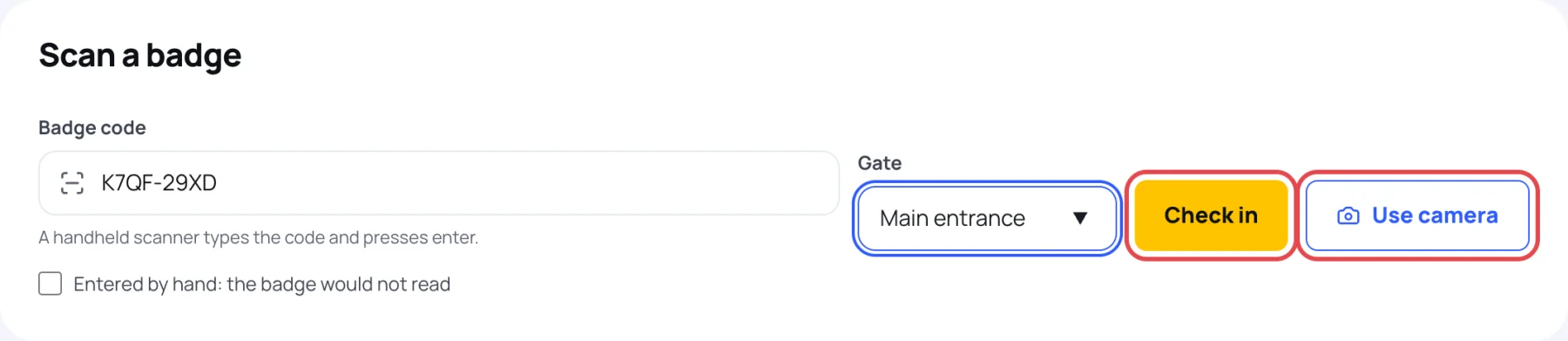
Optional: type a Gate name, such as "Main entrance". Gates already used today are suggested. Leave it empty and scans are recorded at Main entrance. The gate is recorded with each scan, so you can see where the load is falling.
-
Scan the badge. The result appears above the figures, and the box is ready for the next person.
Scan with a camera
On a phone or tablet without a scanner:
-
Select Use camera and allow the camera when your browser asks.
-
Point the camera at the badge's QR code. Each code read is checked in.
-
Select Close camera when you are done.
Type a code by hand
When a badge will not scan, type the code printed under the QR into Badge code, tick Entered by hand: the badge would not read, then select Check in. Hand-typed codes are marked as such in the scan log.
What happens with each scan
- Admitted: the name, the ticket and the organisation appear. Let them in.
- Already scanned: the badge was admitted earlier today, at the time shown. Coming back in is normal; two people on one badge is not.
- Wrong day: a day pass on another day. The answer says which day it is for.
- Badge not recognised: no registration carries this code, or the QR belongs to another event.
See what each scan result means for what to do in each case.
If a scan fails because the connection dropped, Zufest says "The scan was not recorded". Scan the badge again.
Last updated