The organiser workspace
The organiser workspace is where you and your team run an event. This page shows you around, using Turelabs Tech Summit as the example.
Open the workspace
-
In the app, open your account menu and choose Organiser dashboard.
-
On Organiser, every event of every organisation you belong to is listed with its status (Live, Upcoming, Closed or Draft), your role, its dates and the currency it sells in.
-
Select Open on an event to go to its Dashboard.
The dashboard
The dashboard is the event's home in the workspace. It shows the registration link, live figures (registrations, capacity, check-ins, revenue, sessions and open polls), orders placed by day, places by ticket type and two short lists:
- Needs your attention: queues your role can act on, such as orders to approve or posts held for review.
- Getting ready: what is still to set up, from ticket types to publishing.
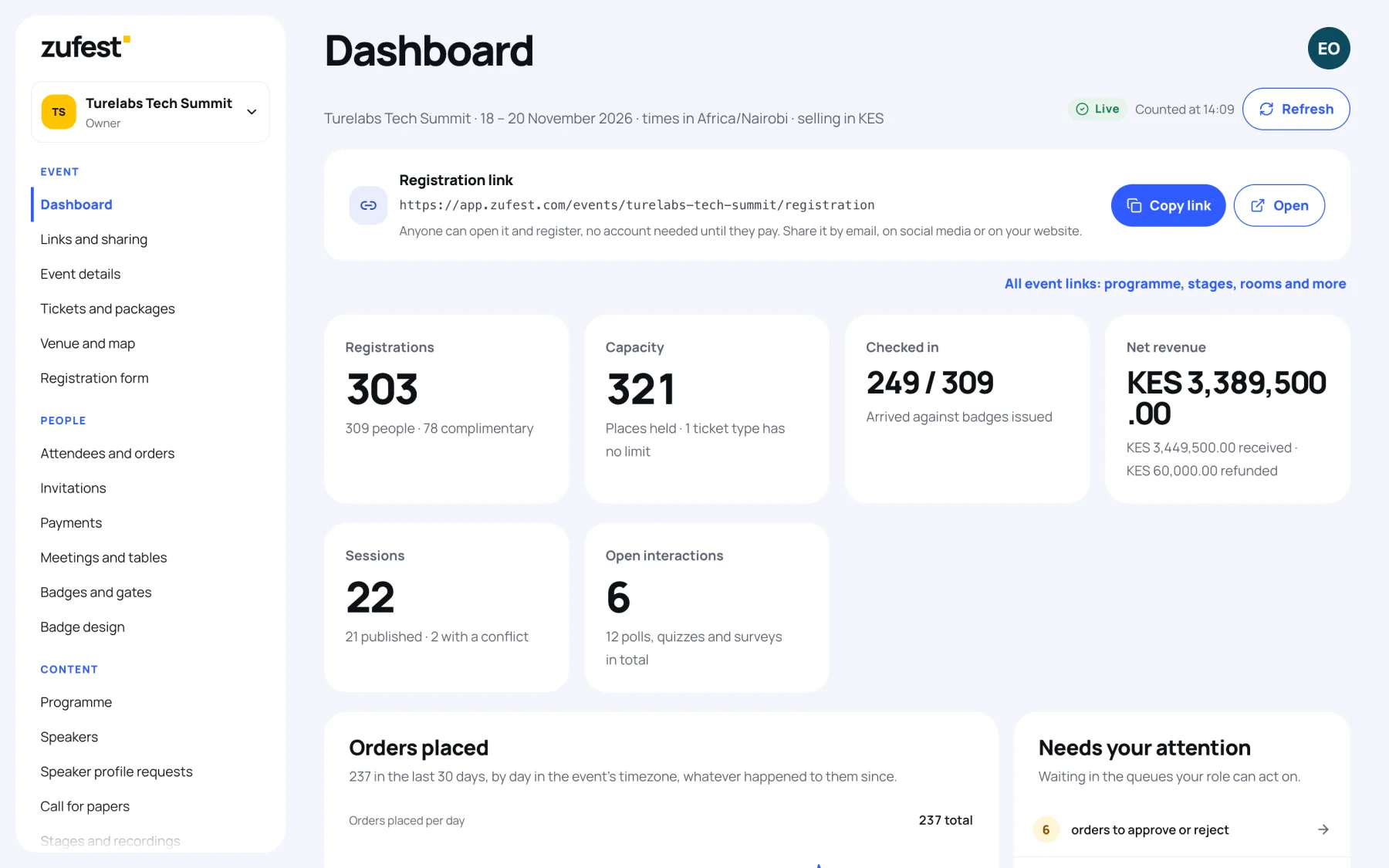
Figures are counted when the page loads. Select Refresh to count again.
Switch between events
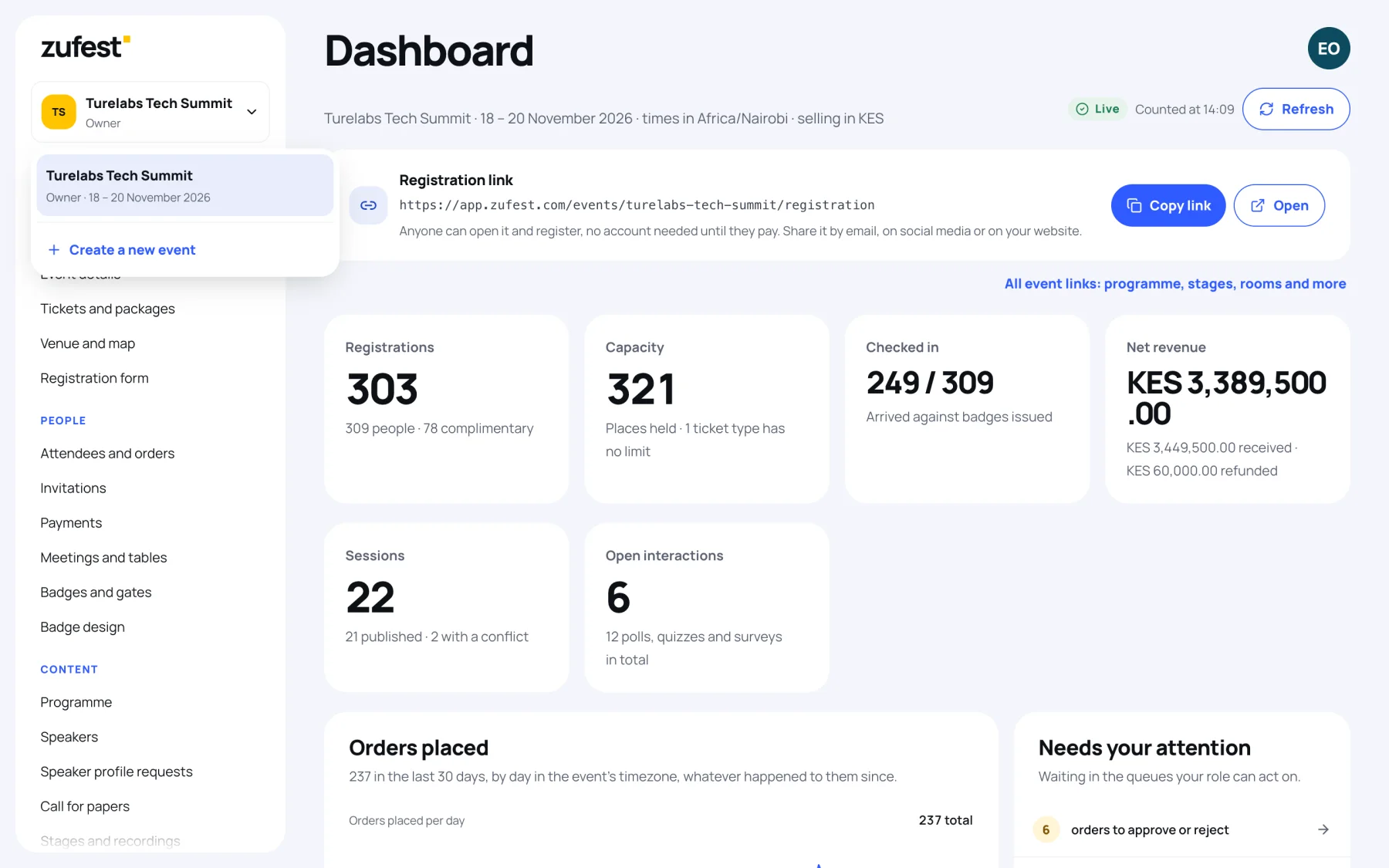
The box at the top of the sidebar shows the event you are working on and your role. Select it to open the event switcher, which lists your events and offers Create a new event.
The sidebar
The sidebar groups every screen. You only see the screens your role can open, so a teammate with a narrower role sees a shorter list. See roles and permissions.

| Group | Screens | What you do there |
|---|---|---|
| Event | Dashboard, Links and sharing, Event details, Tickets and packages, Venue and map, Registration form | Set up the event itself and share it |
| People | Attendees and orders, Invitations, Payments, Meetings and tables, Badges and gates, Badge design | Manage who is coming, payments, badges and the doors |
| Content | Programme, Speakers, Speaker profile requests, Call for papers, Stages and recordings, Live control room, Discussion rooms, Polls, quizzes and surveys, Exhibitors and sponsors, Exhibitor profile requests | Build what attendees see and take part in |
| Engage | Campaigns and announcements, Photos, points and certificates, Community moderation | Talk to attendees and look after the community |
| Insight | Reports | Read the results and export data |
| Organisation | Team and roles, Organisation settings, Event branding, All events | Your team, your organisation's details and the event's look |
Your account menu
Your initials sit at the top right of every organiser screen. The menu shows your name and role on the current event, and offers Open the delegate app, Team invitations, My profile and Sign out. See switch between organiser and attendee views.
On a phone
On a small screen the sidebar folds away. Open it with the menu button at the top left of the screen, and close it again when you have chosen a screen.
Last updated