Follow up your leads
Leads is your stand's inbox: every badge scan, enquiry, booked meeting and shared contact in one list. Your team works through it, notes what was said and exports it for your CRM.
Open your leads
On your booth page, select Leads in the You are on this stand's team bar, or Leads in the stand tools menu. The number beside it counts leads not yet worked. The app notification about a new enquiry or booking opens the same page.
The header says how many leads you have and how many shared contact details, for example "6 leads · 3 shared contact details".
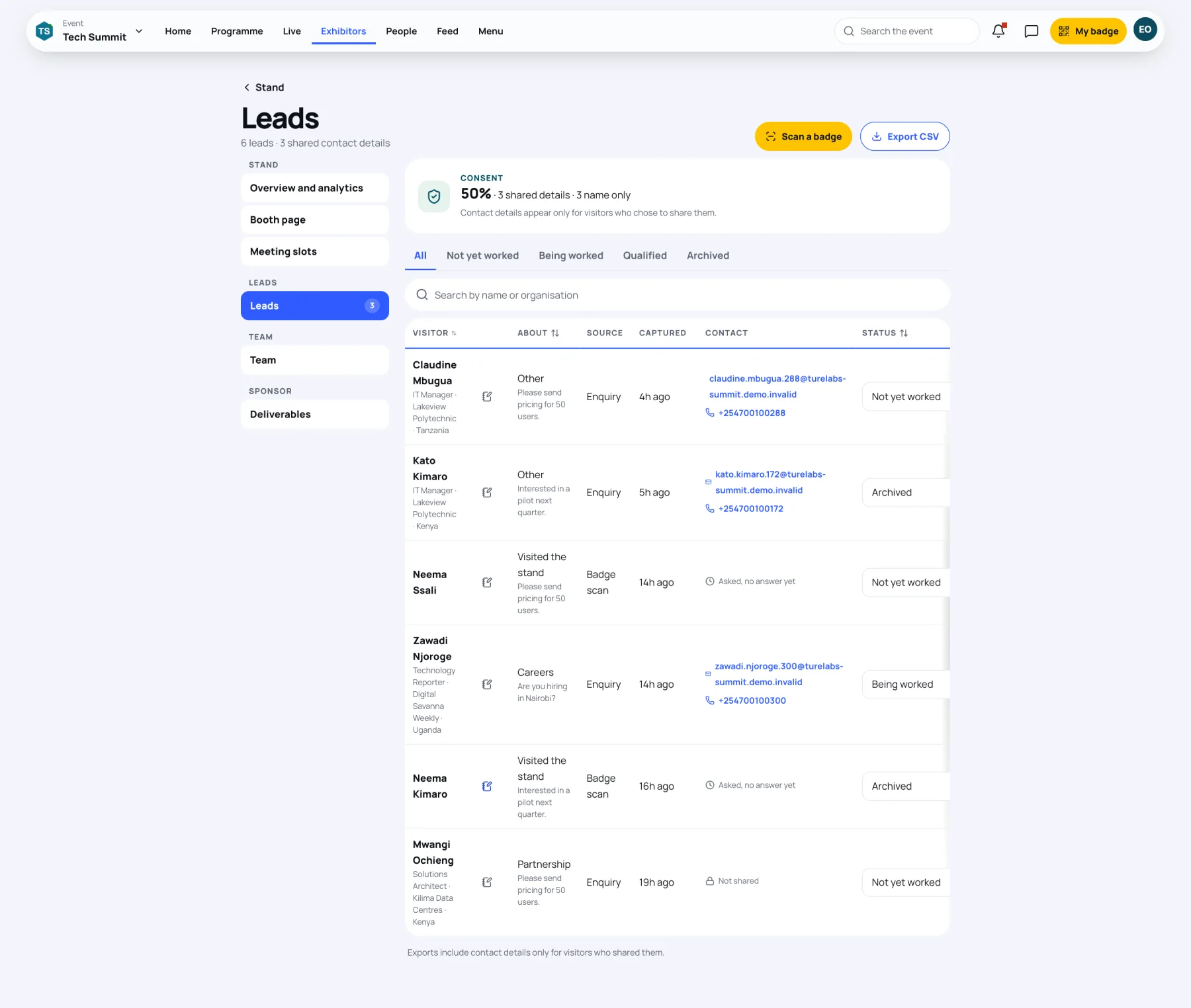
Read the list
Each row shows:
| Column | What it shows |
|---|---|
| Visitor | Name, job title, organisation and country, with the note button beside it (blue when the lead has a note) |
| About | "Visited the stand" for a scan, "Shared their details", or the topic of an enquiry or meeting, with the visitor's message under it |
| Source | Badge scan, Enquiry, Meeting booked or Shared details |
| Captured | How long ago |
| Contact | Email and phone if the visitor shared them; "Asked, no answer yet" after a scan they have not answered; otherwise "Not shared" |
| Status | Where your team is with it |
Filter with the status tabs (All, Not yet worked, Being worked, Qualified, Archived), or type a name or organisation in the search box. Sort by Visitor, About or Status with the arrows in their headings.
Respect consent
The Consent line above the list sums it up: how many shared details and how many are name only. "Contact details appear only for visitors who chose to share them."
Set a status
Choose a status in each lead's Status list:
- Not yet worked: new.
- Being worked: someone is following it up.
- Qualified: a real opportunity.
- Archived: done or not relevant.
Keep a note
-
Select the note button beside the visitor's name (Add note, or Edit note when it is blue).
-
Write what was said or agreed, up to 2,000 characters. "For your stand's team only. The visitor never sees it."
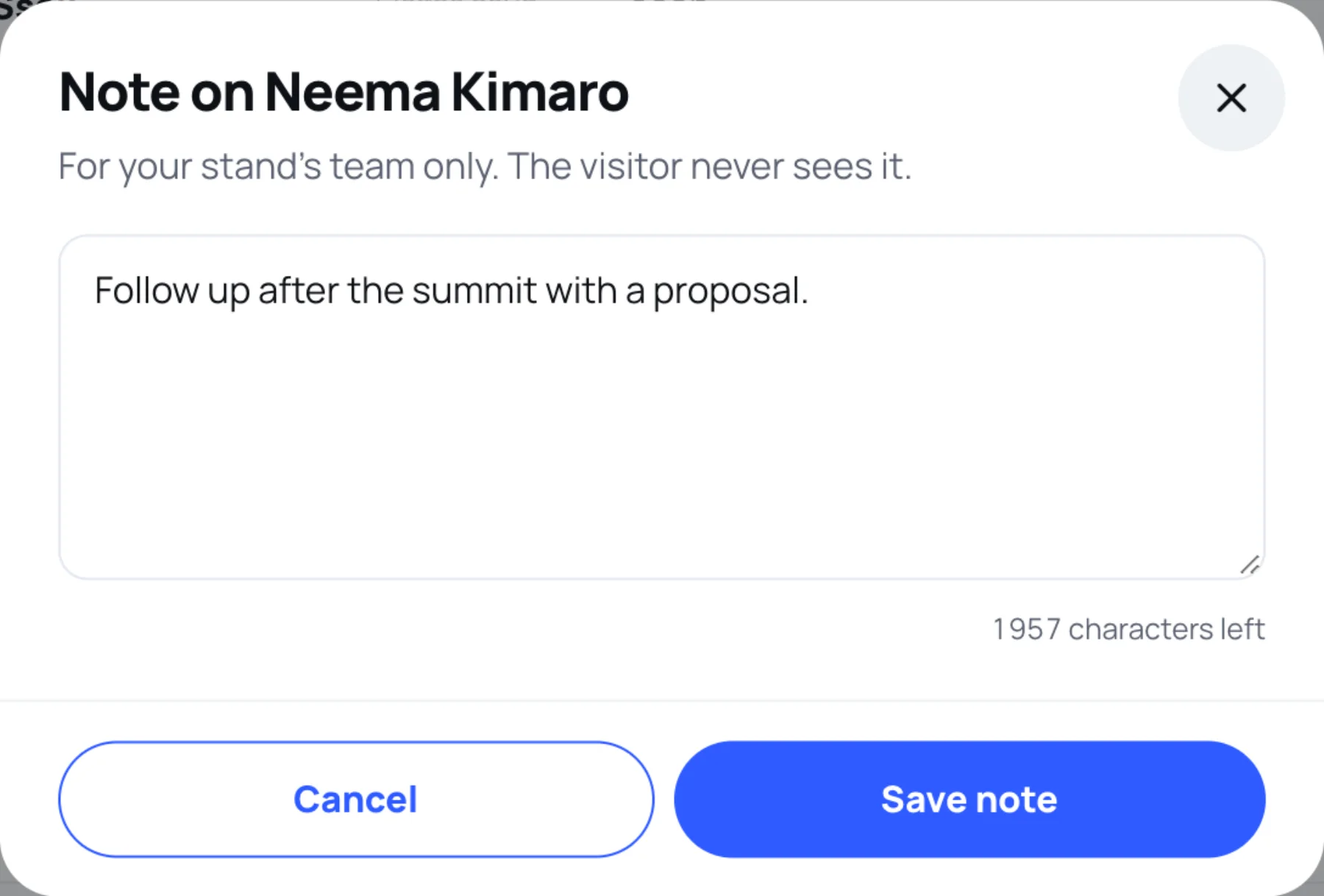
-
Select Save note.
Export a CSV
-
Choose a status tab if you only want some leads, for example Qualified.
-
Select Export CSV. Your browser downloads the file.
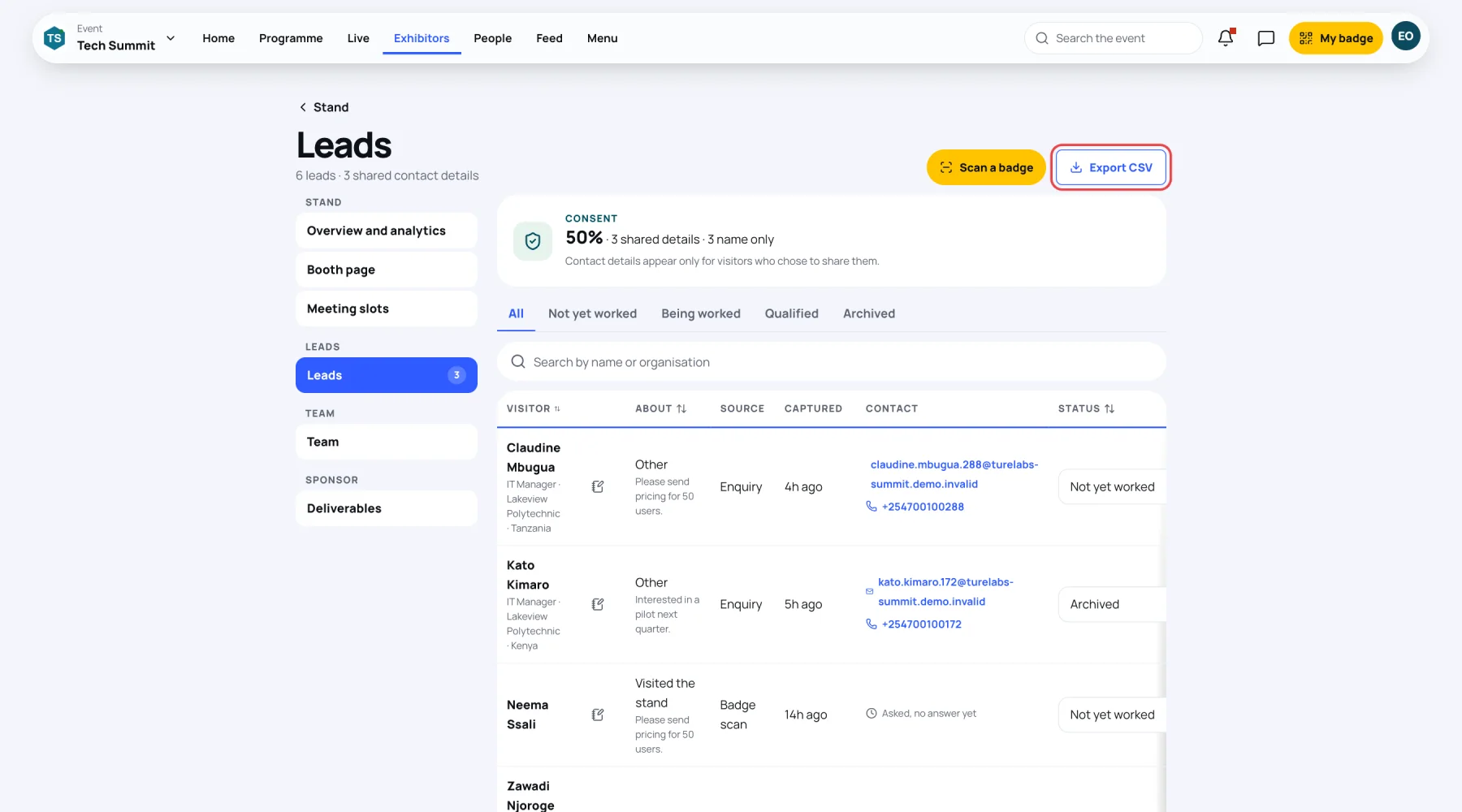
The file follows the status tab you chose. "Exports include contact details only for visitors who shared them." Export CSV is greyed out when the tab you chose has no leads.
Suggested follow-ups
If the organisers have switched on AI features for the event, Suggest follow-ups lists Who to follow up first, each with a priority (High, Medium or Low) and a next step. Suggestions are made from your leads' topics and messages; names, emails and phone numbers are not sent.
Last updated