Swap business cards
Your contact card is how you give someone your email address and phone number at the event. Show your card's QR code, or scan theirs, and the card is saved to your contacts with room for a private note.
What is on your card
Your card shows your name, job title and organisation, the email address and phone number on your account, and the website and LinkedIn links from your networking profile. Nobody sees these details in the directory or on your profile: only people who hold your card.
Show your card
-
Select People.
-
Select My card.
-
Hold up your phone so the other person can scan the QR code. Under it is the Card code, the same code as text, for anyone whose camera cannot read the QR.
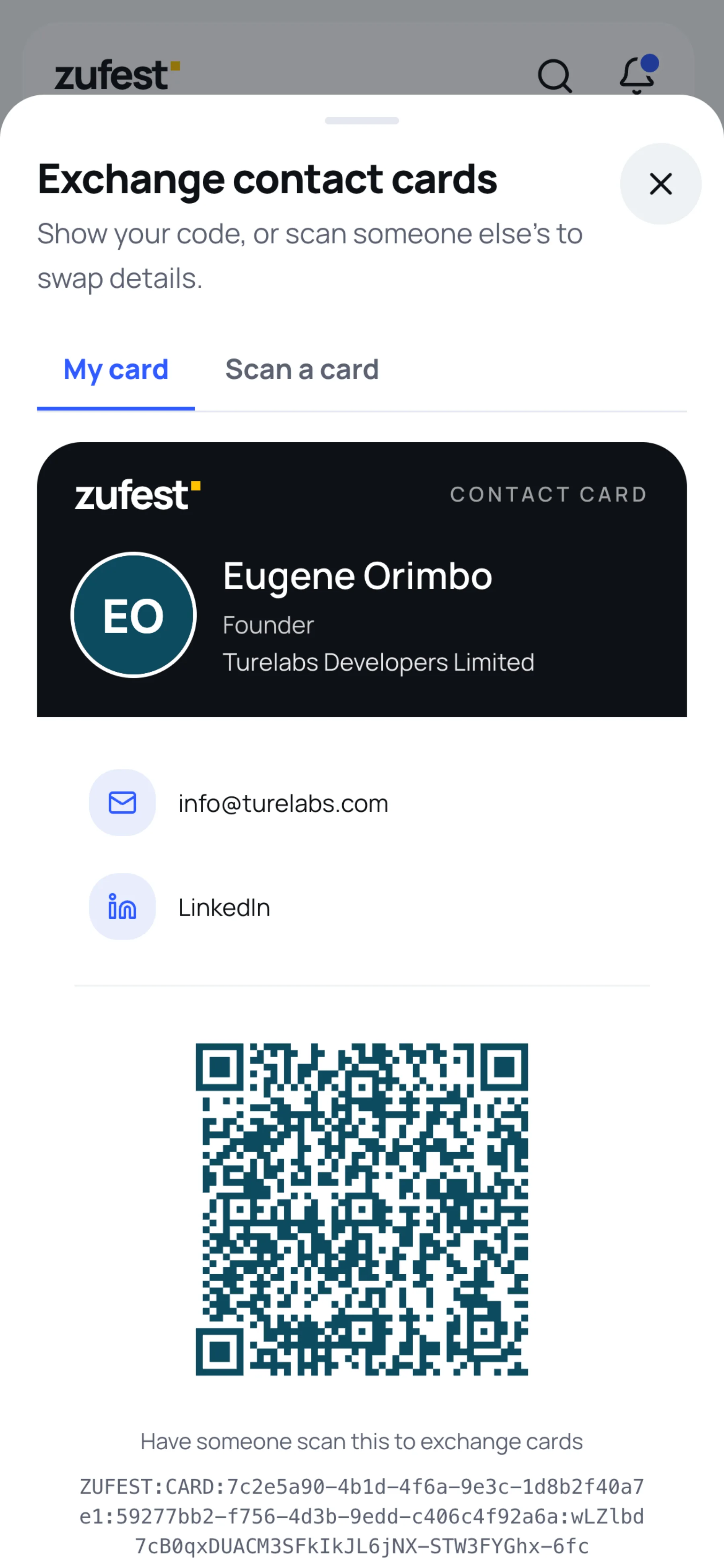
When the other person scans it, your card is saved to their contacts.
Scan someone else's card
-
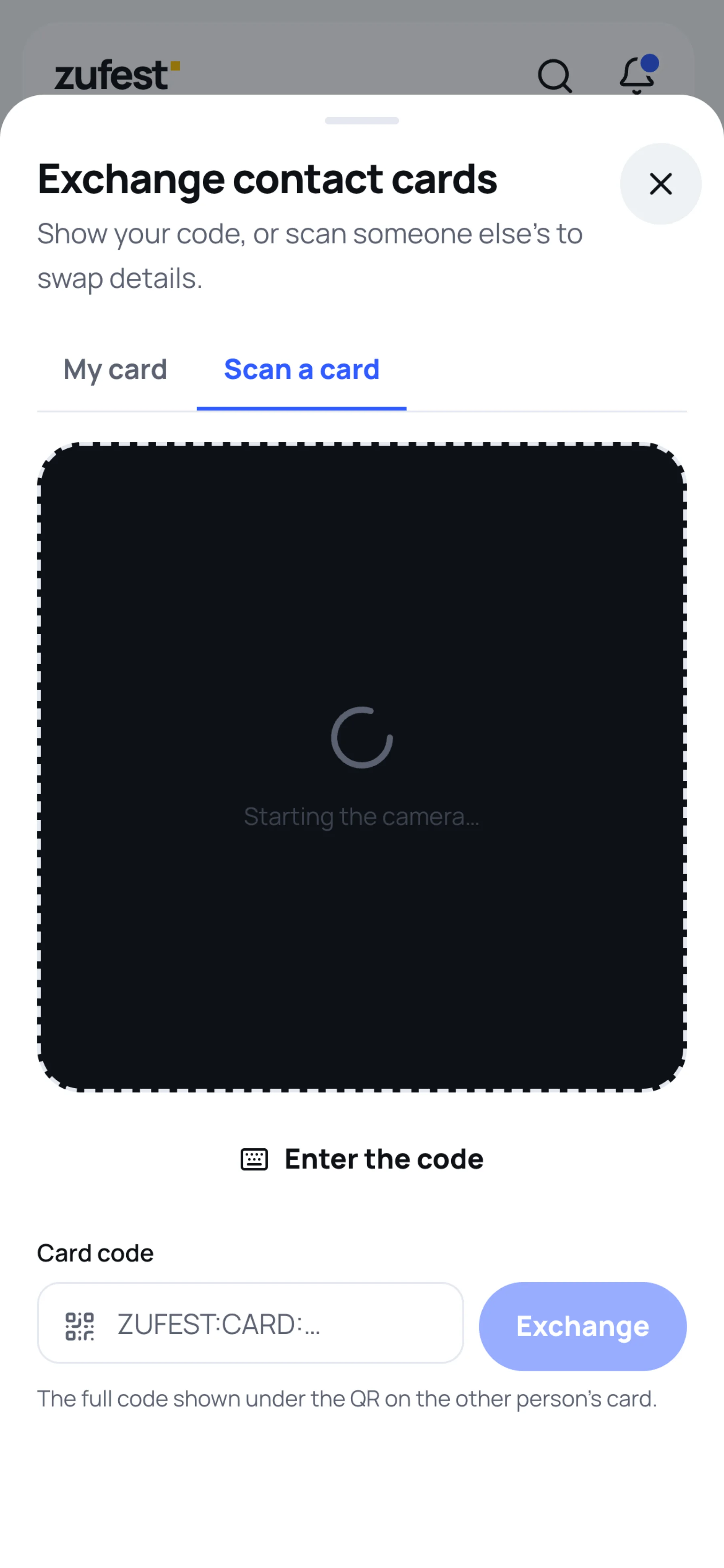
Select People, then Scan a badge. The Exchange contact cards sheet opens on Scan a card.
-
Point the camera at the other person's card. Keep the card in frame until it reads.
-
If the camera is not available, or you refused it, select Enter the code and type the code printed under their QR.
-
Select Exchange.
The card is saved to your contacts and you see "Card received and saved".
Find your saved contacts
-
On the Network page, select Saved contacts. You can also open Menu, then Saved contacts.
-
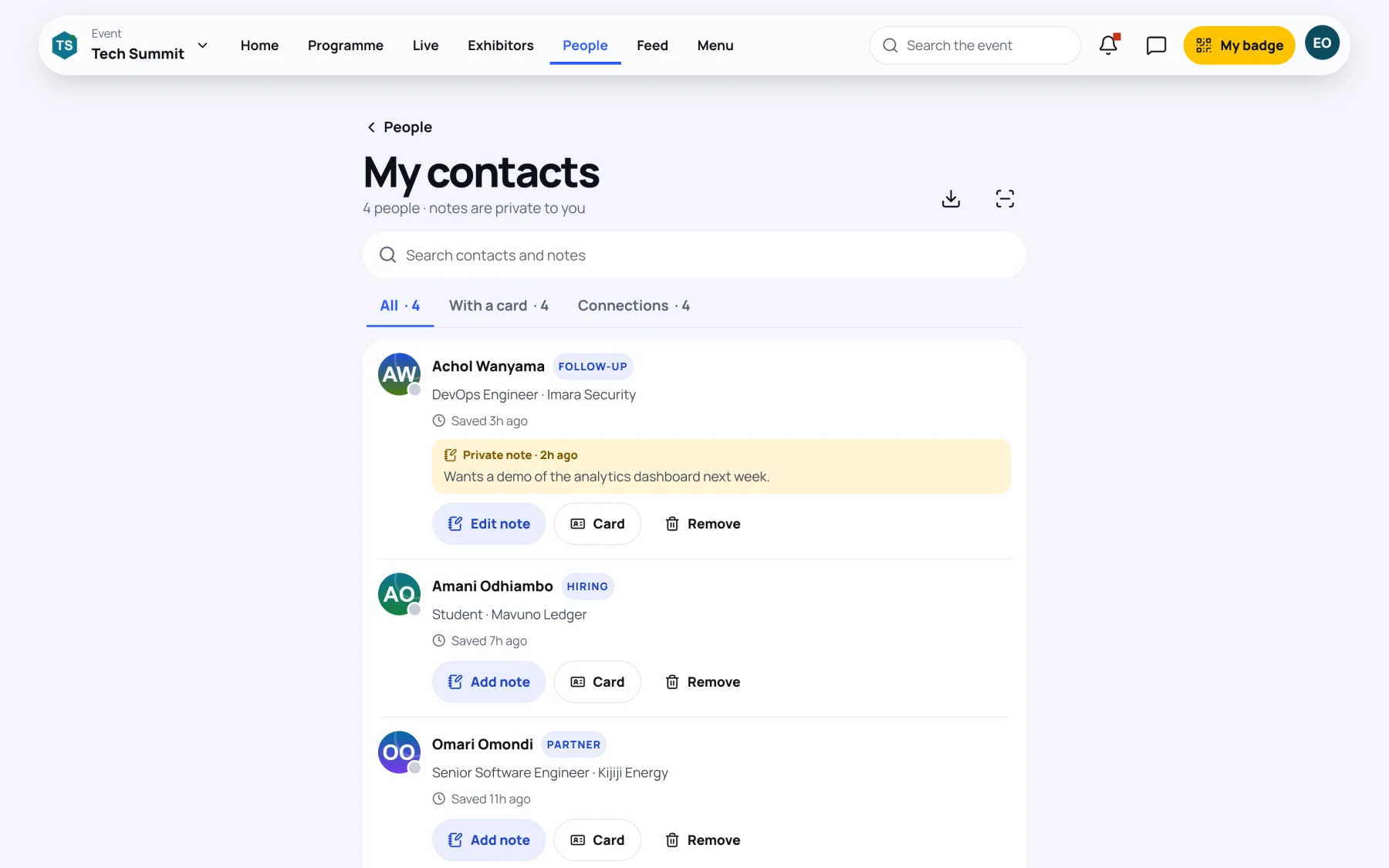
My contacts lists everyone you saved, with when you saved them, their tags and your private note.
-
Use the tabs to show All contacts, only those you hold a card for (With a card), or only your Connections. Search contacts and notes searches your notes too.
You can also save anyone from their profile with Save contact, without swapping cards.
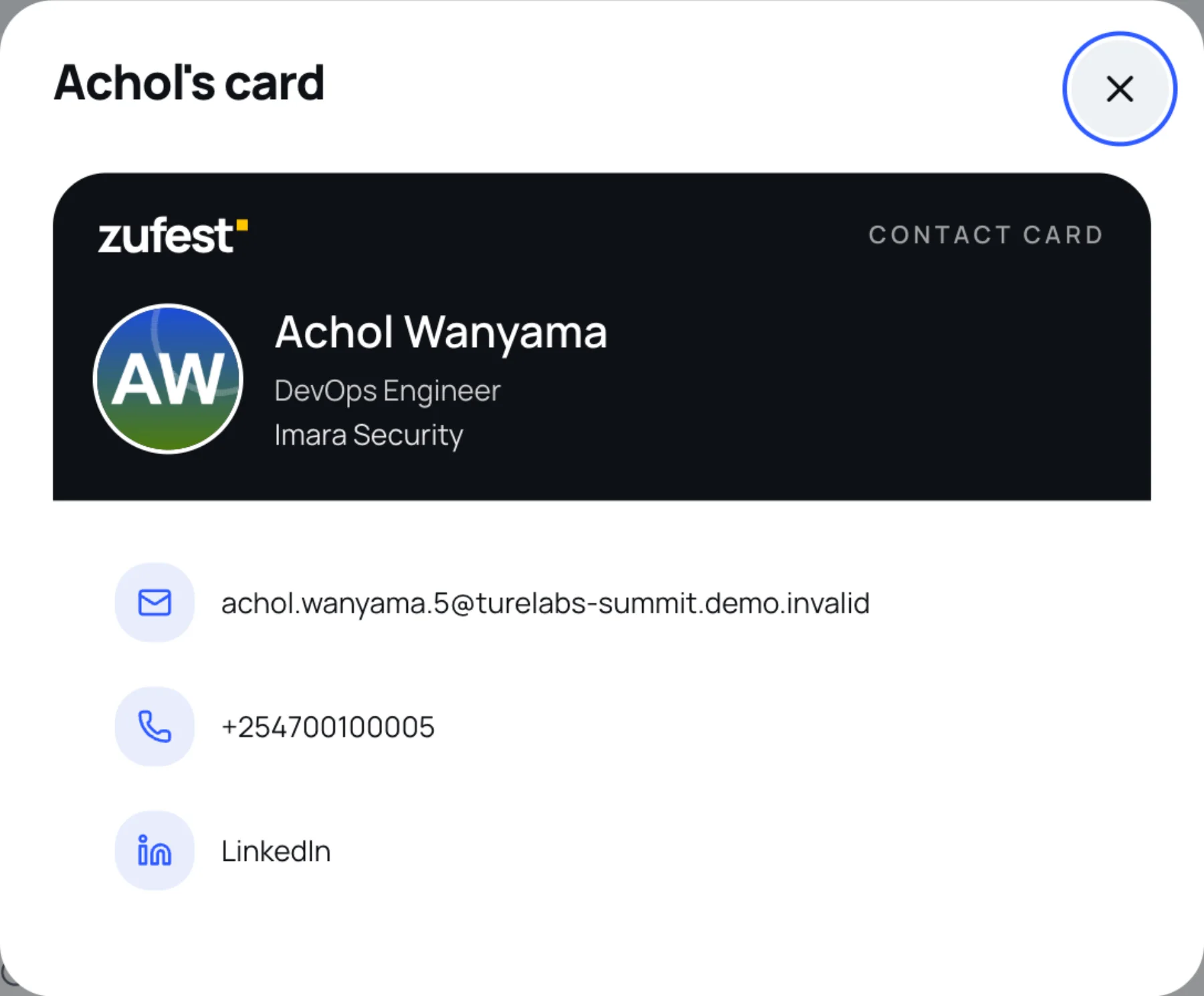
Open a contact's card
Select Card on a contact. Their card opens with the contact details they shared.
Add a private note and tags
-
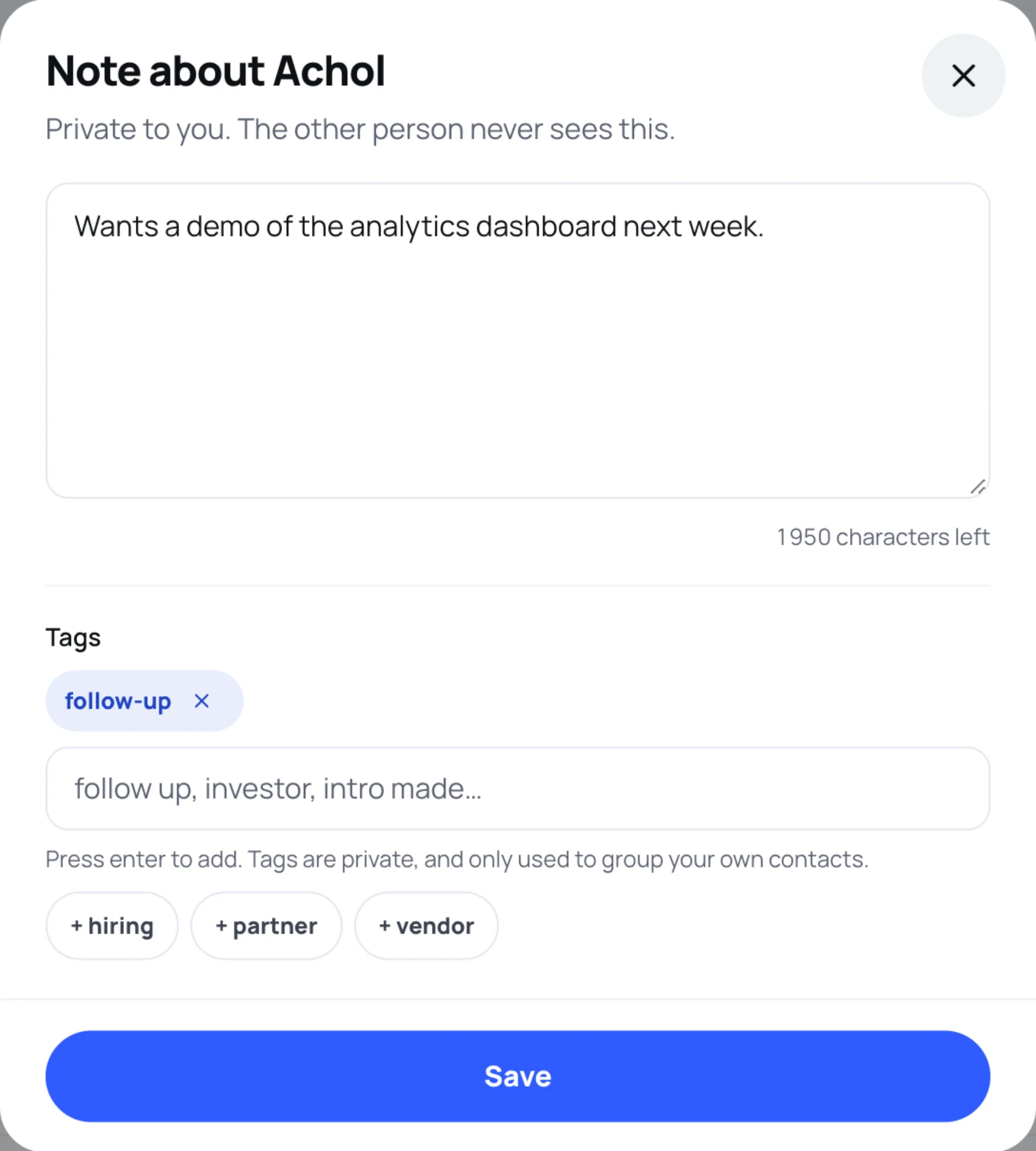
Select Add note (or Edit note) on the contact.
-
Write where you met, what you discussed or what to follow up on.
-
Under Tags, type a tag and press enter, or select one you have used before.
-
Select Save.
Notes and tags are private to you. The other person never sees them.
Take your contacts home
At the top of My contacts, select the download button to save your contacts as a vCard file. Most phones and email programs can import it.
Remove a contact
Select Remove on the contact and confirm. Your note and tags for that person are removed too.
Last updated