Share your session materials
Delegates look for slides straight after a talk. From Manage session you attach files and links to your session and decide when delegates can open them.
Open your session's tools
-
Open your session from Programme, or select Q&A and materials next to it on Your speaker profile.
-
In the You are speaking here bar, select Manage session.
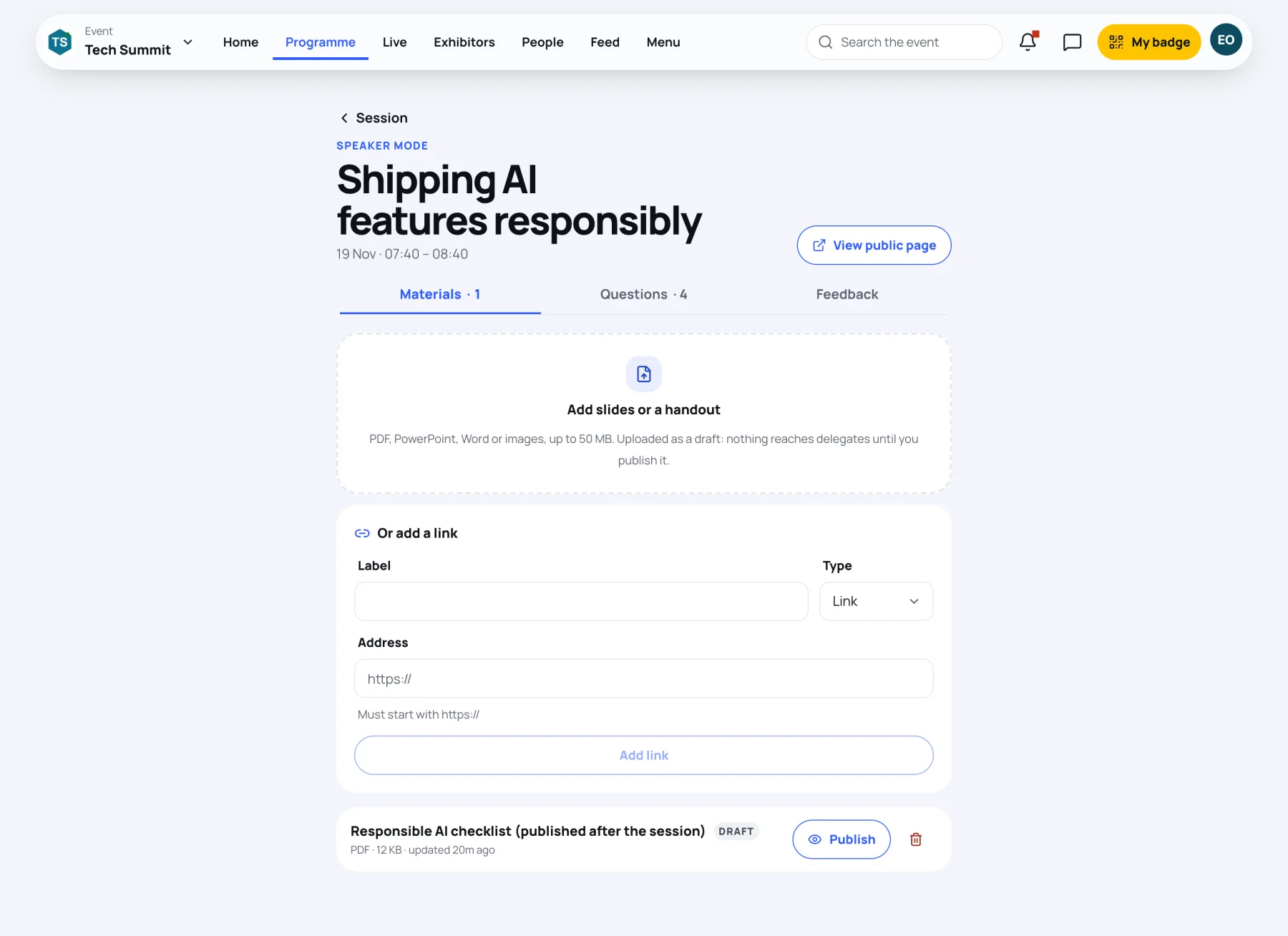
The page opens in Speaker mode, with the session's title and time, three tabs (Materials, Questions and Feedback, with counts beside the first two) and View public page to see the session as delegates do.
Upload a file
-
On the Materials tab, select Add slides or a handout.
-
Choose one or more files: PDF, PowerPoint, Word or images, up to 50 MB each. The upload shows its progress.
-
Each file is added as a Draft: "Added as a draft. Publish it when you are ready for delegates."
Add a link
Use a link for a video, a shared folder or slides you keep online.
-
Under Or add a link, fill in Label, for example "Slides on Google Drive".
-
Choose the Type: Link or Video.
-
Paste the Address. It must start with
https://.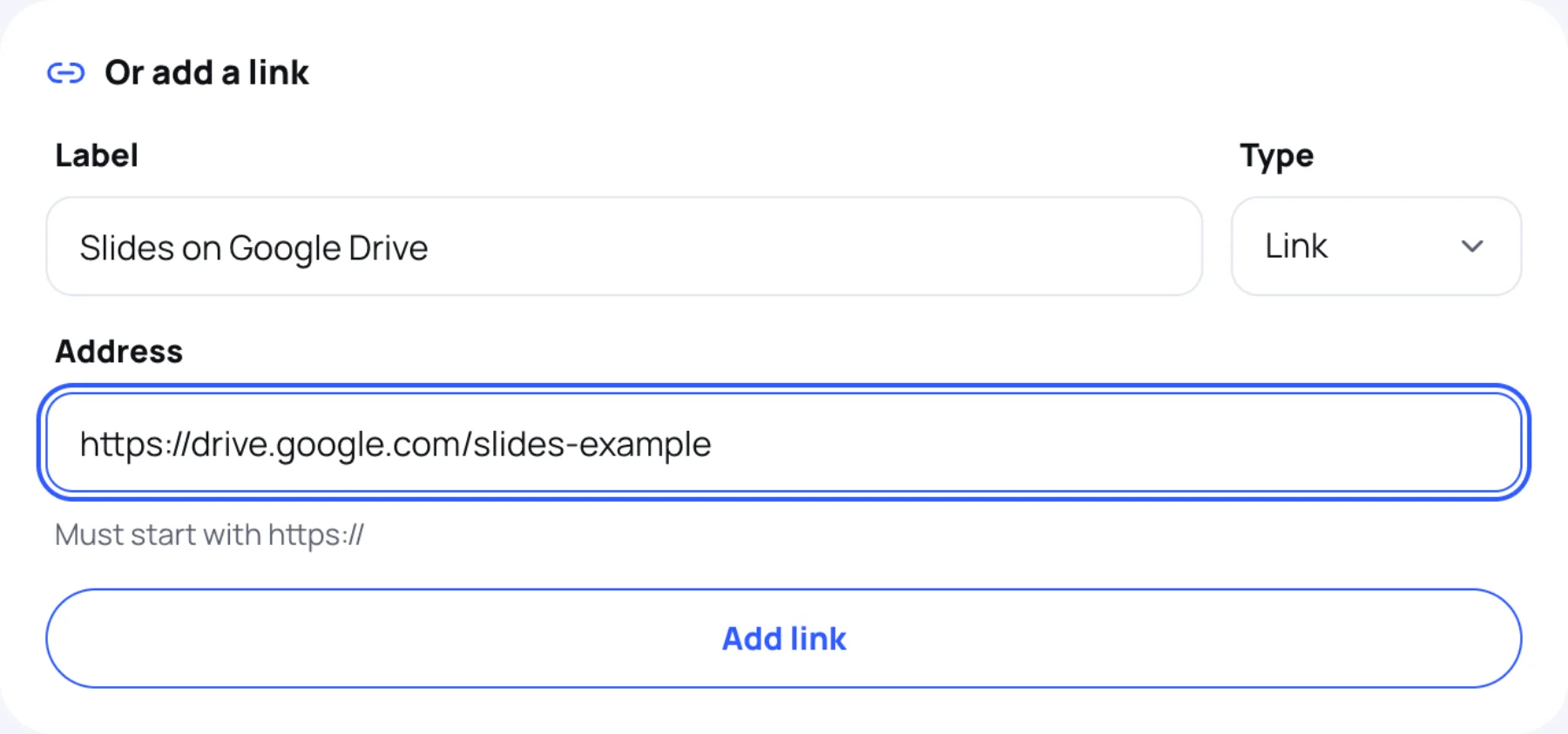
-
Select Add link. Zufest says "Link added as a draft".
Publish to delegates
Nothing reaches delegates until you publish it. Each material in the list shows its label, its state, its kind and size, and when it was last changed.
-
Find the material in the list.
-
Select Publish. Zufest says "Published to delegates".
Delegates then find it under Session materials on the session page. To take it down again, select Unpublish. To delete it, select the bin next to it and confirm.
When the organisers review materials
Some events check materials before delegates see them. In that case, selecting Publish sends the material for review instead: "Sent for review. The organisers check materials before delegates see them."
| Label | What it means |
|---|---|
| Draft | Only you and the organisers see it |
| Waiting for review | Sent to the organisers. Select Withdraw to take it back |
| Published | Delegates can open it |
| Returned | The organisers sent it back. Their note is shown under it: "Returned by the organisers: …". Change it and publish again |
See how your session landed
The Feedback tab shows the Average rating delegates gave, out of five, and how many responded. Ratings open when the session starts. The average appears once a few delegates have rated it; until then it shows how many responses there are so far.
Last updated