Book a meeting
Ask another attendee for a meeting at a set time and place. The app offers times when you are both free, and every meeting you accept sits in your networking calendar next to the sessions you saved, so you can spot a clash before it happens.
Request a meeting
-
Open the person's profile from People.
-
Select Request a meeting. You can also select the calendar button in a one-to-one conversation.
-
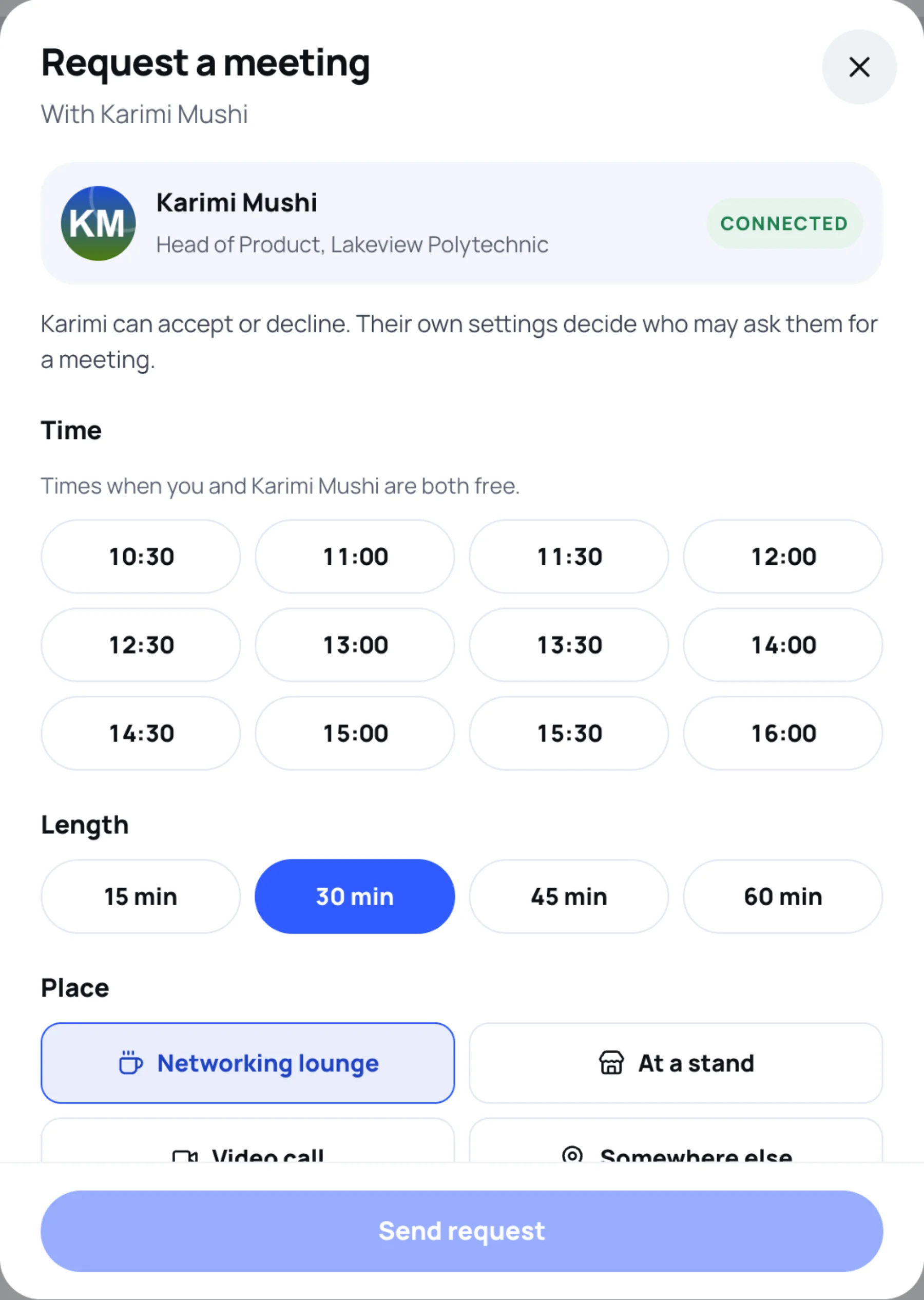
Under Time, choose a slot. The app lists Times when you and the other person are both free. Slots on another day show the date.
-
Under Length, choose 15 min, 30 min, 45 min or 60 min. Changing the length can change which times are free.
-
Under Place, choose Networking lounge, At a stand, Video call or Somewhere else. When the organiser has set up meeting tables, A meeting table is offered too.
-
In Meeting place, say exactly where, for example "Coffee bar, expo level" or a stand number.
-
Optional: add a Message. A sentence is plenty and helps them decide quickly.
-
Select Send request.
The other person gets a notification. Once they accept, the meeting appears in both your calendars.
Open your networking calendar
-
Select People, then the Meetings tab. You can also open Menu, then Meetings.
-
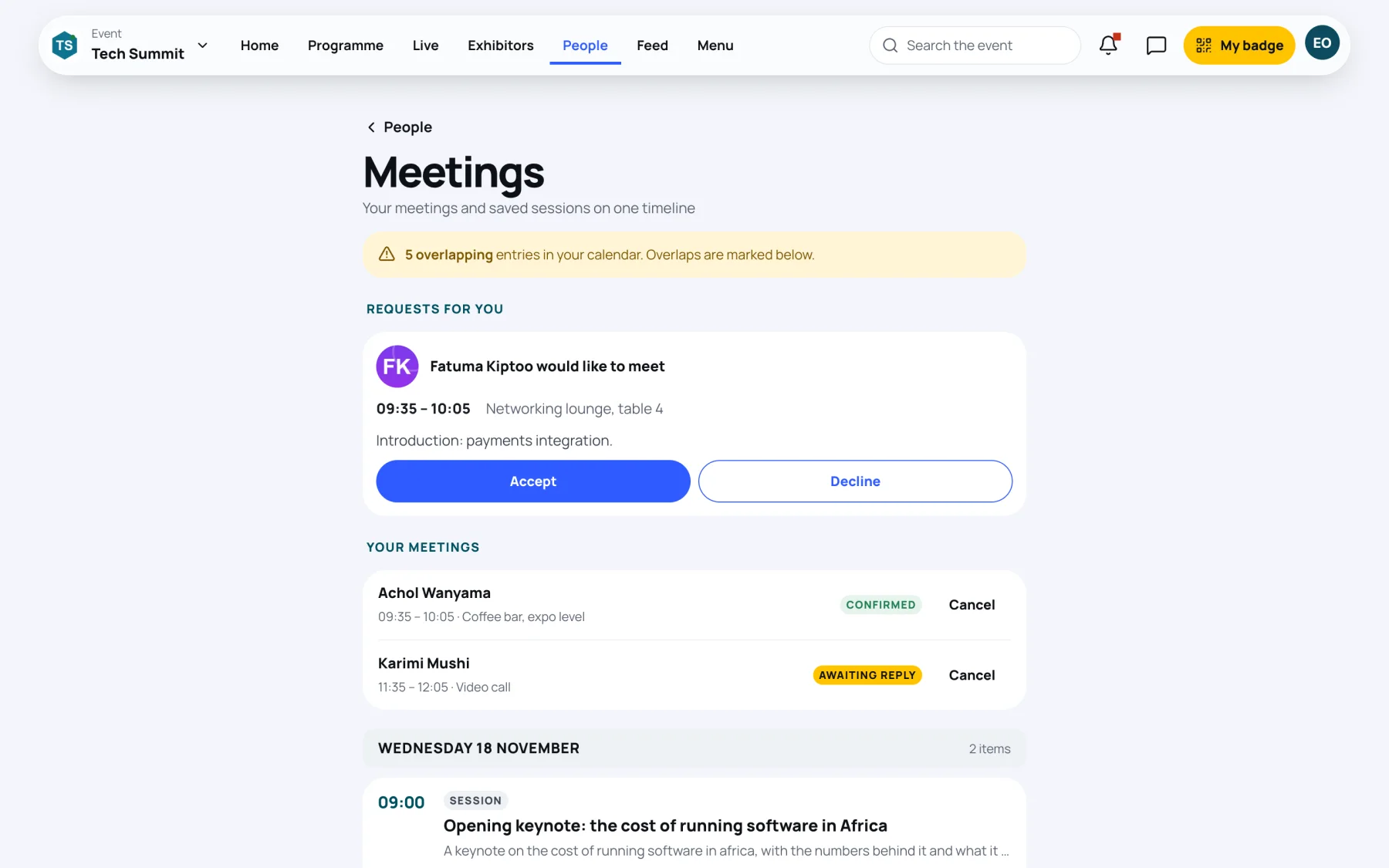
The Meetings page shows, from the top:
- a warning when entries overlap,
- Requests for you: meetings other people have asked for,
- Your meetings: each one marked Confirmed or Awaiting reply,
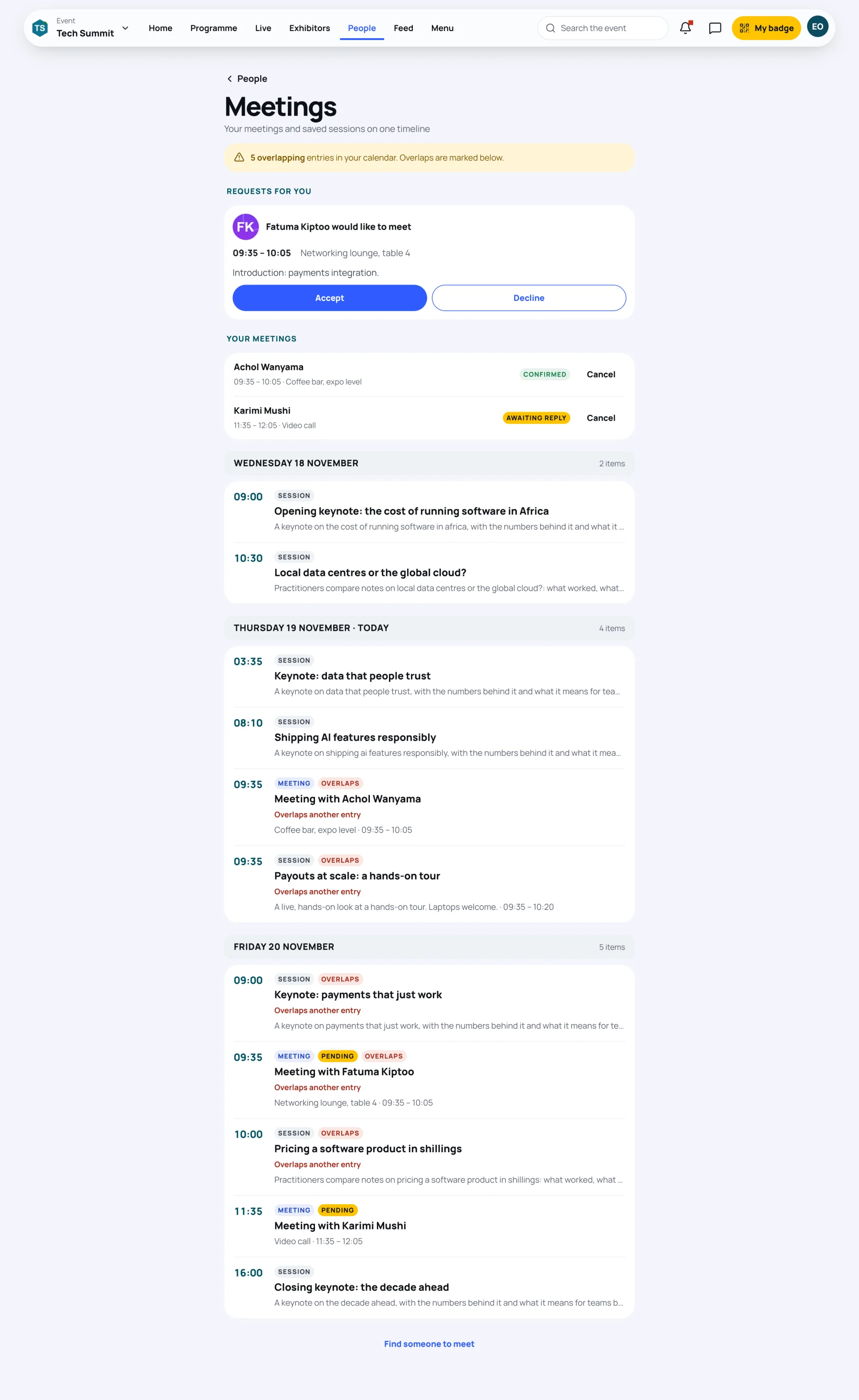
- a timeline, day by day, of your meetings and saved sessions.
In the timeline, each entry is labelled Meeting or Session. Requests you have not answered yet show Pending, and entries that clash show Overlaps with the line "Overlaps another entry".
Answer a meeting request
-
Find the request under Requests for you, or in the conversation with that person.
-
Read the time, place and message.
-
Select Accept to put it in your calendar, or Decline.
Cancel a meeting
-
Under Your meetings, select Cancel next to the meeting.
-
Confirm with Cancel meeting, or select Keep it to change your mind.
The meeting is marked cancelled and the time is free again. The other person is told in their inbox, and by push and email if they have those switched on, with the meeting's time and place. A short message to say why is still good manners.
Last updated