Transfer or edit an attendee
When someone cannot come and a colleague takes their place, transfer the registration. To fix a typo or set a seat, edit the attendee instead.
Transfer a registration
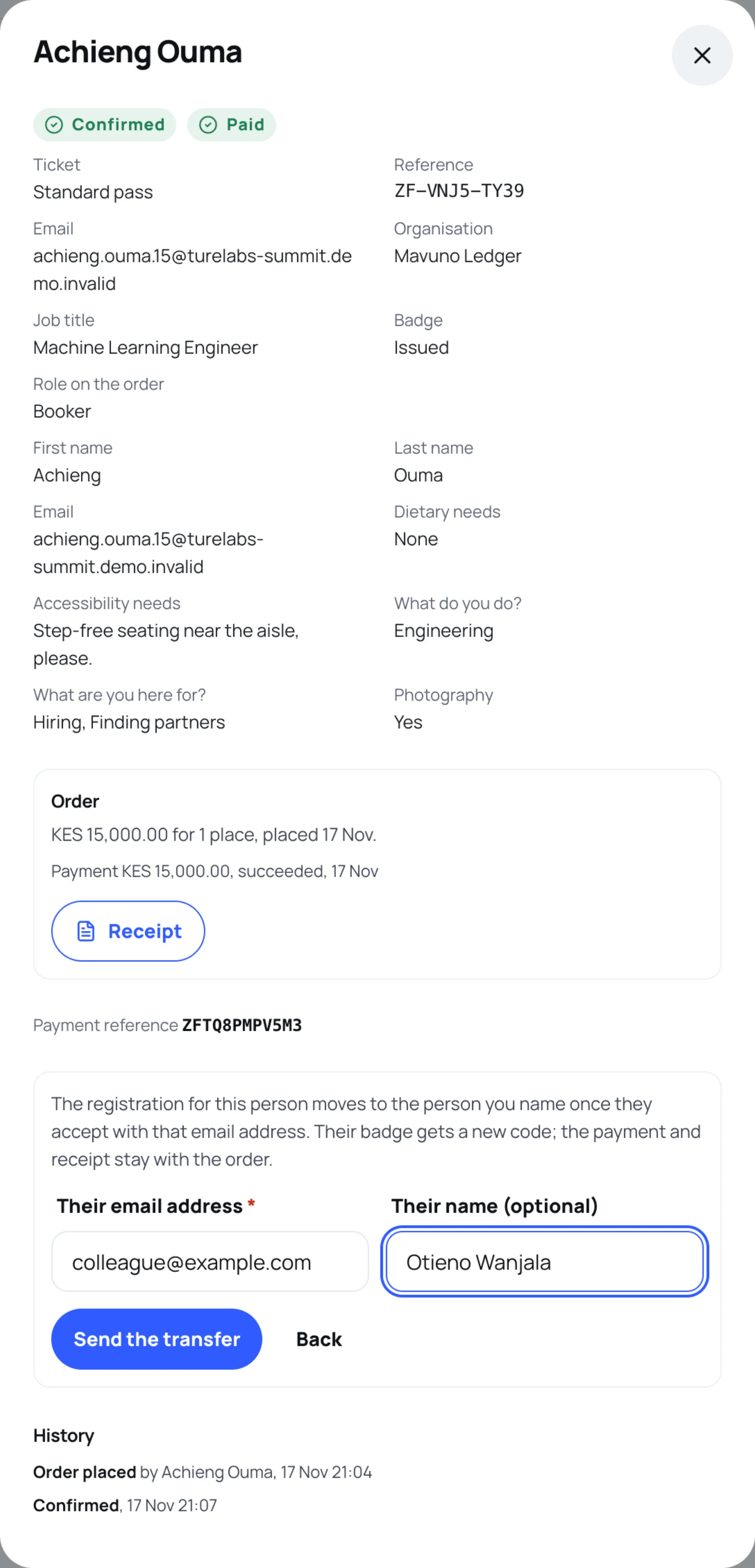
A transfer moves a confirmed order to a new person once they accept it with their email address.
-
In the sidebar, select Attendees and orders, then open the person.
-
Select Transfer to someone else.
-
Type Their email address and, optionally, Their name (optional).
-
Select Send the transfer, then confirm.
Zufest emails them a link. The order shows "Transfer waiting for ... to accept", with the deadline. When they accept:
- the registration moves to them, for everyone on the order;
- the badge gets a new code, so the old one stops scanning;
- the payment, receipt and any refunds stay with the order.
To withdraw the offer before it is accepted, select Cancel the transfer. The link stops working.
Edit a guest's details
You can correct the details of a guest on someone else's order.
-
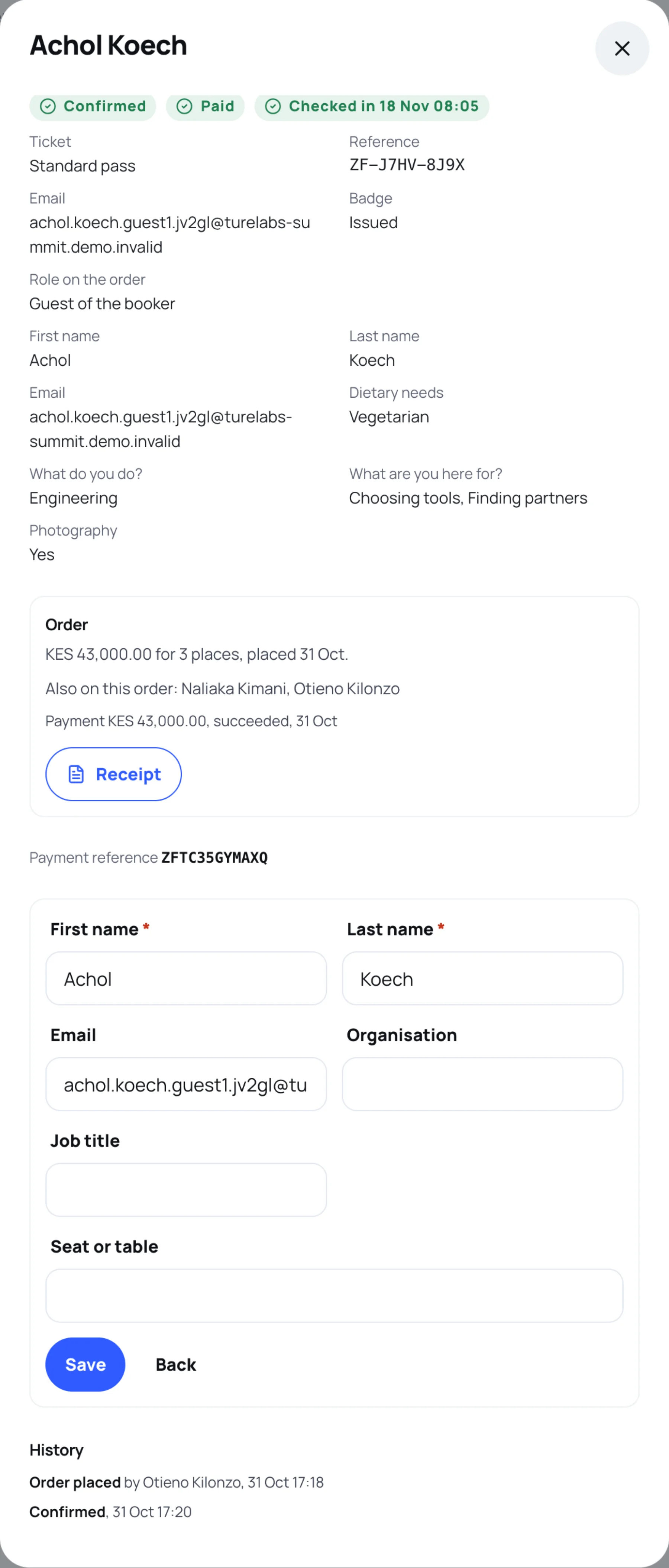
Open the guest and select Edit details.
-
Change First name, Last name, Email, Organisation or Job title, and the Seat or table.
-
If a different person is now using this place and has not checked in, tick Someone else is taking this place. The badge gets a new code, so the old one stops scanning.
-
Select Save, then confirm.
The badge is updated in place. Its code stays the same unless you ticked the box.
Set a seat or table
Only a guest's details can be edited. For a booker, the button is Edit seat or table. Type the Seat or table and select Save. It shows on the person's details as Seat or table.
Last updated