A session page
Every session has its own page with the time, the hall, the speakers, the materials, the Q&A and any polls. What it offers changes as the session moves from coming up, to live, to finished.
While a session is live
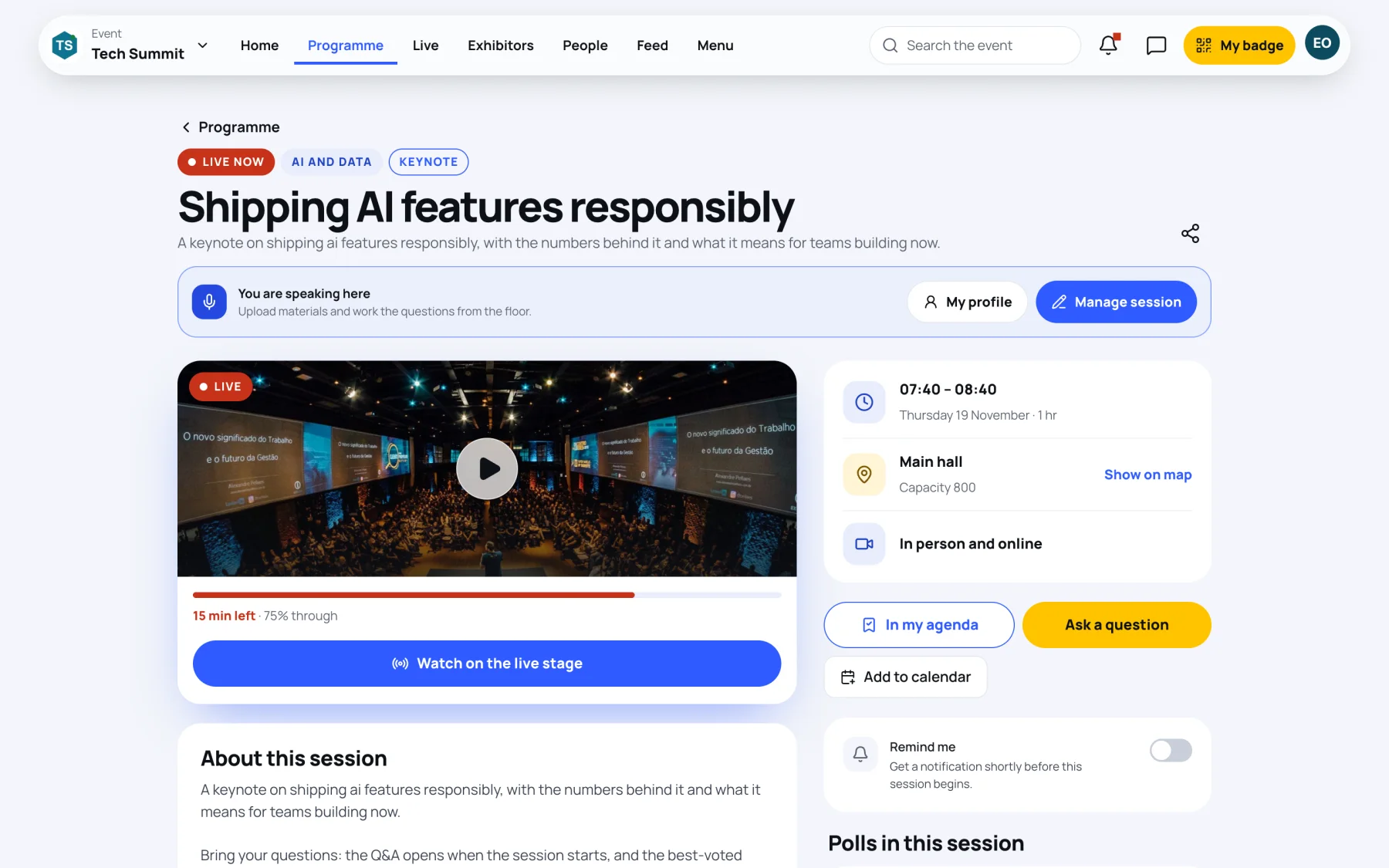
A live session is marked Live now. The page opens with the stage picture, the minutes left and how far through it is.
-
Select Watch on the live stage to follow it online. See Watch a live stage.
-
Select Ask a question to jump to the Q&A. See Ask a question.
-
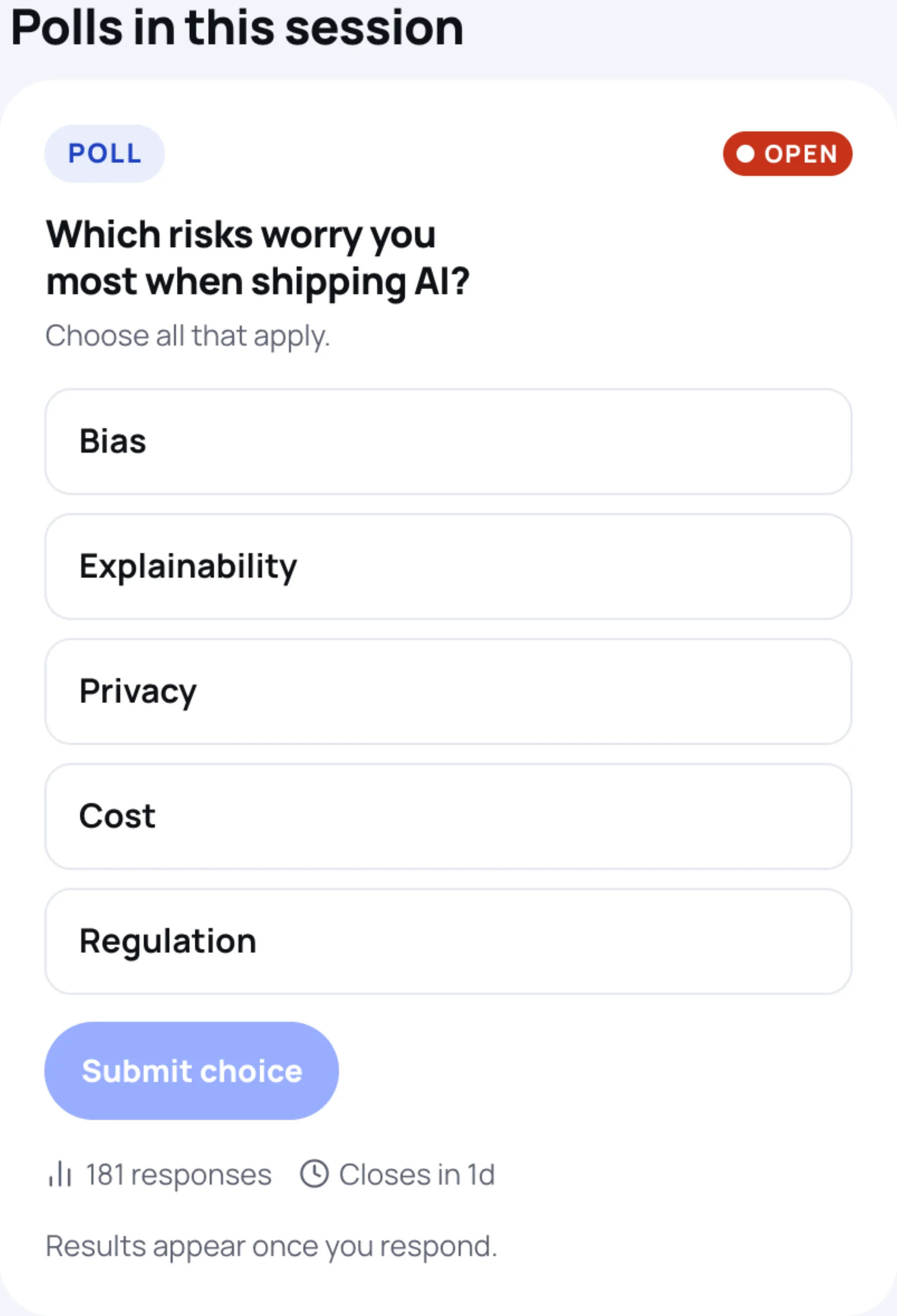
Answer any open poll under Polls in this session.
-
Rate the session under How was this session? See Give session feedback.
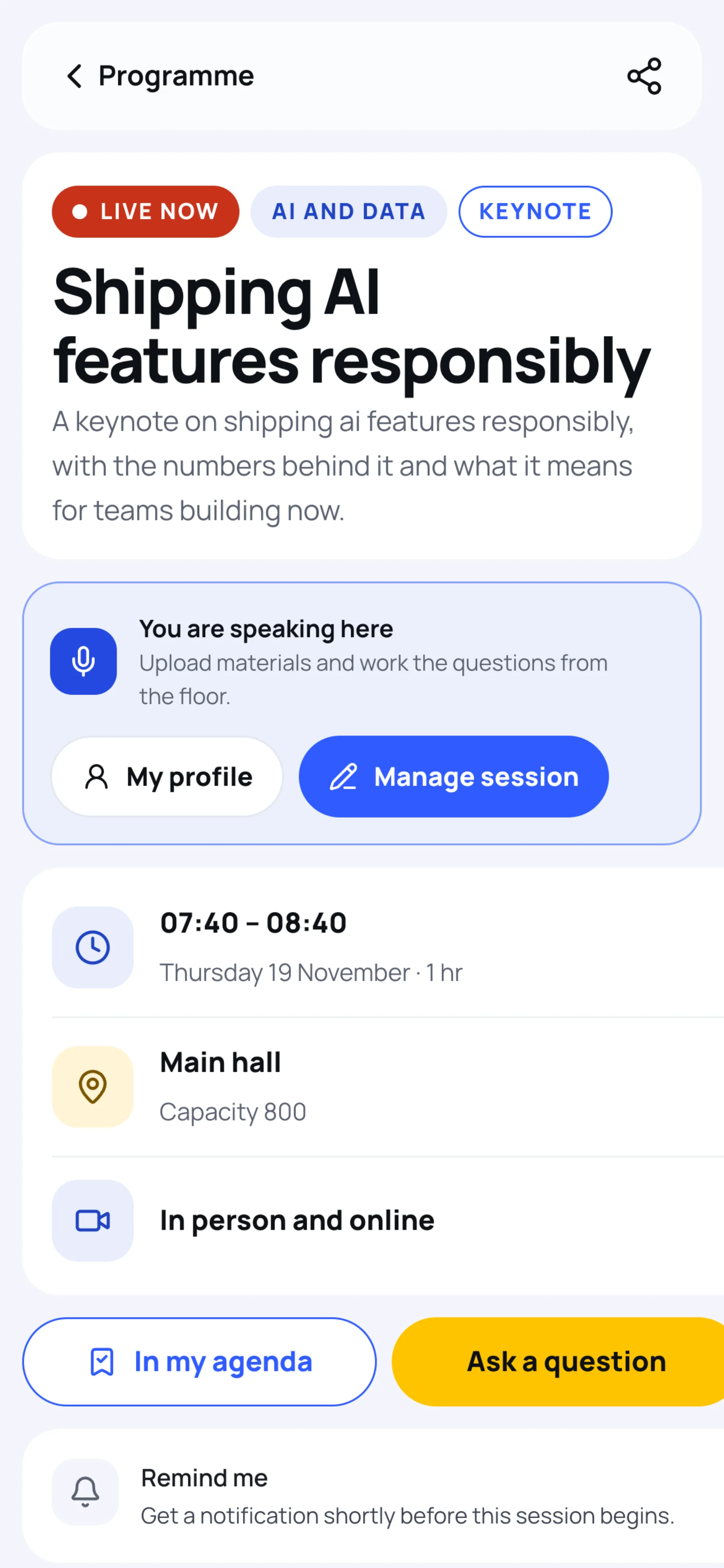
On a phone the same page is a single column: the time and hall come first, then the stage, the details and the Q&A.
Before a session starts
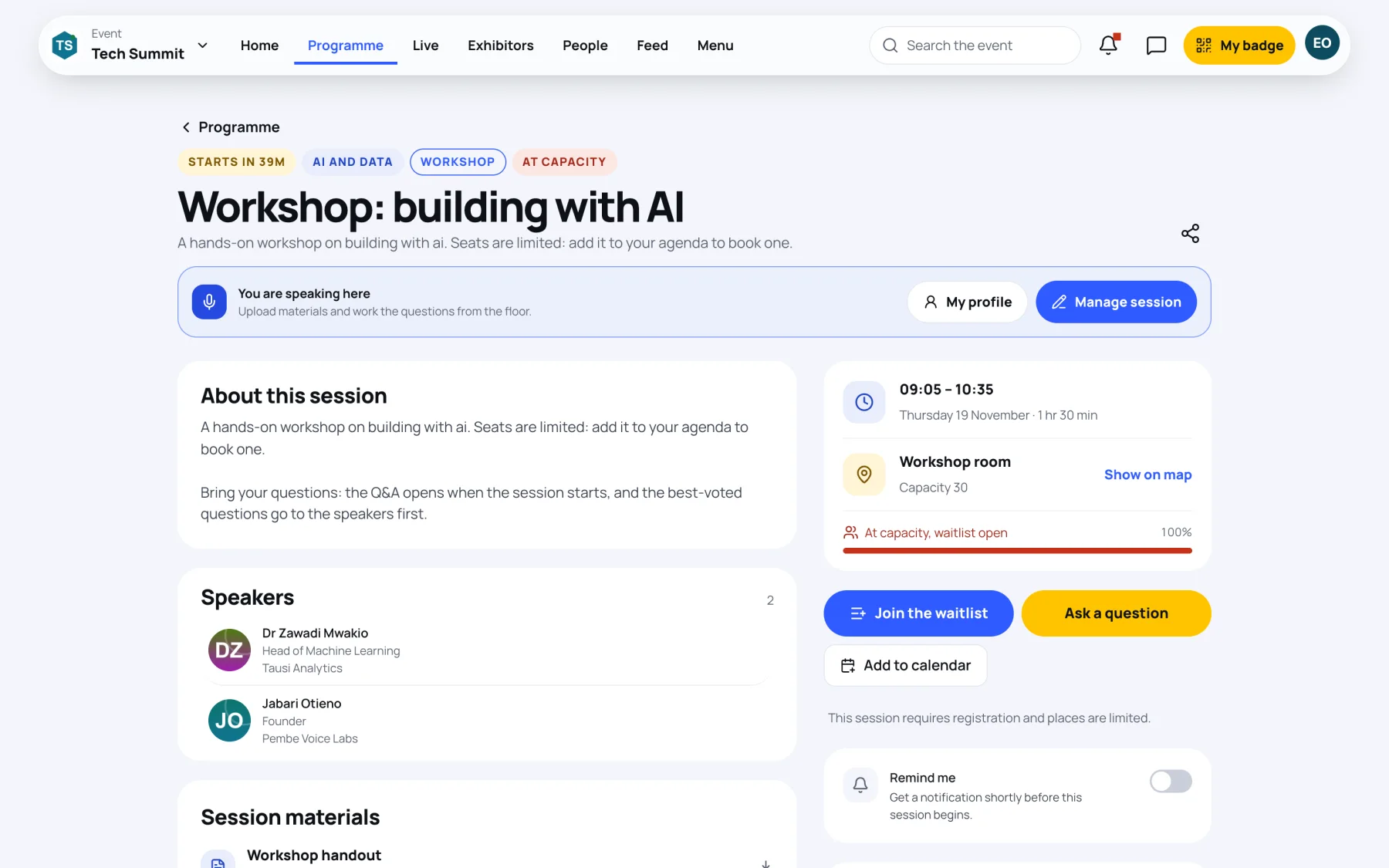
A session that is coming up says when it starts, for example Starts in 40m. From here you can:
- Save it with Add to my agenda, or take a seat with Reserve a seat when places are limited. See Build your agenda.
- Join the waitlist if it shows At capacity.
- Send a question in advance with Ask a question.
- Switch on Remind me for a notification before it starts.
- Select Add to calendar to download a calendar file.
After a session ends
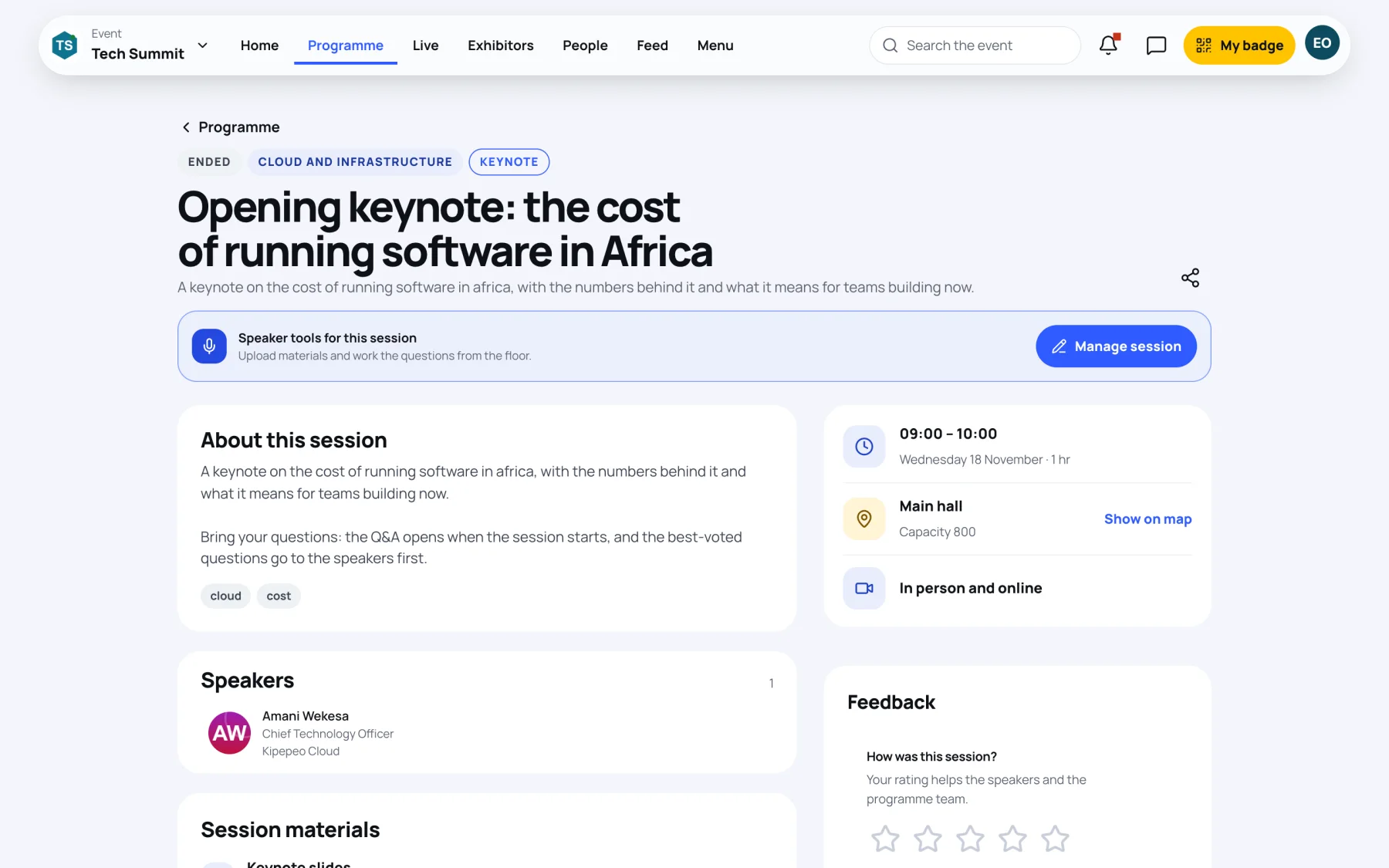
A finished session is marked Ended. The Q&A becomes Asked during this session and stays readable, and you can still rate the session. When the organisers publish the recording, it appears at the top with Watch the recording and picks up where you left off. See Recordings.
What else is on the page
| Section | What it shows |
|---|---|
| Labels at the top | The status, the track, the format and At capacity when it is full |
| Time and hall | The start and end time, the day and the length; the hall and its capacity, with Show on map |
| In person and online or Online only | How the session can be followed |
| About this session | The description and its topics |
| Summary | A short written summary, when the organisers have published one |
| Speakers | Each speaker; select one to open their page |
| Session materials | Slides, handouts and links the speakers have published. Select one to open or download it. |
| You might also like | Sessions with the same speaker, track or topic |
To share a session with a colleague, select the share button at the top right. On a phone it opens your phone's share options; elsewhere it copies the link.
Last updated