The live control room
The live control room puts everything about one running stage on a single screen: who is watching, the session's polls and the audience's questions. Keep it open on a laptop beside the stage manager or the host.
Open the control room
-
In the organiser sidebar, under Content, select Live control room. You can also select Control room on a stage's row in Stages and recordings.
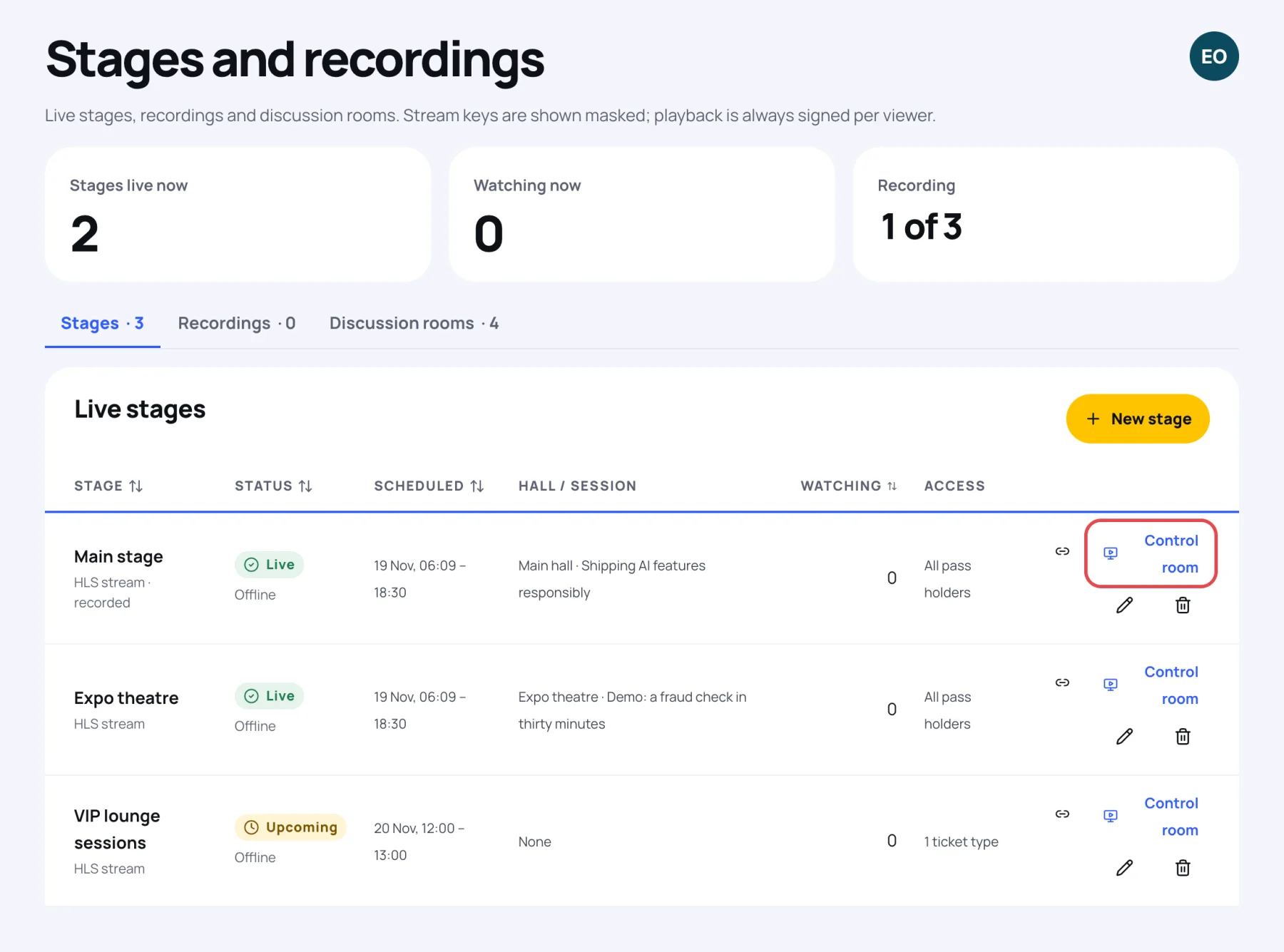
-
If you have more than one stage, choose it with the tabs at the top, for example Main stage or Expo theatre.
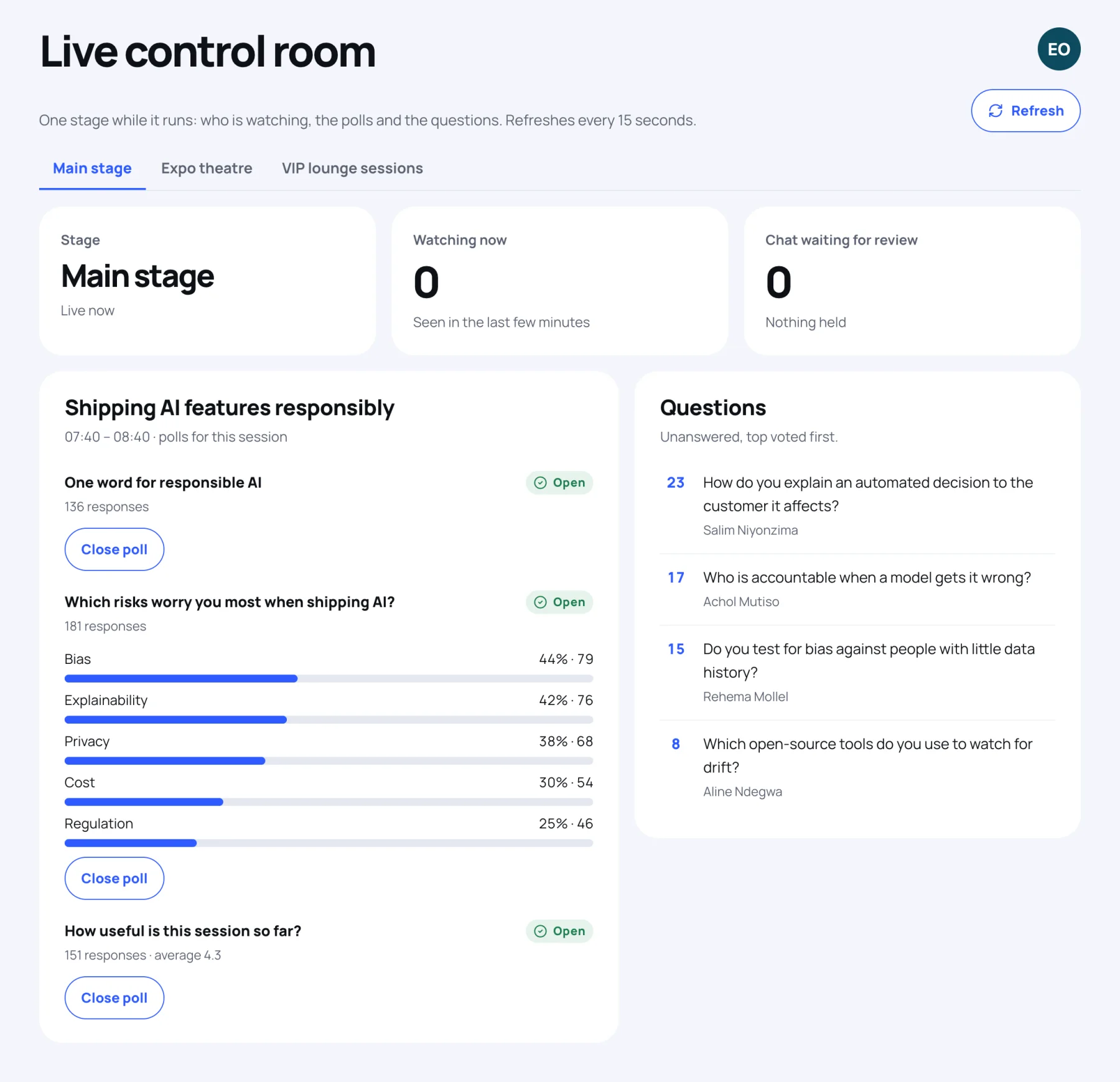
The screen refreshes every 15 seconds. Select Refresh to update it now.
What it shows
- Stage: the stage's name, and Live now or Not live.
- Watching now: people seen watching in the last few minutes.
- Chat waiting for review: chat messages held for review, or Nothing held. When something is held, a link takes you to review it.
- Polls: every poll attached to the session, with its status (Draft, Scheduled, Open or Closed), the number of responses and the results as they come in.
- Questions: the audience's unanswered questions, top voted first, with who asked them.
Run the polls
- When the speaker reaches the poll, select Open poll. Attendees can vote straight away.
- When it is time to move on, select Close poll.
Pass on the questions
Read the top questions out to the host, or show the screen to the moderator on stage. The vote count beside each question shows what the room most wants answered. Speakers mark questions as answered from their own session tools, and answered questions leave this list.
Last updated