Vote in a poll
Organisers and speakers run polls to hear from the room. You answer from your phone and see the results as soon as you have responded.
Find the open polls
-
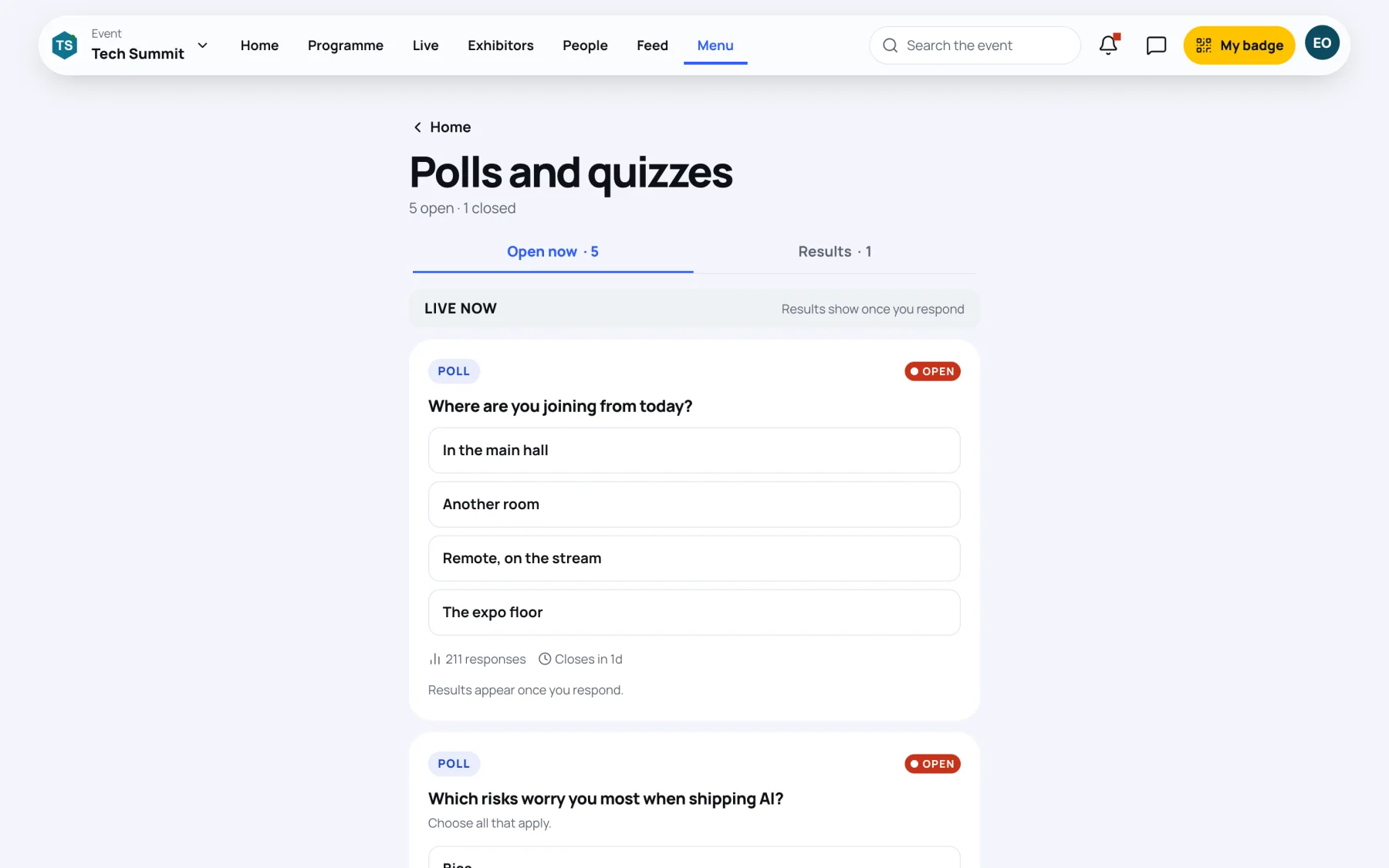
Open the event, select Menu, then Polls. The Polls and quizzes page opens.
-
Open now lists everything you can answer at the moment, under LIVE NOW. The tab shows how many are open.
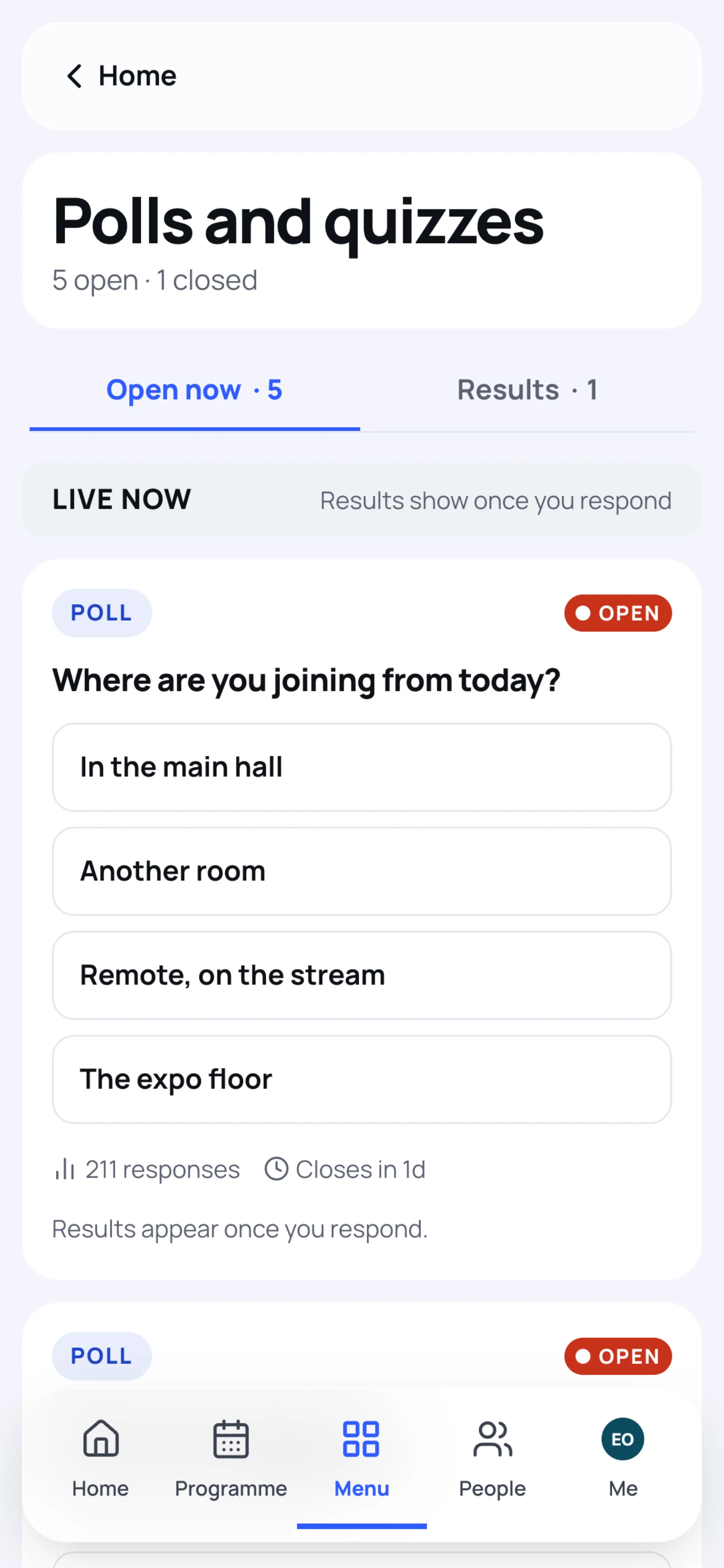
You can also answer a session's polls on its page, under Polls in this session, or in the Polls tab of a live stage, where an open poll is the yellow LIVE POLL card.
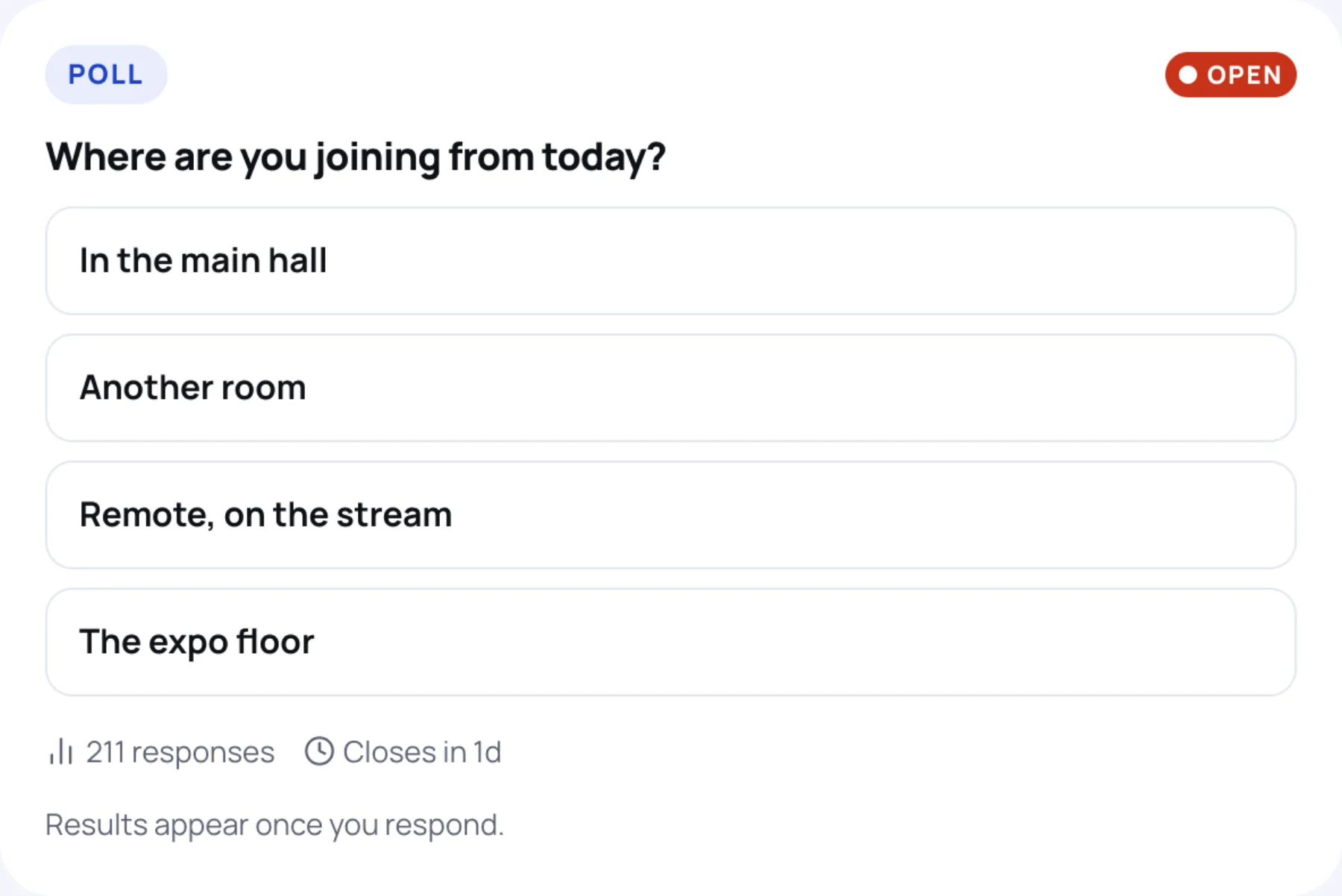
Each poll shows how many people have answered and when it closes, for example Closes in 1d. Results stay hidden until you respond, so the leading answer does not sway you.
Answer a poll with one choice
-
Read the question.
-
Tap your answer.
The card then shows the share of votes for each answer, with a tick on yours.
Answer a poll with several choices
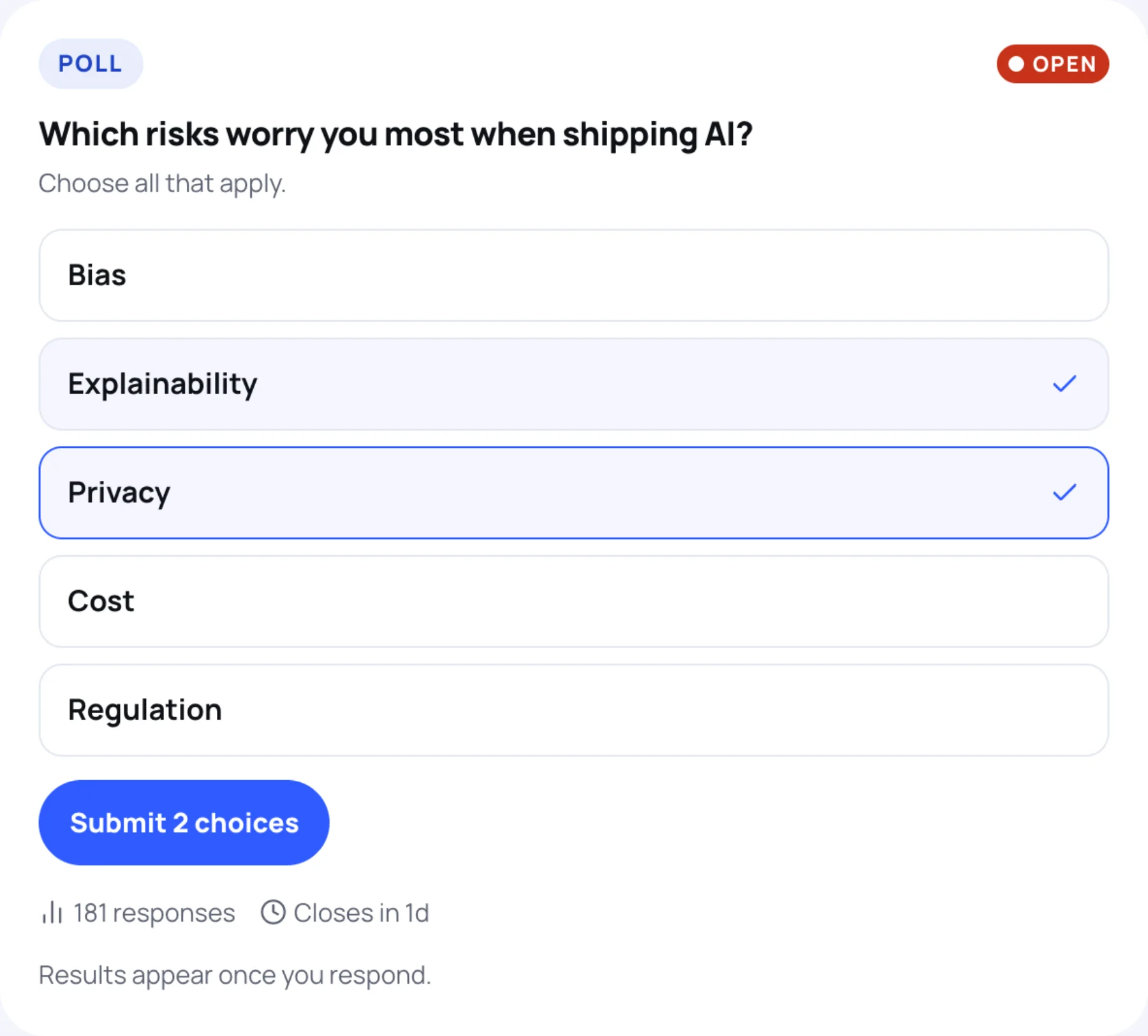
A poll that says Choose all that apply takes more than one answer.
-
Tap each answer you want. A tick appears on each one, and tapping again removes it.
-
Select Submit and the number of choices, for example Submit 2 choices.
Give a rating
A rating poll asks you to score something from 1 to 5, for example how useful a session is so far.
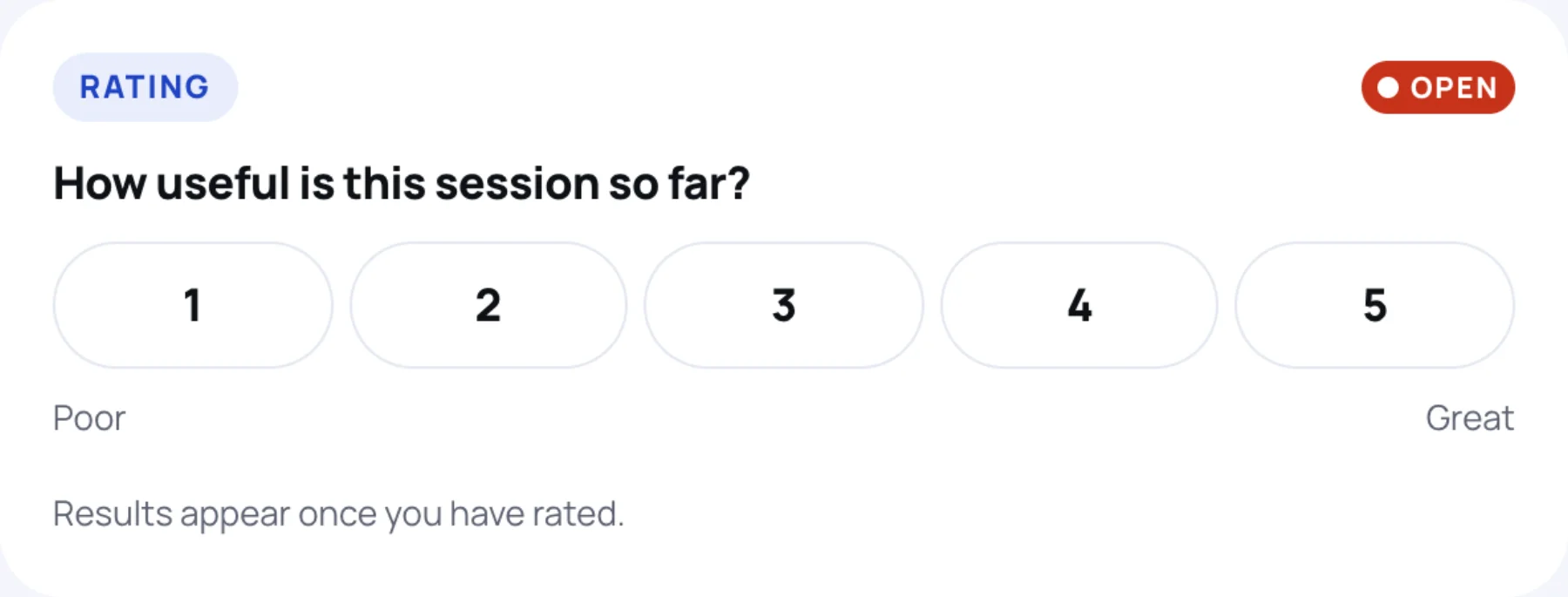
Tap a number. Your rating is recorded straight away, and the card then shows the average and how the ratings are spread.
Add to a word cloud
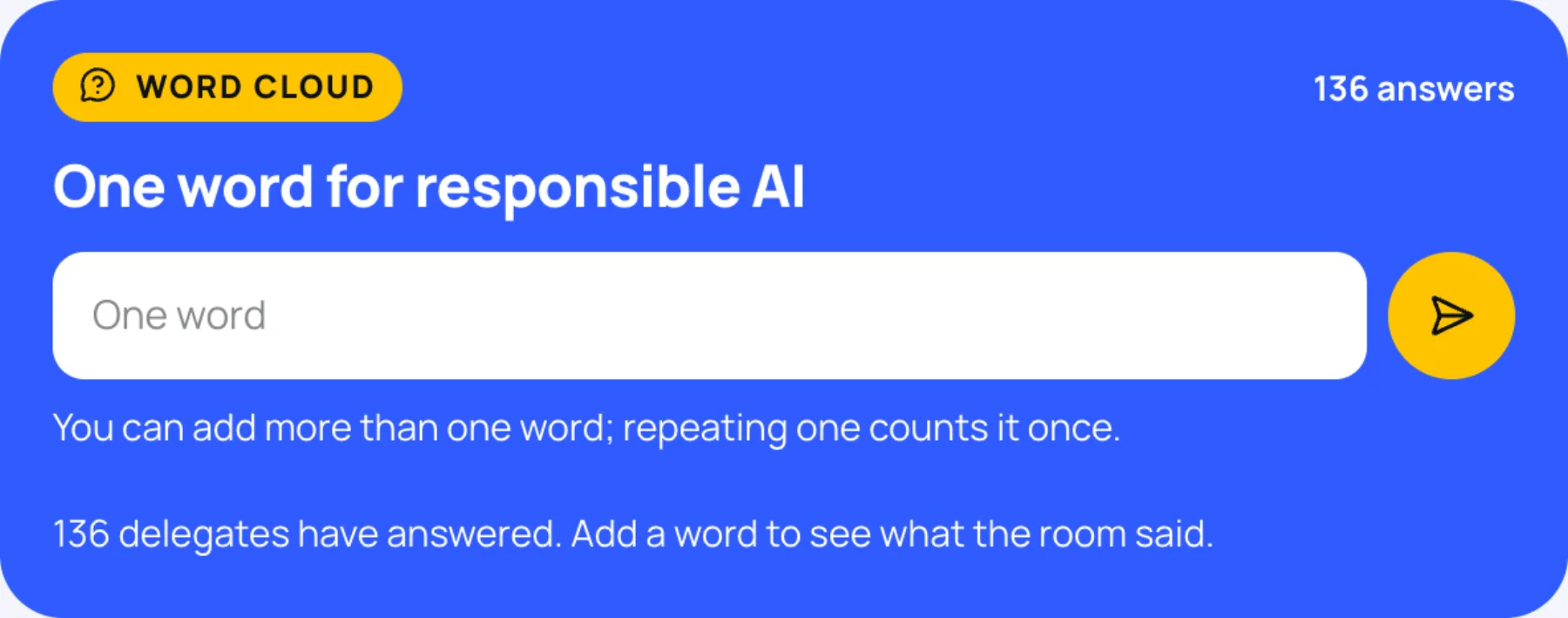
A word cloud asks for a word or two. The most common answers show the largest.
-
Type a word in One word.
-
Select the send button.
You can add more than one word; sending the same word twice counts it once. Once you have added a word, the card shows what everyone else said, with your own answers underlined.
See the results of closed polls
-
On Polls and quizzes, select Results.
-
Each closed poll shows the share and number of responses for every answer.
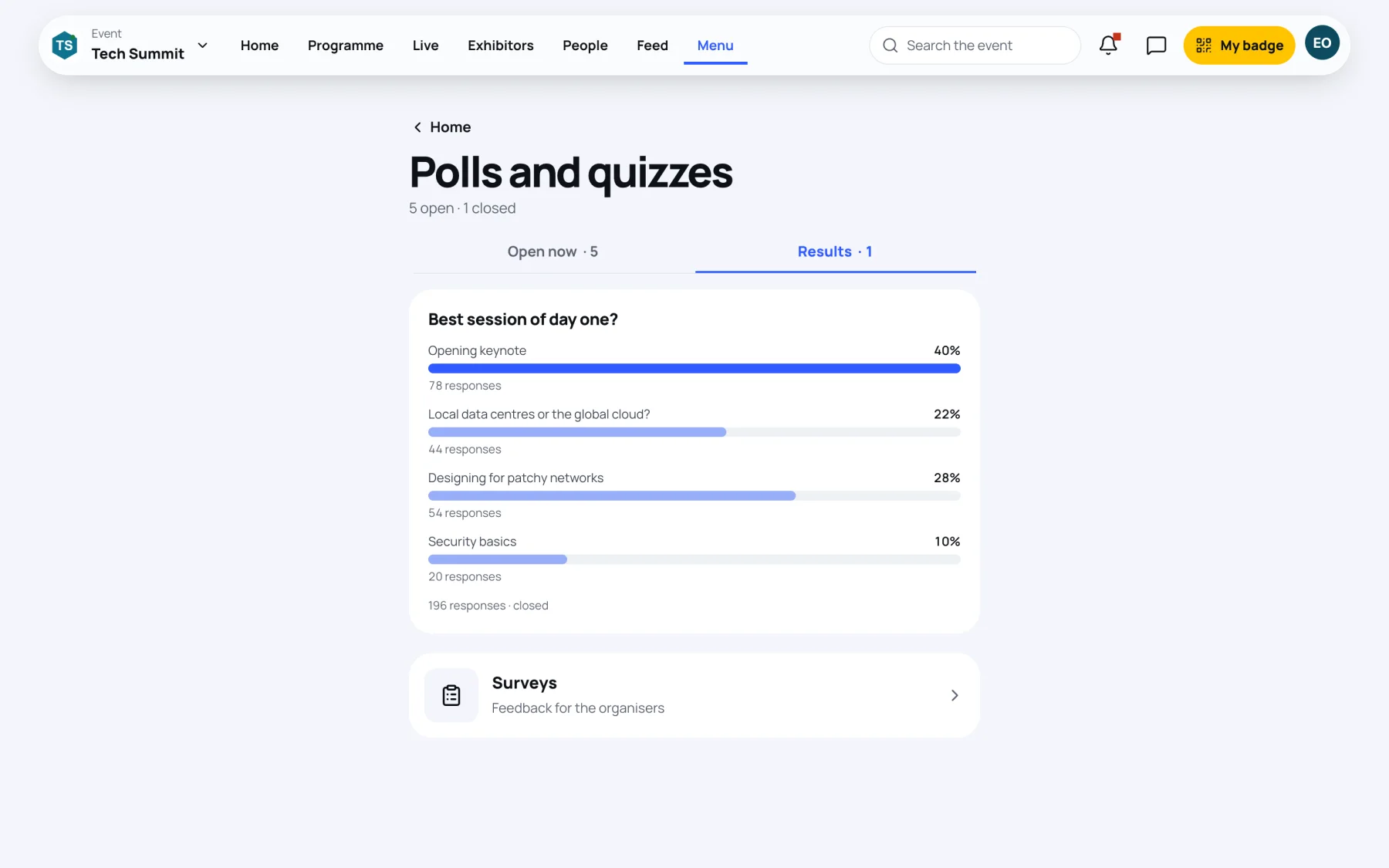
Results stay here for the rest of the event.
Last updated