Use Zufest on your phone
Zufest runs in your phone's browser, so there is nothing to download from an app store. Open app.zufest.com, sign in, and the screens fit your phone.
Add Zufest to your home screen
Adding Zufest to your home screen gives you an icon that opens it full screen, like an app.
On an iPhone or iPad, in Safari:
- Open app.zufest.com and sign in.
- Tap the Share button.
- Tap Add to Home Screen, then Add.
On an Android phone, in Chrome:
- Open app.zufest.com and sign in.
- Tap the three-dot menu.
- Tap Install app or Add to Home screen, then confirm.
The tab bar
On a phone, a bar along the bottom of the screen takes you around the event.
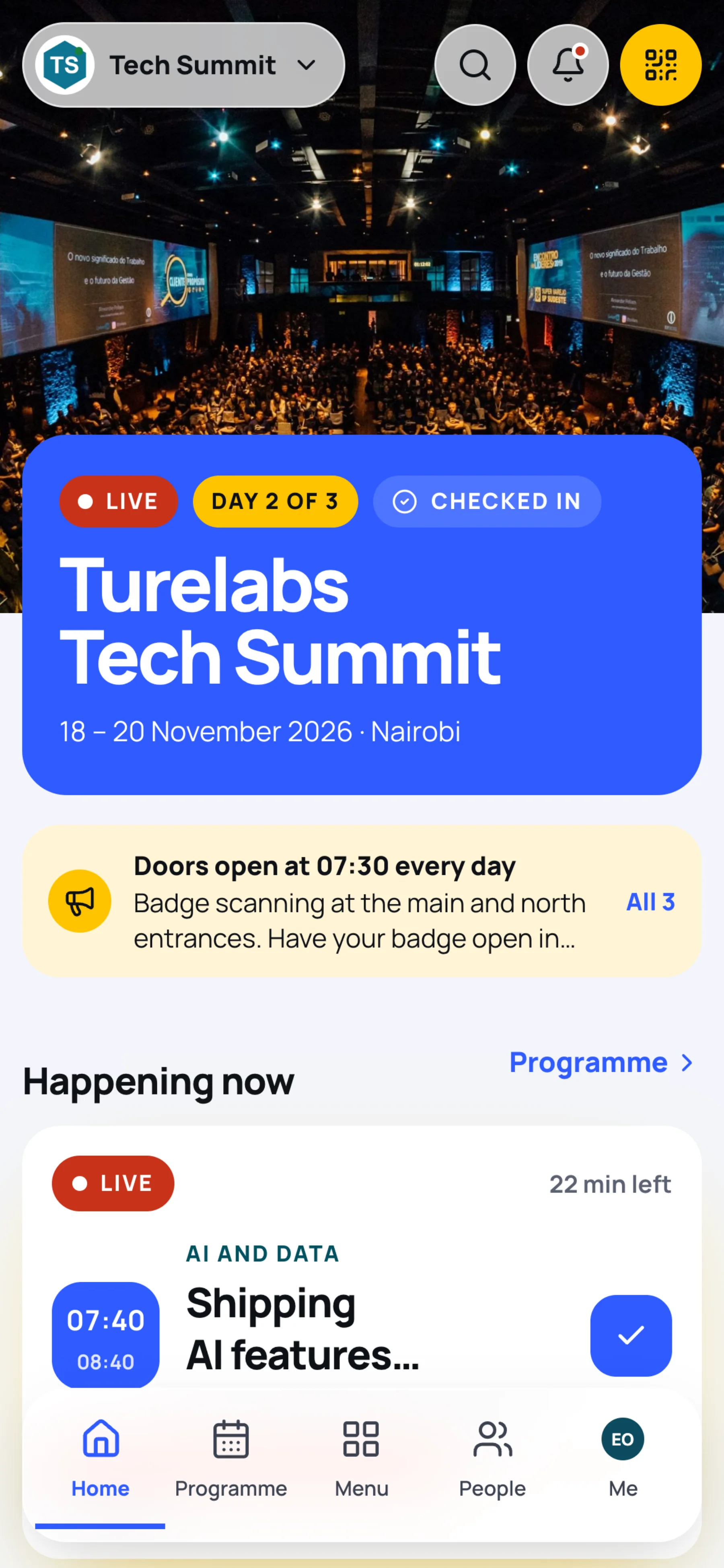
| Tab | What it opens |
|---|---|
| Home | The event home for today |
| Programme | Every session, with times, rooms and speakers |
| Menu | Every tool at the event |
| People | The attendee directory, your connections and messages |
| Me | Your badge, profile, orders, notifications and settings |
Along the top of the Home screen you have the event name (tap it to switch events), search, notifications and a yellow button that opens your badge.
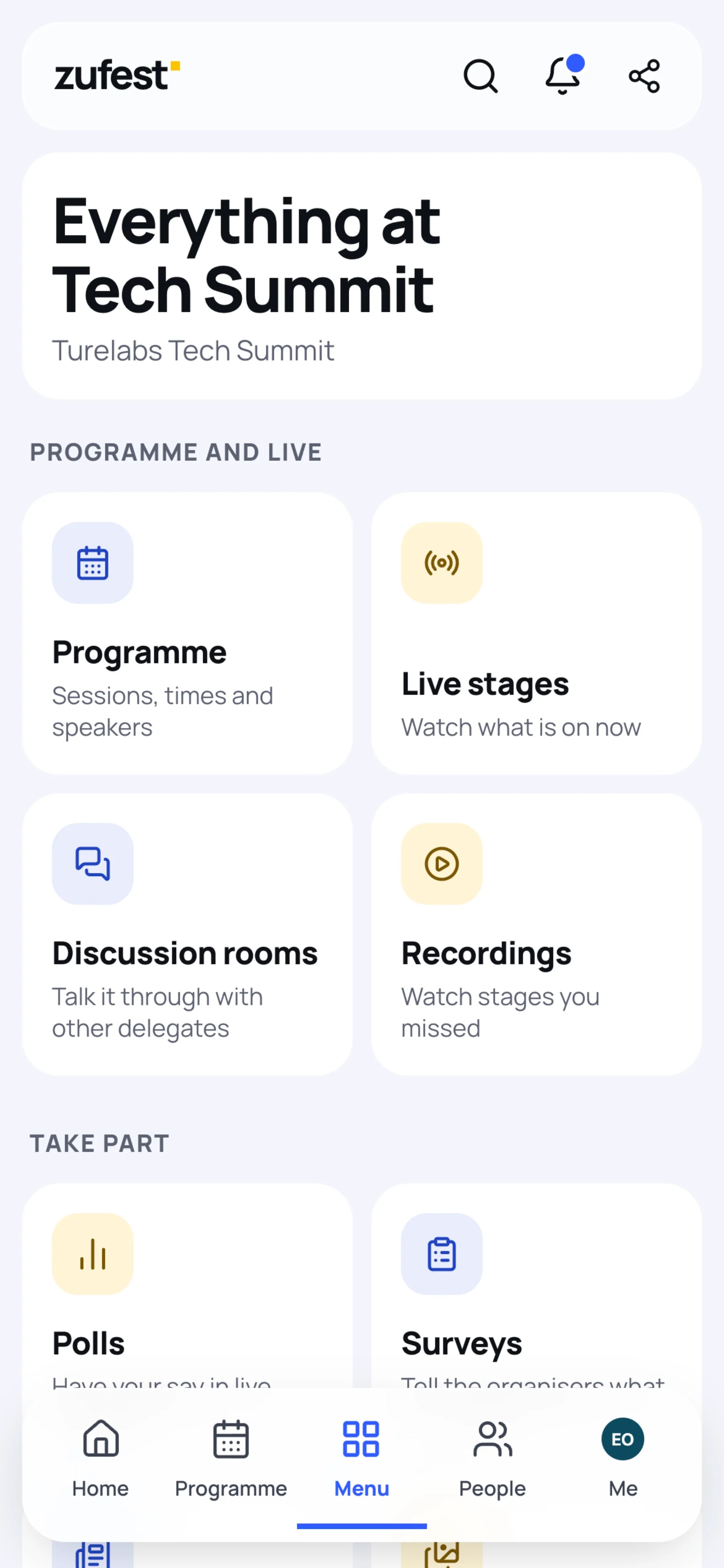
The Menu on a phone
Tap Menu to reach everything that does not have its own tab, such as live stages, polls, the feed, exhibitors and the venue map.
Your badge without a signal
Open your badge once while you have a connection. The QR code is drawn on your phone, so it keeps working at the gate if the venue Wi-Fi drops. See Your badge.
Last updated