Find people to meet
The directory lists the people at your event who have chosen to be found. Search it by name, company or interest, narrow it with filters, and open anyone's profile to connect, save them or ask for a meeting.
Open the directory
-
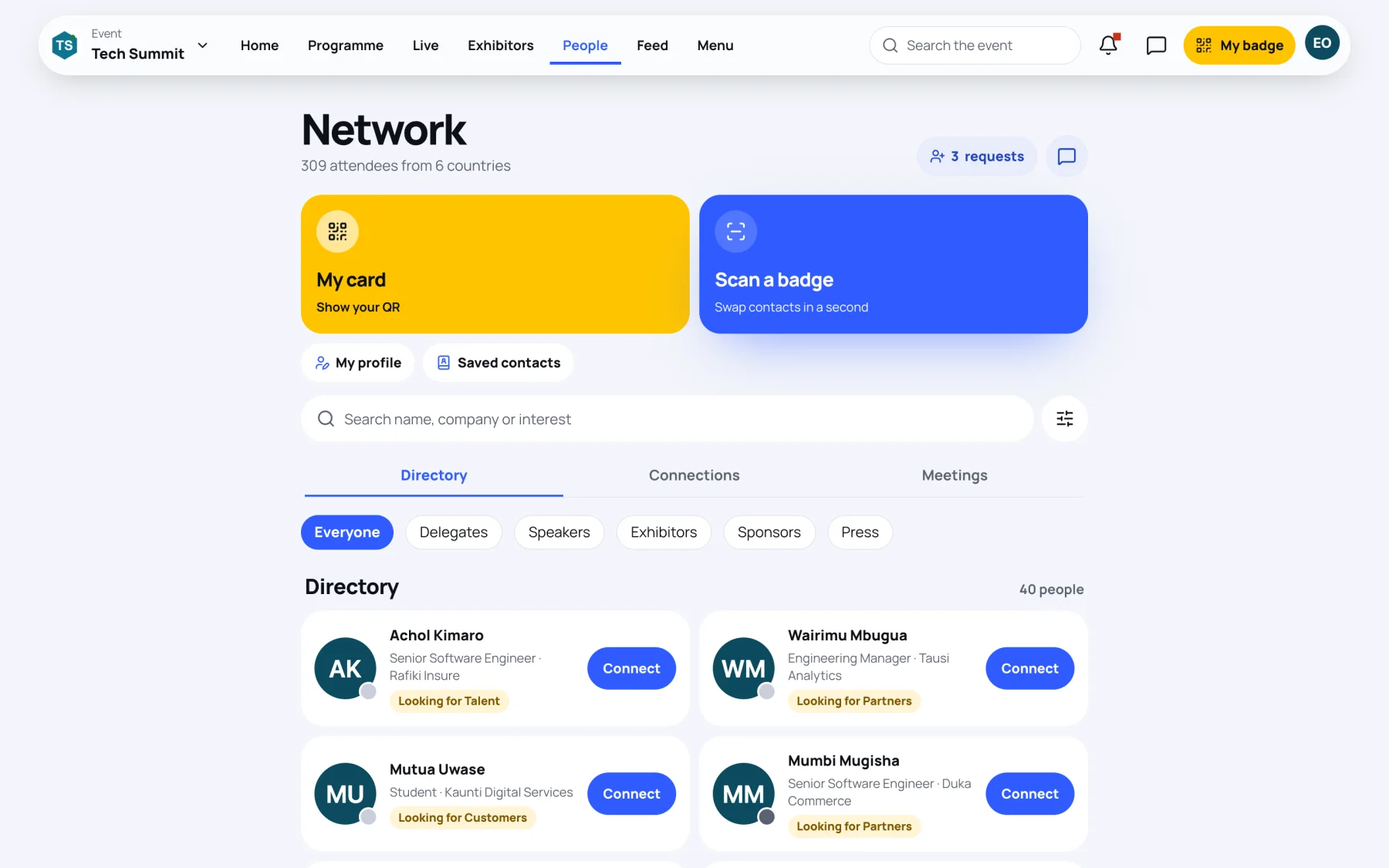
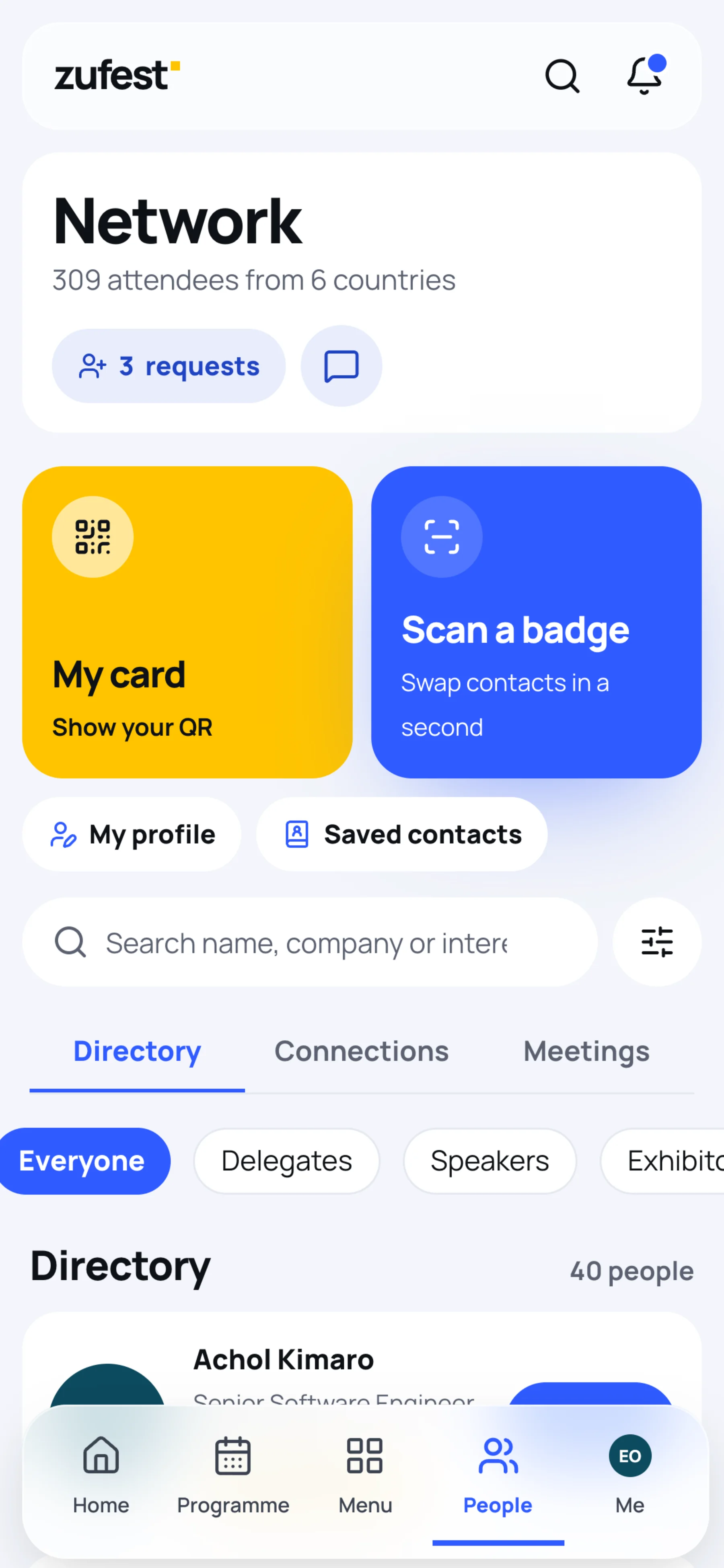
Open the event and select People. On a phone, People is in the bar at the bottom of the screen.
-
Scroll the Directory. Each card shows the person's name, job title, organisation and what they are Looking for. Select Load more at the bottom to see the next people.
The line under Network says how many attendees are at the event and how many countries they come from.
Search and filter
-
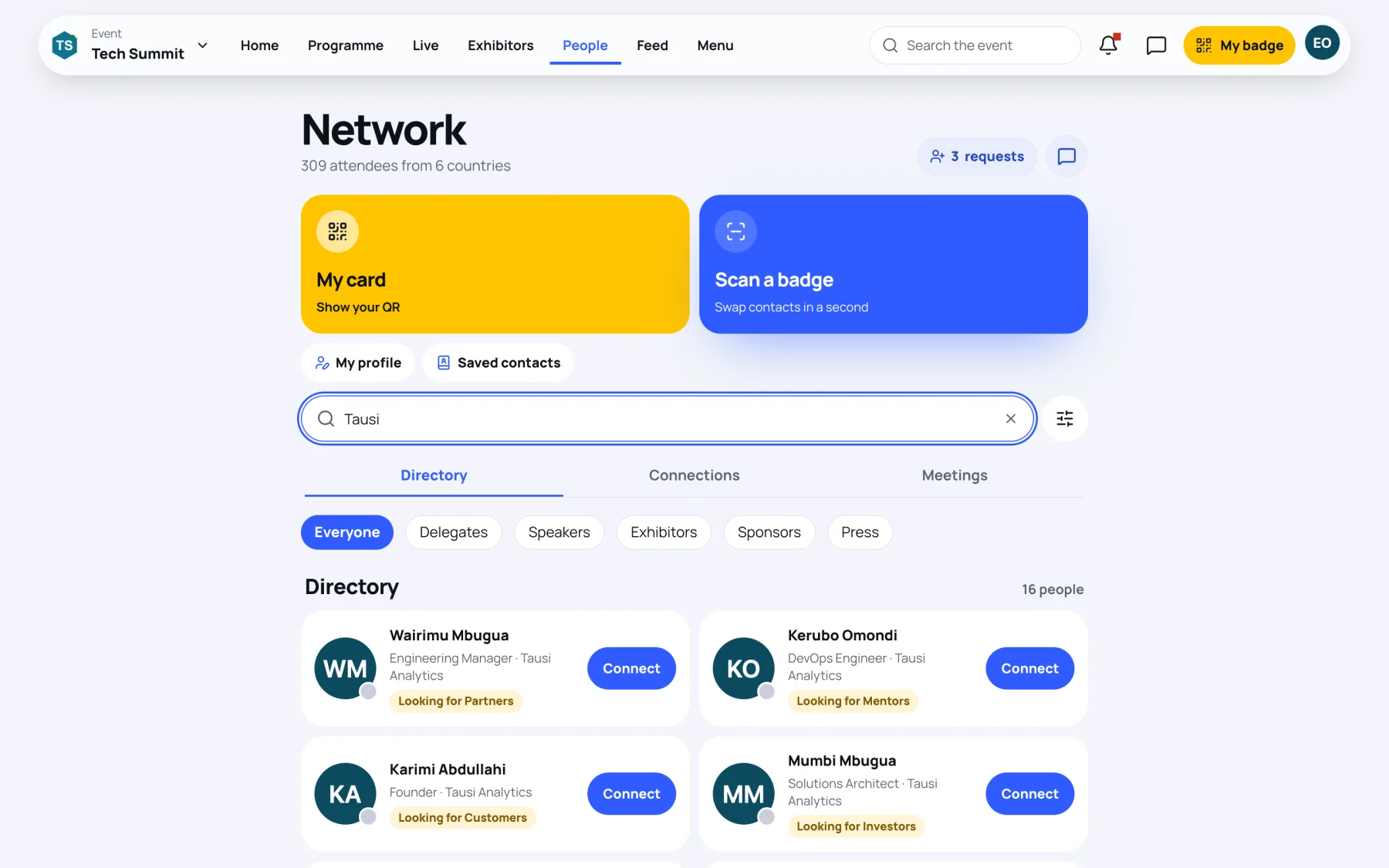
Type in Search name, company or interest. The list updates as you type.
-
To show one kind of attendee, choose a chip under the tabs: Everyone, Delegates, Speakers, Exhibitors, Sponsors or Press.
-
For more filters, select the sliders button next to the search box.
-
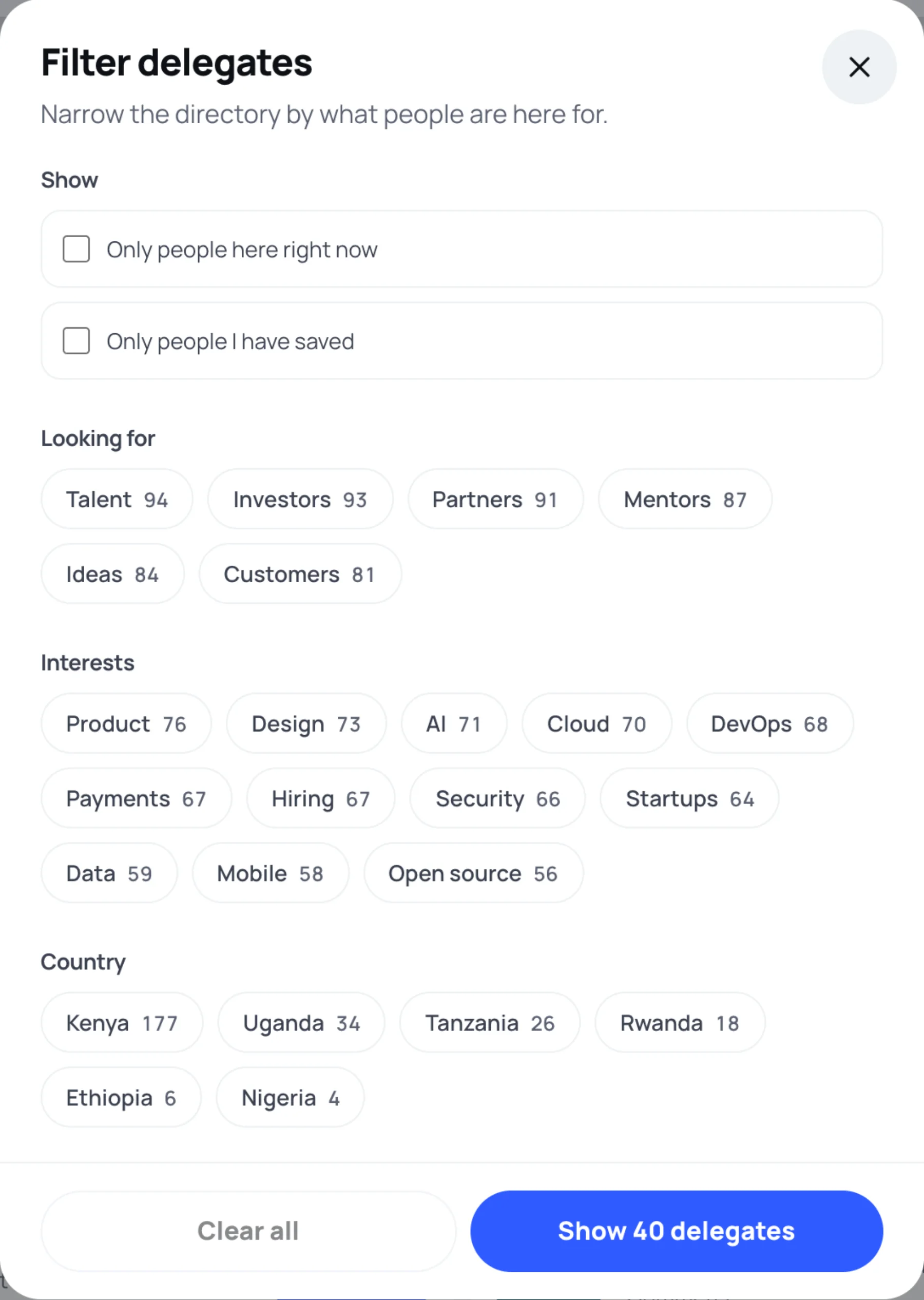
In Filter delegates, choose any of:
- Only people here right now: people who are online at the moment.
- Only people I have saved: people in your saved contacts.
- Looking for, Interests, Country and Language: the number beside each option is how many attendees match it.
-
Select Show with the number of matching delegates. Select Clear all to start again.
The sliders button shows a small number while filters are applied, so you can tell the list is narrowed.
Open someone's profile
Select a person's card to open their profile. It shows their headline, a short bio, their interests, what they are looking for, the languages they speak and any links they chose to share.
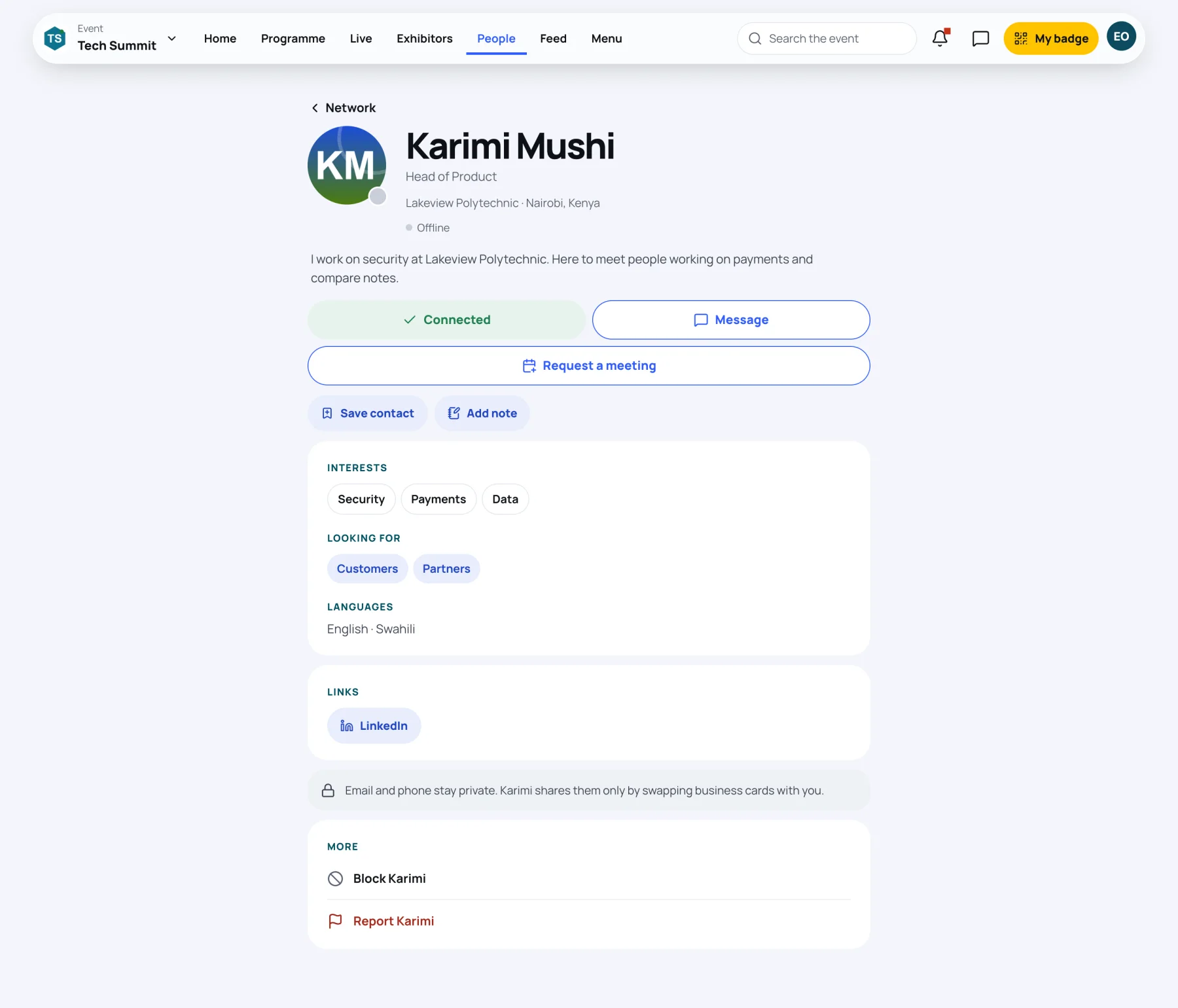
From a profile you can:
| Button | What it does |
|---|---|
| Connect | Sends a connection request. See Connect with someone. |
| Message | Opens your conversation. Shown once you are connected. See Send a message. |
| Request a meeting | Proposes a time and place. See Book a meeting. |
| Save contact | Adds them to your saved contacts. |
| Add note | Writes a private note about them that only you can see. |
Set up your own networking profile
What others see about you comes from your networking profile for this event.
-
On the Network page, select My profile.
-
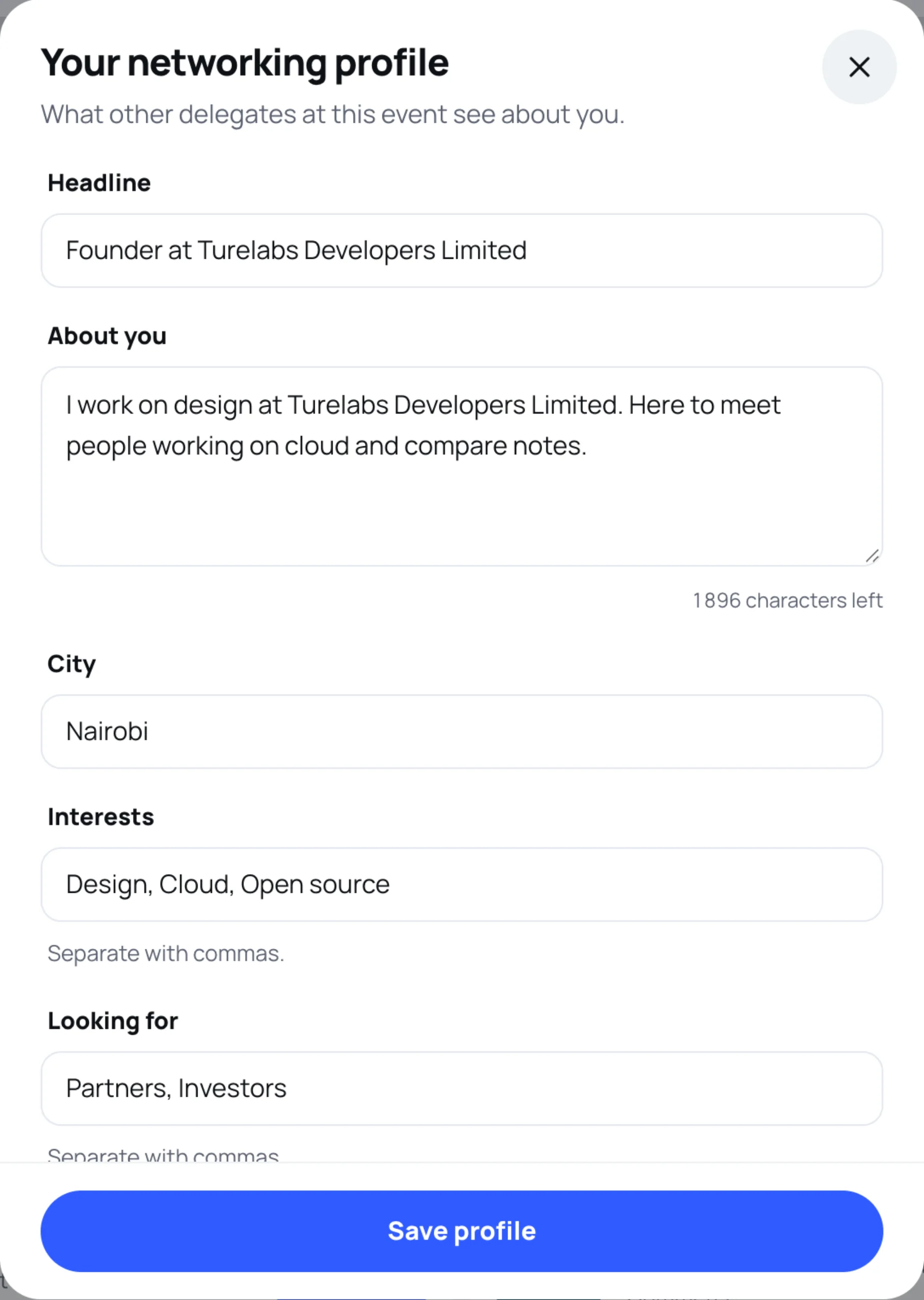
Fill in Headline (what you do, in one line), About you and City.
-
Add Interests, Looking for and Languages, separated with commas. These are what other attendees filter by.
-
Optional: add a Website.
-
Select Save profile. Other delegates see the change straight away.
If you do not want to be listed at all, see Control who can contact you.
Last updated