Sponsors and packages
A sponsor is a stand with a sponsor package. The package records the tier, what it is worth and what the sponsor gets. You then ask for each piece of artwork you need and check it when it arrives.
Set the package
-
Go to Exhibitors and sponsors and select Package on the sponsor's row.
-
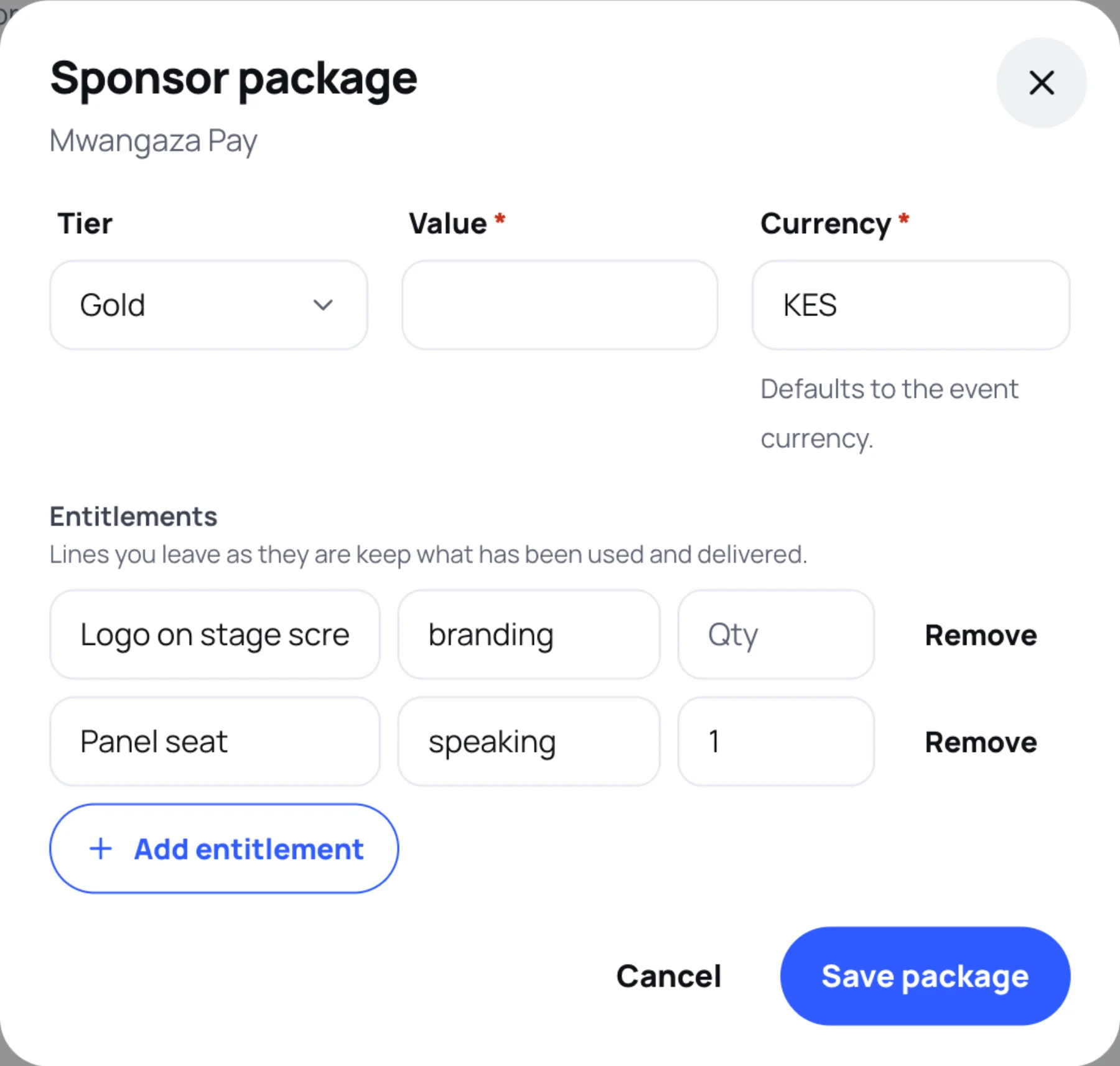
Choose the Tier: Headline, Platinum, Gold, Silver or Partner.
-
Type the Value and check the Currency. For a new package the currency starts as the event's currency. When the sponsor already has a package, the form opens with its tier, value, currency and entitlements filled in.
-
Under Entitlements, select Add entitlement for each thing the package includes. Give it a label (what is included), a kind and a quantity.
-
Select Save package.
The tier shows in the Sponsorship column of the stand list and on the attendee sponsor page (see Sponsors). The package value is for your team: attendees never see it.
Ask for artwork
-
Select Artwork on the sponsor's row.
-
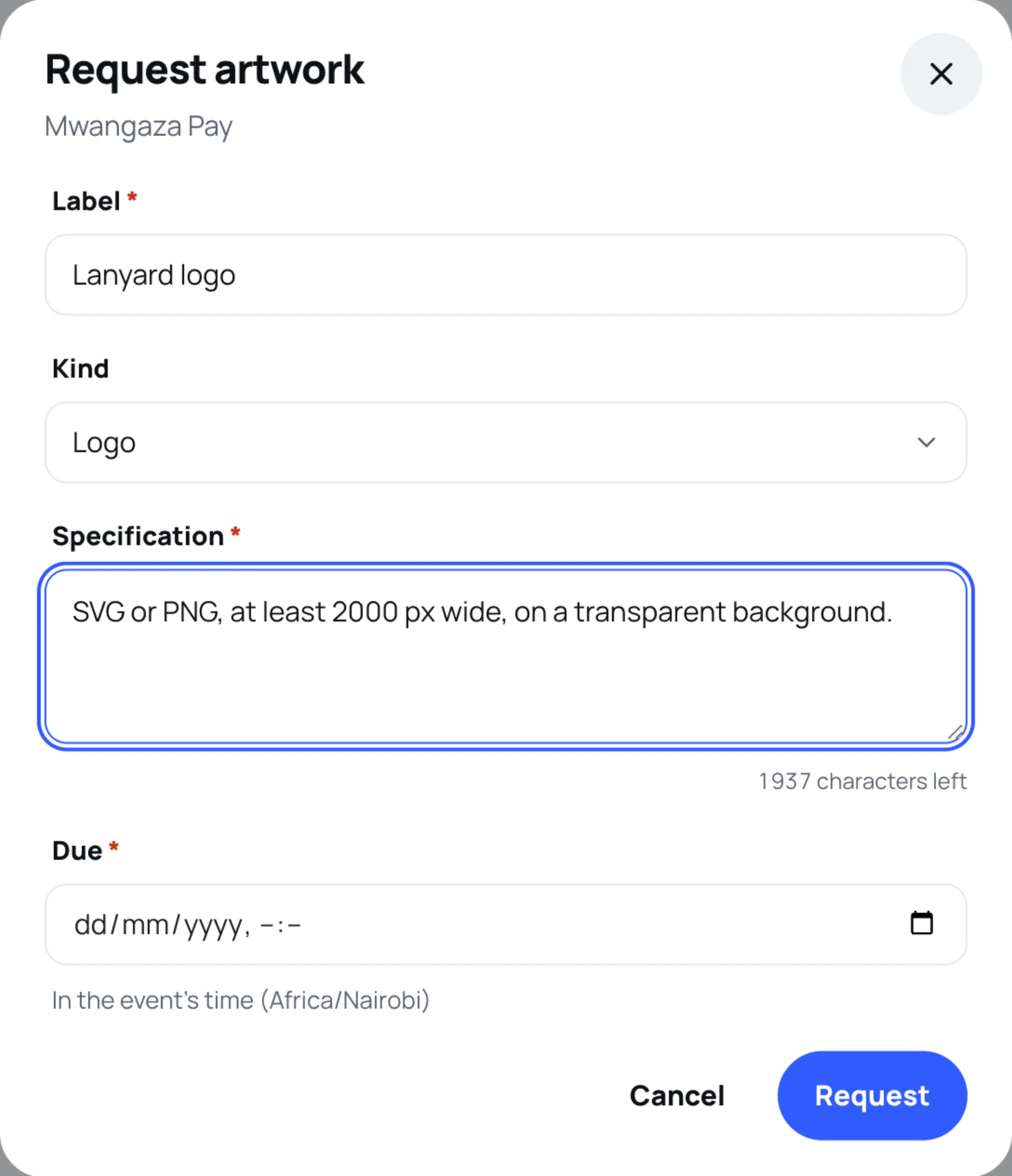
Type a Label, for example "Lanyard logo", and choose its Kind: Logo, Artwork, Video or Copy.
-
Write the Specification: the format, size and anything else the sponsor's designer needs.
-
Set the Due date, in the event's time zone.
-
Select Request.
The request appears in the sponsor's stand tools, where their team uploads the file.
Check what sponsors send
Submitted files wait under Sponsorship artwork, below the stand list. Each shows the label, the specification, the sponsor, when it is due and when it was updated.
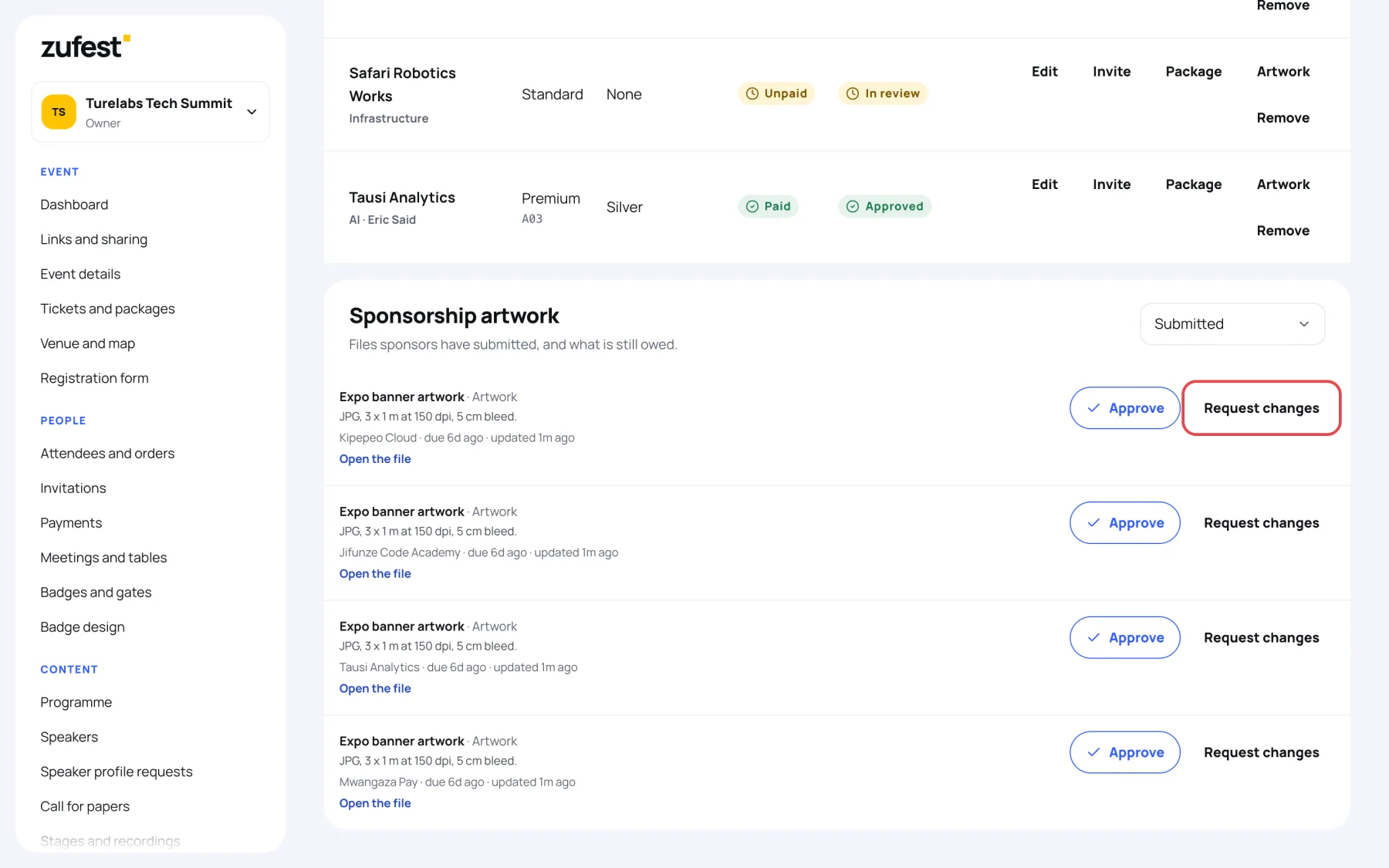
- Select Open the file to look at it.
- If it meets the specification, select Approve.
- If not, select Request changes, say What needs changing, then Send back. The note is required, so the sponsor knows what to fix.
Use the menu on the right to see artwork in another state: Outstanding (requested, nothing sent yet), Submitted, Approved or Changes requested.
Last updated