Invite your team
Give each colleague their own seat on your organisation, with a role that fits their job. A seat applies to every event the organisation runs, so you invite people once.
See your team
In the sidebar, under Organisation, select Team and roles. Organisation team lists everyone with a seat: their name, job title and email, their Role, their Status (Active, Invitation pending or Suspended), how many Permissions they hold and when they were Last active.
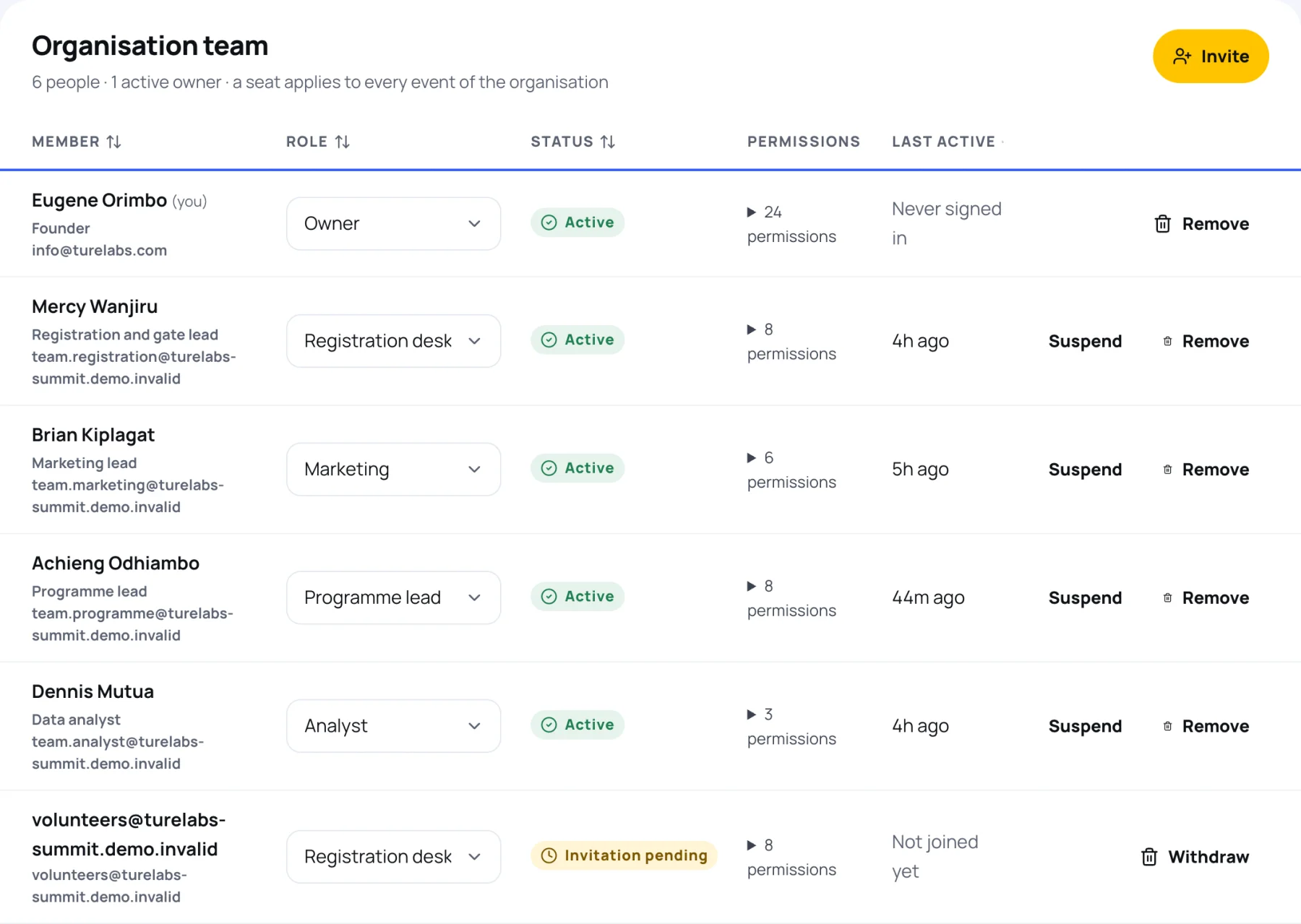
Invite someone
-
On Team and roles, select Invite.
-
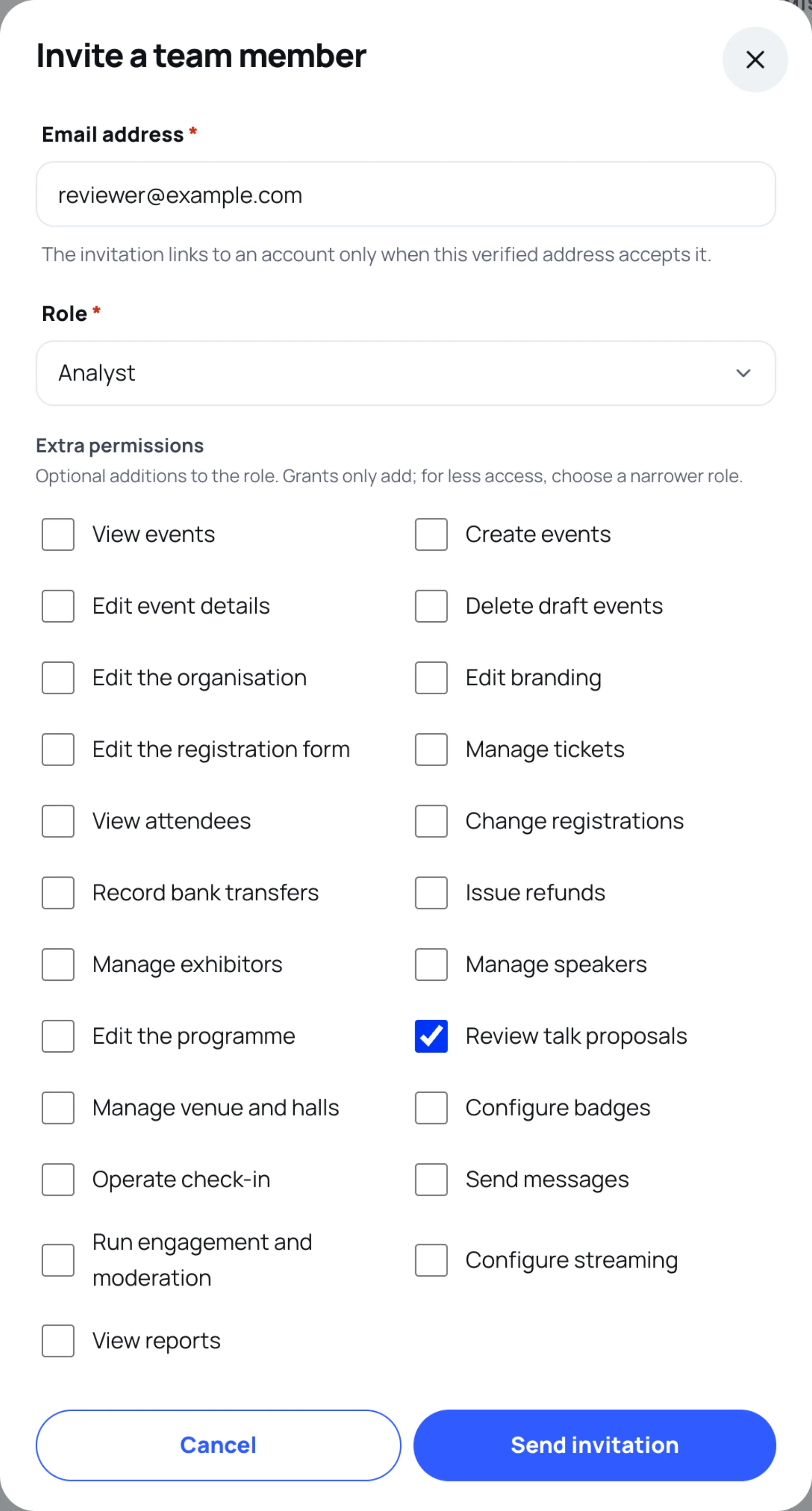
Enter their Email address. Use the address they sign in to Zufest with, or will sign up with.
-
Choose a Role.
-
Optionally tick Extra permissions to add to the role. Grants only add; for less access, choose a narrower role.
-
Select Send invitation. Zufest emails them, and they appear in the table as Invitation pending.
Accept an invitation
If someone invited you:
-
Open the invitation email and select View invitation, or in the organiser area open your account menu and choose Team invitations.
-
Sign in with the address the invitation was sent to. That address must be confirmed. If it is not, the page asks you to verify it first.
-
Find the organisation under Invitations and select Accept.
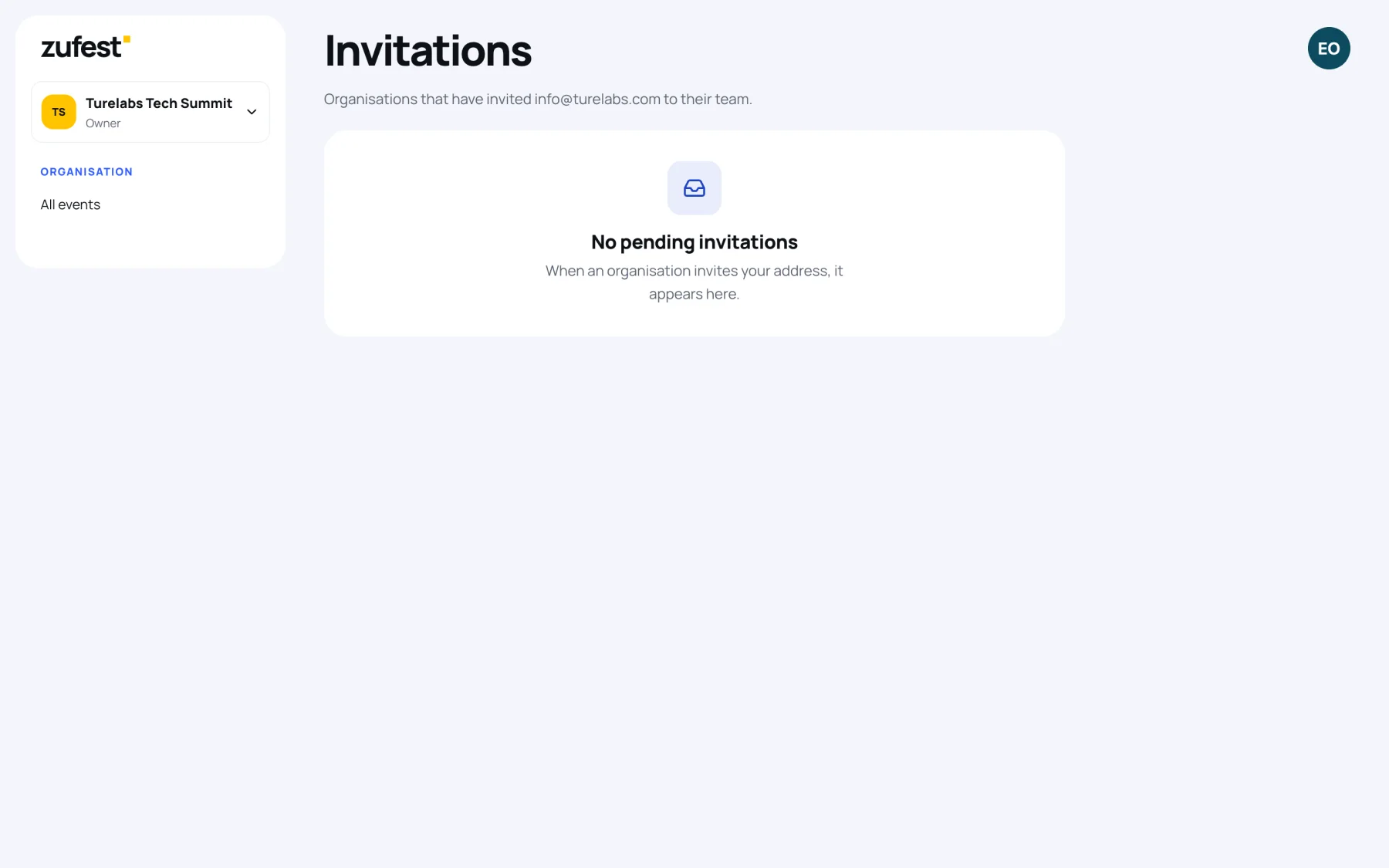
You join as the role you were invited with, and the organisation's events appear on Organiser.
Change someone's role
On Team and roles, choose a new role in the person's Role list. Making someone an Owner asks you to confirm, because owners hold every permission, including managing the team. Stepping an owner down also asks you to confirm.
The organisation always keeps at least one active owner. Zufest refuses a change that would leave none.
Suspend or remove someone
- Suspend takes away their organiser access to every event of the organisation until you select Reactivate. Their seat and role are kept.
- Remove takes away their organiser access for good.
- Withdraw cancels an invitation that has not been accepted yet. The address can no longer join with it.
Last updated