Manage your stand
Your stand has a booth page in the event app, where visitors read about you, browse your products, contact the team and book meetings. Your stand's team edits it from the same app, with tools only the team can see.
What visitors see
Visitors find your stand under Exhibitors. The booth page shows your cover image, logo, stand number and tier, tagline, markets and visit count, buttons to Contact the team and Book a meeting, an offer if you have one, and tabs for Overview, Products & services, Media, Resources and Team.
Open your stand tools
-
Open the event, go to Exhibitors and open your stand.
-
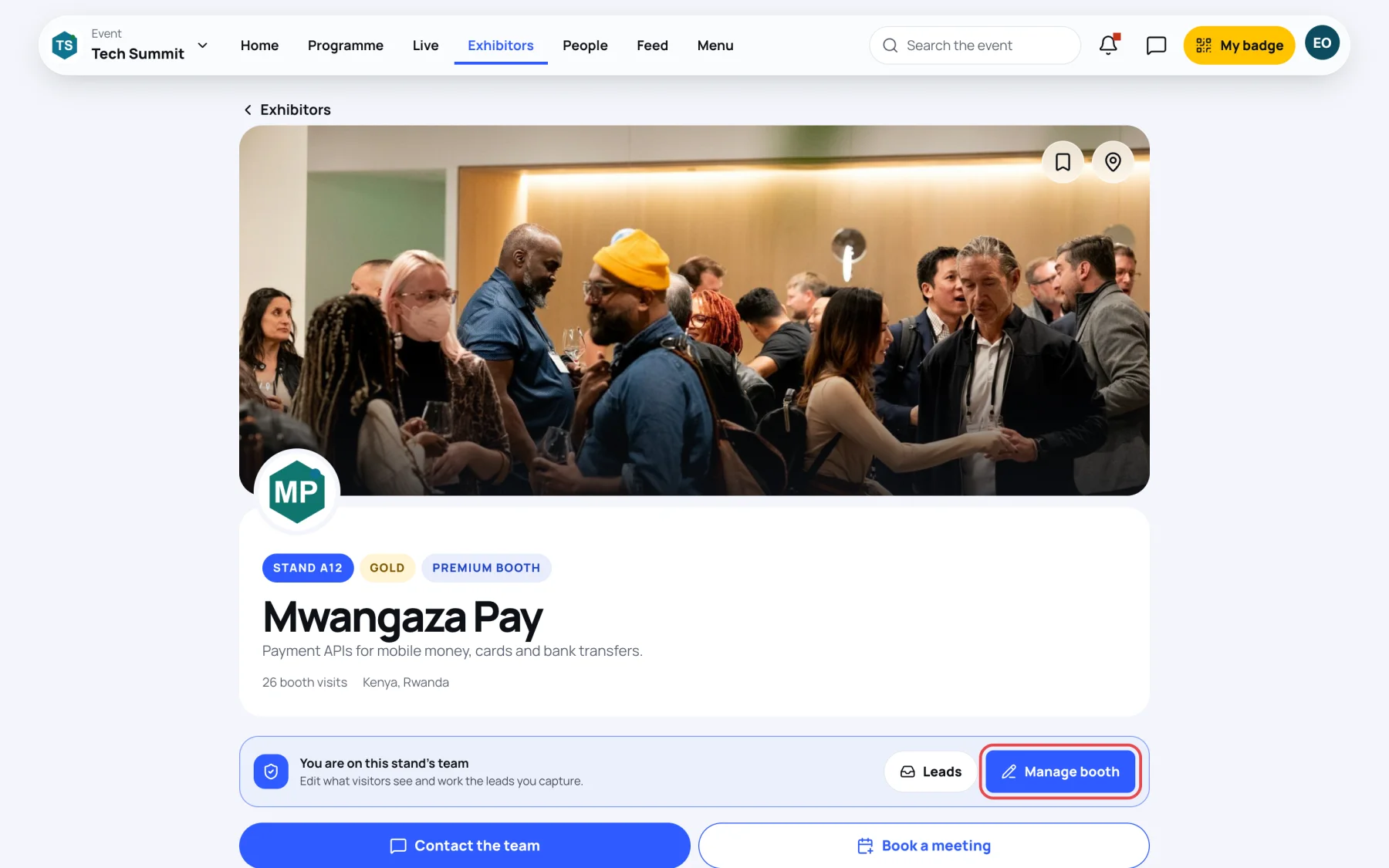
Under your stand's name is a bar only your team sees: You are on this stand's team.
-
Select Manage booth to edit the stand, or Leads to work the leads you capture.
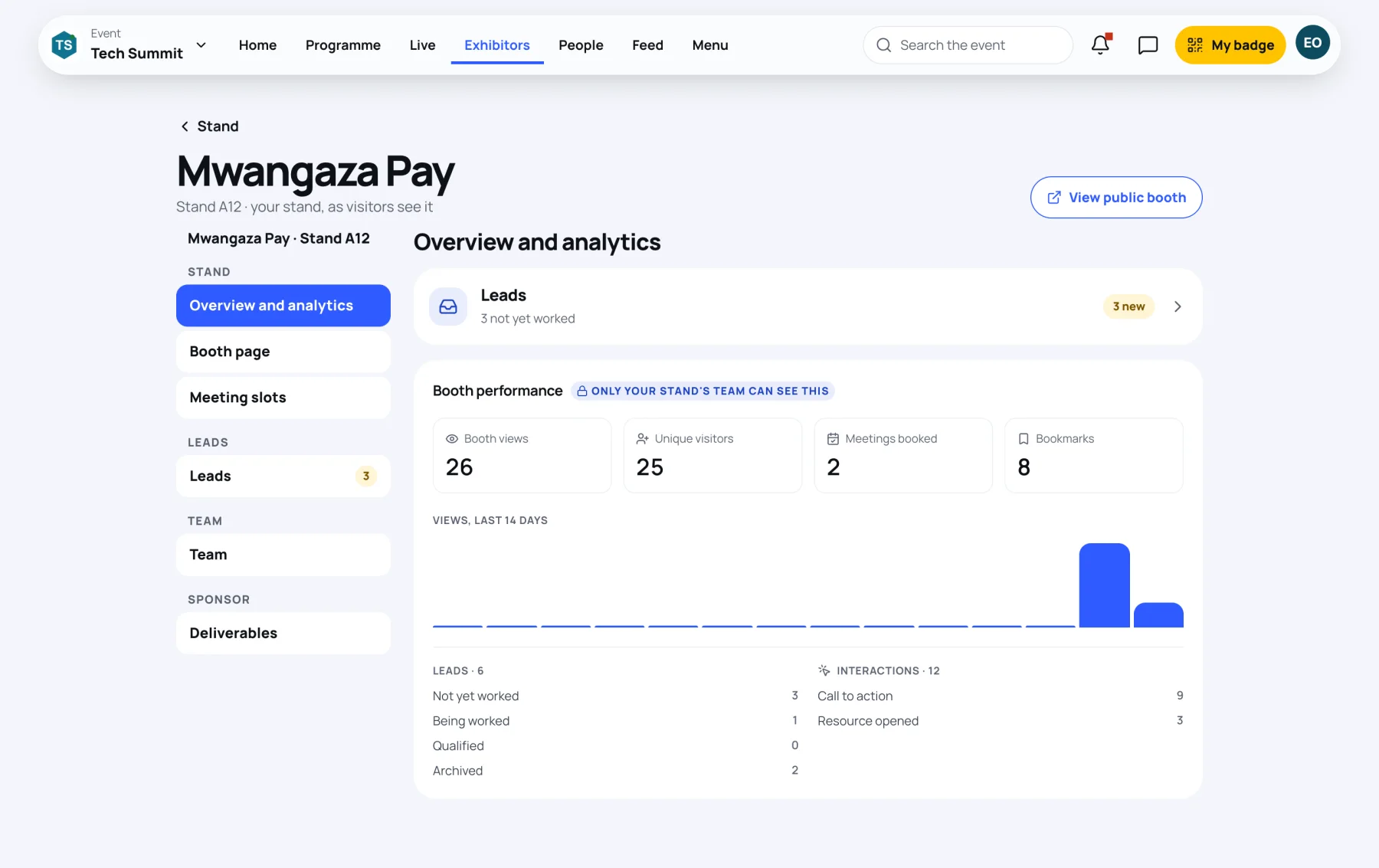
The stand tools open with a menu on the left (a row of buttons at the top on a phone), grouped as Stand, Leads, Team and Sponsor. The number beside Leads counts leads not yet worked; the number beside Deliverables counts what you still owe the organisers.
| Section | What it holds |
|---|---|
| Overview and analytics | Your leads waiting and how the booth is doing |
| Booth page | Cover, logo and story, the catalogue, the gallery |
| Meeting slots | The times visitors can book with your team |
| Leads | Every lead your stand has captured |
| Team | Who has access, and who visitors can book |
| Deliverables | What your sponsorship package needs from you (sponsors only) |
View public booth takes you back to the page as visitors see it.
Overview and analytics
Overview and analytics opens first. The Leads card says how many leads are "not yet worked" and opens your inbox.
Booth performance is marked "Only your stand's team can see this". It shows Booth views, Unique visitors, Meetings booked and Bookmarks, a bar chart of views over the last 14 days, your leads by status and the interactions visitors had with the booth, such as opening a resource or a call to action.
Edit the booth page
Booth page has three parts, one under the other: Cover, logo and story, Catalogue, and Gallery and video.
Cover, logo and story
-
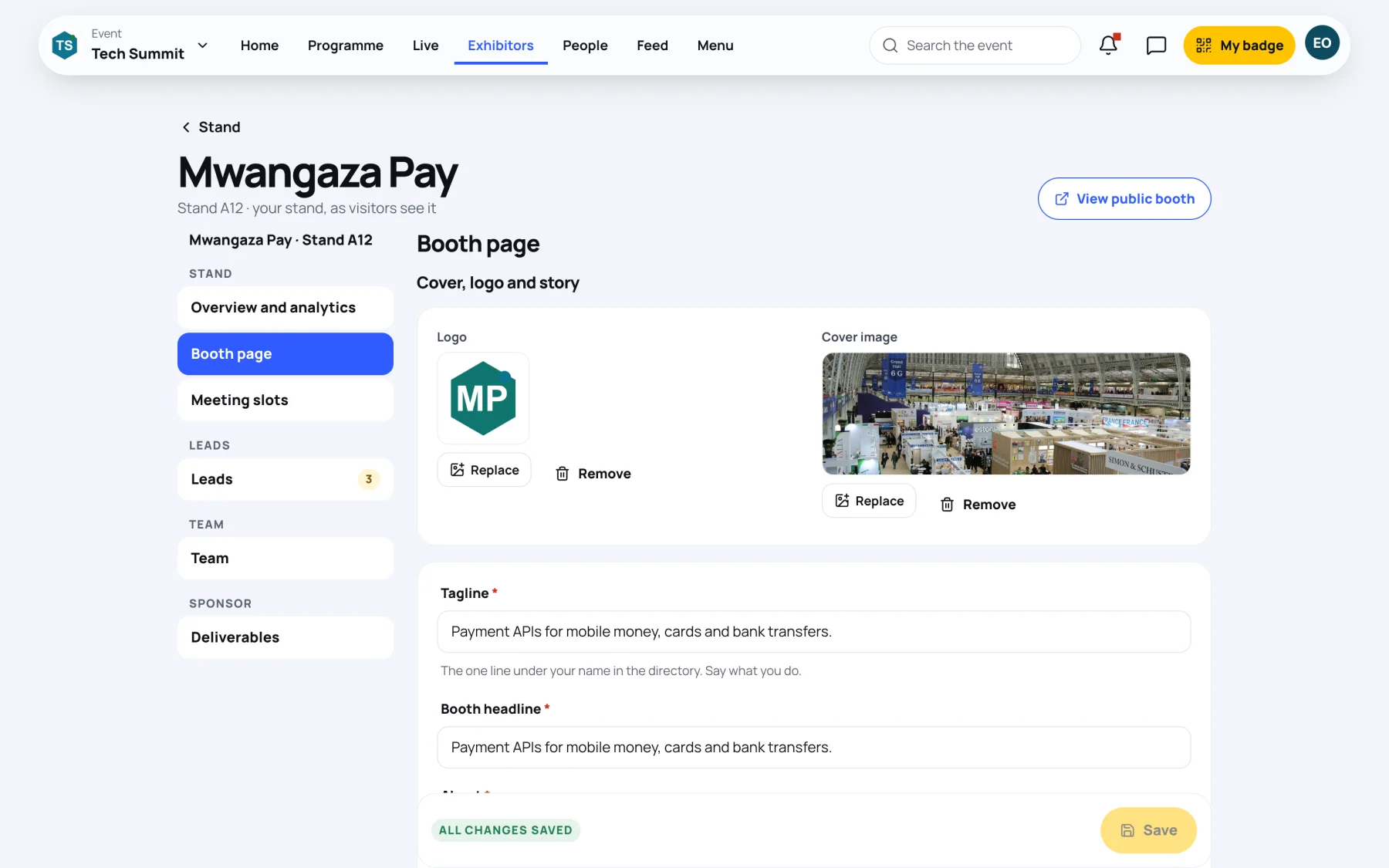
Under Logo and Cover image, select Replace (or Upload if there is none yet) to change each picture, or Remove to take it off.
-
Write a Tagline: "The one line under your name in the directory. Say what you do."
-
Fill in Booth headline and About. Both are needed, like the tagline.
-
Optionally write a Longer story (shown on premium and title booths) and add your Website.
-
Select Save in the bar at the bottom. It reads Unsaved changes until you do. Zufest says "Booth updated" and "Visitors see the change straight away."
Catalogue
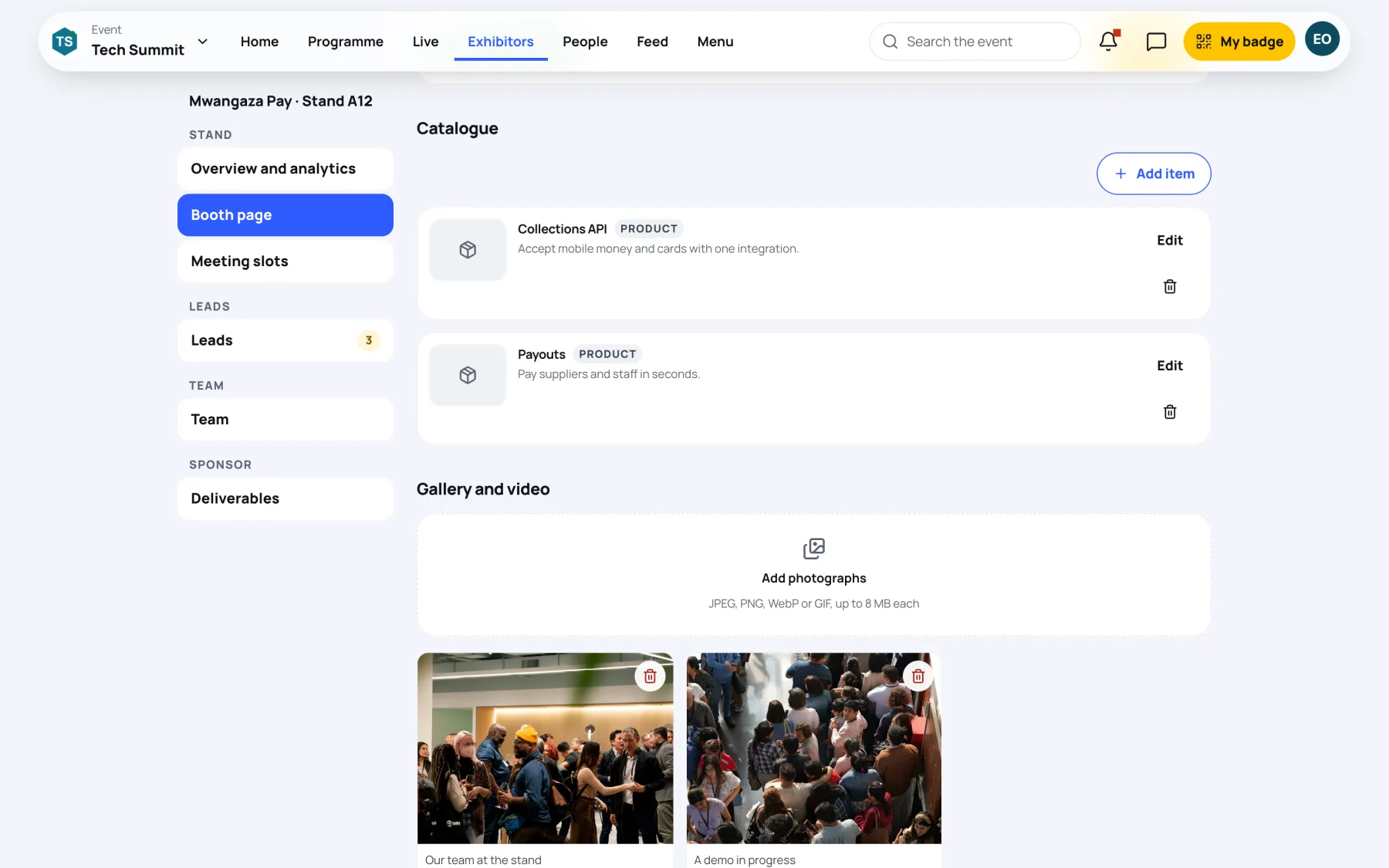
Items appear on your booth's Products & services tab. Each item in the list has Edit and a bin button to remove it.
-
Select Add item.
-
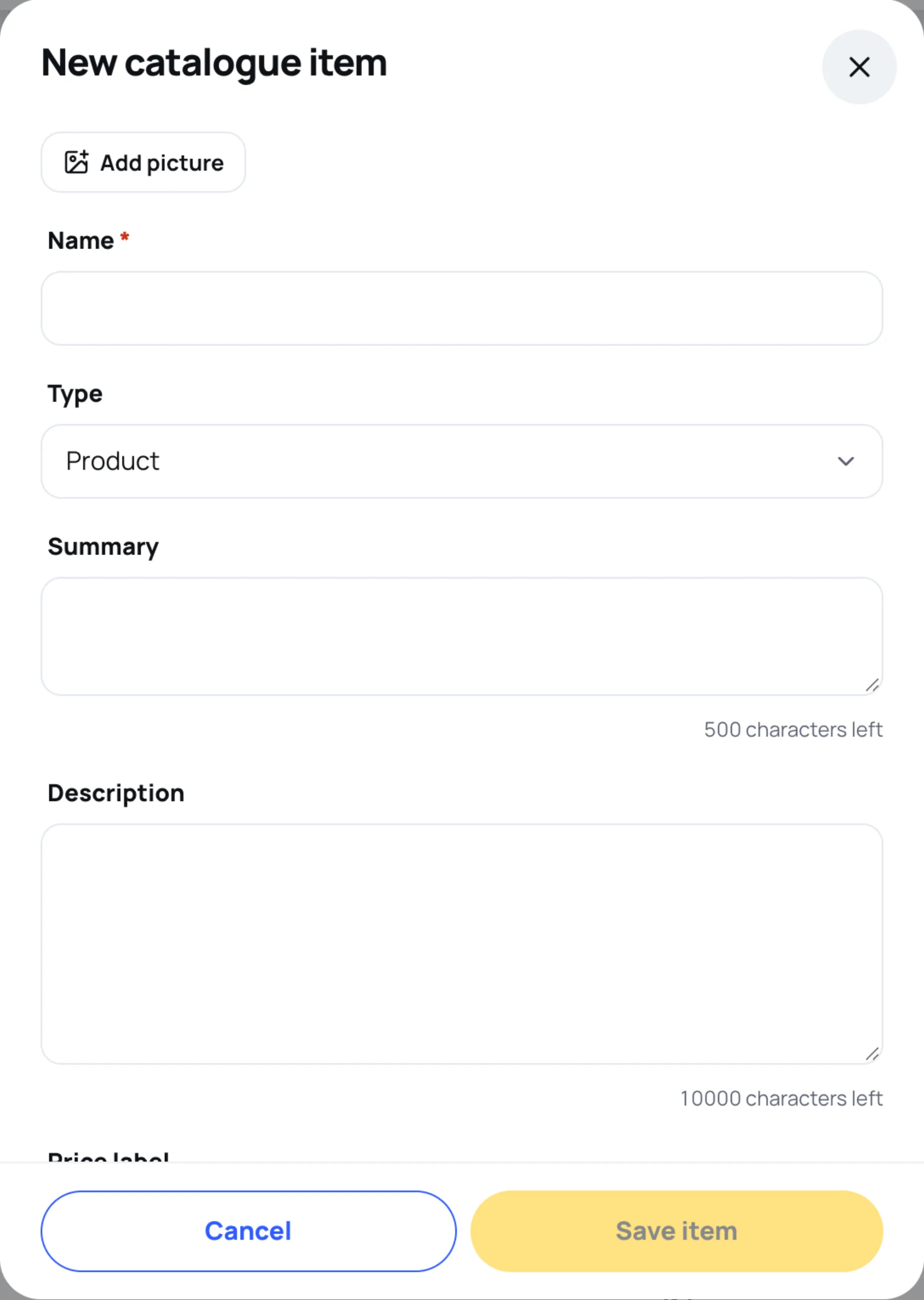
Fill in Name and choose the Type: product, service or solution. Add a Summary and a Description.
-
Optionally select Add picture, and fill in a Price label (free text, for example "From 250 per month"), Tags separated by commas, and a button with Button label and Button link.
-
Select Save item. Zufest says "Saved to your catalogue".
Gallery
Select Add photographs to upload pictures: JPEG, PNG, WebP or GIF, up to 8 MB each. They appear on the booth's Media tab. Remove one with its bin button: "It disappears from your booth straight away."
Sponsor deliverables
If your stand is also a sponsor, Deliverables shows your package.
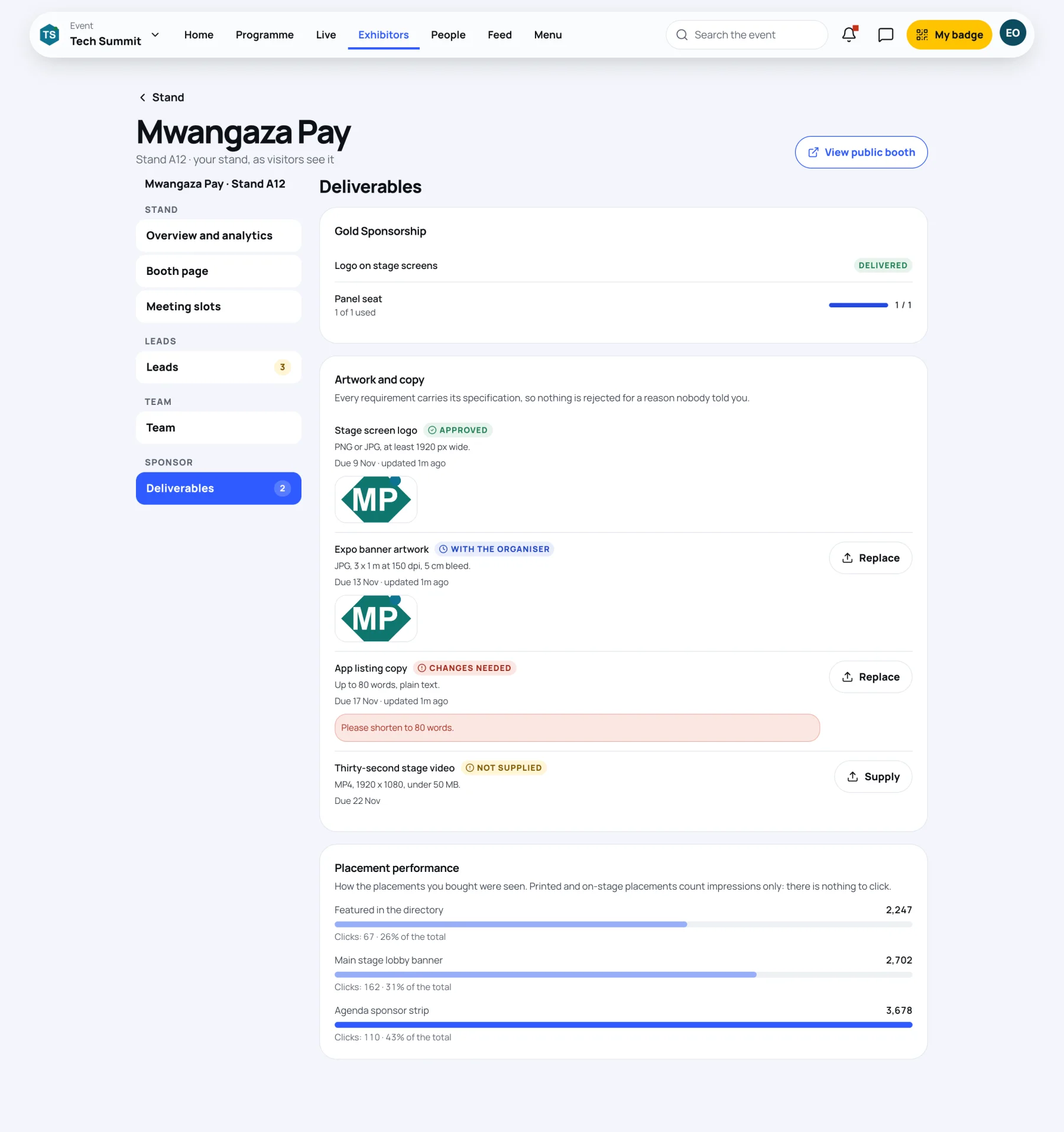
- The package card lists what it includes and whether each part is Delivered or Pending, with how much of a counted item is used, such as "1 of 1 used".
- Artwork and copy lists what the organisers need from you, each with its specification, due date and status: Not supplied, With the organiser, Changes needed or Approved. When changes are needed, the organisers' note is shown under the item.
- Select Supply (or Replace) on an item to send a file. Zufest says "Sent to the organiser".
- Placement performance shows how the placements you bought were seen. "Printed and on-stage placements count impressions only: there is nothing to click."
Last updated