Connect with someone
A connection is a two-way link between you and another attendee. Once they accept, you can message each other and they appear in your Connections tab.
Send a connection request
There are two ways to ask.
From the directory, select Connect on the person's card. The request goes straight away, without a note, and the button changes to Requested.
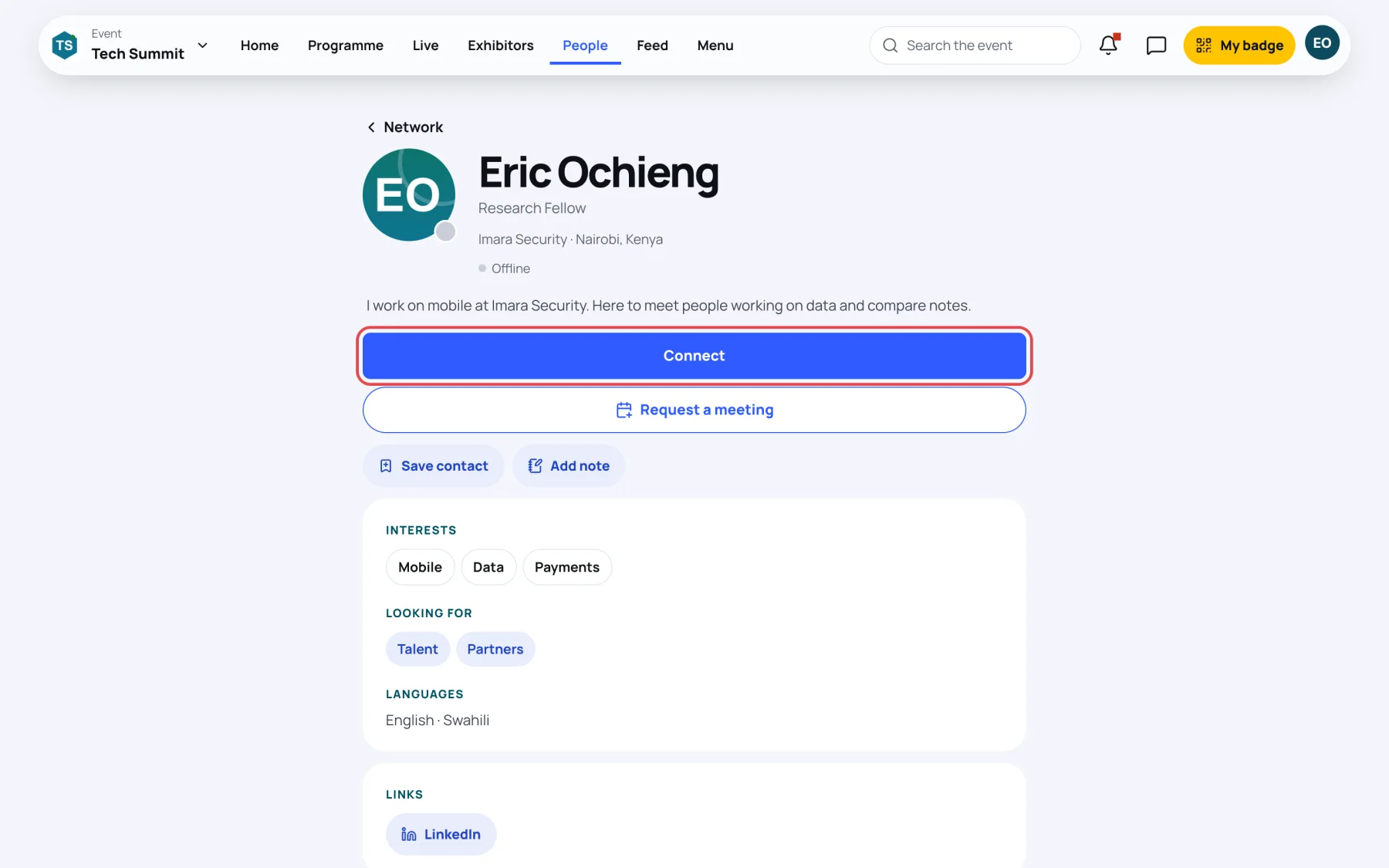
From their profile, you can add a note first:
-
Open the person's profile from the directory.
-
Select Connect.
-
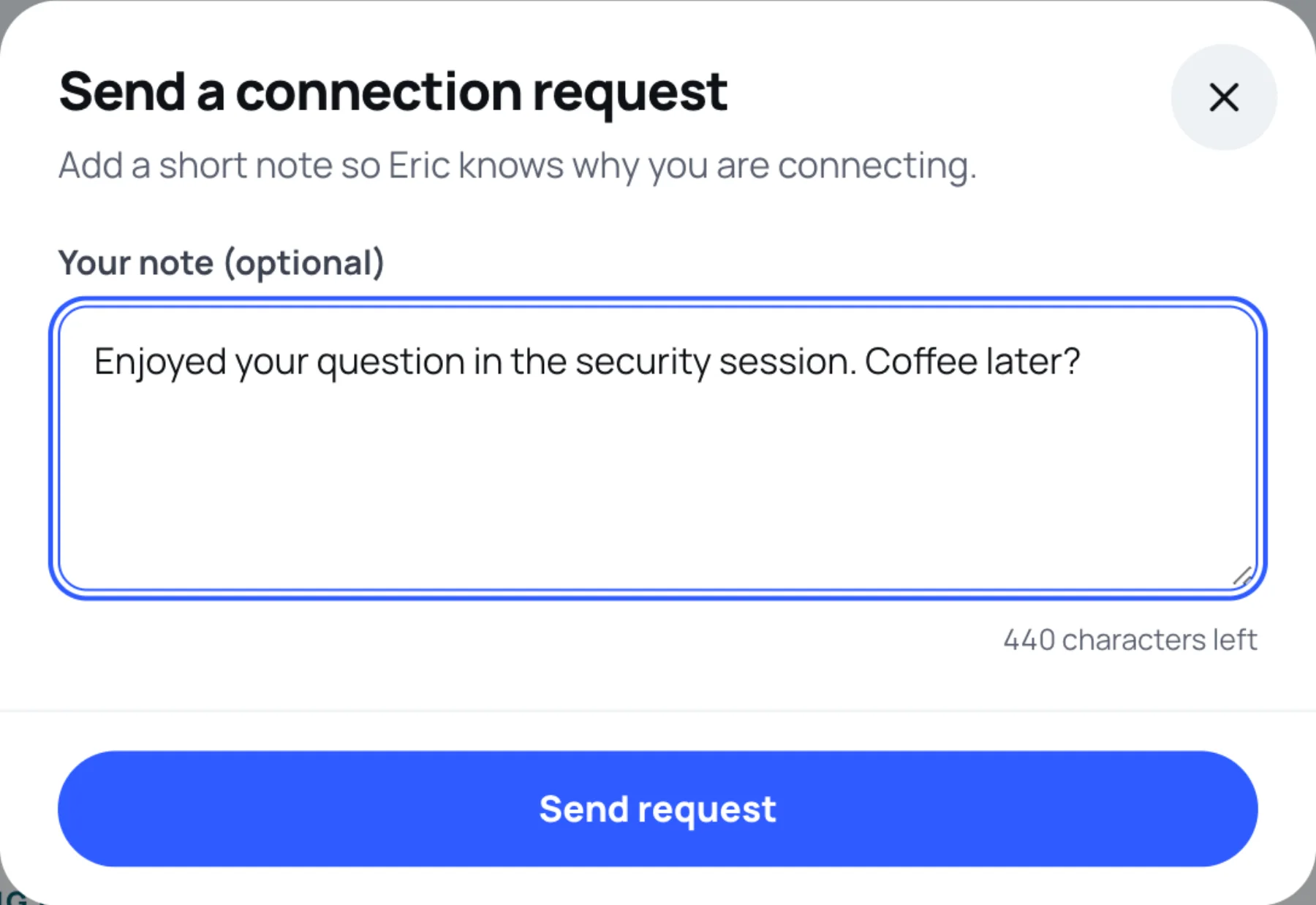
In Your note (optional), say where you met or what you would like to talk about.
-
Select Send request.
The person is notified and sees your request with their connection requests. Until they answer, their profile shows Requested.
Answer requests sent to you
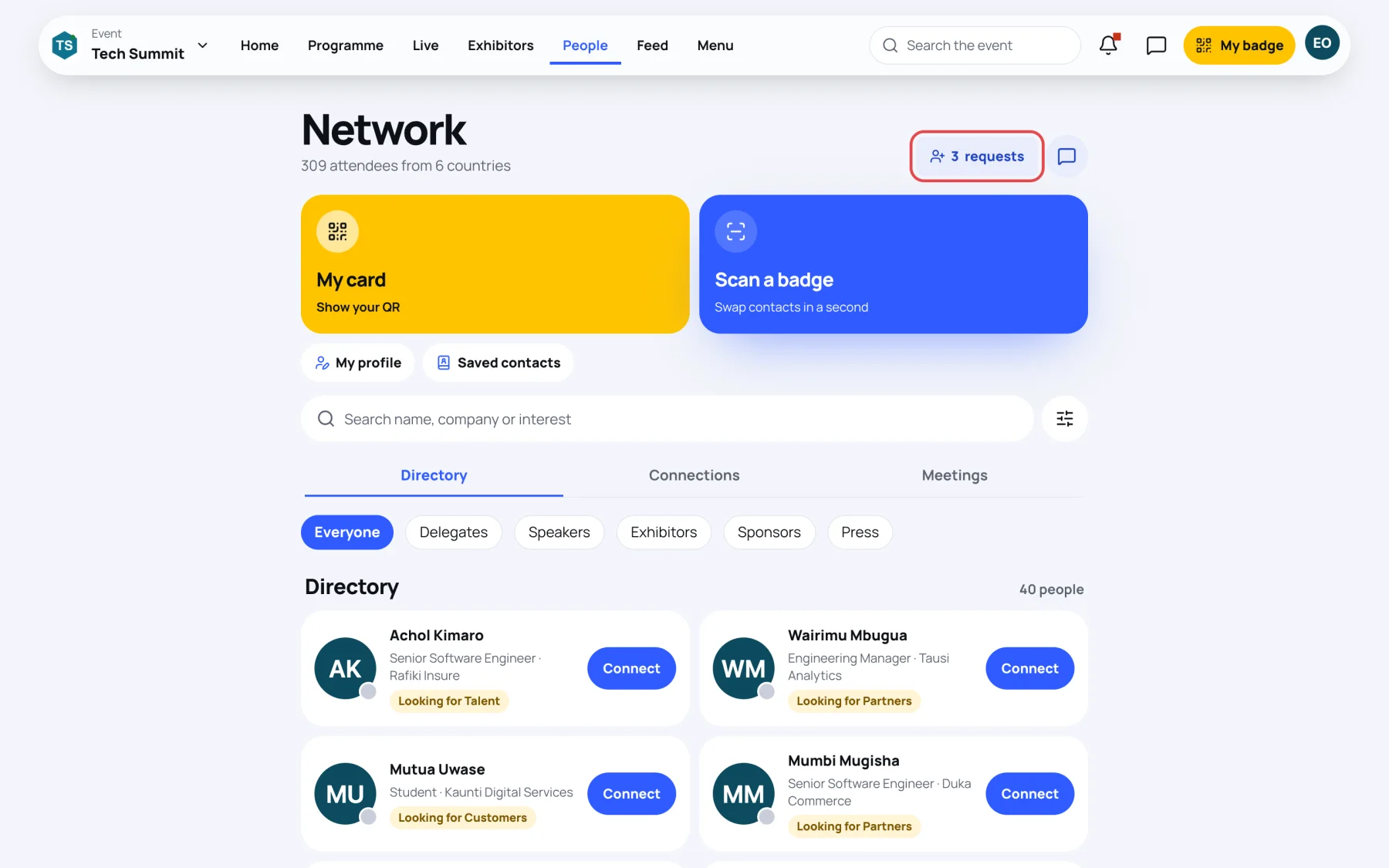
When someone asks to connect, a requests button appears at the top of the Network page with the number waiting.
-
Select the requests button. You can also open Menu, then Connection requests.
-
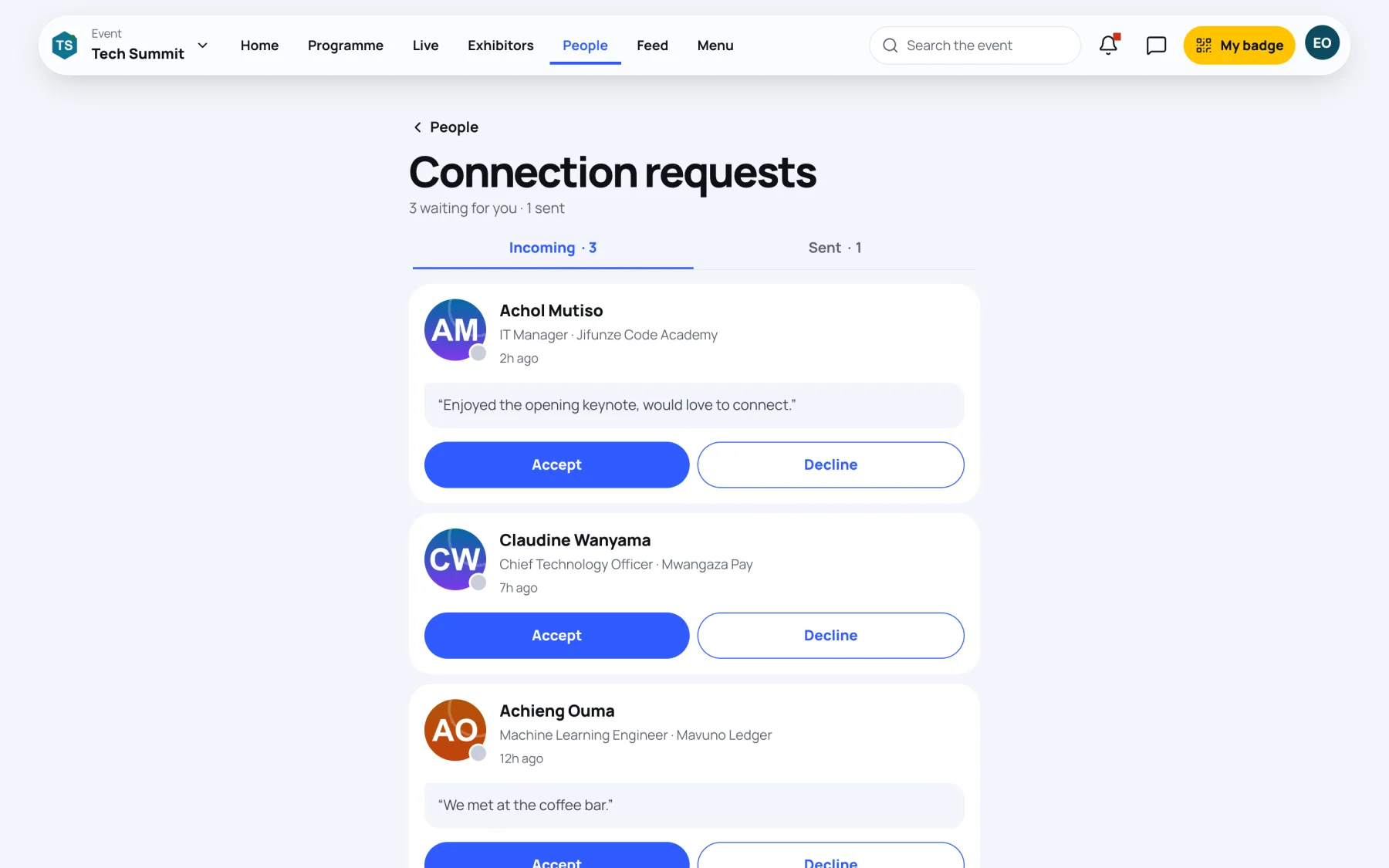
On the Incoming tab, read each request and its note.
-
Select Accept to connect, or Decline to turn it down.
Withdraw a request you sent
-
Open Connection requests.
-
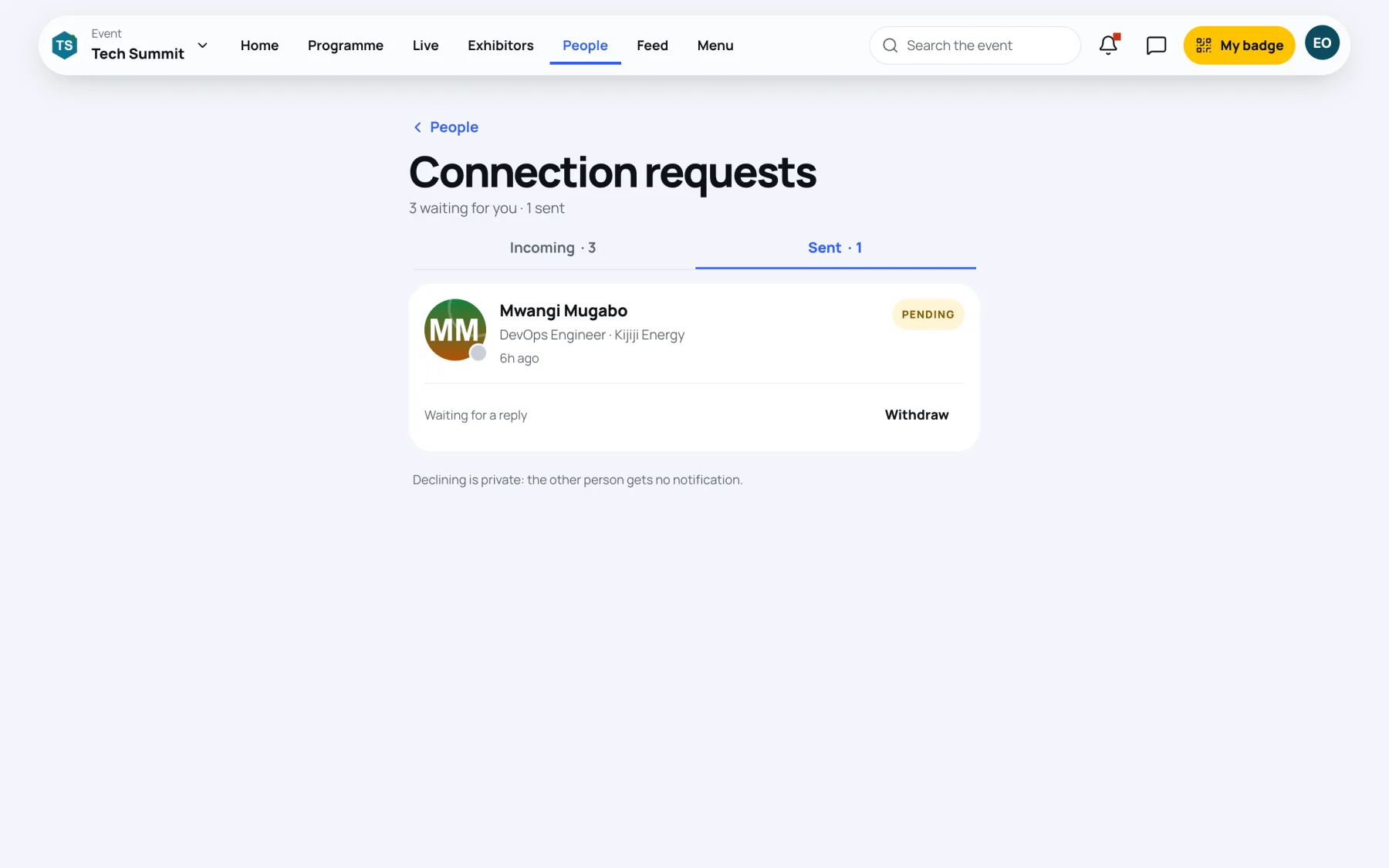
Select the Sent tab. Each request shows Waiting for a reply until it is answered.
-
Select Withdraw on the request.
See your connections
On the Network page, select the Connections tab. The tab shows how many connections you have, and the list works with the same search and filters as the directory.
People who have blocked you, or whom you have blocked, cannot send each other requests. See Control who can contact you.
Last updated