Refund an order
You can refund all of a payment or part of it. A full refund normally cancels the registration; a part refund normally keeps it. You can choose otherwise.
Refund a payment
-
In the sidebar, select Attendees and orders, then open the person.
-
Select Refund.
-
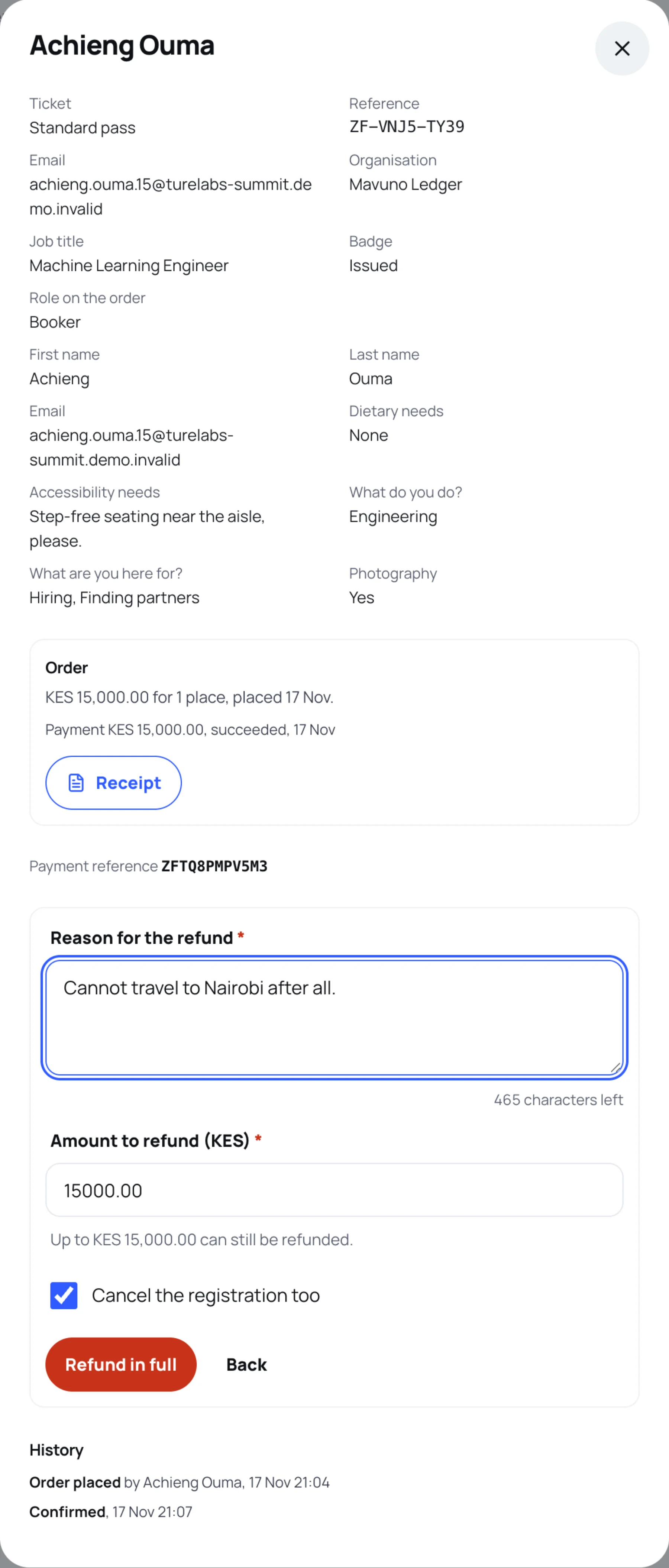
In Reason for the refund, say why. This is required.
-
Check Amount to refund. It starts at what can still be refunded, shown under the field as Up to. Type a smaller amount for a part refund.
-
Check Cancel the registration too. It is ticked for a full refund and unticked for a part refund. Change it if you need to, for example to keep a cancellation fee and still cancel.
-
Select Refund in full (or Refund this amount for a part refund), then confirm.
Follow the refund
The refund shows on the order with its state:
| State | What it means |
|---|---|
| Requested | Recorded, about to be sent. |
| With the provider | Sent. It completes when the payment provider confirms it. |
| Return by hand | This payment method cannot return money automatically. Send it yourself, then record it. |
| Refunded | Complete. The payer is told. |
| Failed | It did not go through. You can try again. |
Only one refund per payment can be in progress at a time. The payer is told when it starts and when it completes. On a transferred order, refund news goes to whoever paid.
Record a refund you returned by hand
-
Return the money to the payer from your own account.
-
On the order, select Record refund outcome.
-
Type the Reference of the money returned and the Returned on date.
-
Choose Money returned, or Could not be returned if it failed.
-
Select Record. This is the refund's final record and cannot be changed afterwards.
See every payment and refund
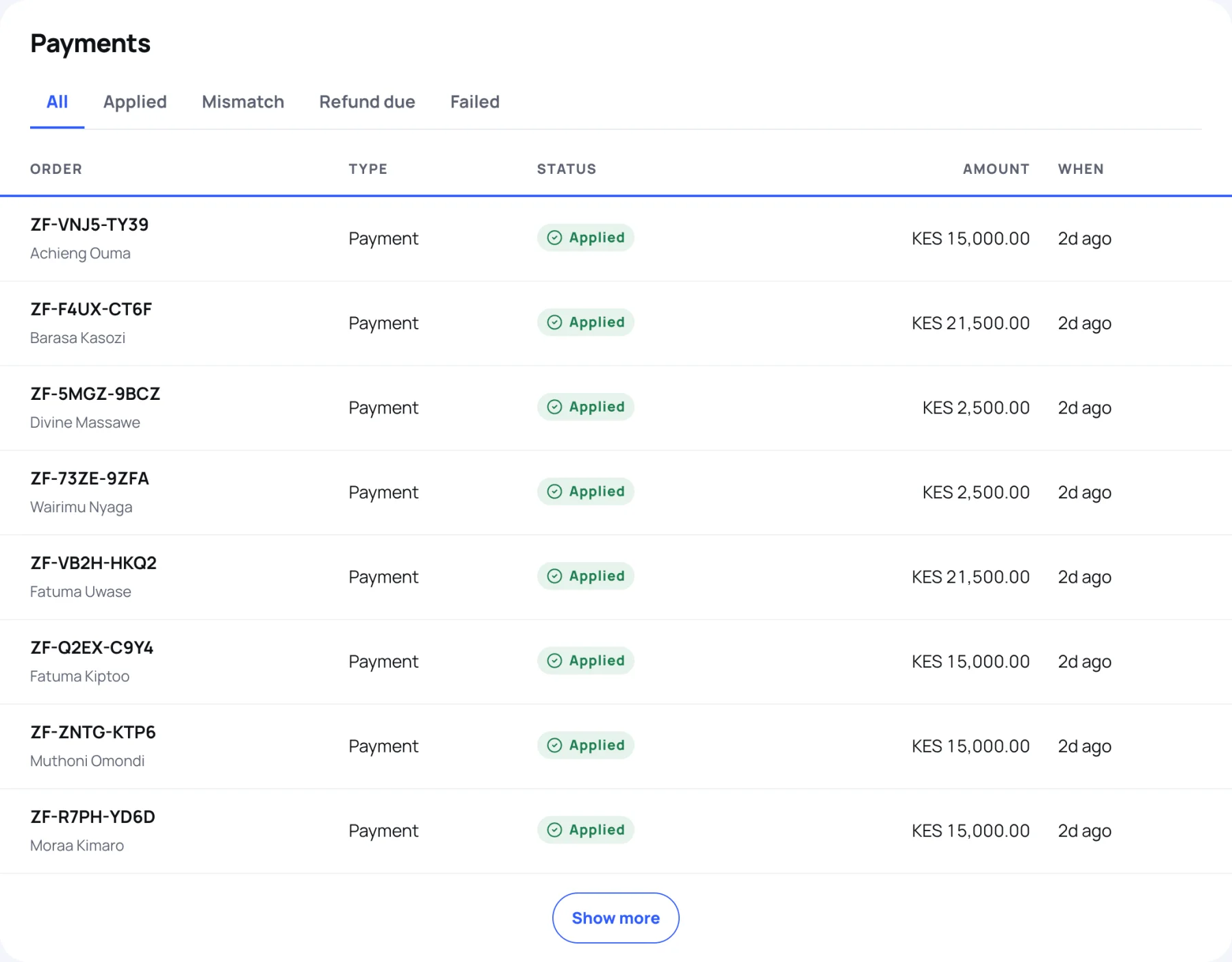
In the sidebar, select Payments. The tiles show what was Received, what was Refunded, and what Needs attention: a Mismatch (money that did not match the order) or a Refund due (money that arrived but could not buy a place). Use the tabs to filter the list.
Last updated