Sign-in security
Keep your account safe: sign out everywhere when a device goes missing, and, if you own or help run an organisation, add a code from your phone to every sign-in.
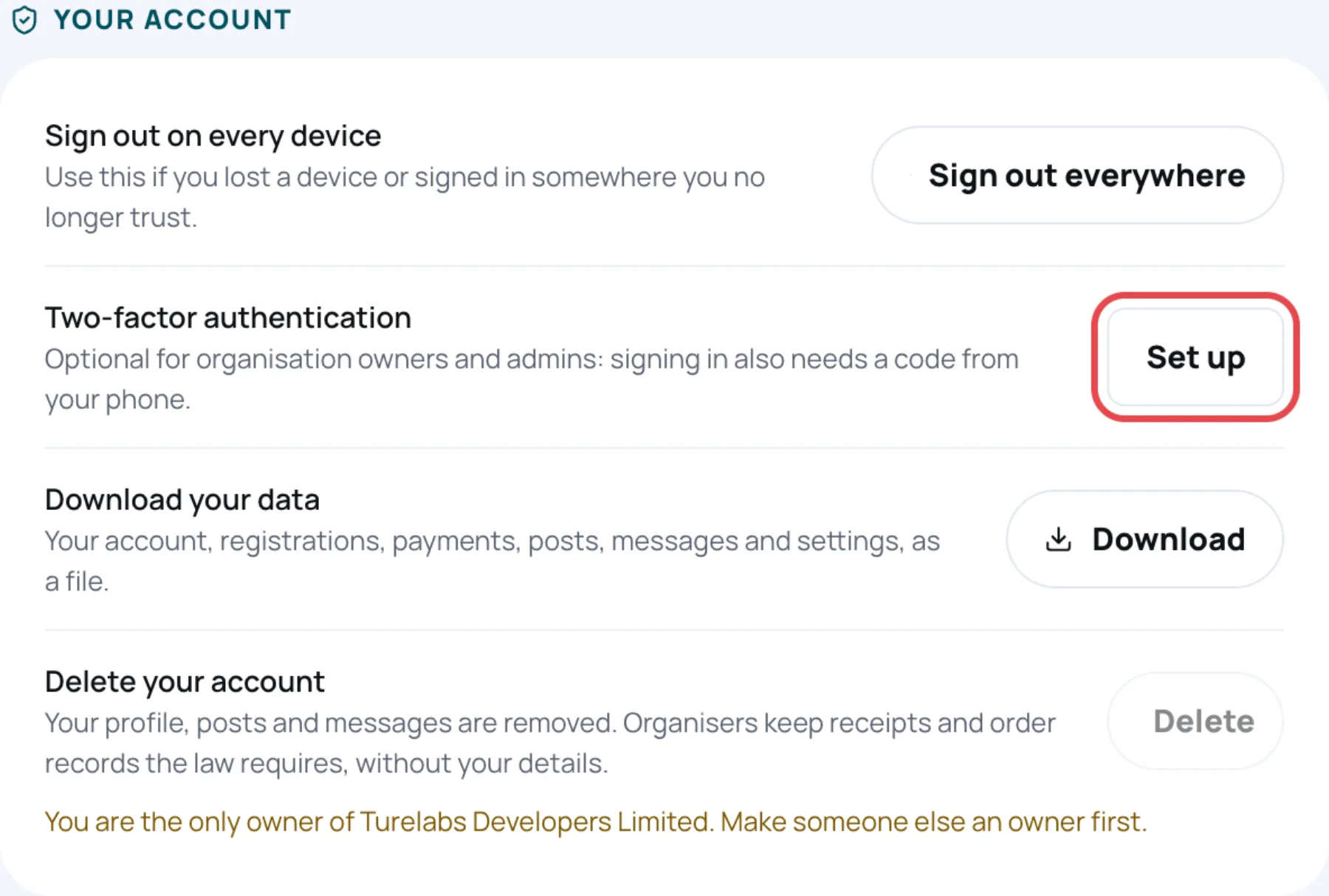
Sign out on every device
Use this if you lost a phone or signed in somewhere you no longer trust.
-
Under Sign out on every device, select Sign out everywhere.
-
Read the message and select Sign out everywhere to confirm.
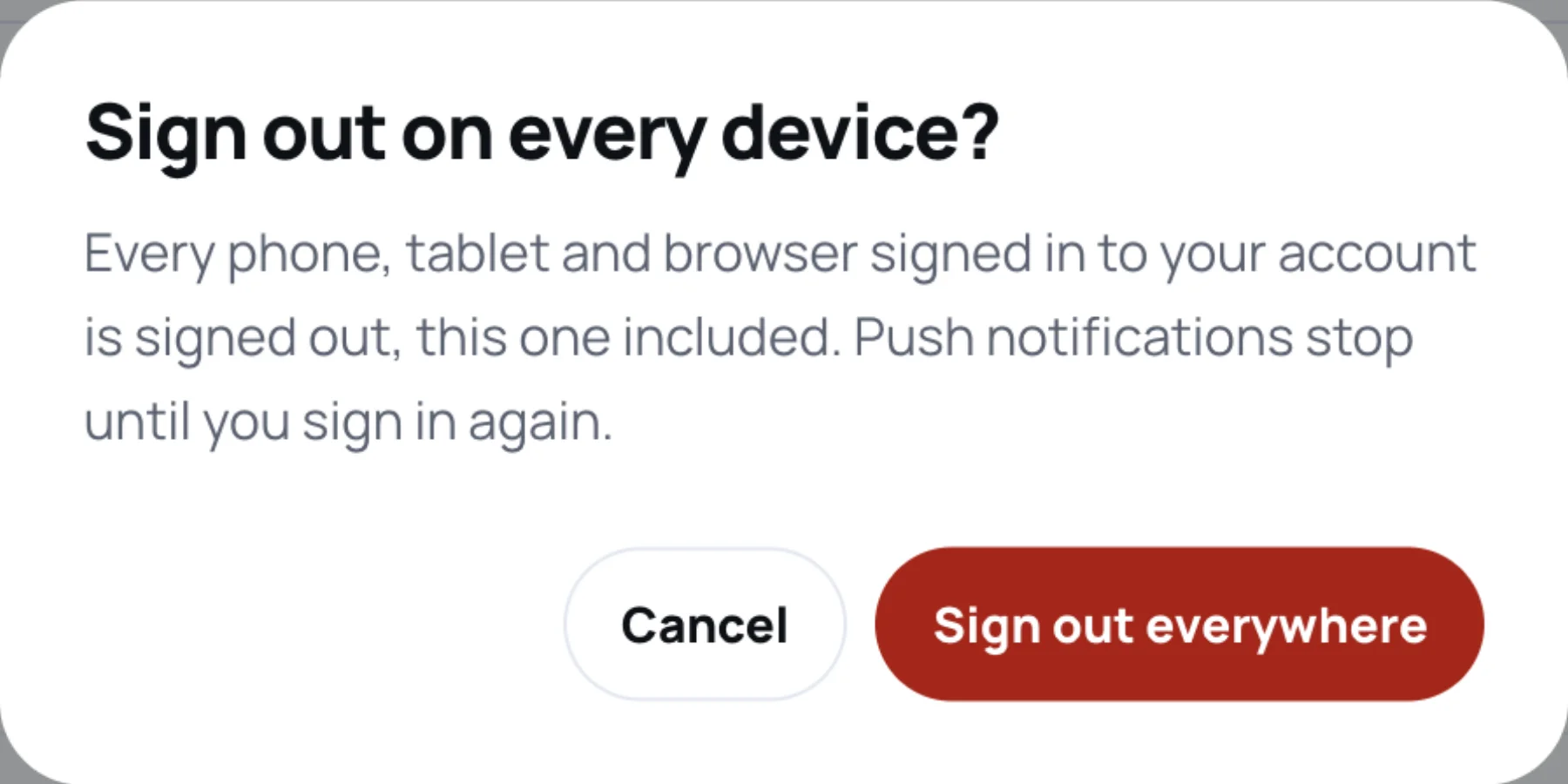
Every phone, tablet and browser signed in to your account is signed out, including the one you are using. Push notifications stop until you sign in again.
Two-factor sign-in
Two-factor sign-in adds a code from an authenticator app on your phone to every sign-in, so a password alone is not enough.
Turn it on
-
Under Two-factor authentication, select Set up.
-
In your authenticator app, add an account and scan the QR code Zufest shows under Scan this code. You can type the key instead.
-
Enter the Code from the app and select Turn on.
-
Zufest shows Save your recovery codes. Save them somewhere safe, away from your phone. Each lets you sign in once if you lose your phone. They are not shown again.
-
Select I have saved them.
The row then shows On and how many recovery codes you have left.
Sign in with a code
After your password, Zufest asks you to Enter your sign-in code.
- Open your authenticator app and type the code for Zufest. Codes refresh every 30 seconds.
- Tick Trust this device for 30 days on your own device to skip the code there. Leave it unticked on a shared computer.
- Select Verify and sign in.
Without your phone, select Use a recovery code and type one of your saved codes. Each recovery code works once.
Trusted devices
While two-factor sign-in is on, Trusted devices lists the browsers that skip the code, and until when. Select Forget beside one, or Forget all trusted devices, to make them ask for a code again.
New recovery codes or turning it off
- Select Replace codes to make a new set. Your old codes stop working.
- Select Turn off to stop asking for a code.
Both ask for your Password and a code from your authenticator app.
Last updated