Event details and branding
Event details holds everything about the event itself: its name, schedule, contact details, modules and who can see it. Event branding holds its logo, cover image and the colour on badges and emails.
Edit the event details
-
In the sidebar, under Event, select Event details.
-
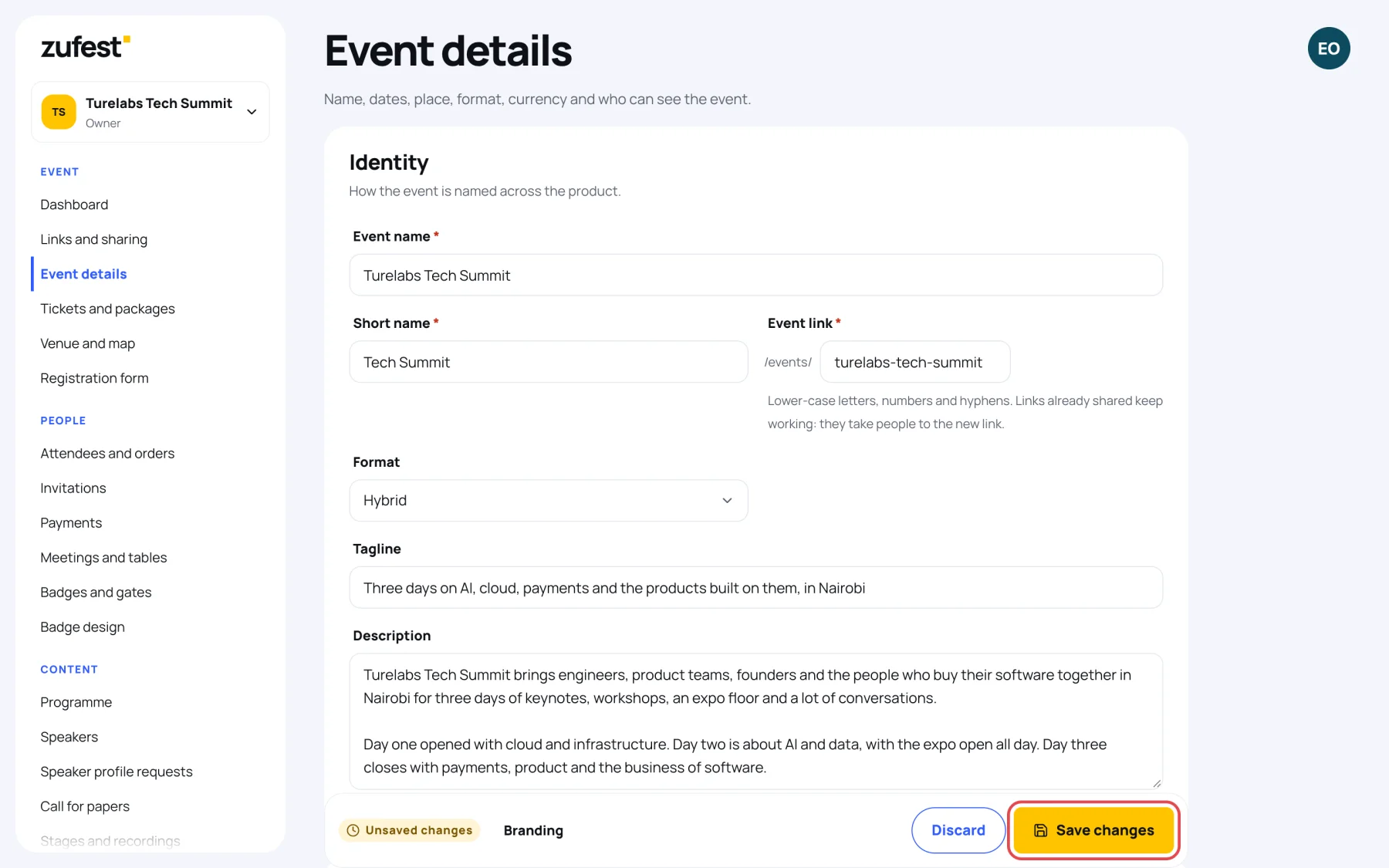
Change what you need in each panel. As soon as you change something, a bar at the bottom shows Unsaved changes, with Discard and Save changes.
-
Select Save changes. The bar changes to All changes saved.
The Branding link in the same bar opens Event branding.
Identity
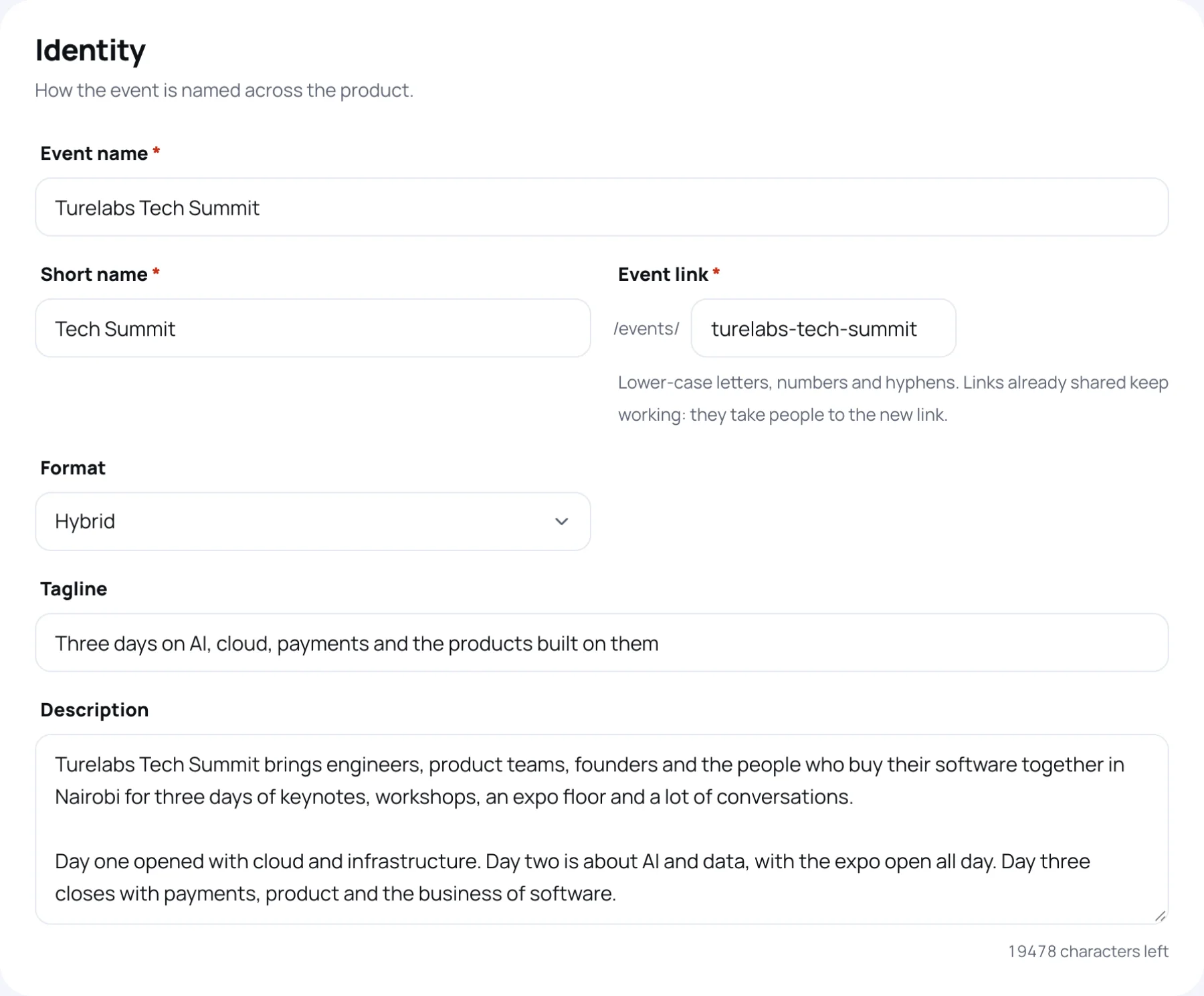
Event name, Short name, Format, Tagline and Description: how the event is named across the product. The short name appears in navigation and on badges.
Change the event link
Event link is the end of the event's web address: /events/turelabs-tech-summit. Use lower-case letters, numbers and hyphens, between 3 and 60 characters.
- Type the new link and select Save changes.
- Confirm with Change the link.
Links you have already shared, in emails, social posts, printed QR codes or your listing on zufest.com/events, keep working: they take people straight to the new link. Badges are not affected, because their QR codes do not contain the link. An old link stays with your event and cannot be used by another event, so you can switch back to it later.
Schedule
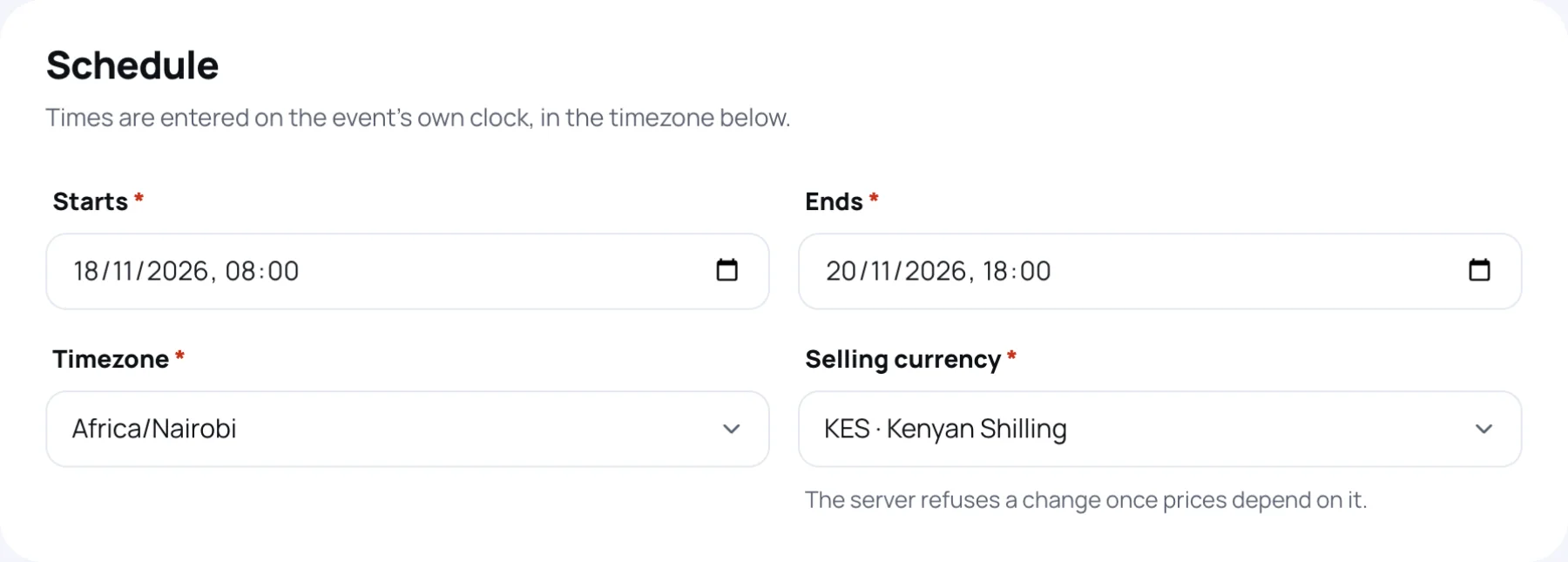
The start and end times, the Timezone and the Selling currency. Times are entered on the event's own clock, in its timezone, whatever timezone your computer is in.
Contact
Support email, Support phone, Website and Virtual platform link: where delegates are told to ask for help. Website and virtual platform links must start with https://.
Modules
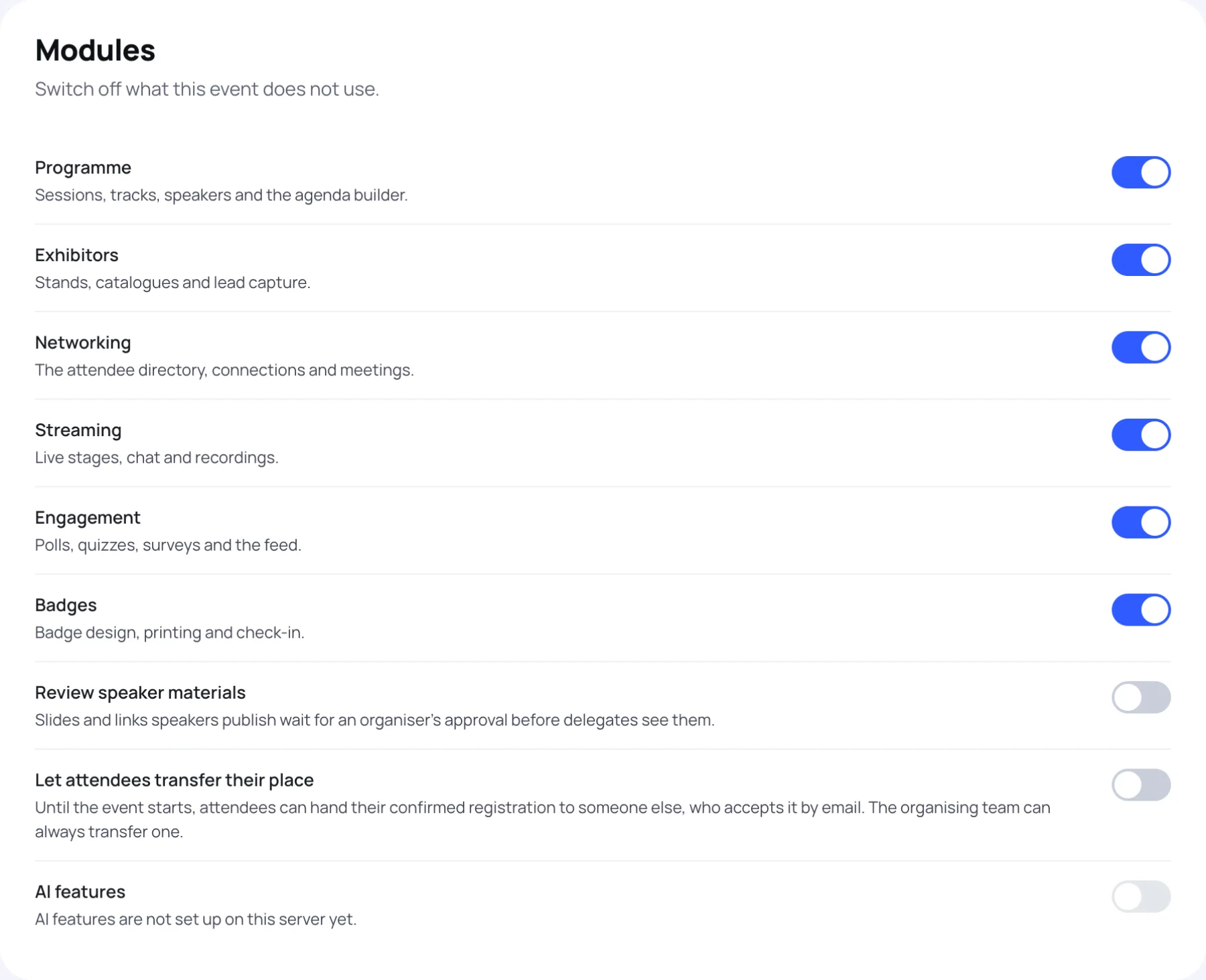
Switch modules on or off for this event: Programme, Exhibitors, Networking, Streaming, Engagement and Badges. A module that is off is hidden from delegates.
The same panel has three event settings:
- Review speaker materials: slides and links that speakers publish wait for an organiser's approval before delegates see them.
- Let attendees transfer their place: until the event starts, attendees can hand their confirmed place to someone else, who accepts it by email. Your team can always transfer a place.
- AI features: session summaries, the event assistant and lead suggestions. If it is greyed out with "AI features are not set up on this server yet", it is not available.
Publishing
Status, visibility and the public event directory. See publish your event.
Delete a draft event
A draft event shows a Delete event panel at the bottom with Delete draft event. Its tickets, programme and settings are removed and this cannot be undone. Published events are never deleted; they end.
Brand the event
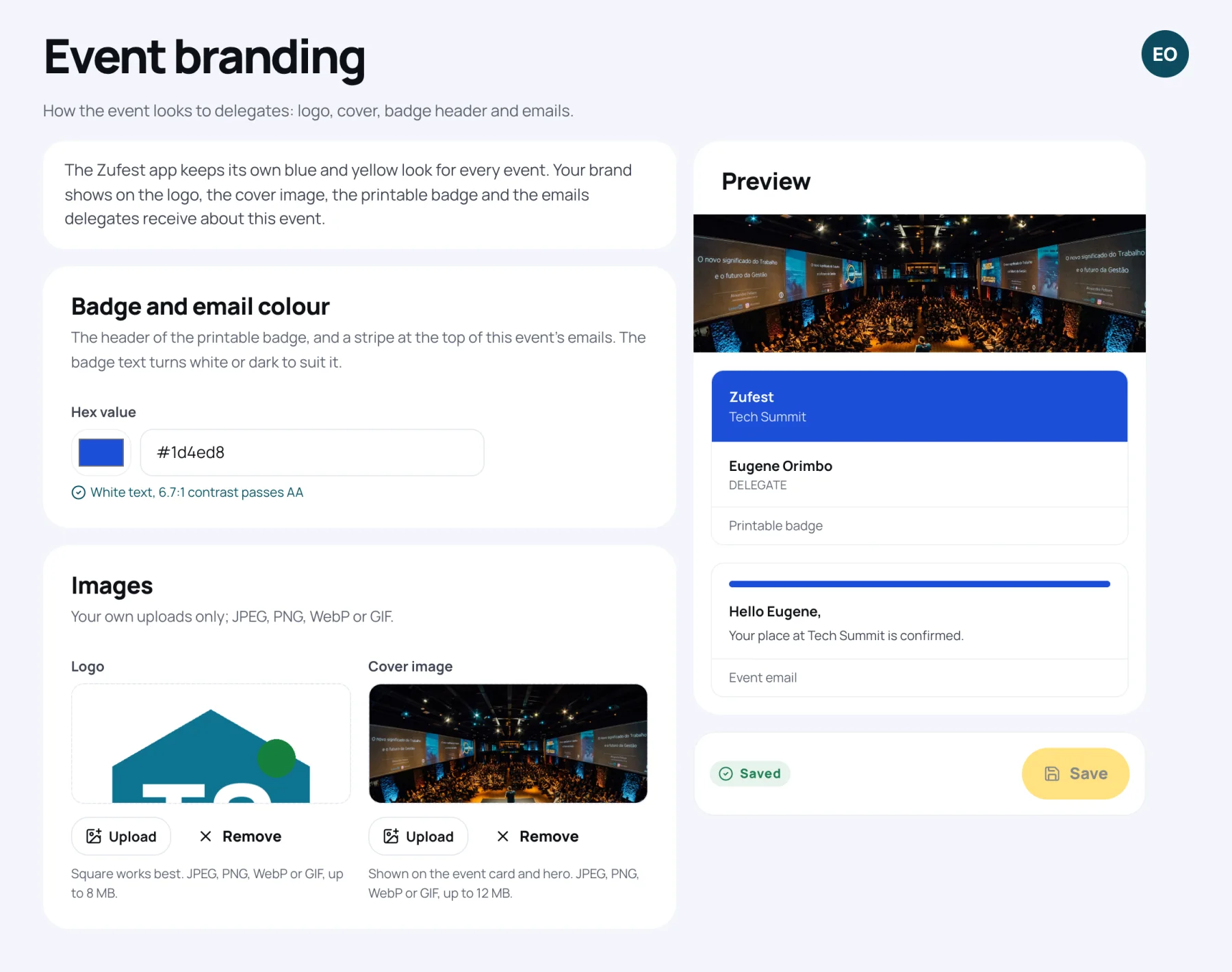
The Zufest app keeps its own blue and yellow look for every event. Your brand shows on the logo, the cover image, the printable badge and the emails delegates receive about the event.
-
In the sidebar, under Organisation, select Event branding.
-
Under Badge and email colour, type a six-digit Hex value or pick a colour. Zufest tells you whether white or dark text on it is readable, for example "White text, 6.7:1 contrast passes AA". If neither passes, choose a darker or lighter shade so the name on the badge stays readable.
-
Under Images, select Upload for the Logo (square works best, up to 8 MB) and the Cover image (shown on the event card and hero, up to 12 MB). Both take JPEG, PNG, WebP or GIF.
-
Check the Preview on the right: the cover, a printable badge and an event email.
-
Select Save. Delegates see the change the next time they load the app.
Last updated