Approve or reject an order
Orders for a pass with Review before confirming wait for your team. Nobody is charged until you approve. Turelabs Tech Summit reviews its VIP and Press passes this way.
Find orders to review
-
In the sidebar, select Attendees and orders.
-
Select the Awaiting review tab.
-
Select a person's name to open their order.
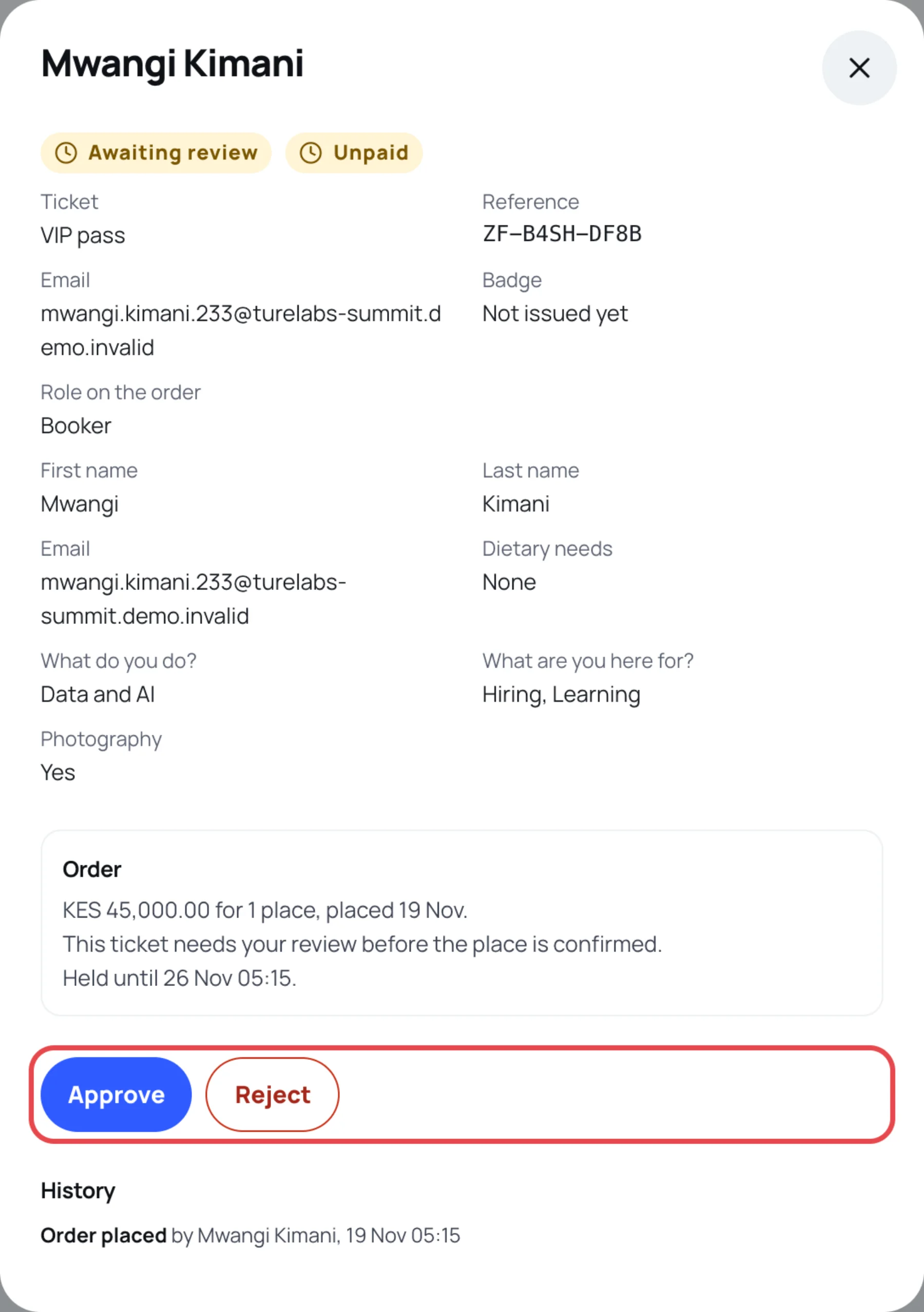
Read their details and form answers. The order shows Held until: the place is kept for them until then. An order nobody reviews by that date is released.
Approve
-
Select Approve.
-
Confirm. What happens depends on the price:
- Paid pass: the buyer is asked to pay, and the place stays held while they do. The order moves to Awaiting payment.
- Free pass: everyone on the order is confirmed and gets a badge straight away.
The buyer is told by notification, and by email if they allow it.
Reject
-
Select Reject.
-
Optional: type a Reason (shown to the attendee). Be kind and clear.
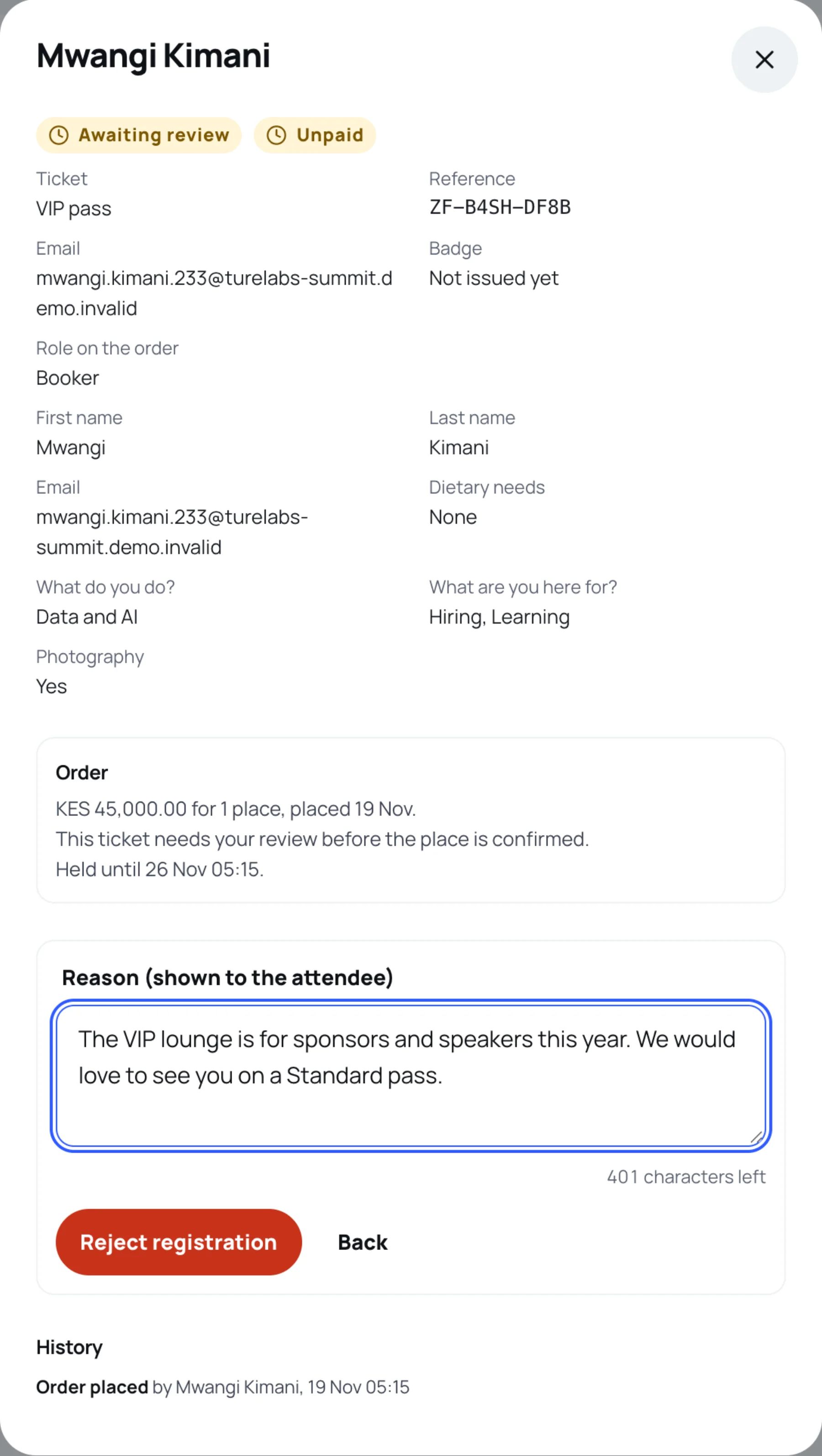
-
Select Reject registration.
The places are released for everyone on the order and the buyer is told your reason. Any promo code use goes back to the code.
When two people act at once
If someone else on your team approves or rejects the same order a moment before you, your action is refused with a message. Reopen the order to see its new state.
Last updated