Export data
You can download your event's data as CSV files to open in a spreadsheet. Files that name people are protected: they need the right permission, leave out sensitive details, and every download is recorded.
Download a report's file
-
Open Reports and the tab you want.
-
Choose the period, if the file follows it, and select Apply.
-
Select the CSV button for the file you want.

The download starts straight away. If no rows match, nothing is downloaded and the app tells you so.
| Tab | File | One row per | Follows the period |
|---|---|---|---|
| Registrations | Orders CSV | Order | Yes |
| Registrations | All attendees CSV | Person on every order | No |
| Ticket sales | Ticket sales CSV | Ticket type | Yes |
| Revenue | Orders with amounts CSV | Order, with subtotal, discount, fees and total | Yes |
| Check-in | Scans CSV | Scan at the gate | Yes |
| Exhibitors | Exhibitor engagement CSV | Stand, counts only | Yes |
| Wrap-up | Ticket sales CSV, Exhibitor engagement CSV | As above, for the whole event | No |
Times are in the event's time zone. Amounts are plain numbers in the event's currency.
Export the attendee list
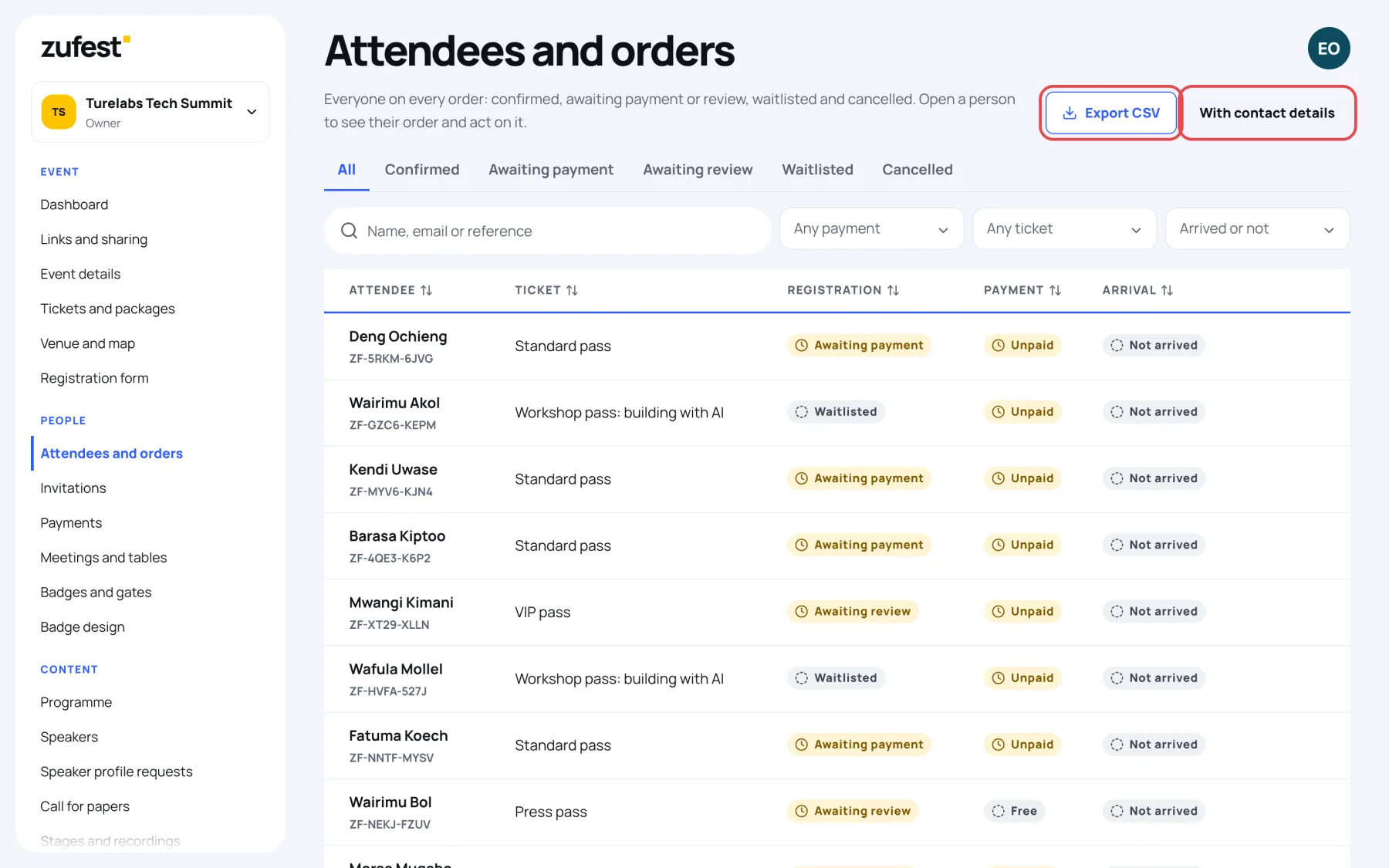
The Attendees and orders screen has its own export, which follows the filters you set there.
-
In the sidebar, under People, select Attendees and orders.
-
Set the tabs, search and filters to the people you need.
-
Select Export CSV.
Include contact details
Files leave out email addresses unless you ask for them.
-
On Attendees and orders, select With contact details.
-
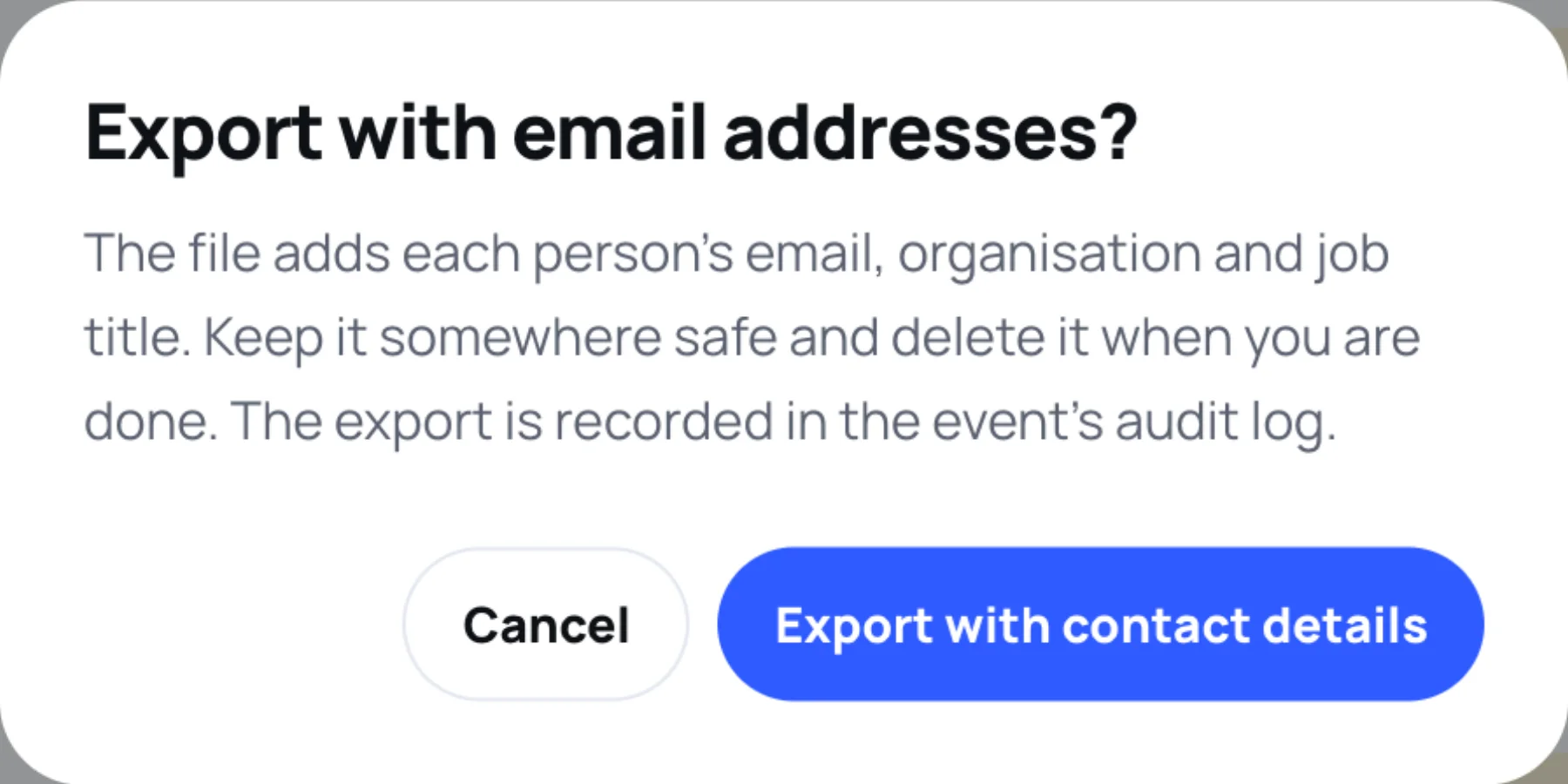
Read the confirmation. The file adds each person's email, organisation and job title.
-
Select Export with contact details.
What files never contain
No export holds registration form answers (they can include health or dietary details), badge codes, payment details or phone numbers. Every file is also made safe to open in a spreadsheet.
How downloads are protected
- Each download uses a link that works for five minutes and only for the person who asked for it.
- When the link is opened, Zufest checks again that you still hold the permission.
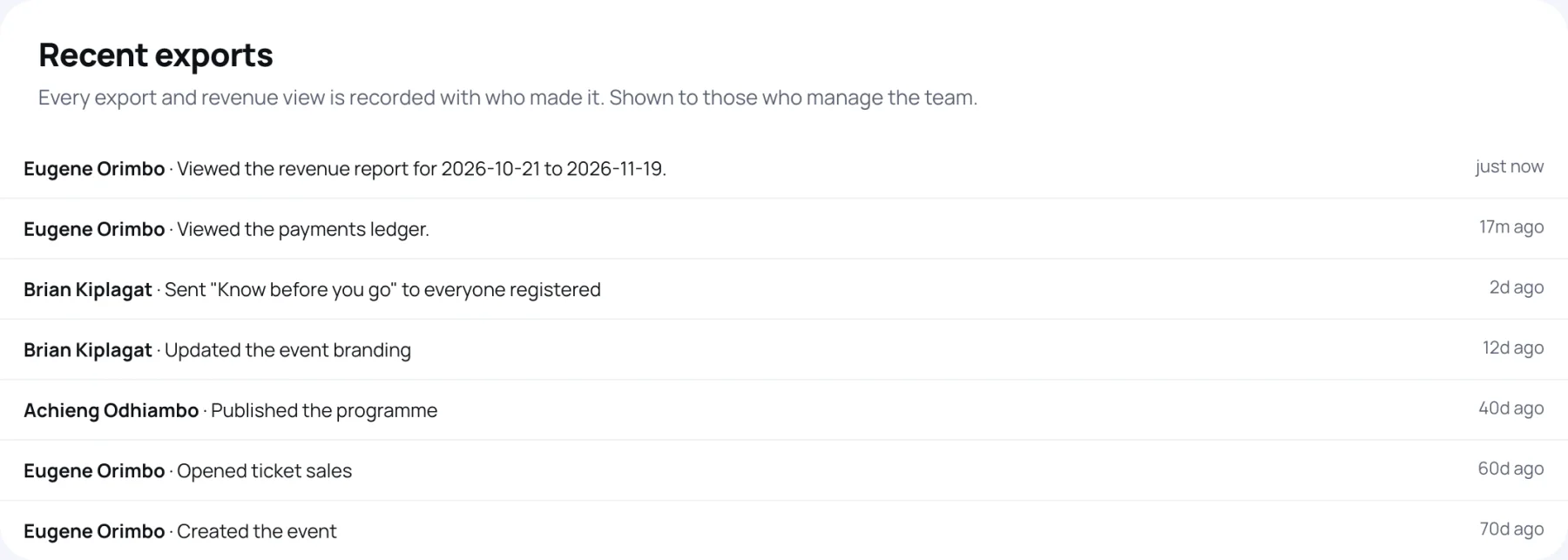
- Every export, and every view of the Revenue report, is recorded in the event's audit log with who made it.
People who manage the team see this record in Recent exports, at the bottom of Reports.
Last updated