Build the registration form
The registration form holds the questions each person answers at checkout, after they choose their tickets. On a team booking, every person on the order answers it. You can split it into steps, such as "About you" and "Your work".
Open the form
-
In the sidebar, under Event, select Registration form.
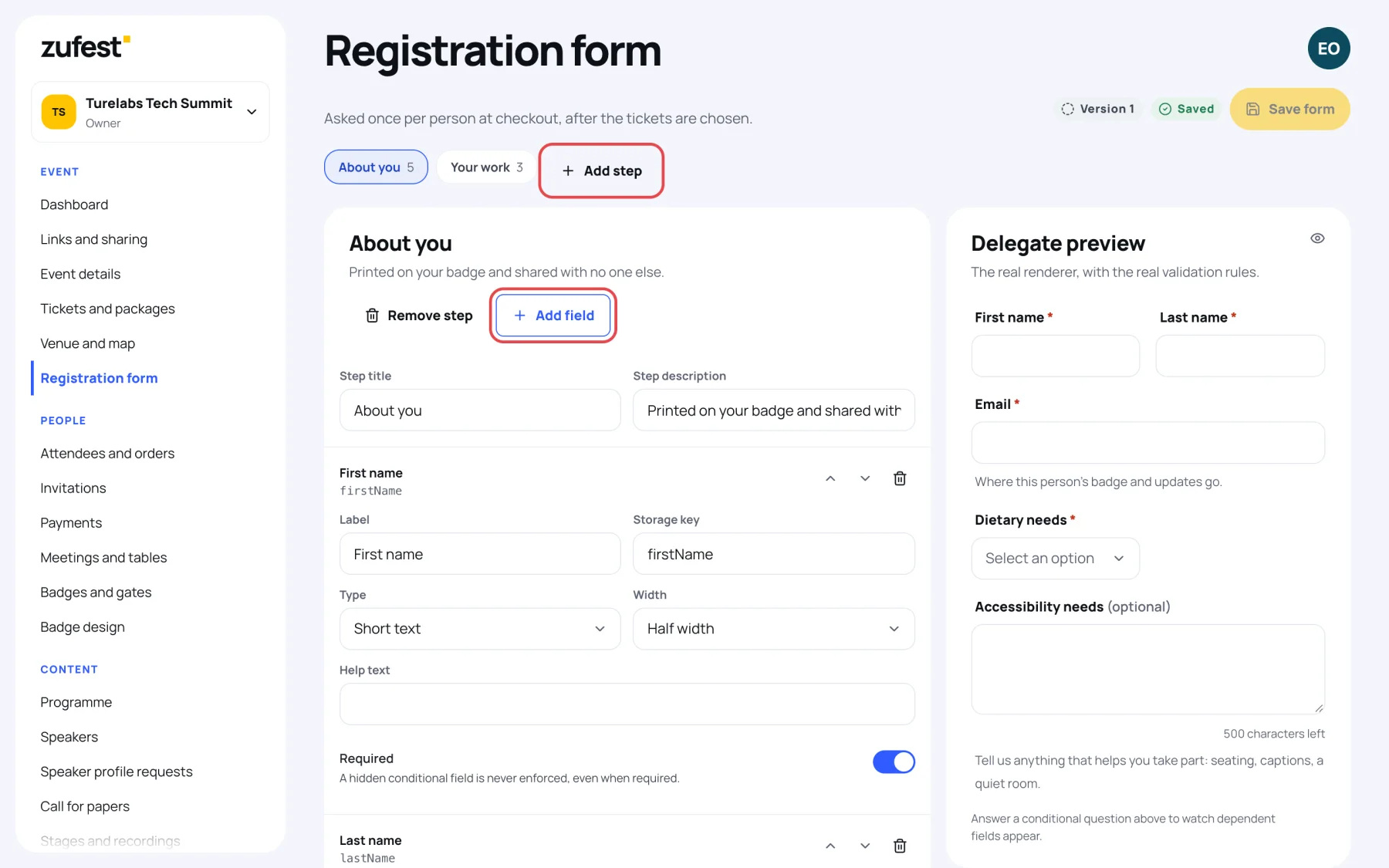
Each step is a tab at the top, with the number of fields on it. The right-hand side shows the Delegate preview.
Add a step
-
Select Add step. A new tab appears.
-
Type the Step title and an optional Step description, shown at the top of the step.
To remove a step, open its tab and select Remove step. Every step needs at least one field.
Add a question
-
Open the step's tab and select Add field.
-
In Label, type the question as registrants will read it.
-
In Storage key, type a short name for the answer, for example
dietary. It starts with a letter and uses only letters, digits and underscores. Two fields cannot share a key. -
In Type, choose one: Short text, Long text, Email address, Phone number, Number, Date, Dropdown, Single choice, Multiple choice, Checkbox or Country.
-
For Dropdown, Single choice and Multiple choice, type the choices in Options, one per line.
-
Choose a Width: Full width or Half width. Two half-width fields sit side by side.
-
Optional: add Help text to show under the field.
-
Switch on Required if everyone must answer.
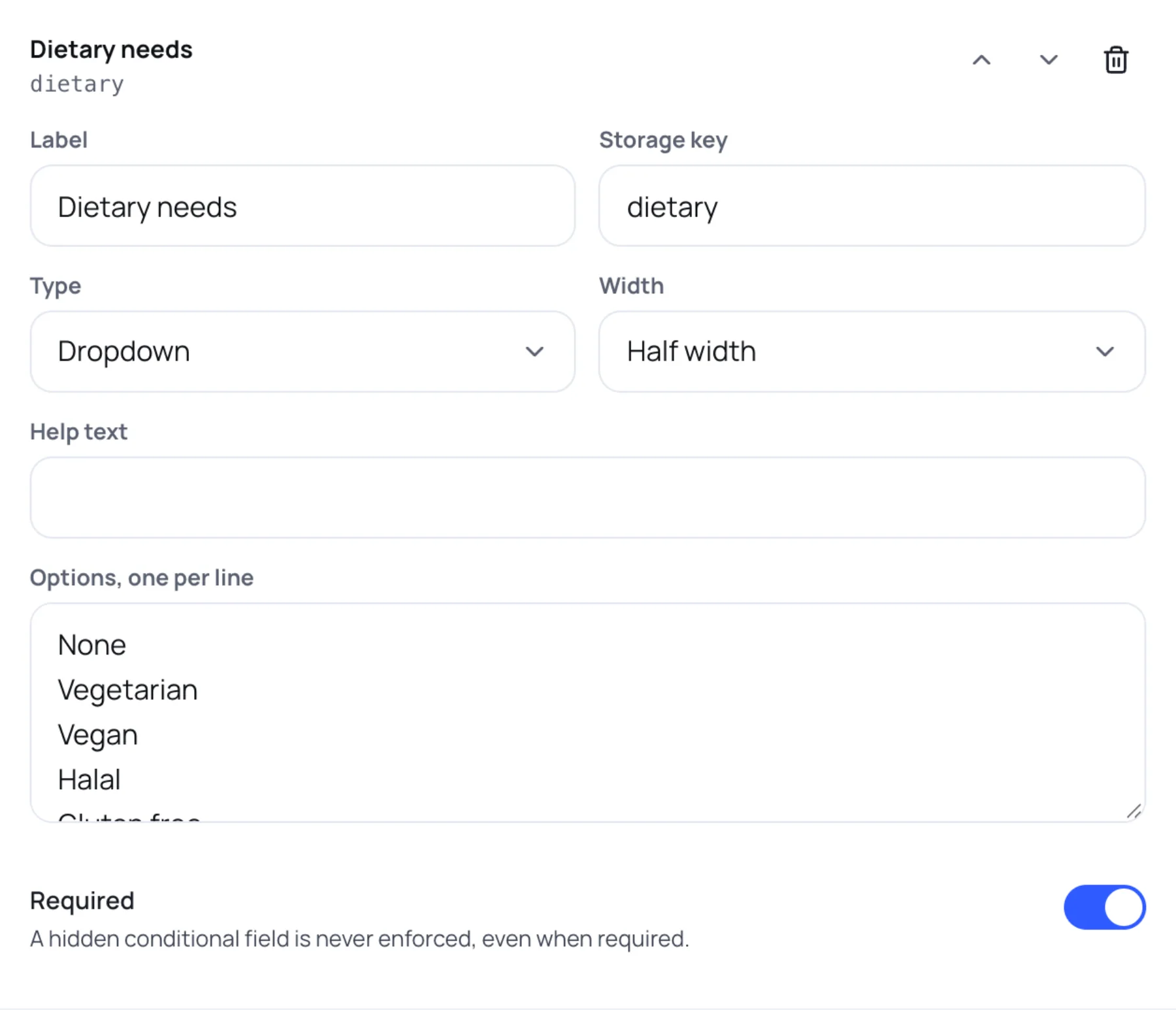
Use the arrows on a field to move it up or down, and the bin to remove it.
Check the preview and save
-
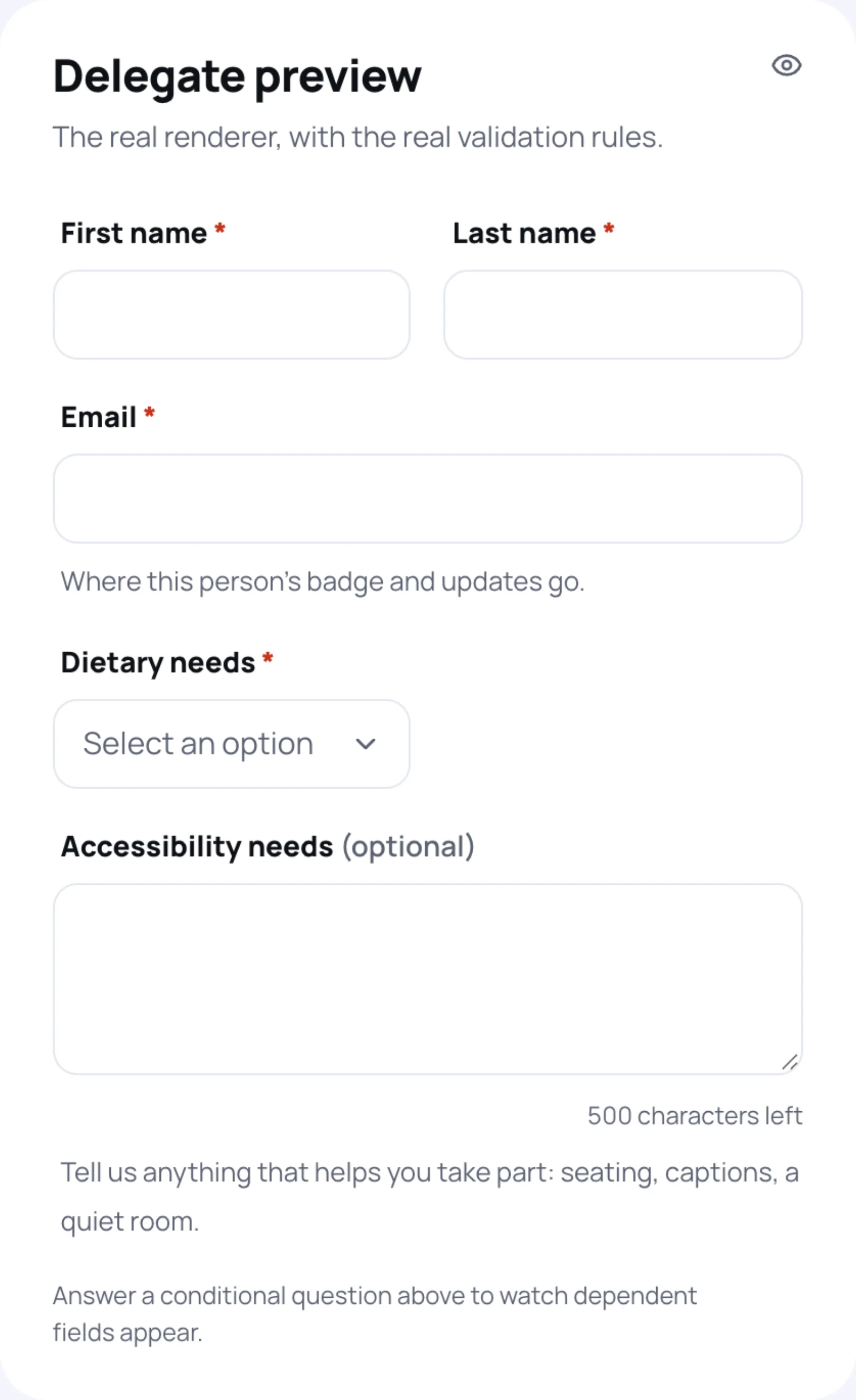
Look at the Delegate preview. It uses the same fields and checks registrants will see, so you can try it out.
-
Select Save form. The form is saved as a new version, shown next to the button.
Where the answers go
Each person's answers appear on their details under Attendees and orders, labelled with the field's storage key. Choose keys your team will recognise. See an order in detail.
Last updated