Use the jobs board
The jobs board lists roles that people at the event are hiring for. You apply through the link the poster gives, or send them a message, so nobody needs to put a phone number or email address on the board.
Browse jobs
-
Open Menu, then Jobs.
-
On All jobs, use Search jobs, and narrow the list with Any work mode (On site, Hybrid or Remote) and Any type (Full time, Part time, Contract, Internship or Volunteer).
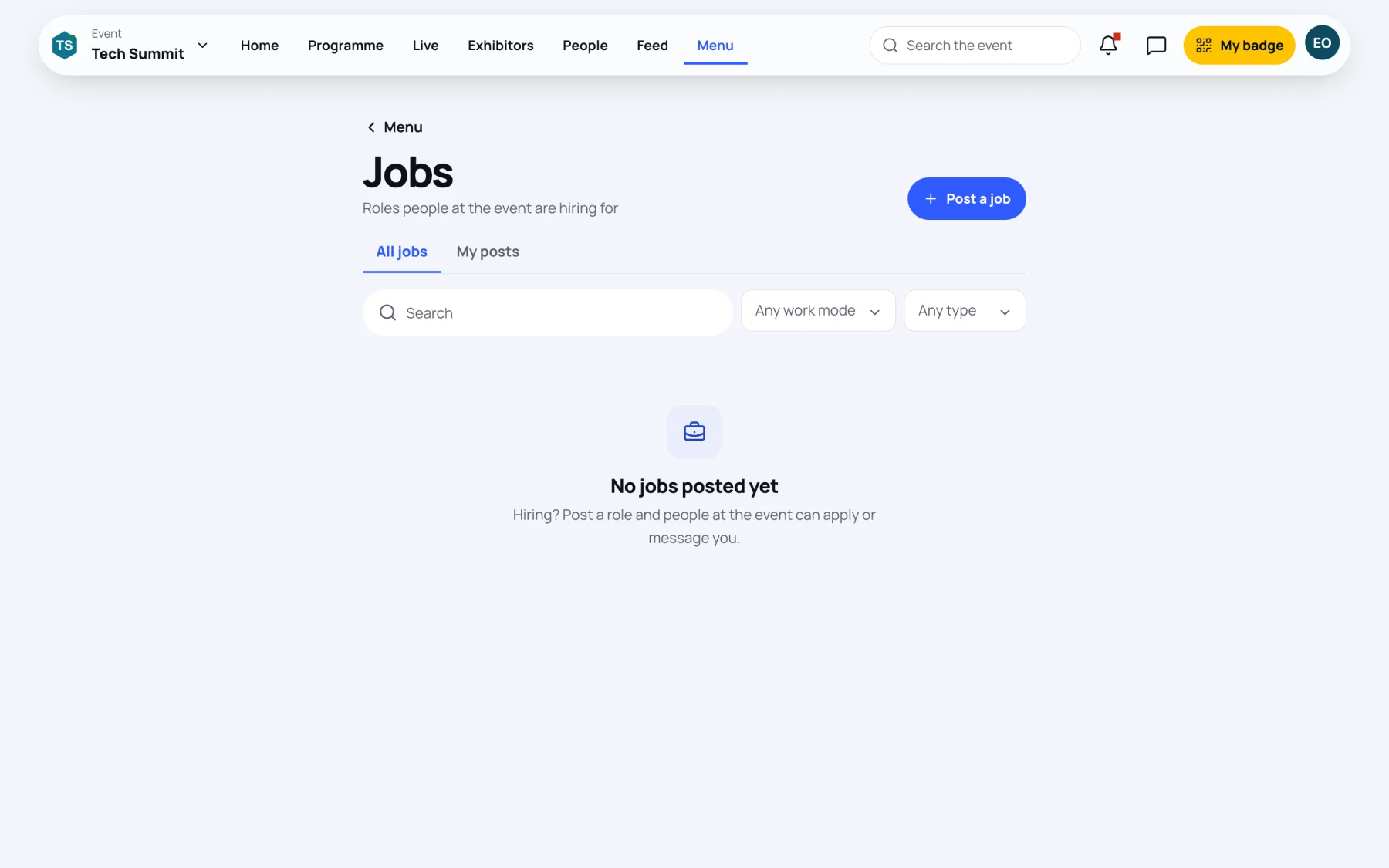
Each job shows the role, company, location, who posted it and when, and its closing date if it has one.
Apply for a job
- If the job has a link, select Apply. The poster's own application page opens.
- If it has no link, select Message with the poster's name to write to them in the app. Their messaging settings still apply.
Post a job
-
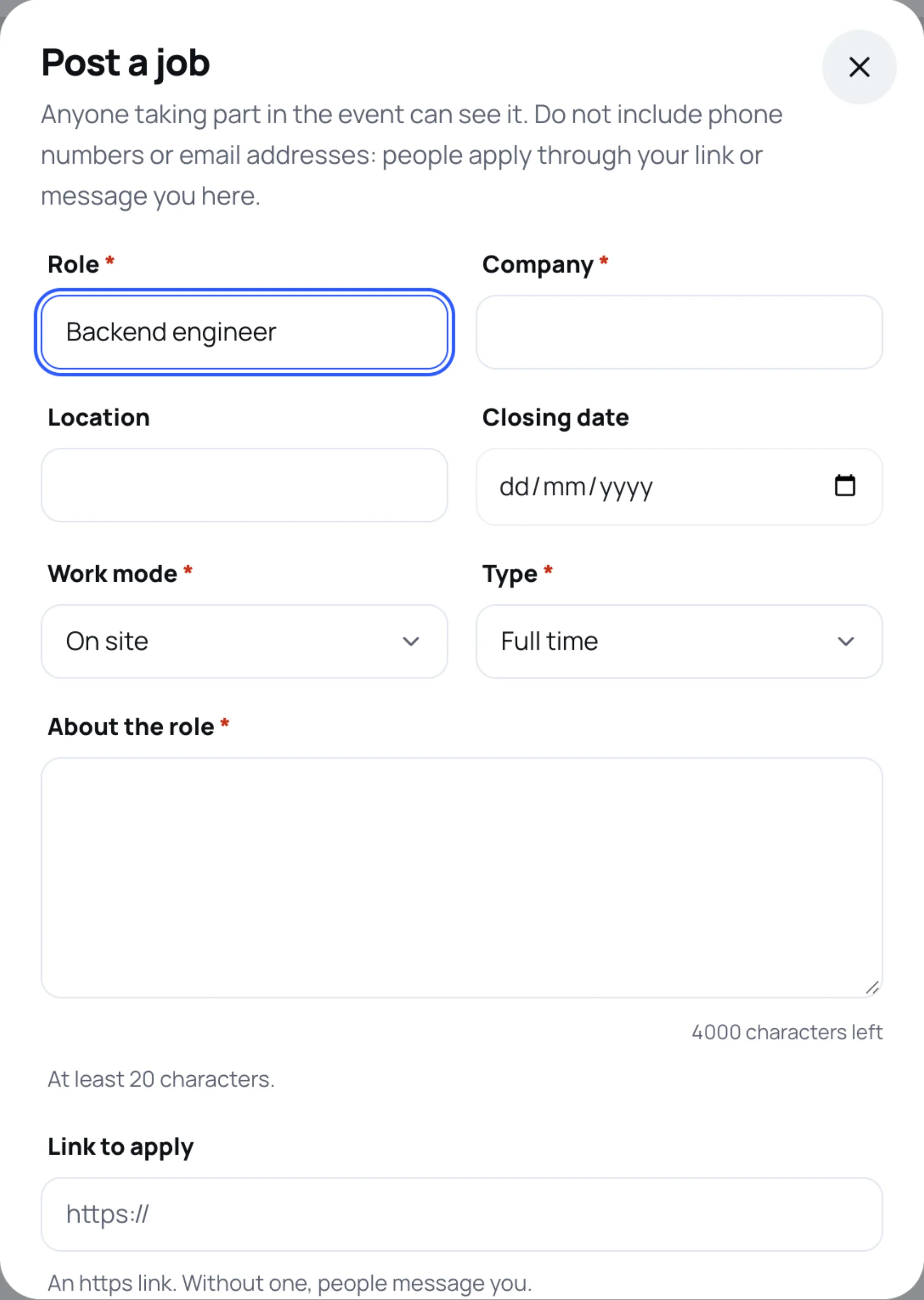
On the Jobs page, select Post a job.
-
Fill in Role and Company, and optionally Location and a Closing date.
-
Choose the Work mode and Type.
-
In About the role, describe the job in at least 20 characters.
-
Optional: add a Link to apply. It must be an https link. Without one, people message you.
-
Select Post the job.
Close or edit your job
Open My posts. On your job, select Edit to change it, or Close the job when it is filled. A closed job disappears from the board, and you can still see it under My posts.
If the organising team takes a job down, it shows "The organising team took this job down." under My posts.
Last updated