Create a stage
A stage is a live stream attendees watch in the app, with its own chat. Each stage has a time window, and usually a hall and a session, so attendees find it from the programme.
See your stages
In the organiser sidebar, under Content, select Stages and recordings.
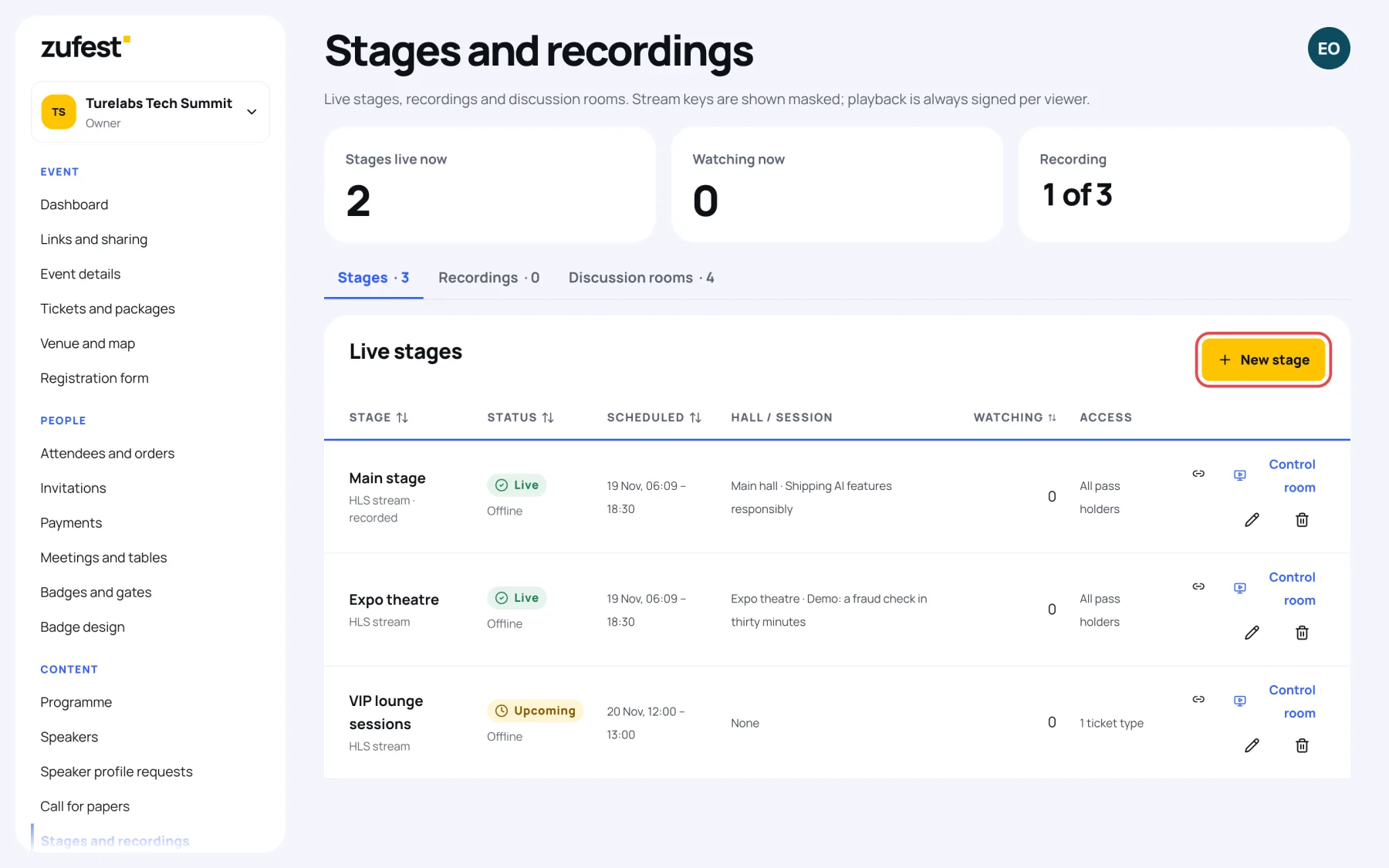
The figures at the top count Stages live now, how many people are Watching now and how many stages are Recording. Each stage in the list shows its status, when it runs, its hall and session, how many people are watching and who has Access.
The buttons on each row:
- the link icon copies the attendee link to the stage, to share in an announcement;
- Control room opens the stage in the live control room (see The live control room);
- the pencil edits the stage and the bin removes it.
Add a stage
-
Select New stage.
-
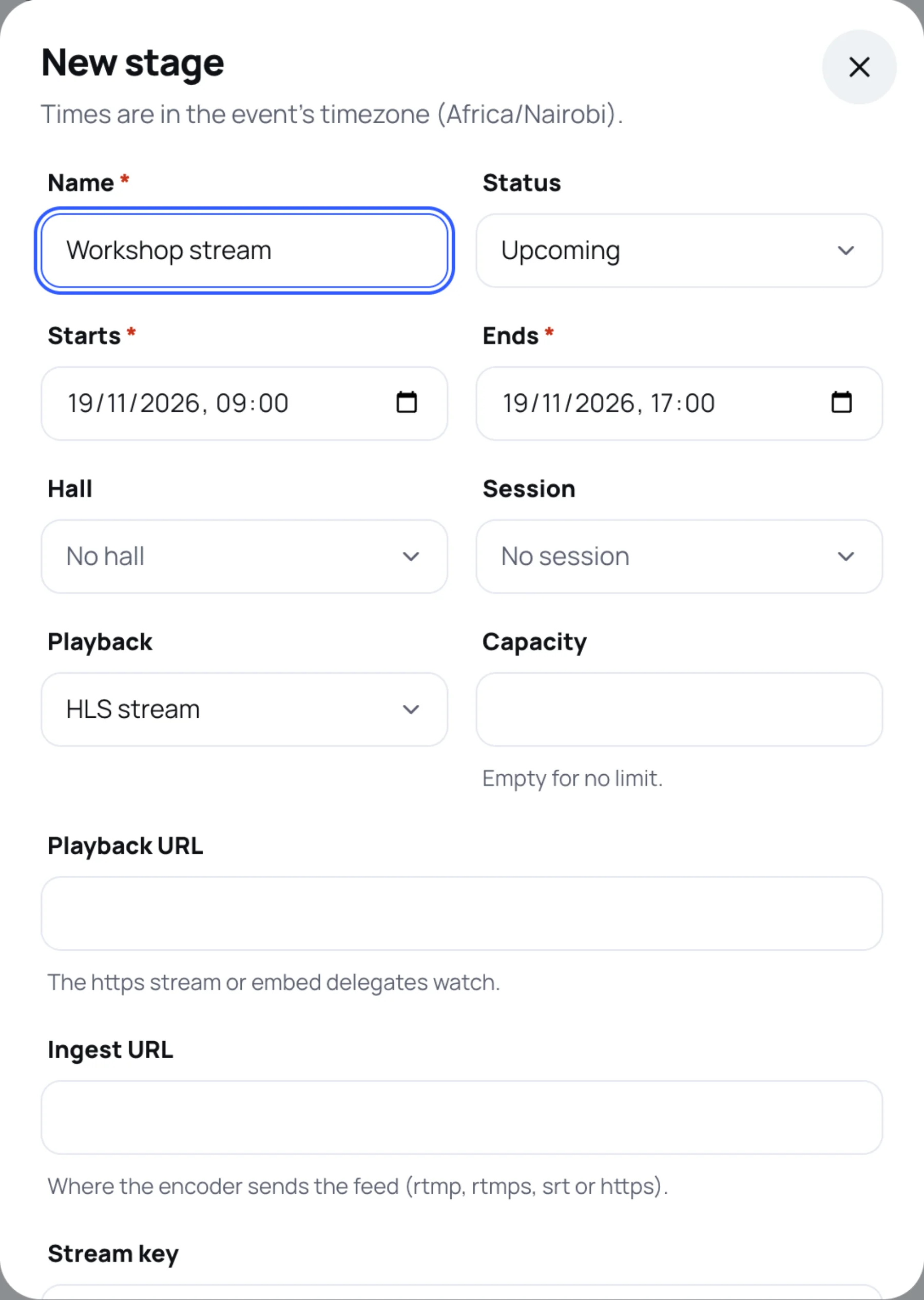
Type a Name that attendees will recognise, for example "Main stage".
-
Choose the Status:
- Upcoming: scheduled, not started.
- Live: on air now.
- Ended: finished.
- Offline: off air, for example during a long break.
-
Set Starts and Ends, in the event's time zone. Attendees can watch only inside this window.
-
Choose the Hall the stream comes from and the Session it shows. The session's polls and questions then appear in the control room.
-
Choose the Playback: HLS stream for a stream address, or Embedded player for a player page from your streaming provider.
-
Leave Capacity empty for no limit on viewers.
-
Fill in the stream details (see Connect a stream) and who can watch (see Who can watch a stage).
-
Switch on Record this stage to add the recording to the library once the session ends.
-
Select Save stage.
Remove a stage
Select the bin on the stage's row and confirm. Attendees lose access to the stage and its chat.
Last updated