Moderate the community
Community moderation brings the event feed, stage chat, room chat, meet-ups and jobs, and the reports attendees file into one screen. This page shows you how to keep the conversation safe without slowing it down.
Open community moderation
In the sidebar, under Engage, select Community moderation. The tabs are:
| Tab | What it holds |
|---|---|
| Posts | Everything posted to the event feed, including what is held or removed |
| Meet-ups and jobs | Everything attendees posted to the community board |
| Stage chat | The latest 200 messages on a stage, including held and removed ones |
| Room chat | The latest 200 messages in a text discussion room |
| Post reports | Posts attendees reported to the organisers |
| Message reports | Discussion room messages attendees reported |
| Attendee reports | Attendees reported by other attendees |
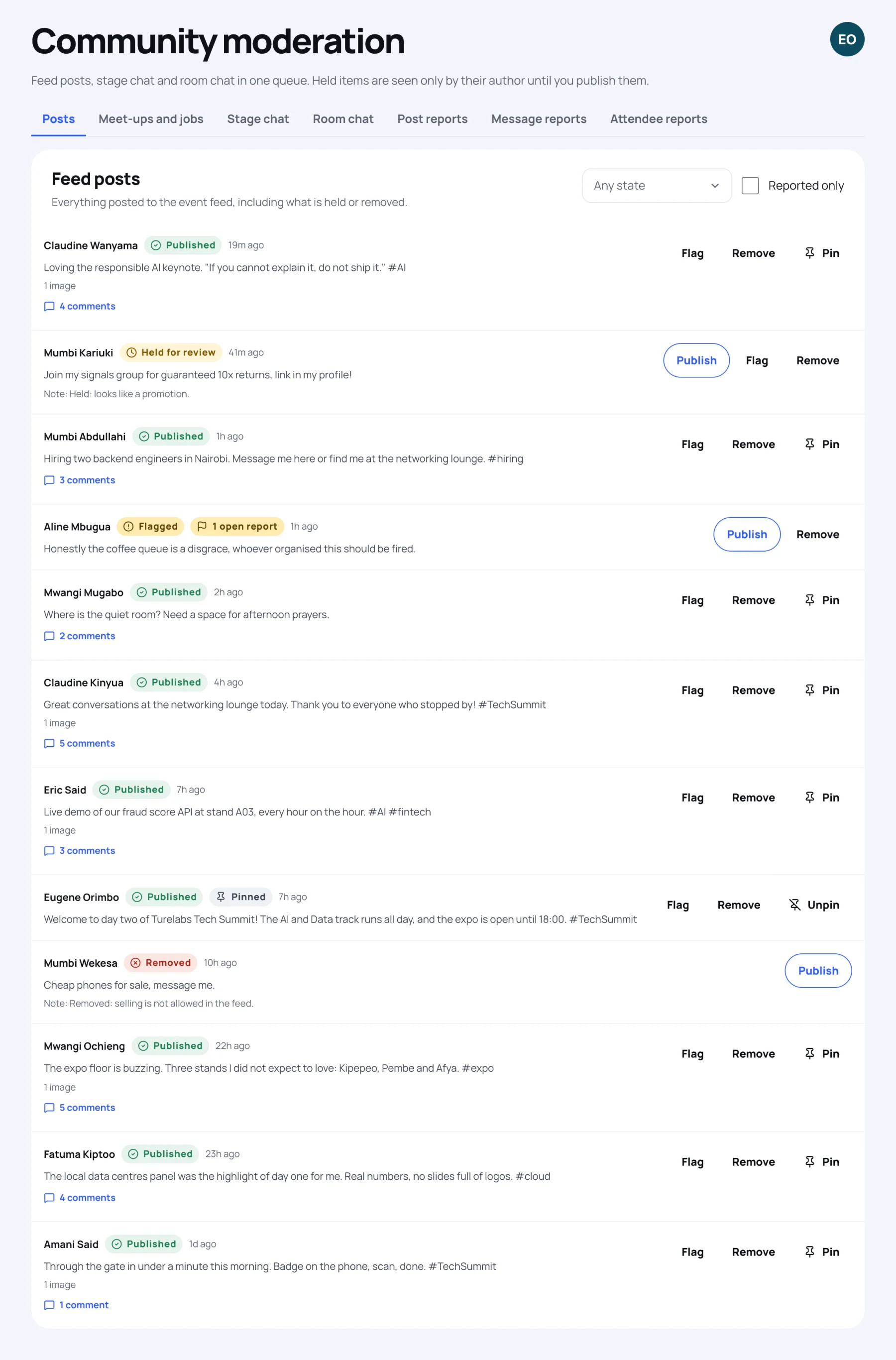
What each state means
| State | Who sees the post |
|---|---|
| Published | Everyone at the event who can see the feed |
| Held for review | Only its author, until you publish it |
| Flagged | Still visible, marked for the team to keep an eye on |
| Removed | Nobody but the moderation team |
Zufest holds some posts by itself, for example ones that look like a promotion. The Needs your attention card on the dashboard counts what is waiting.
Review held posts
-
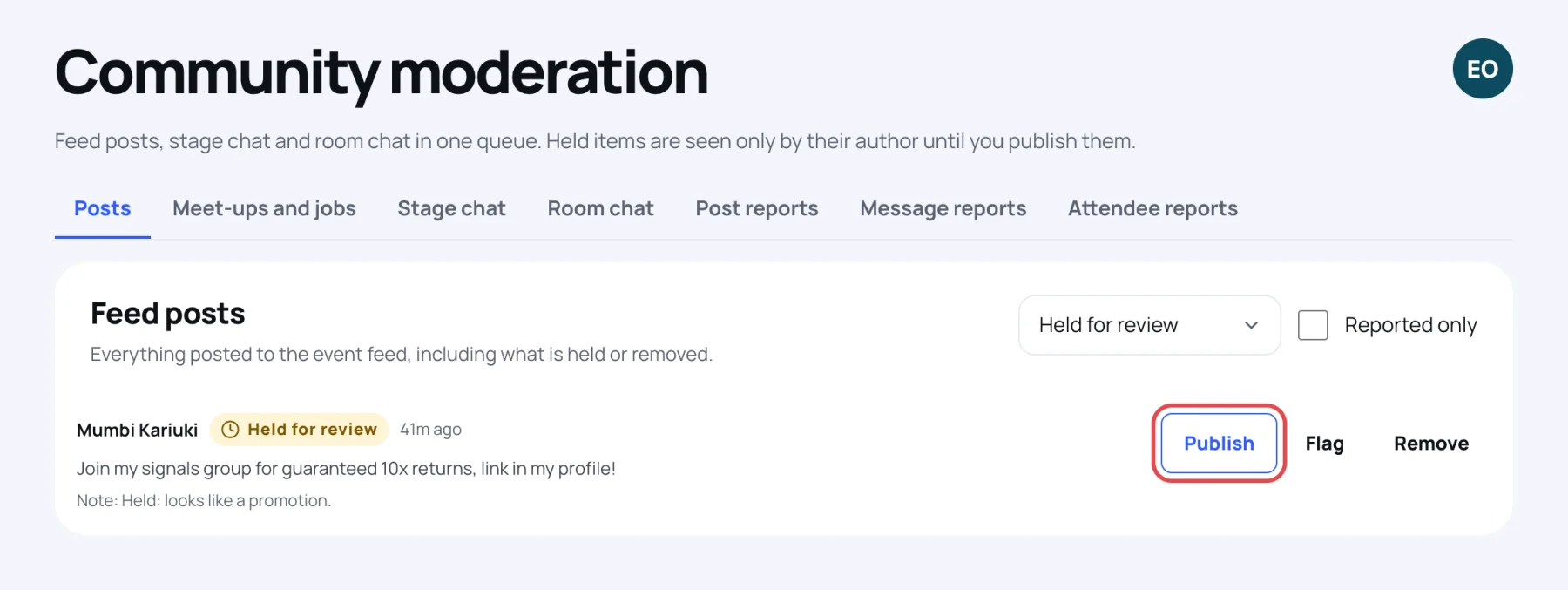
On the Posts tab, set the filter to Held for review. Tick Reported only to see just the posts someone reported.
-
Read the post. If it is fine, select Publish. If not, select Remove.
-
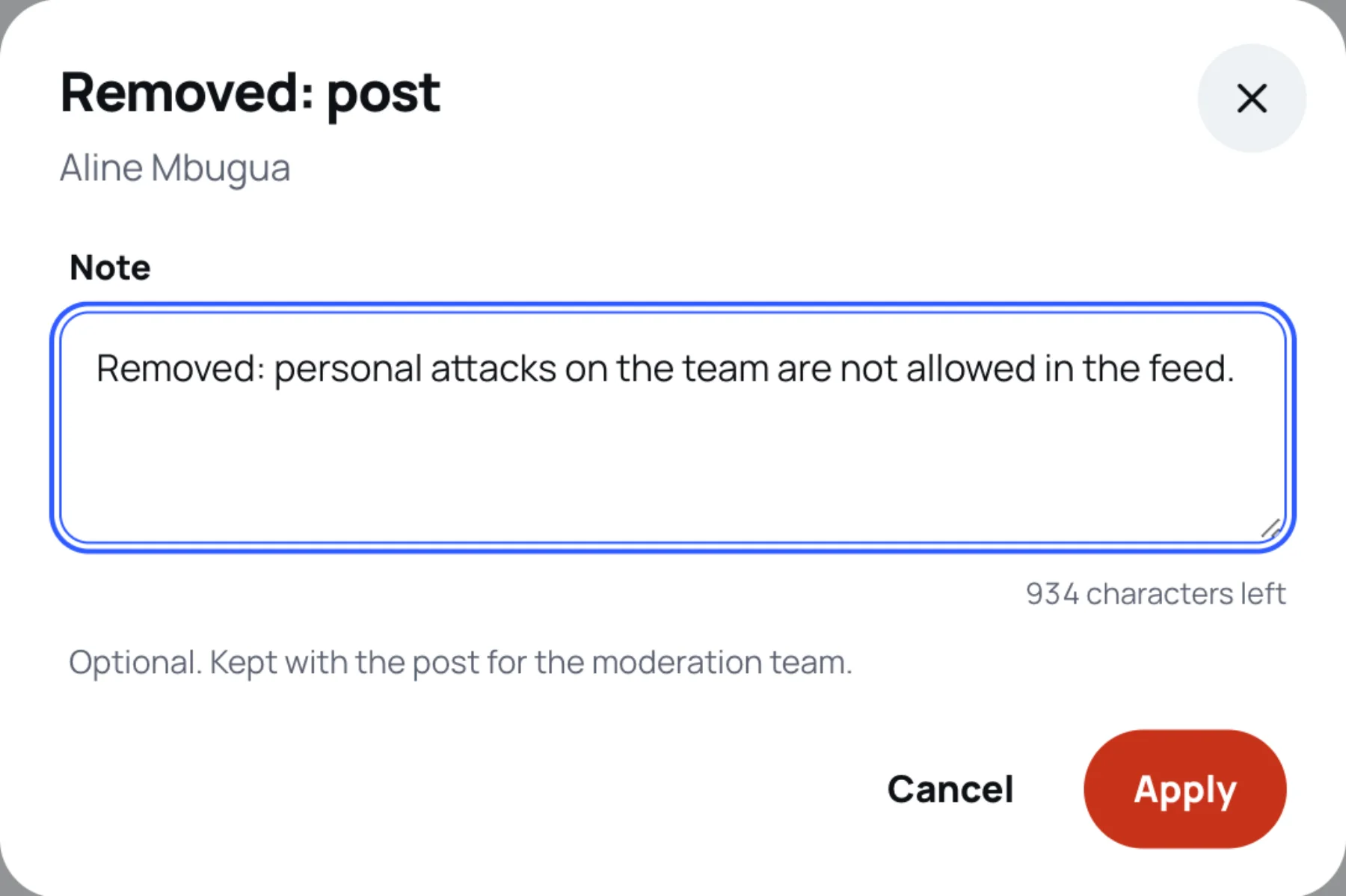
A sheet opens with an optional Note, kept with the post for the moderation team. Type why, for example "Removed: personal attacks on the team are not allowed in the feed."
-
Select Apply. For a removal you are asked to confirm, because the post will no longer be visible to anyone.
Pin a post
Select Pin on a published post to keep it at the top of the feed, for example a welcome message. Select Unpin to let it move with the rest.
Moderate comments and chat
- Comments: select the comments link under a post to open them. Held comments are counted beside the link.
- Stage chat and Room chat: choose the stage or room, then publish or remove messages. A removed message disappears for everyone.
- Meet-ups and jobs: select Take down to hide an item from everyone but its author, who sees your note. Put back restores it.
Answer reports
-
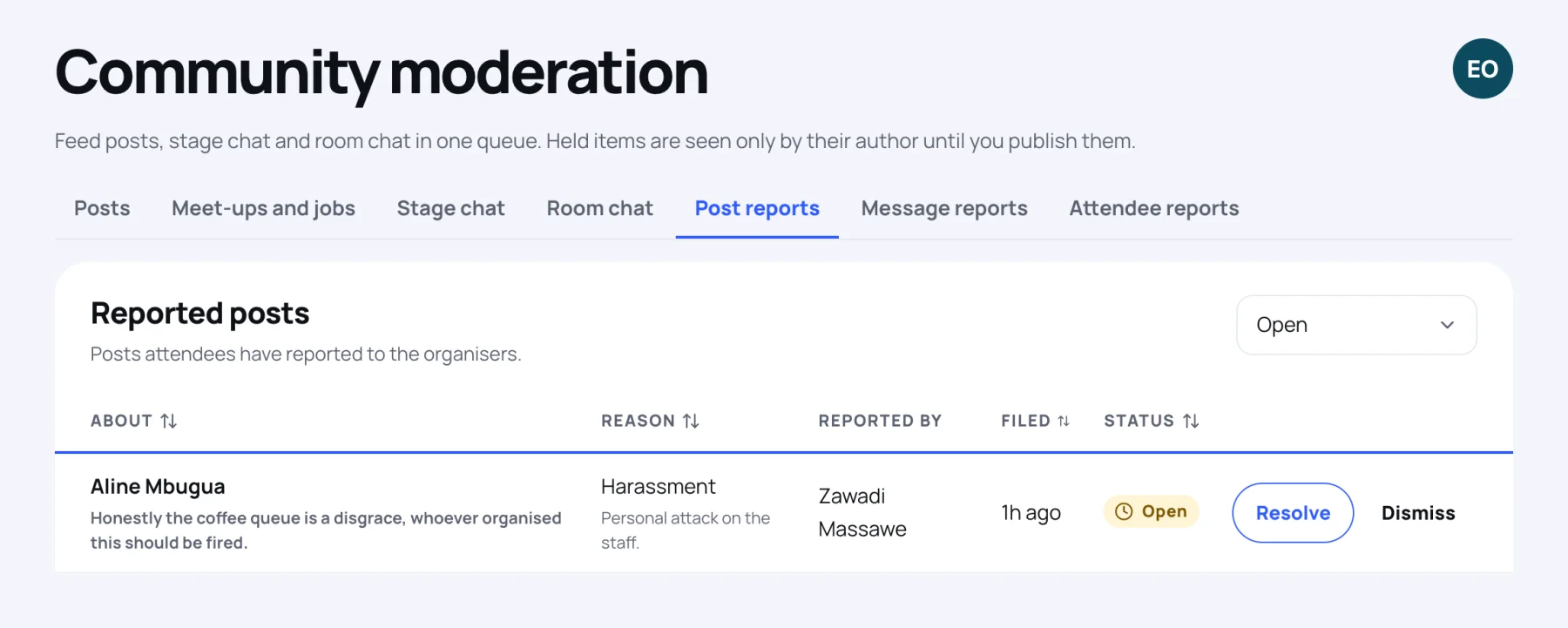
Open Post reports, Message reports or Attendee reports. Each list starts on Open reports; use the filter for Resolved or Dismissed ones.
-
Read the reason and who reported it.
-
Act on the post or message if it needs it. For a room message, Remove message removes it and resolves the report in one go.
-
Select Resolve when you have dealt with it, or Dismiss when nothing needed doing.
Last updated