Print badges on site
You can print badges at the venue as people arrive, instead of printing them all in advance. The badge is drawn on the device, on the stock and layout you chose in Badge design, and sent to its printer.
Prepare the printer
-
In Badge design, choose the Badge size and Printer that match your stock, and Save.
-
Select Test print and check the badge fits the stock, with no margins cut off.
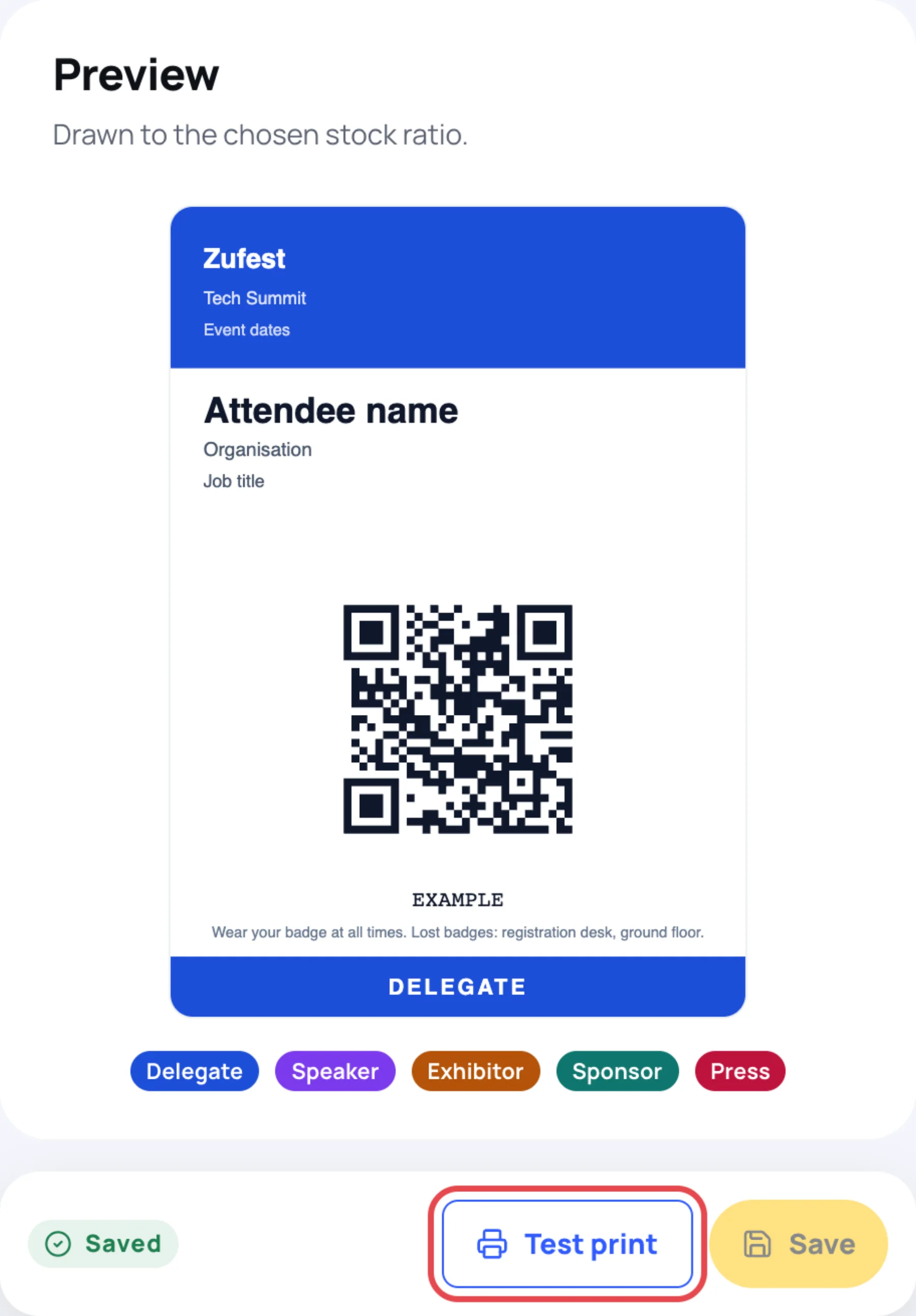
-
On the device, make the badge printer the default printer.
Print at the kiosk
When Print badges is on, the kiosk prints each badge right after its holder checks in, and shows "Your badge is printing", then "Collect your badge from the printer". See run a self check-in kiosk.
A badge prints only after an admission. Someone who scans twice does not get a second badge from the kiosk.
If printing fails, the kiosk says "The badge could not print. A member of staff will help you." Reprint it from the gate screen.
Print or reprint at the gate
On the Gates screen, after a scan that is Admitted or Already scanned, the result shows Print badge.
-
Scan the badge, or type its code.
-
Select Print badge in the result.
Use this at the help desk for lost or damaged badges.
Last updated