Watch a live stage
Live stages let you follow sessions online as they happen, from anywhere. Beside the stream you can chat with other viewers, ask the speakers a question and answer polls.
Find a stage
-
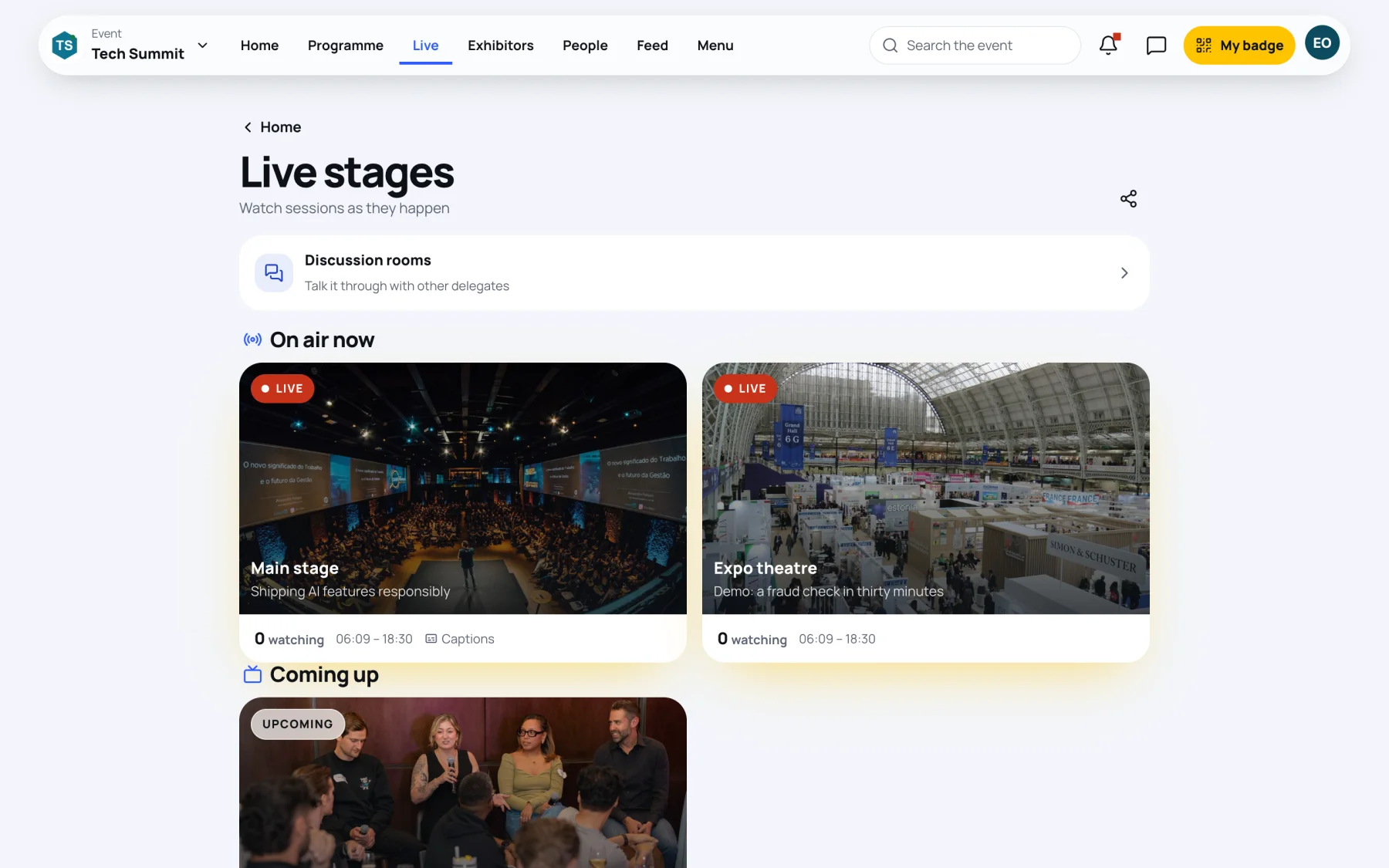
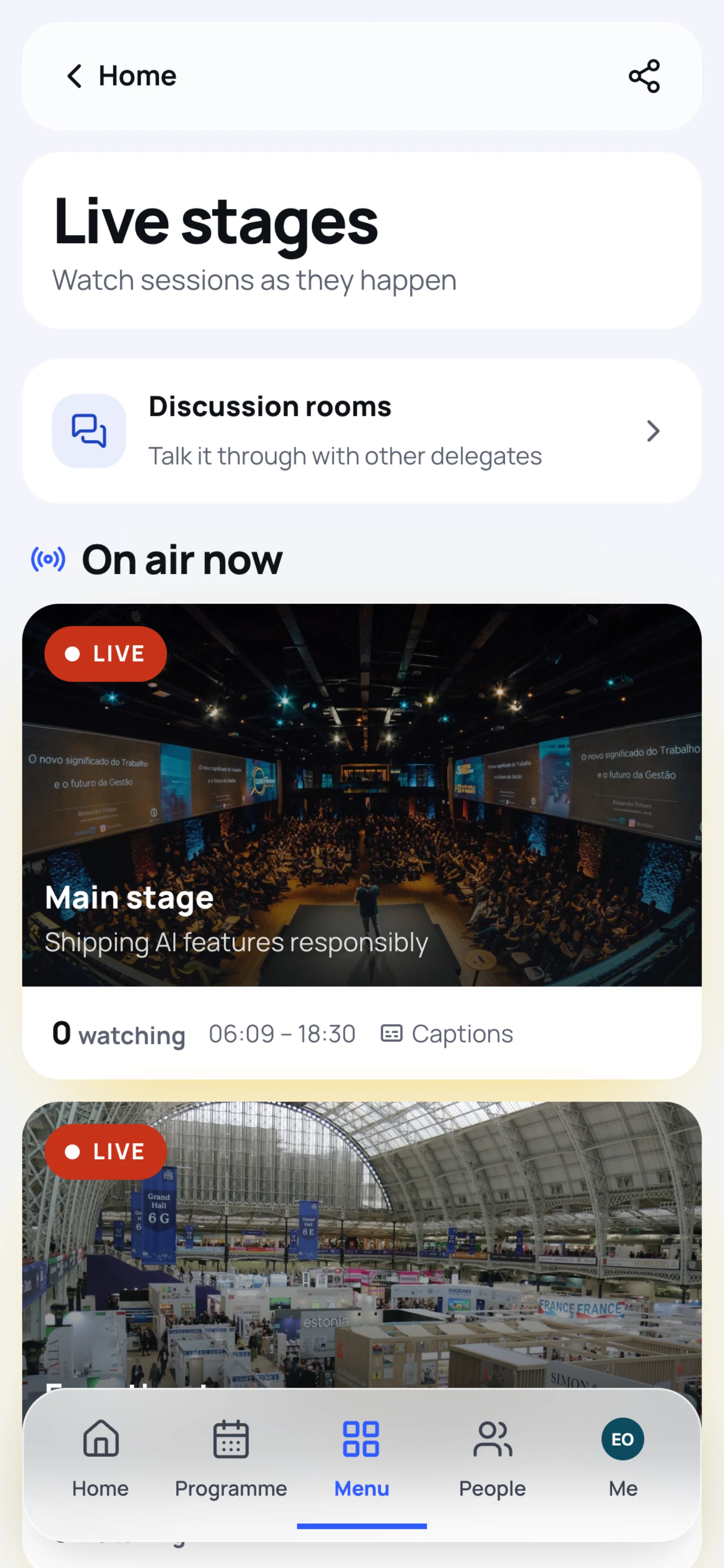
Open the event and select Live. On a phone, select Menu, then Live stages.
-
On air now lists the stages broadcasting at the moment, each with the session on now, how many people are watching, its hours and Captions when captions are available. Coming up lists the stages that start later.
-
Select a stage to open it.
Watch the stream
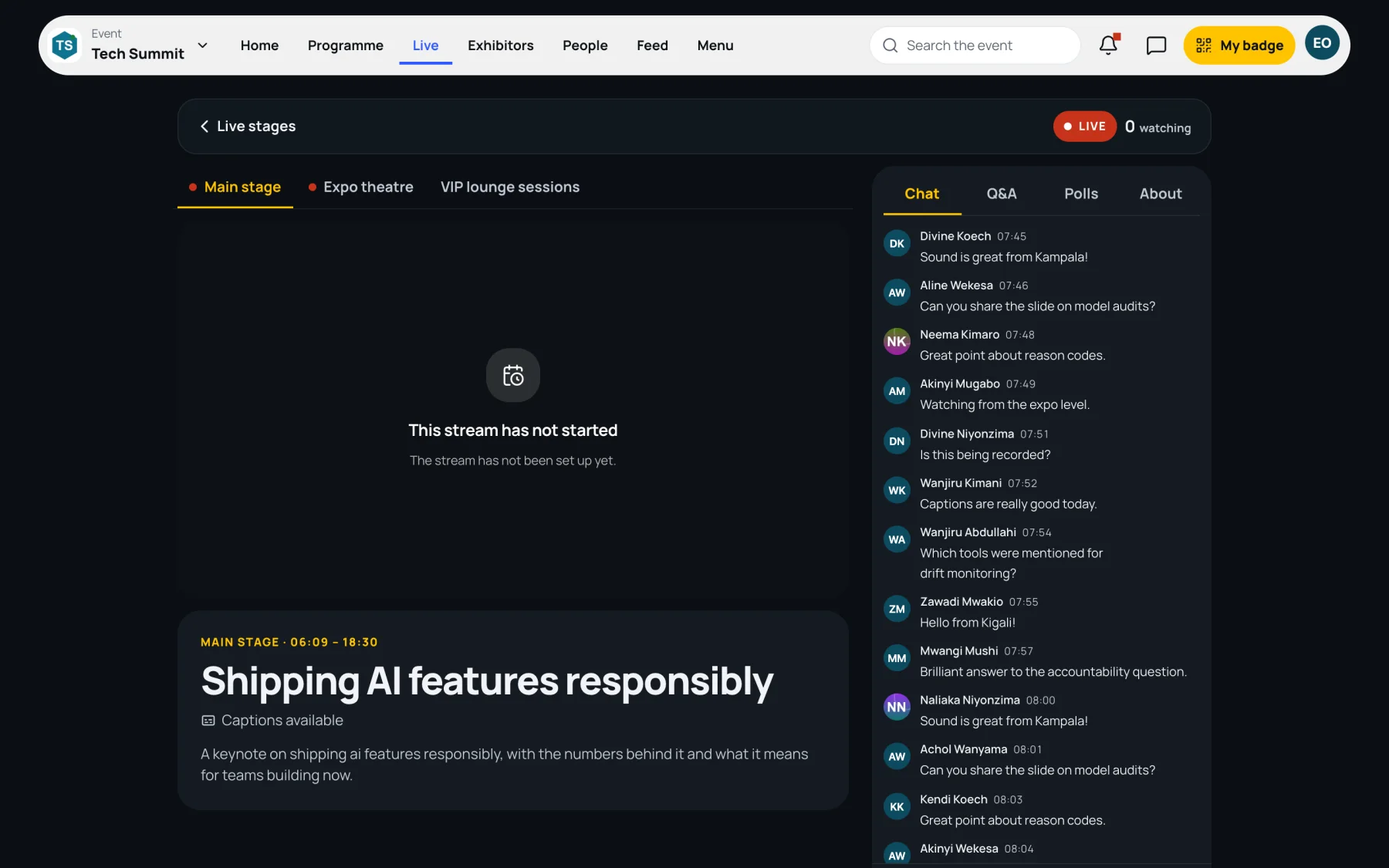
The stage page has the player at the top, then the session that is on and its time. The bar at the top shows Live and how many people are watching. If the event has more than one stage, switch between them with the stage names above the player; a red dot marks the ones that are live.
-
When the stream is on air, it starts in the player. Use the player's controls to pause, mute, choose a quality and go full screen.
-
If the stage is live but the broadcast has not begun, the player says Waiting for the broadcast and starts by itself as soon as the stream is on air.
-
On a phone, turn your phone sideways to watch full screen. Tap the panel button to bring the chat over the video.
When the stream does not play
The player always says why a stream cannot be watched, in place of the video:
| The player says | What it means |
|---|---|
| This stream has not started | The stream is not on yet, or the organisers have not connected it. Check again at the session's start time. |
| Opens in and a countdown | The stream opens soon. |
| Not included with your pass | Your ticket does not include this stage. |
| This stream is at capacity | The stage has as many viewers as it allows. Try again shortly. |
| Not available in your region | The organisers have limited this stream to certain countries. |
| This session has finished | The broadcast is over. Look for the recording. See Recordings. |
If playback stops because of your connection, the player says Playback stopped and lets you try again.
Use the tabs beside the stream
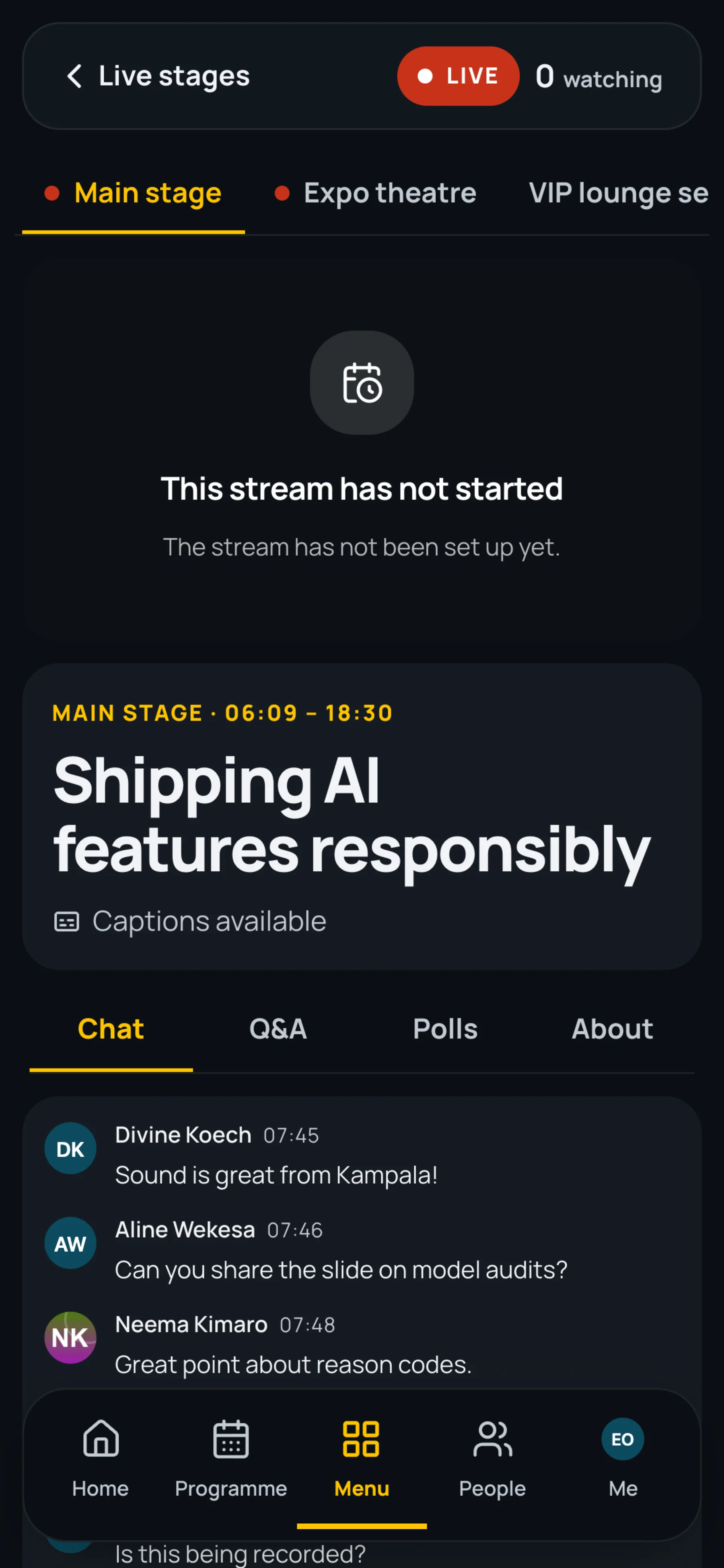
On a computer the tabs sit on the right of the player. On a phone they are under the session title.
| Tab | What it is for |
|---|---|
| Chat | Talk with everyone watching this stage. See Stage chat. |
| Q&A | The session's questions. Upvote them or select Ask a question. It is the same list as on the session page. |
| Polls | The session's open polls, as yellow LIVE POLL cards. |
| About | The session's description, its speakers and related resources. |
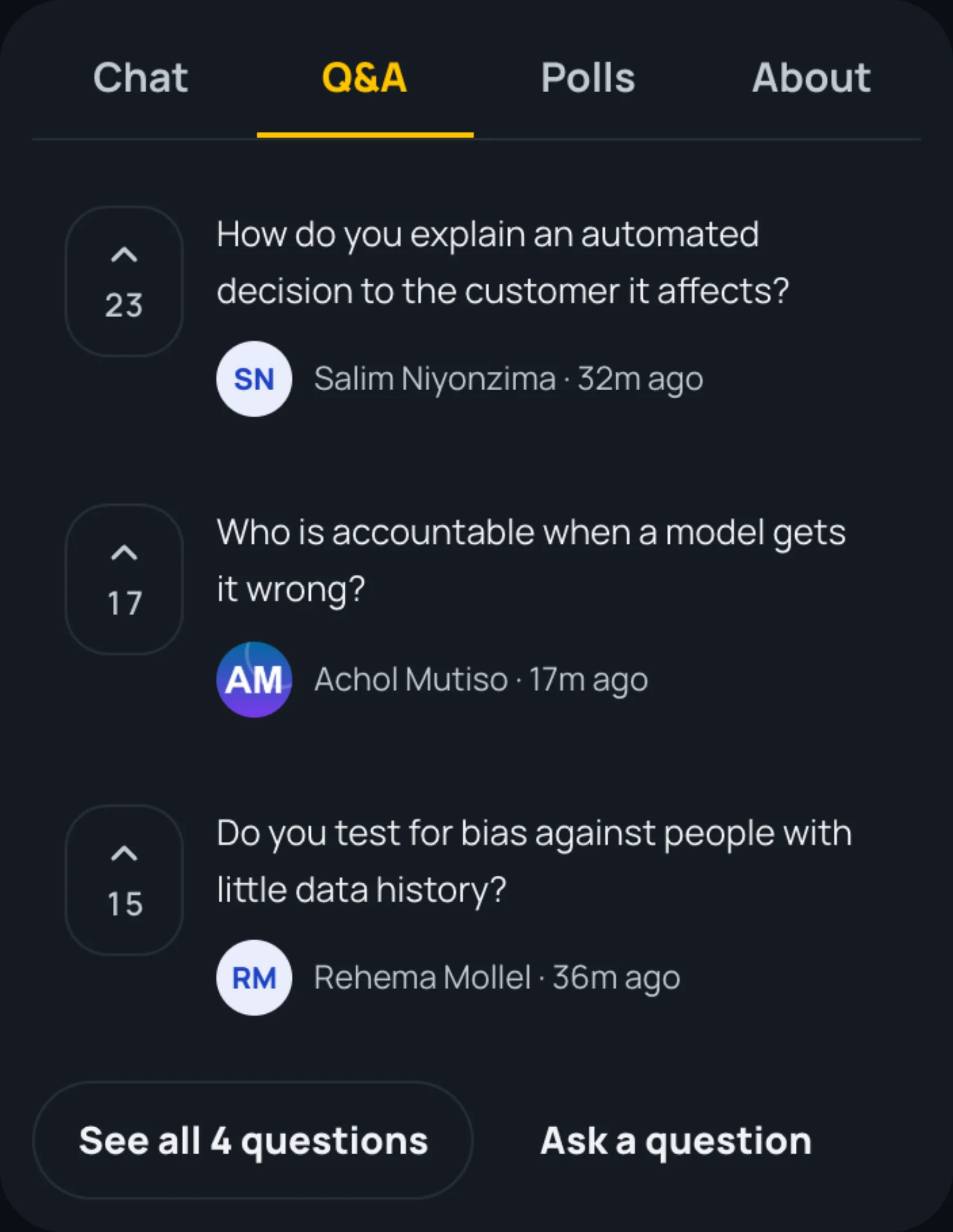
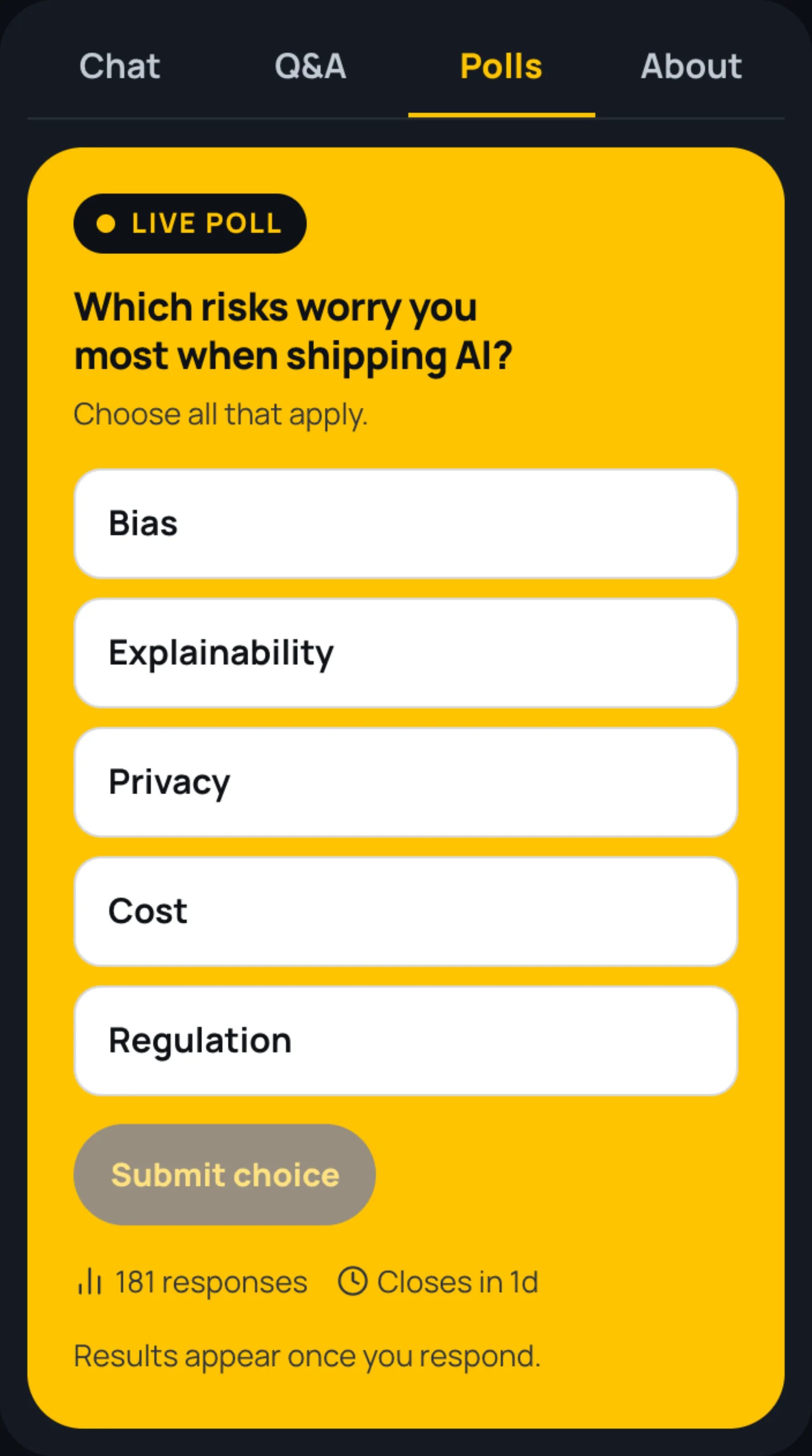
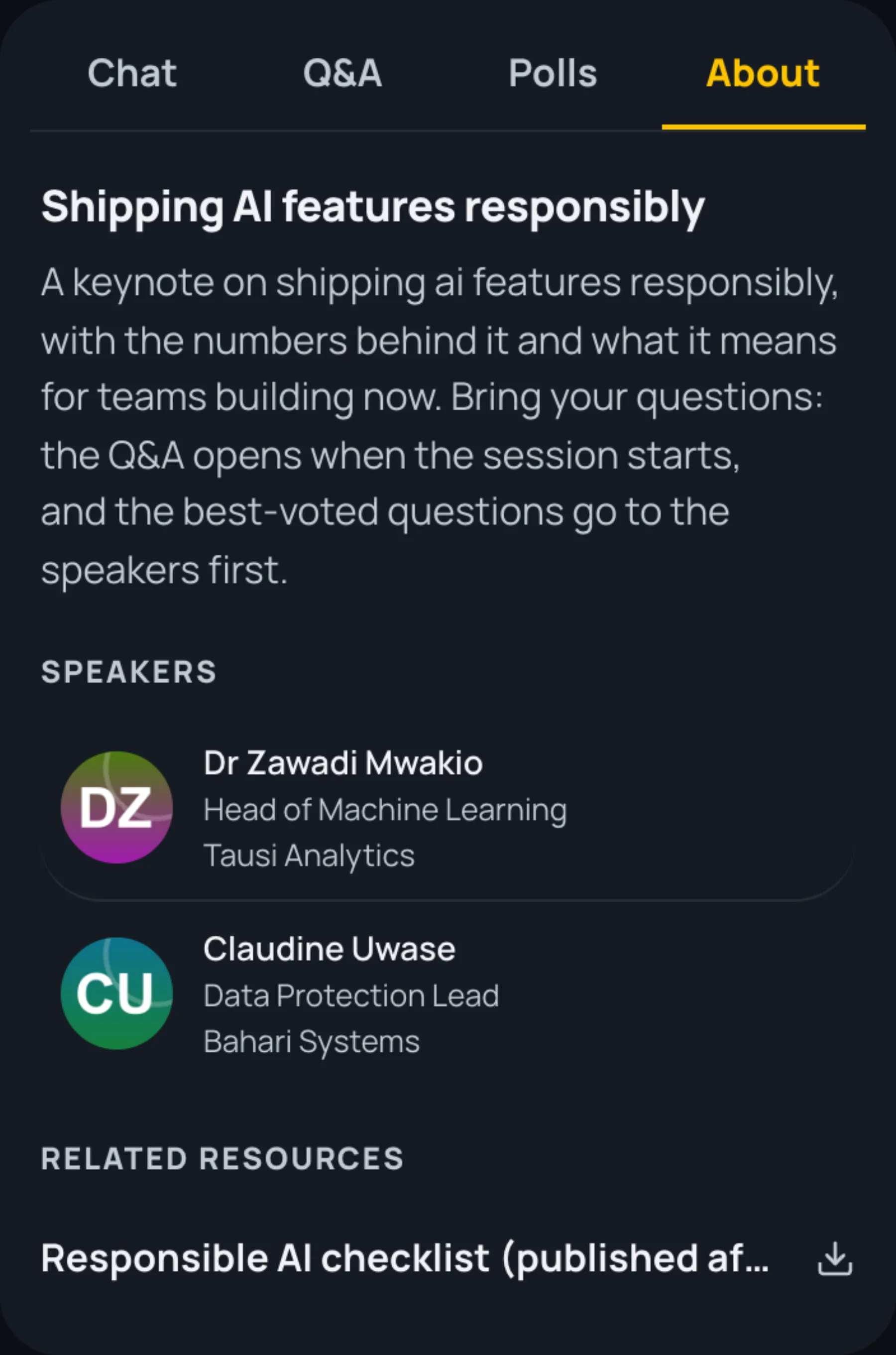
To ask a question or vote, see Ask a question and Vote in a poll.
Last updated