Post to the feed
Share an observation from a session, a question for the room, a correction or a photo. Everyone with a place at the event can see your post.
Write a post
-
On the Feed page, select Share a moment from the event. To start with a photo, select the camera button next to it.
-
Type your post. Up to 5,000 characters, and the count of what is left is shown under the box.
-
To add a topic, type
#and a word, such as#fintech. The hashtags in your post are shown under the box, and other people can filter the feed by them.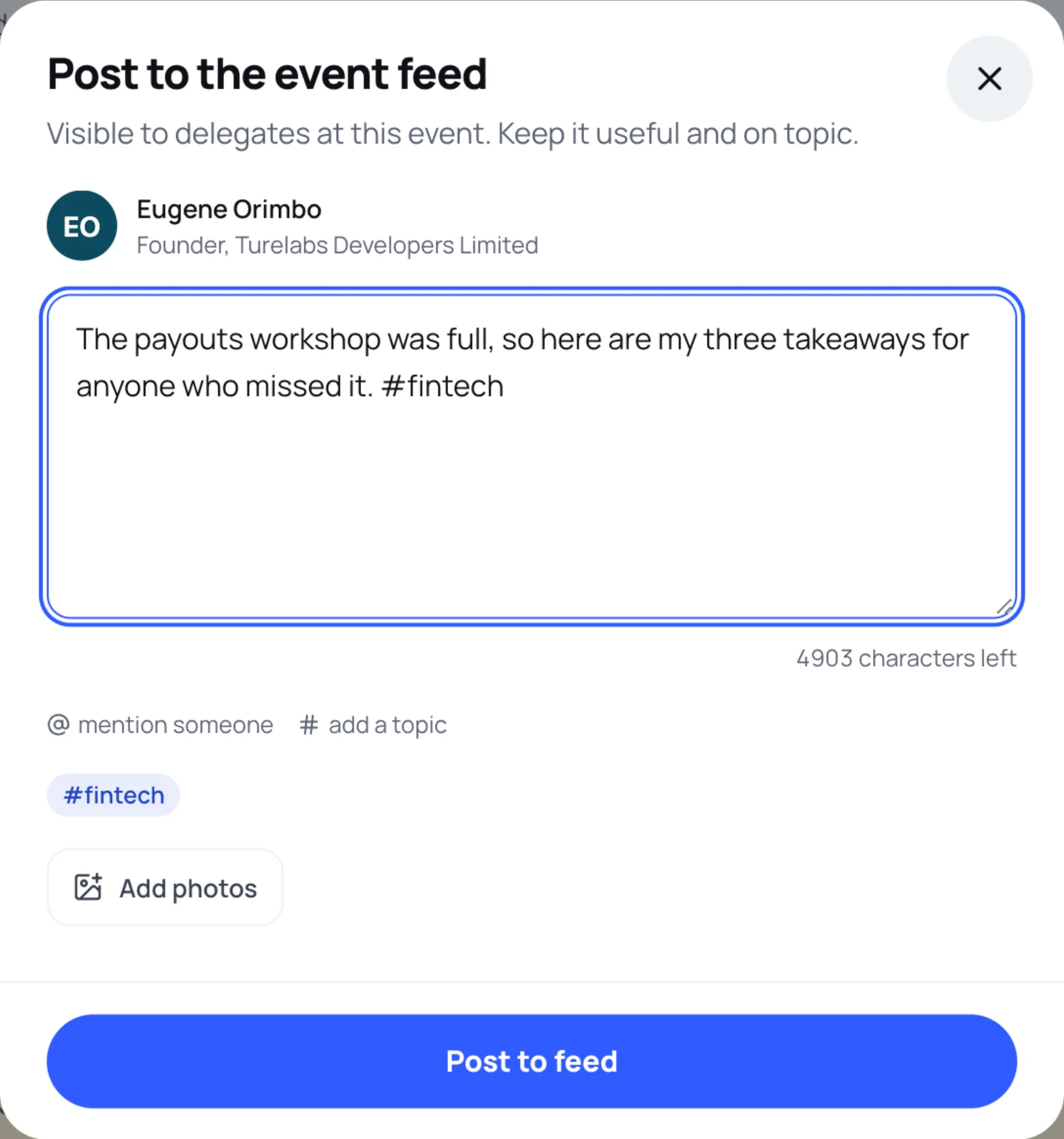
-
To mention someone, type
@and at least two letters of their name, then pick them from the list.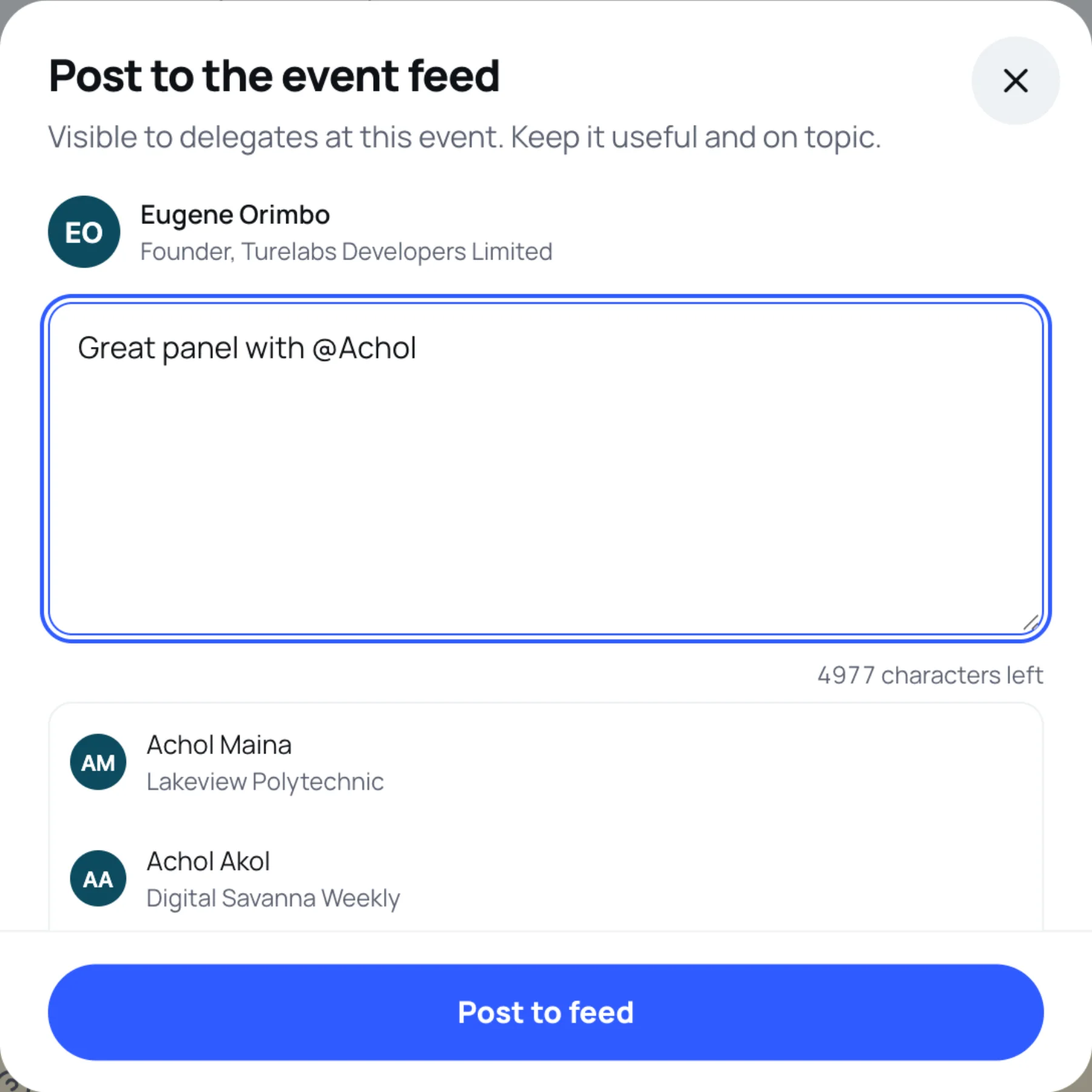
-
Select Post to feed.
The post appears at the top of the feed with "Posted to the event feed".
Add photos
-
In the composer, select Add photos and choose up to four pictures.
-
Each photo uploads straight away, with its progress shown on the preview.
-
Under each photo, fill in Describe this photo, for example "The panel on stage during the payments session". Everyone who uses a screen reader relies on it.
-
Select Post to feed once every photo has finished uploading and has a description.
To remove a photo before posting, select the cross on its preview.
When a post is held for review
Some posts are held for a quick look by the organising team before they go up, depending on what they say. If yours is held, you see "Your post is being reviewed". It shows under My posts marked Held for review, and appears in the feed once a moderator clears it. Other people cannot see or react to it until then.
Delete your post
-
Select the three dots on your post.
-
Select Delete post.
-
Confirm. The post is removed for everyone. This cannot be undone.
Last updated