Request speaker profiles
Instead of collecting biographies and headshots by email, share one link and let speakers fill in their own profile. Nothing is published until you check and approve it, and speakers do not need an account.
Create a link
-
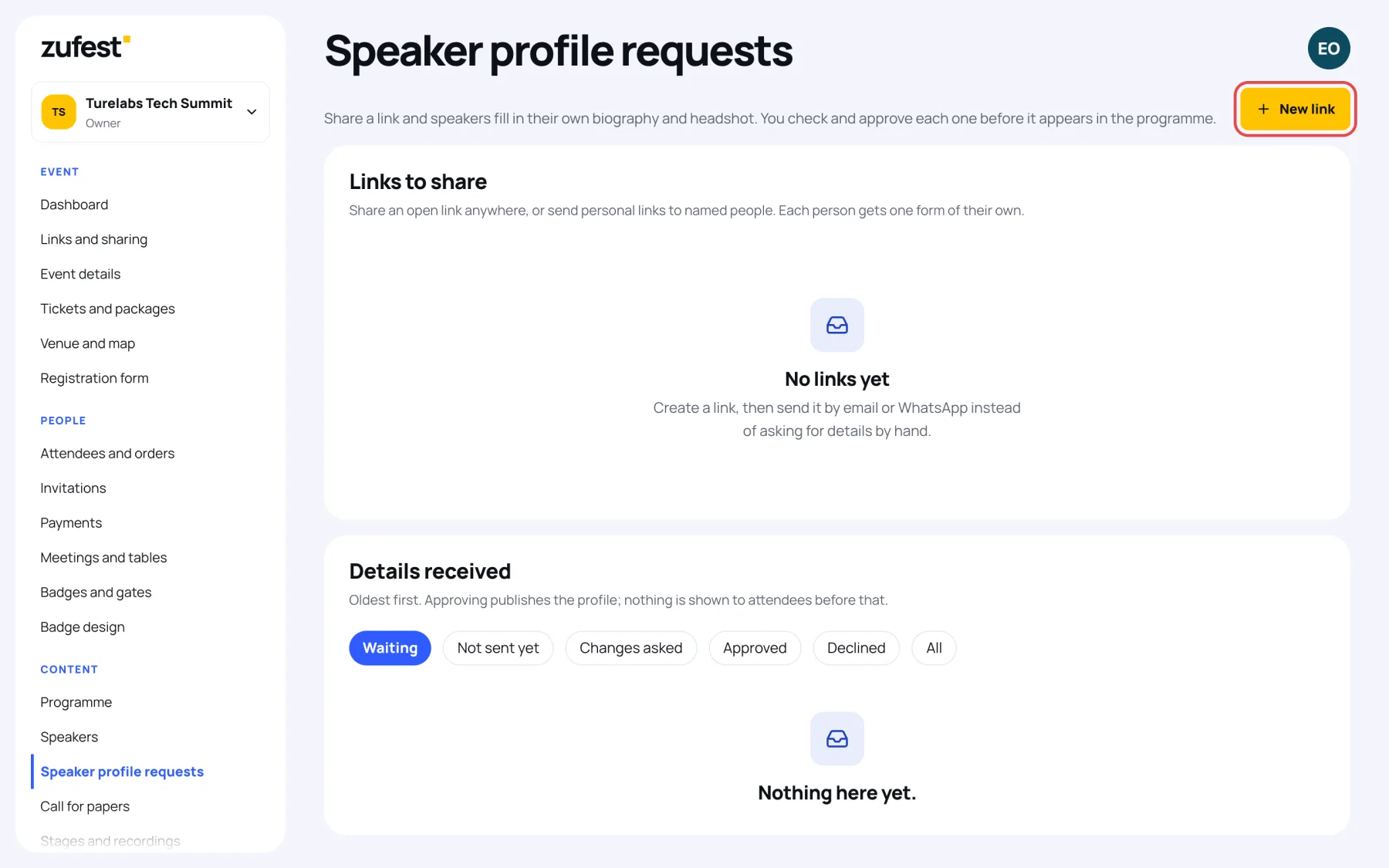
In the organiser sidebar, under Content, select Speaker profile requests.
-
Select New link.
-
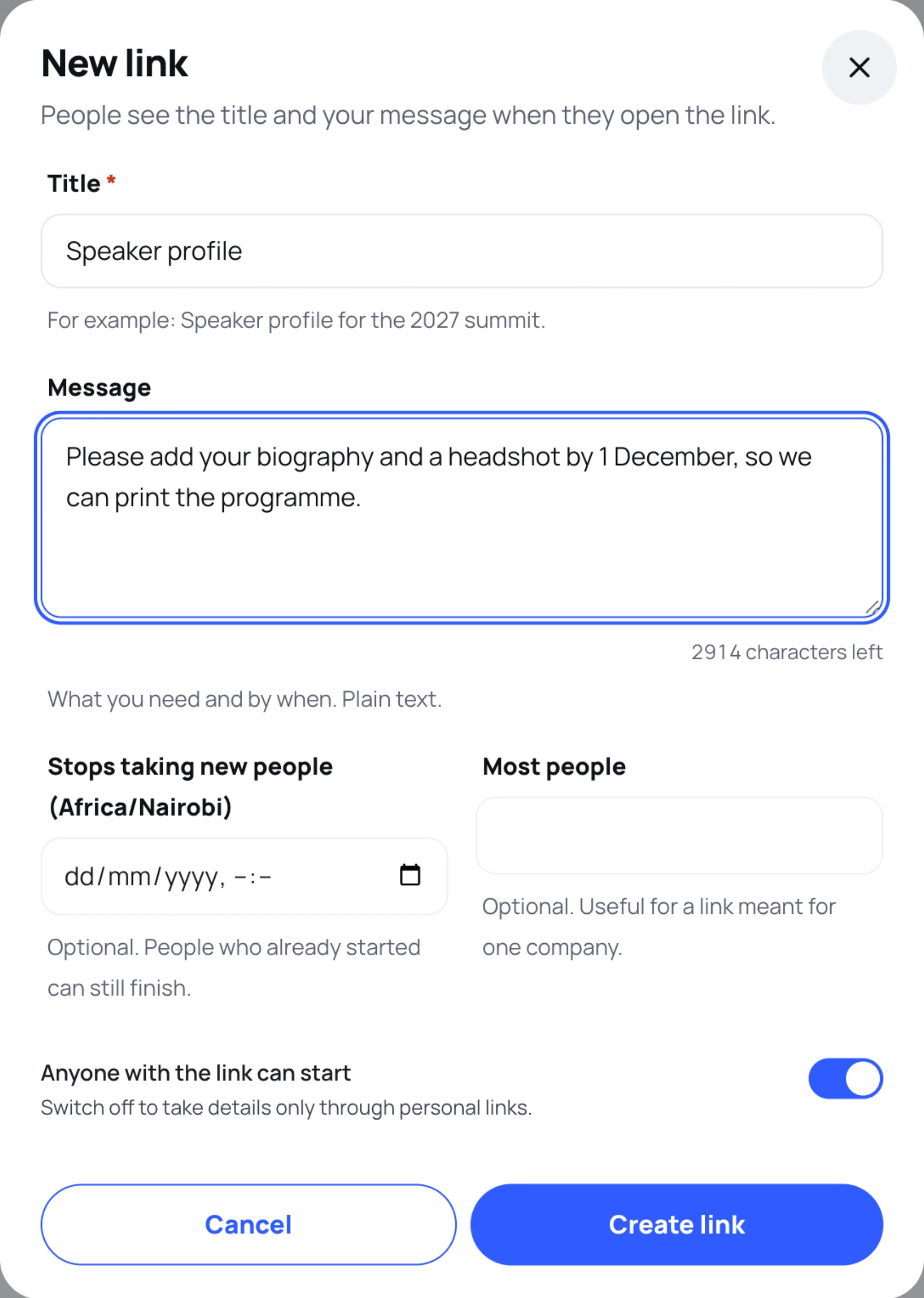
Give the link a Title, for example "Speaker profile for the 2027 summit". Speakers see it when they open the link.
-
Write a Message saying what you need and by when. It is plain text.
-
If you like, set Stops taking new people (a closing time) and Most people (how many people may start a form). People who already started can still finish after it closes.
-
Leave Anyone with the link can start on to share the link openly. Switch it off if you only want details through personal links.
-
Select Create link.
The link appears under Links to share, with how many people have started, how many are waiting and how many are approved. Select Copy link and send it by email, WhatsApp or anywhere else.
Send personal links
A personal link gives one named person a form of their own. Once you have a link, Send personal links appears at the top of the screen.
- Select Send personal links and choose the Form (the link whose title and message people see).
- Tick people under Speakers already on file. Their form opens with what you already have, and approving it updates their listing instead of adding a new one.
- Paste anyone else under Other people, one per line: a name and an email address, as copied from a spreadsheet. Up to 200 at a time.
- Leave Email each person their link now on to email them, or switch it off to copy the links yourself.
- Select Send to 3 people (the number is how many you chose), or Create 3 links when you are not emailing them.
Each address gets one form per event. Someone who already has one is not sent a second.
Review what comes in
Forms that people send appear under Details received, oldest first. Filter them with Waiting, Not sent yet, Changes asked, Approved, Declined or All. Not sent yet includes people you invited who have not sent anything.
- Select Review on a form. You see the details and who sent them. Contact details are for your team only and are never published.
- Correct anything that needs it, or replace the headshot, then select Save edits.
- Under Decision, choose what to do:
- Approve and publish. Under Publish as, choose A new speaker or an existing speaker to update. If the name matches someone on your list, that speaker is already chosen, so the person on the programme is updated rather than duplicated.
- Ask for changes. Write a Note to the person first: it is required, and they receive it by email with a link back to their form.
- Decline. The note is optional. Nothing is published.
The person is emailed about every decision. Once a form is approved or declined it is locked; later changes go through the Speakers screen. On an approved form, View the listing shows the speaker as attendees see them, and Edit on Speakers opens them there.
What speakers see
Speakers open the link, give their name, email and, if they like, a phone number, then fill in a headshot, full name, job title, organisation, country, biography and social links. They can save and finish later from a private link. See Fill in your profile from a link.
Last updated