Send a campaign
A campaign is a message to a group of attendees by email, push notification or in-app message. It goes once, to the audience as it stands when it is sent. This page shows you how to draft one, check it and send it.
Open campaigns
In the sidebar, under Engage, select Campaigns and announcements. The Campaigns tab lists every campaign with its Channel, Audience, Status and When.
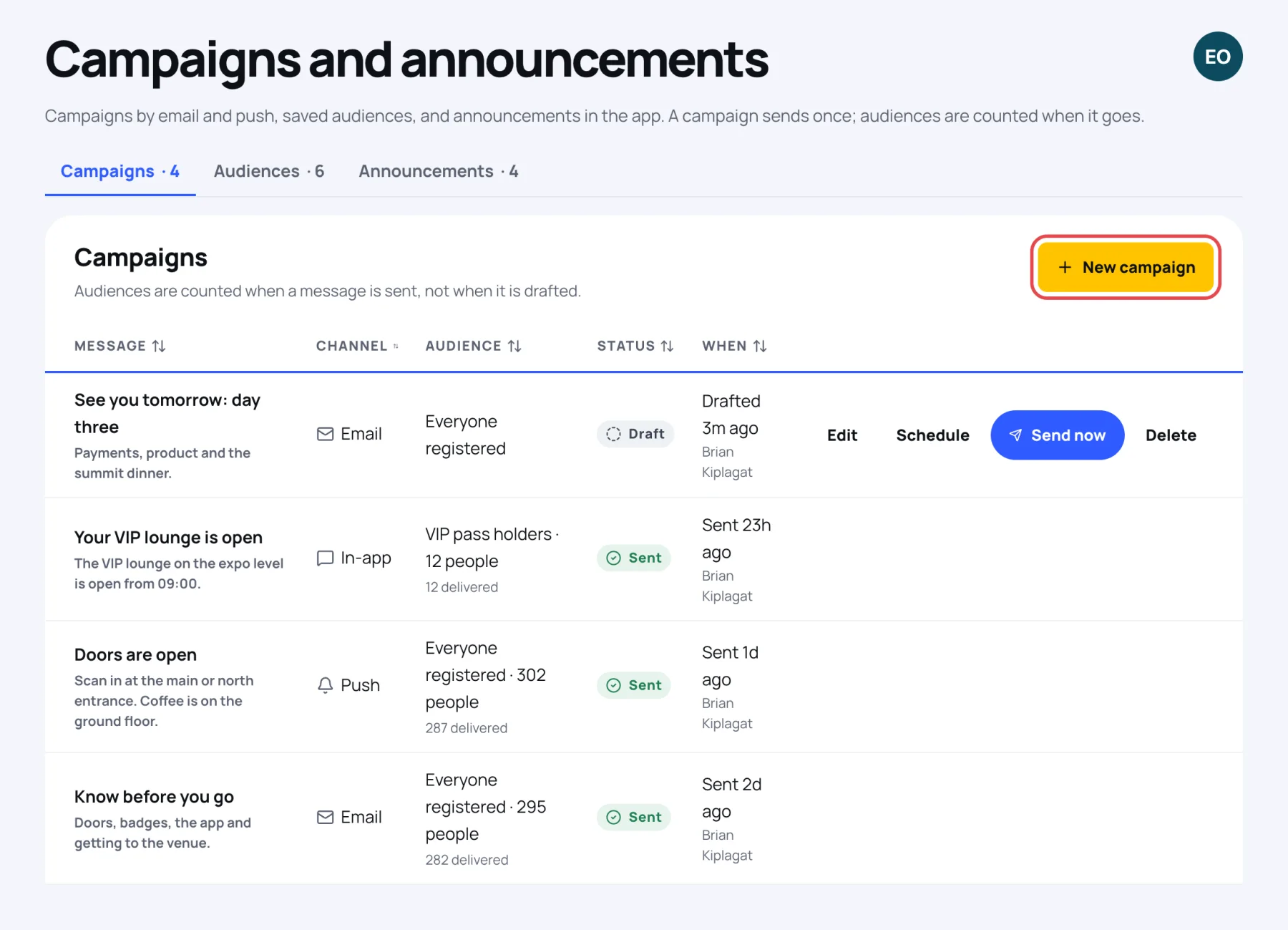
For a sent campaign, the Audience column shows how many people it went to and how many it was delivered to. A draft or a scheduled campaign shows only the audience's name, because it is counted when it goes.
Draft the campaign
-
Select New campaign.
-
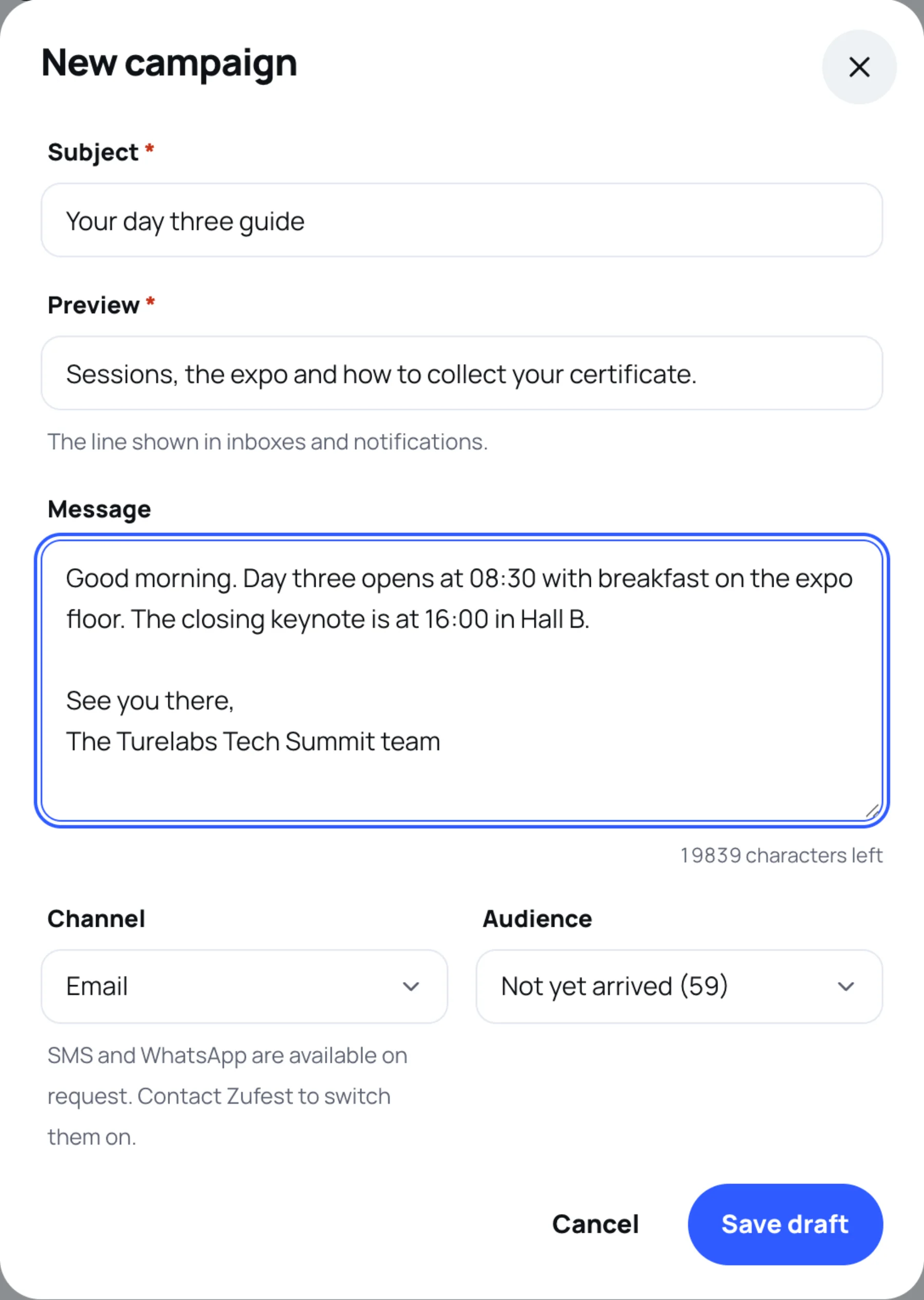
Type the Subject, for example "Your day three guide".
-
Type the Preview: the line shown in inboxes and notifications.
-
Type the Message. For email this is the body of the email.
-
Choose the Channel: Email, Push or In-app.
-
Choose the Audience, for example Not yet arrived (59). The number is how many people match it now.
-
Select Save draft. Nothing is sent yet.
Schedule it
-
On the draft's row, select Schedule.
-
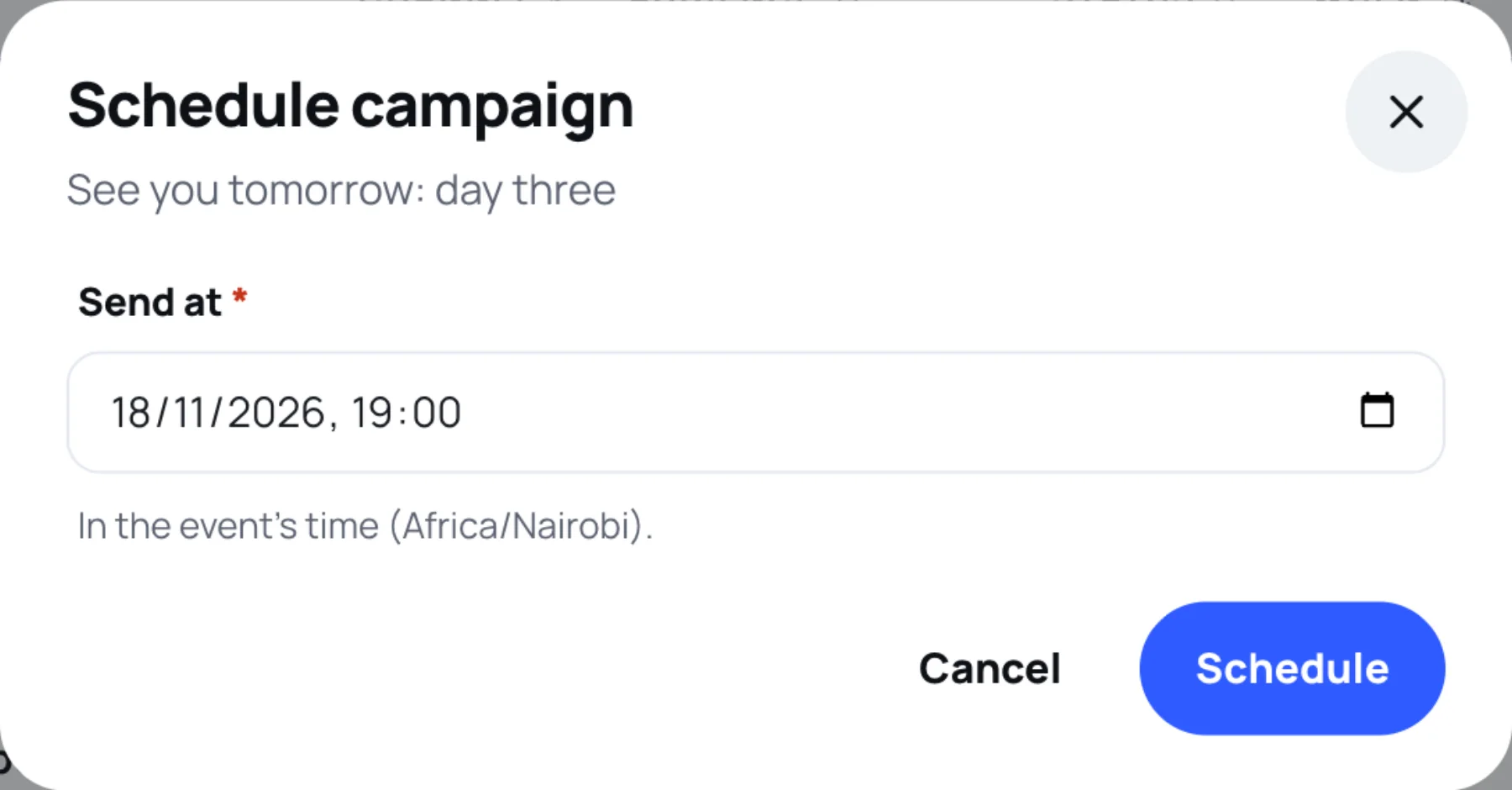
Set Send at, in the event's time zone. It must be in the future.
-
Select Schedule. The status becomes Scheduled and When shows when it goes out.
To change your mind, select Unschedule on its row. It goes back to being a draft you can edit.
Send it now
-
On the draft's row, select Send now.
-
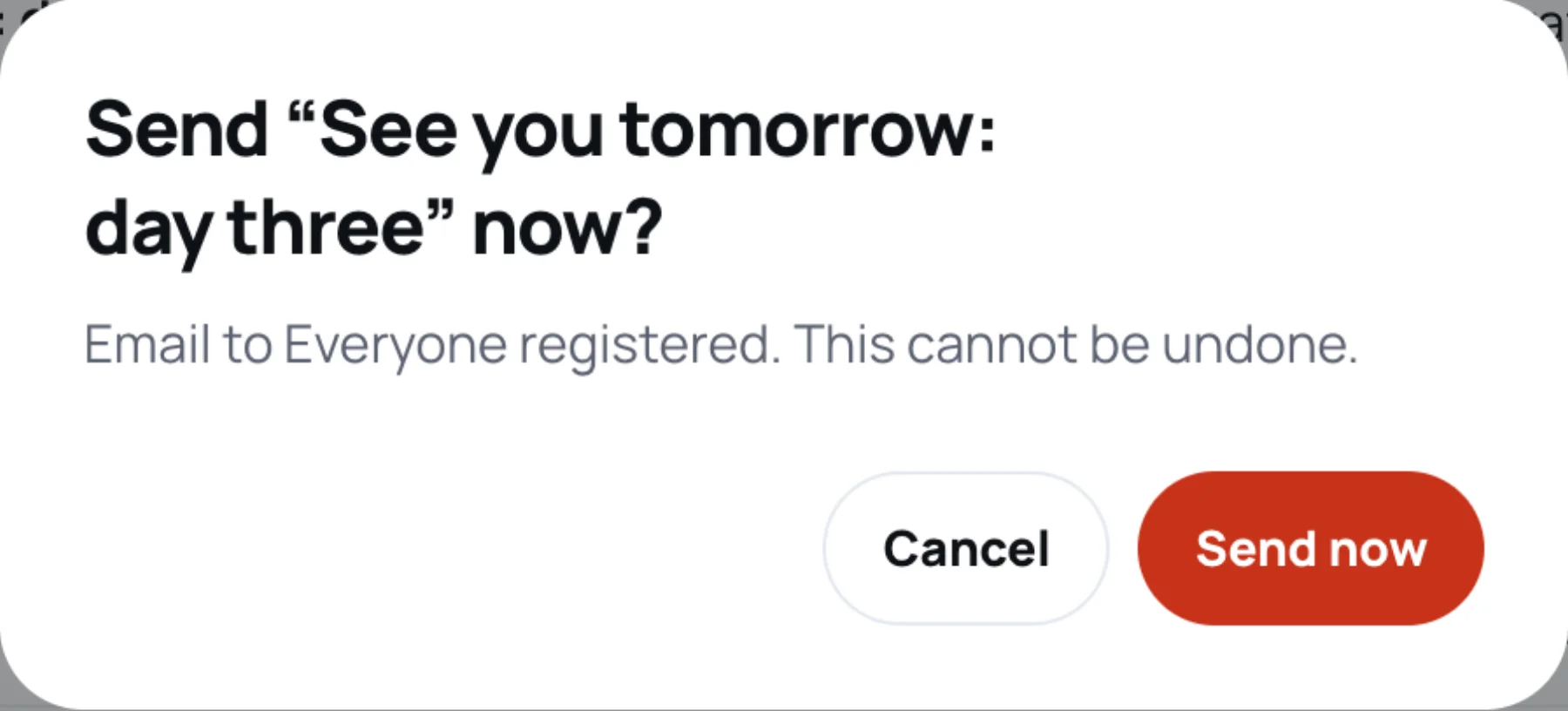
Read the confirmation. It names the channel and the audience.
-
Select Send now to send it, or Cancel.
Edit or delete a draft
Select Edit on a draft to change it, or Delete to remove it. Sent campaigns cannot be edited or deleted; they stay as a record of what went out.
Who actually receives it
Each person's own settings decide whether the message reaches them. For example, someone who turned off emails from organisers does not get an email campaign. See Who receives what.
Last updated