Build your agenda
My agenda is your own schedule for the event. It collects the sessions you save and the meetings you have booked, across every day, on every device you sign in on.
Add a session to your agenda
-
Go to Programme and open a session.
-
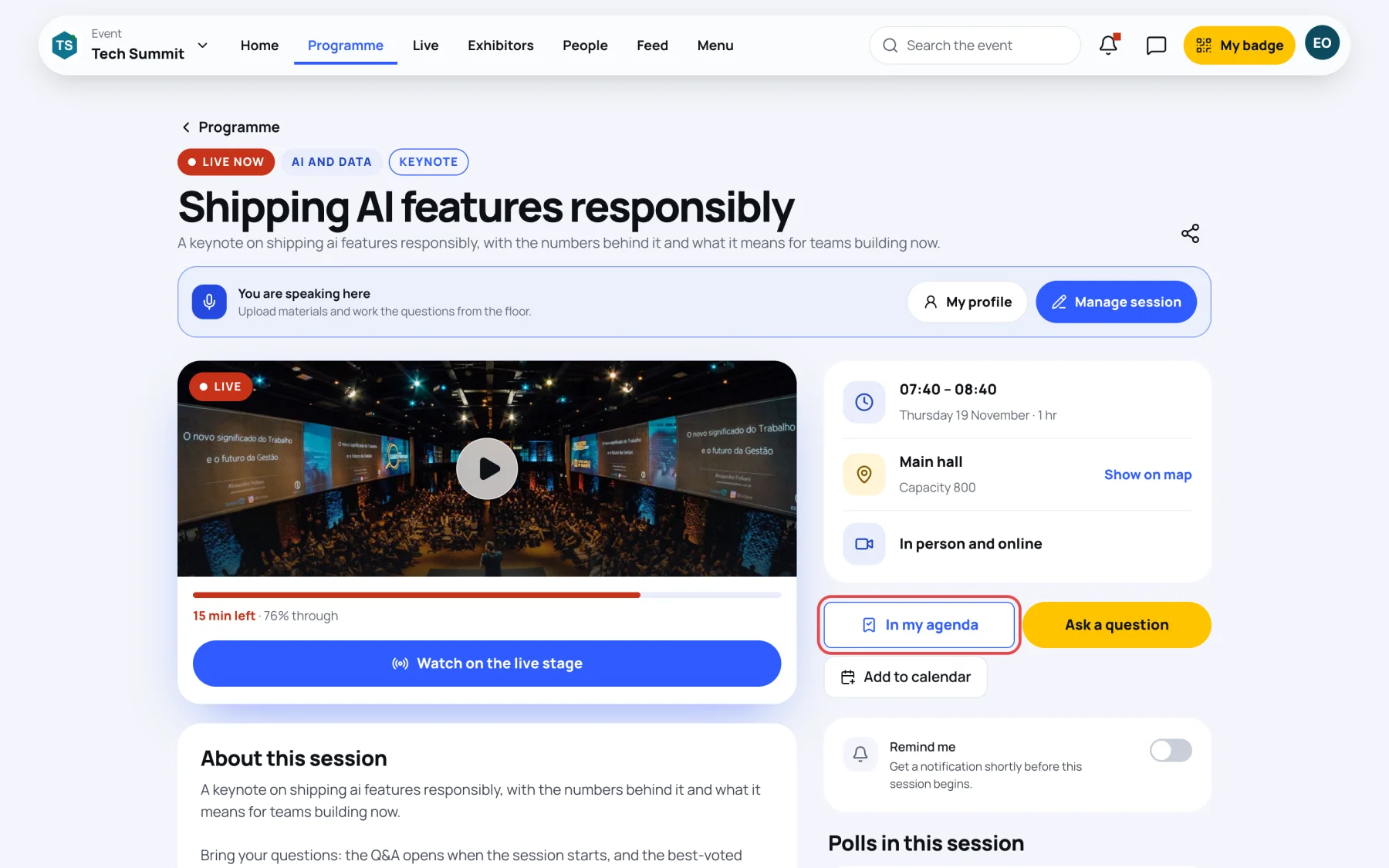
Select Add to my agenda. The button changes to In my agenda.
-
To take it out again, select In my agenda.
You can also save a session straight from the programme list: select the + at the right of its card. A blue tick shows that it is saved.
If the new session overlaps something already in your agenda, Zufest still adds it and tells you which session or meeting it clashes with.
Reserve a seat in a session with limited places
Some sessions, often workshops, have a fixed number of seats. Their page says This session requires registration and places are limited, and the button reads Reserve a seat instead of Add to my agenda.
-
Open the session and check the seat bar under the hall. It shows Seats available, Filling up with the seats left, or At capacity, waitlist open.
-
Select Reserve a seat. Once it says Seat reserved, the seat is yours and the session is in your agenda.
-
If you can no longer go, select Seat reserved to give up your seat. Someone else can then take it.
Join the waitlist for a full session
-
Open a session that shows At capacity.
-
Select Join the waitlist.

-
The page tells you your place in line. If a seat opens, it goes to the next person automatically, and Zufest tells you when it is yours.
To leave the waitlist, select On the waitlist.
See your agenda
-
Go to Programme, then select My agenda.
-
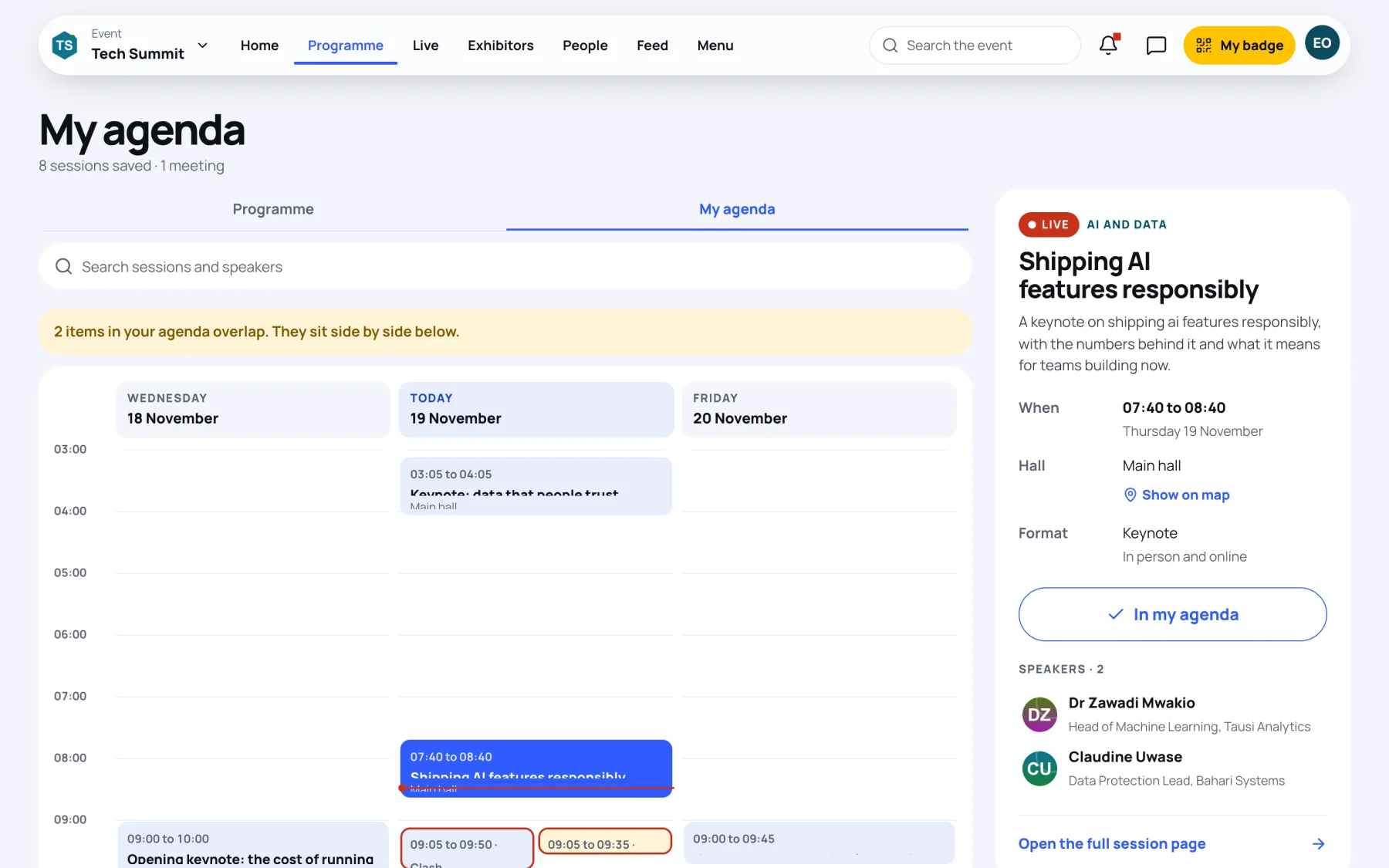
On a computer, your agenda is a grid with one column per day and the hours down the side. Select an item to see its details on the right.
-
On a phone, your agenda is a list grouped by day. Today's group is marked Today.
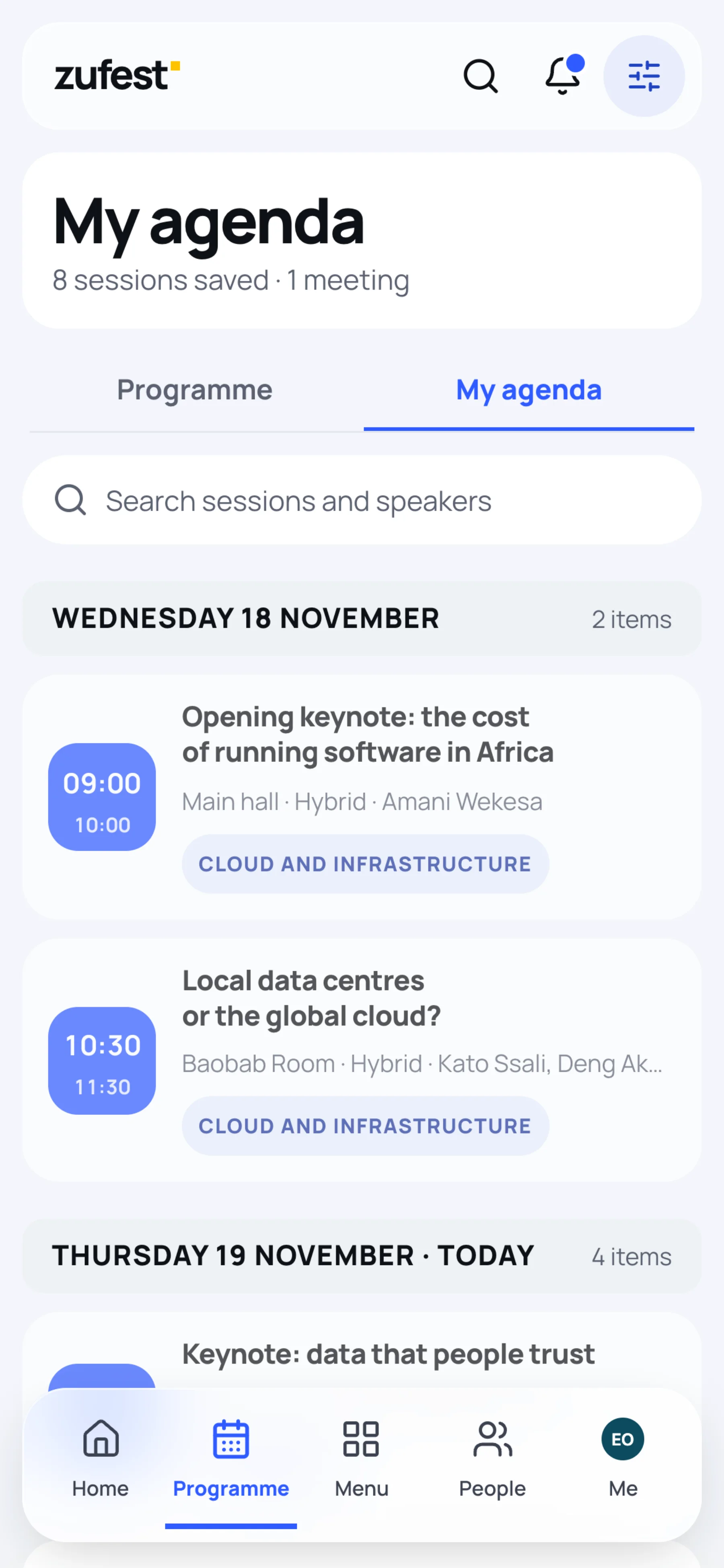
The heading counts the sessions you have saved and your meetings. Meetings booked through networking appear here too, as Meeting with and the person's name.
When two items in your agenda overlap, a yellow note above the grid says so and the items sit side by side, each marked Clash. Remove one, or keep both if you plan to move between them.
Add a session to your own calendar
On a session page, select Add to calendar. Zufest downloads a calendar file. Open it to add the session to the calendar on your phone or computer.
Get a reminder before a session
-
Open a session that has not started.
-
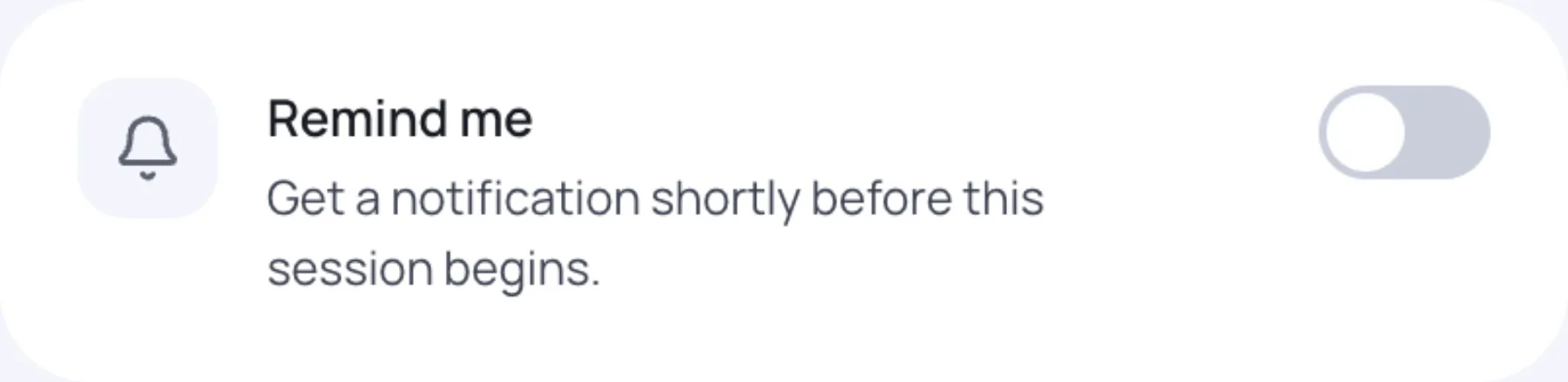
Switch on Remind me.
-
Choose how long before the start you want to be told: 5 min, 10 min, 15 min, 30 min or 1 hour.
Zufest sends you a notification at that time. Following a speaker sets these reminders for you, see Speakers.
Last updated