Add speakers
The Speakers screen lists everyone on the programme and what each person still owes you. Speakers fill in their own biography, headshot and slides from the app, so most of your work here is adding them and chasing the few who are late.
Read the speaker list
In the organiser sidebar, under Content, select Speakers.
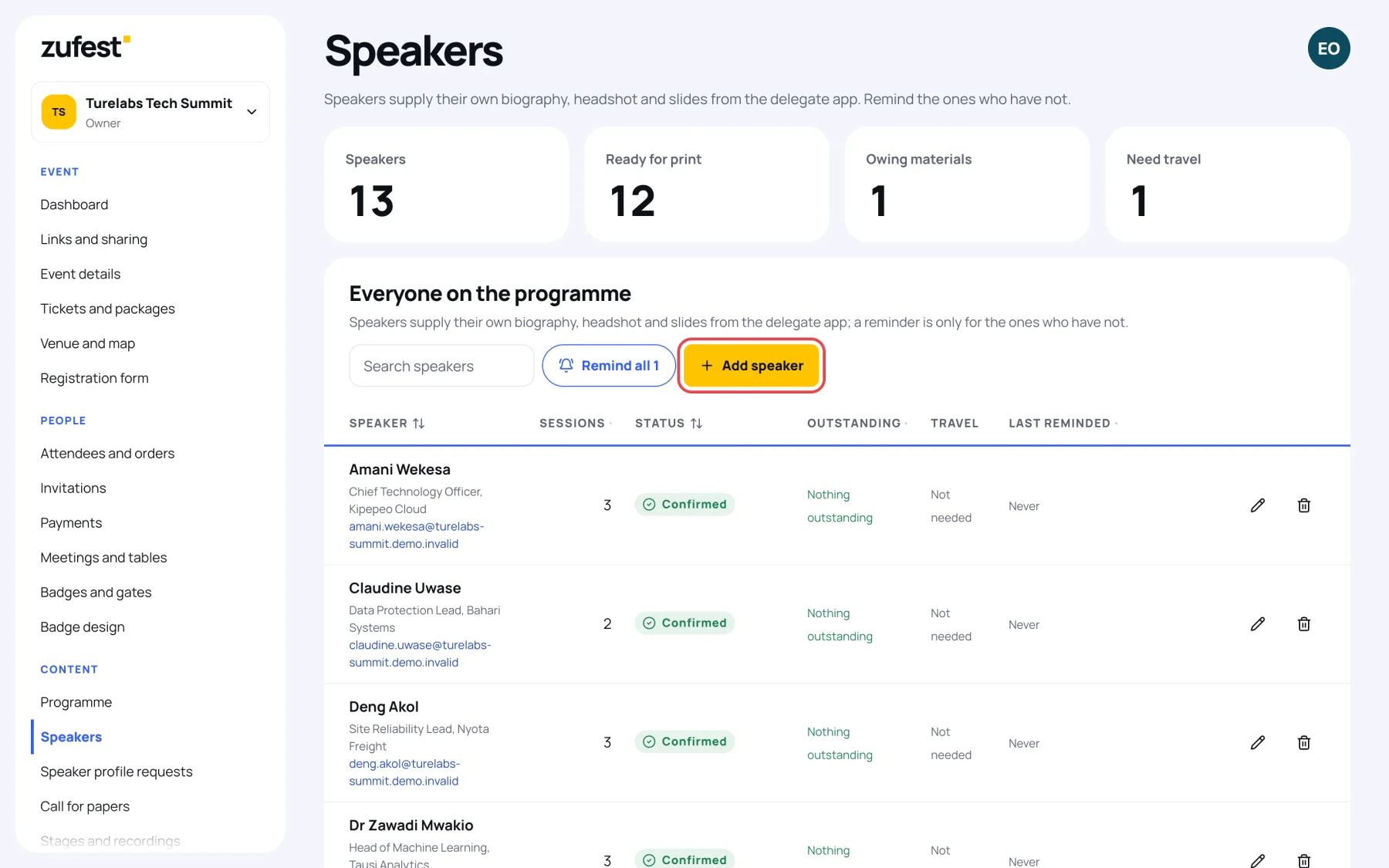
The figures at the top count:
- Speakers: everyone on the list.
- Ready for print: speakers with nothing outstanding.
- Owing materials: speakers who still owe something.
- Need travel: speakers marked as needing travel.
Each row shows the speaker's job title, organisation and email, how many Sessions they are in, their Status, what is Outstanding, whether they need Travel, and when they were Last reminded. Use Search speakers to find someone by name.
| Status | Meaning |
|---|---|
| Confirmed | They have agreed to speak |
| Invited | You have asked them, and they have not answered yet |
| Awaiting materials | They have agreed, but still owe something |
| Declined | They will not speak |
Add a speaker
-
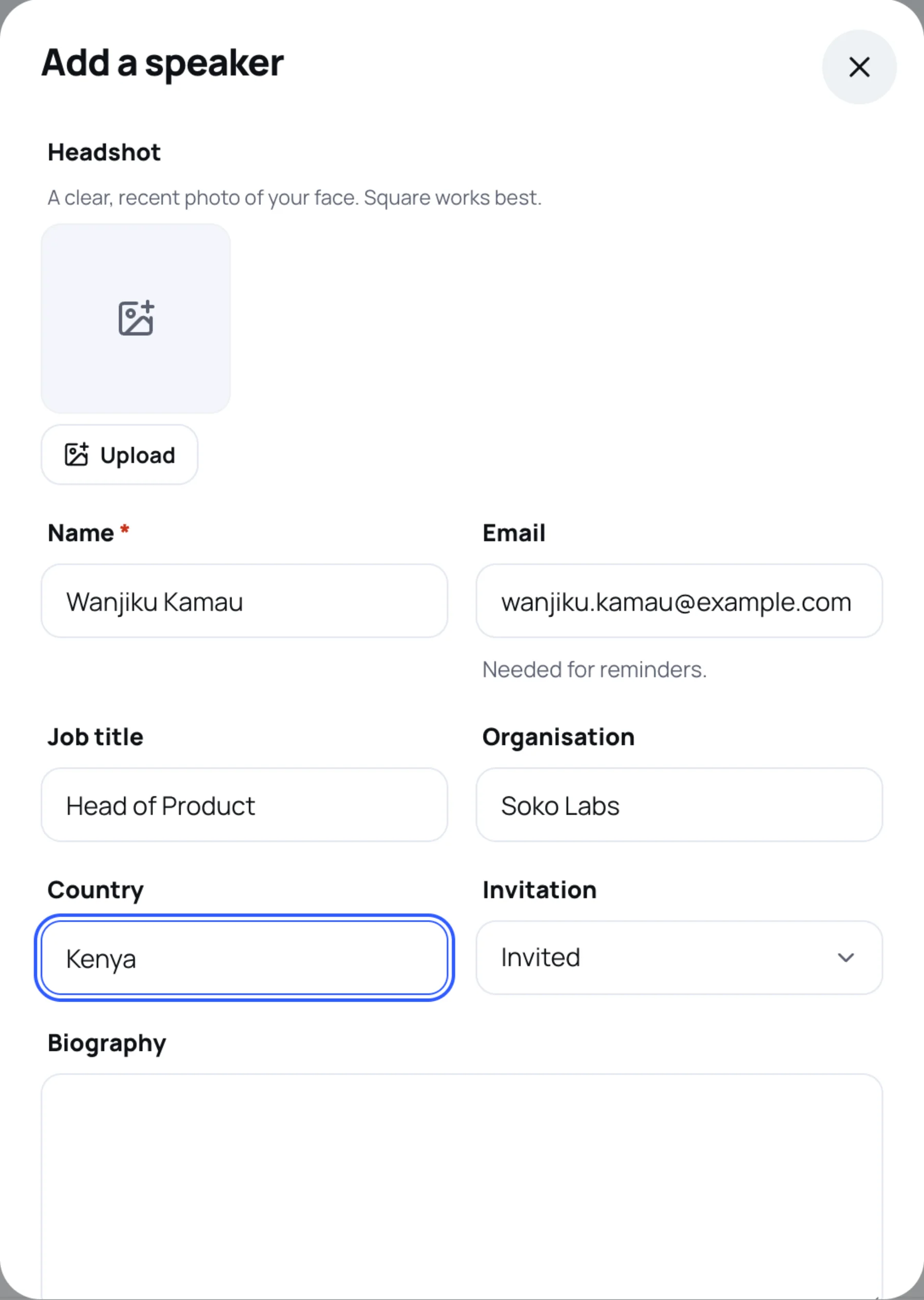
Select Add speaker.
-
Type their Name. This is the only required field.
-
Add their Email. Without it you cannot send them reminders.
-
Fill in Job title, Organisation and Country as they should appear on the programme. To add their photo, select Upload under Headshot.
-
Set Invitation to where things stand, for example Invited.
-
Add a Biography if you have one, and their LinkedIn, X or Website links. If not, the speaker can add them themselves.
-
List anything else you need under Other outstanding items, separated by commas, for example
Slides, Travel form. Zufest already tracks the headshot and biography for you. -
Switch on Featured to show the speaker first on the attendee speaker list, and Travel required if you are arranging their travel.
-
Select Save speaker.
To put the speaker on a session, tick their name in the session form (see Add a session).
Send a reminder
A speaker who owes something has a Remind button on their row. It emails them the list of what is still outstanding.
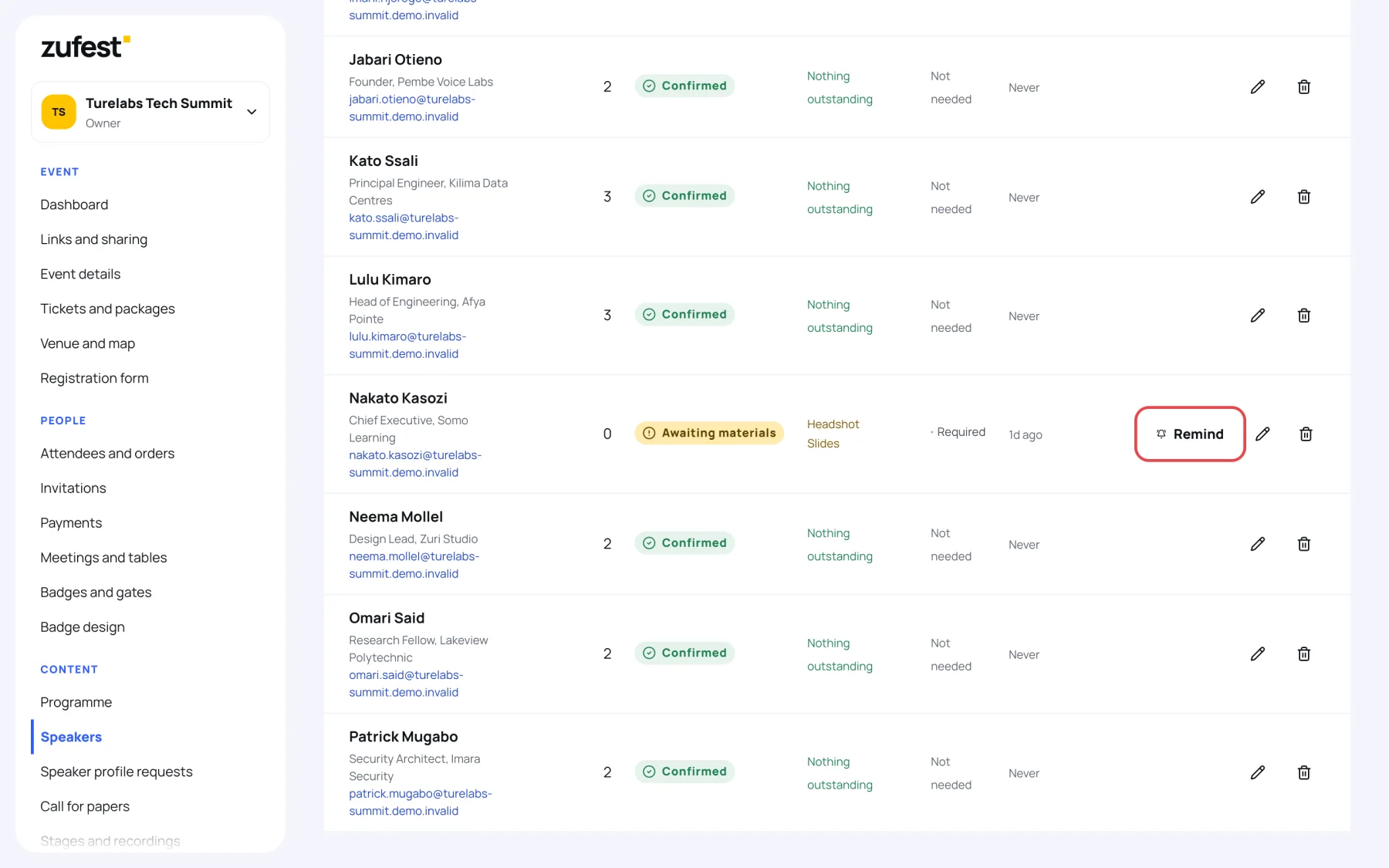
To remind everyone who owes something at once, select Remind all at the top of the list. The number on the button is how many people will be emailed.
Review slides and links
When a speaker sends slides or a link from the app, it waits for you under Materials waiting for review at the top of the Speakers screen. Attendees see a speaker's materials only once you approve them.
- Select Approve to publish them on the session.
- Select Return, say what the speaker should change, then Return to speaker.
The panel only appears when something is waiting.
Edit or remove a speaker
Use the pencil on a row to edit a speaker: their headshot (select Replace to change it), details, biography and links, as attendees see them. Use the bin to remove them. Removing a speaker takes them off every session they are scheduled for.
Last updated