Build the programme
The programme builder shows every session by day and hall, so you can see the whole event at once. Drag sessions into place, fix the clashes Zufest finds, and publish each session when it is ready for attendees.
Open the builder
-
In the organiser sidebar, under Content, select Programme.
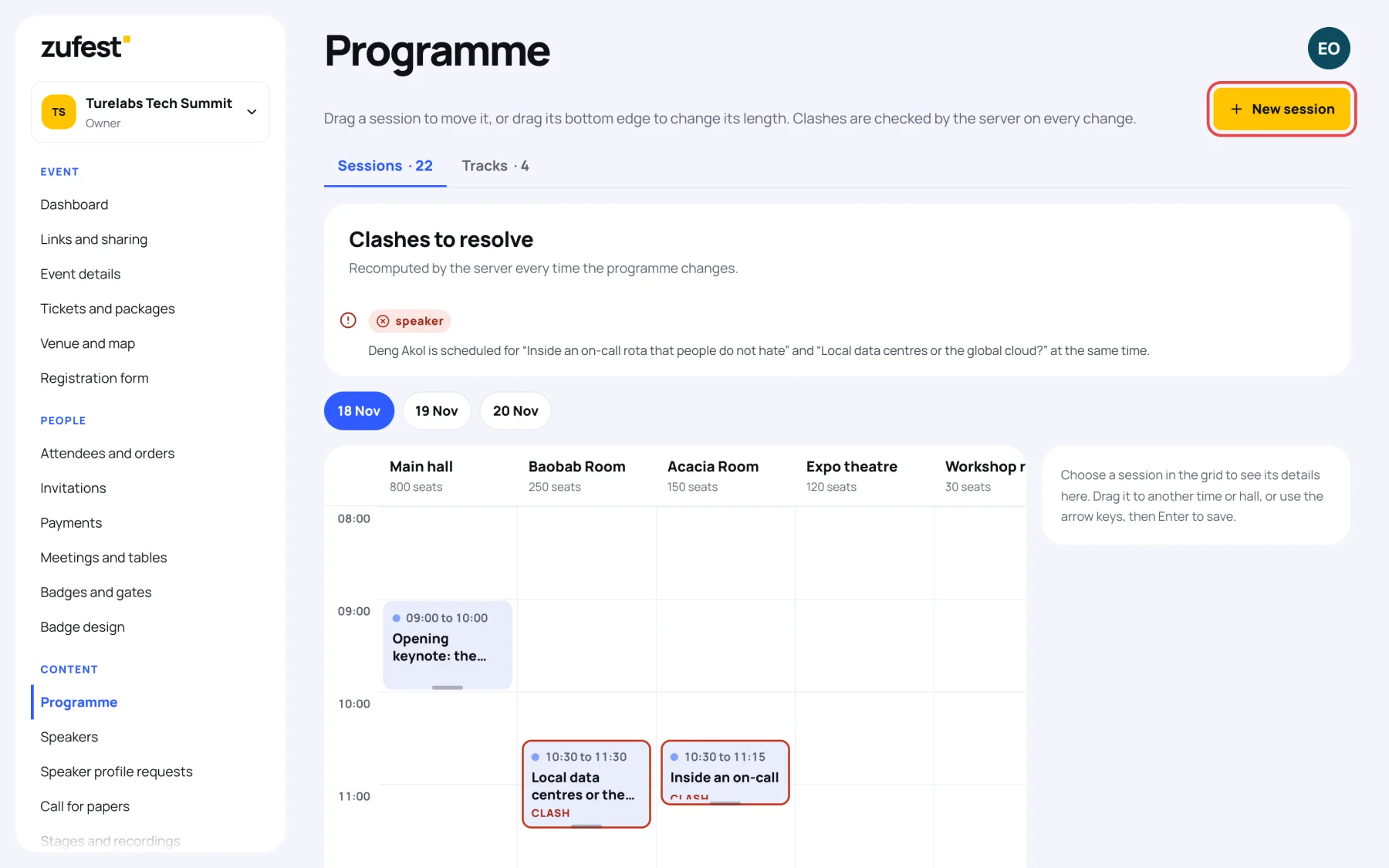
The screen opens on the Sessions tab. The number beside the tab counts every session at the event, published or not.
-
Choose a day with the buttons above the grid, for example 18 Nov.
The grid has one column per hall, with its seat count under the name, and one row per hour. Times are always in the event's time zone, wherever you are.
Move a session
- Select a session in the grid. Its details appear in the panel on the right: whether it is Published or a Draft, the time, the hall, the format and attendance, the track, the speakers and how many people have saved it to their agenda.
- Drag the session to another time or another hall and let go. The change is saved straight away and you see Session moved.
- To change its length, drag its bottom edge up or down.
Resolve clashes
Every time the programme changes, the server checks it again and lists anything that needs your attention under Clashes to resolve. Sessions involved are outlined in red in the grid and marked CLASH, and the side panel shows Conflict.
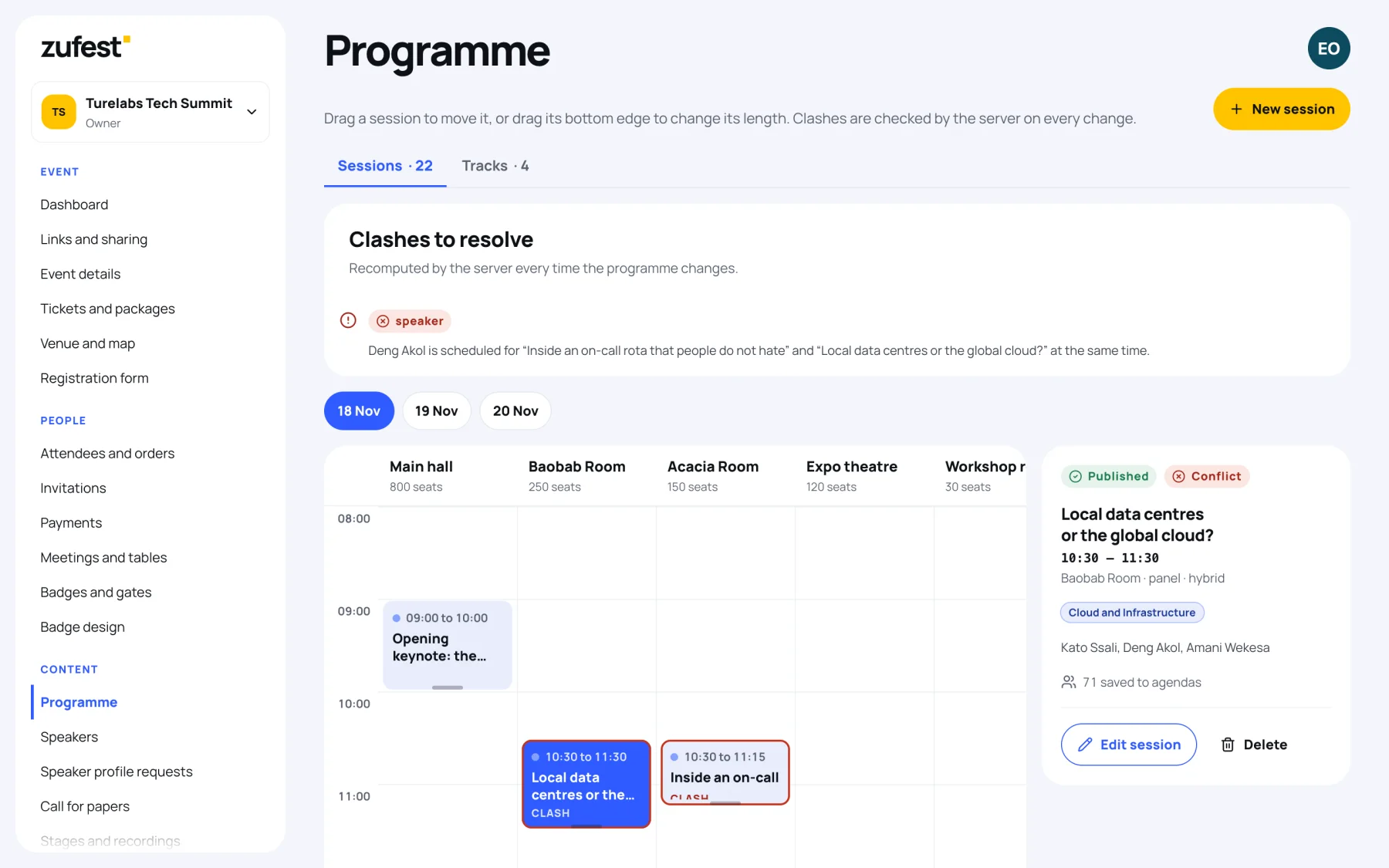
There are three kinds of clash:
| Clash | What it means | How to fix it |
|---|---|---|
| speaker | One speaker is in two sessions at the same time | Move one of the sessions, or change its speakers |
| hall | Two sessions share a hall at the same time | Move one session to another hall or time |
| capacity | More people have saved the session than the hall has seats | Move it to a bigger hall, or give it reserved seats (see Add a session) |
In Turelabs Tech Summit, Deng Akol is booked for "Local data centres or the global cloud?" and "Inside an on-call rota that people do not hate" at 10:30 on 17 November. Moving either session clears the clash.
Publish a session
A new session is a Draft: attendees cannot see it at all. When it is ready:
-
Select the session in the grid.
-
Select Publish in the side panel.
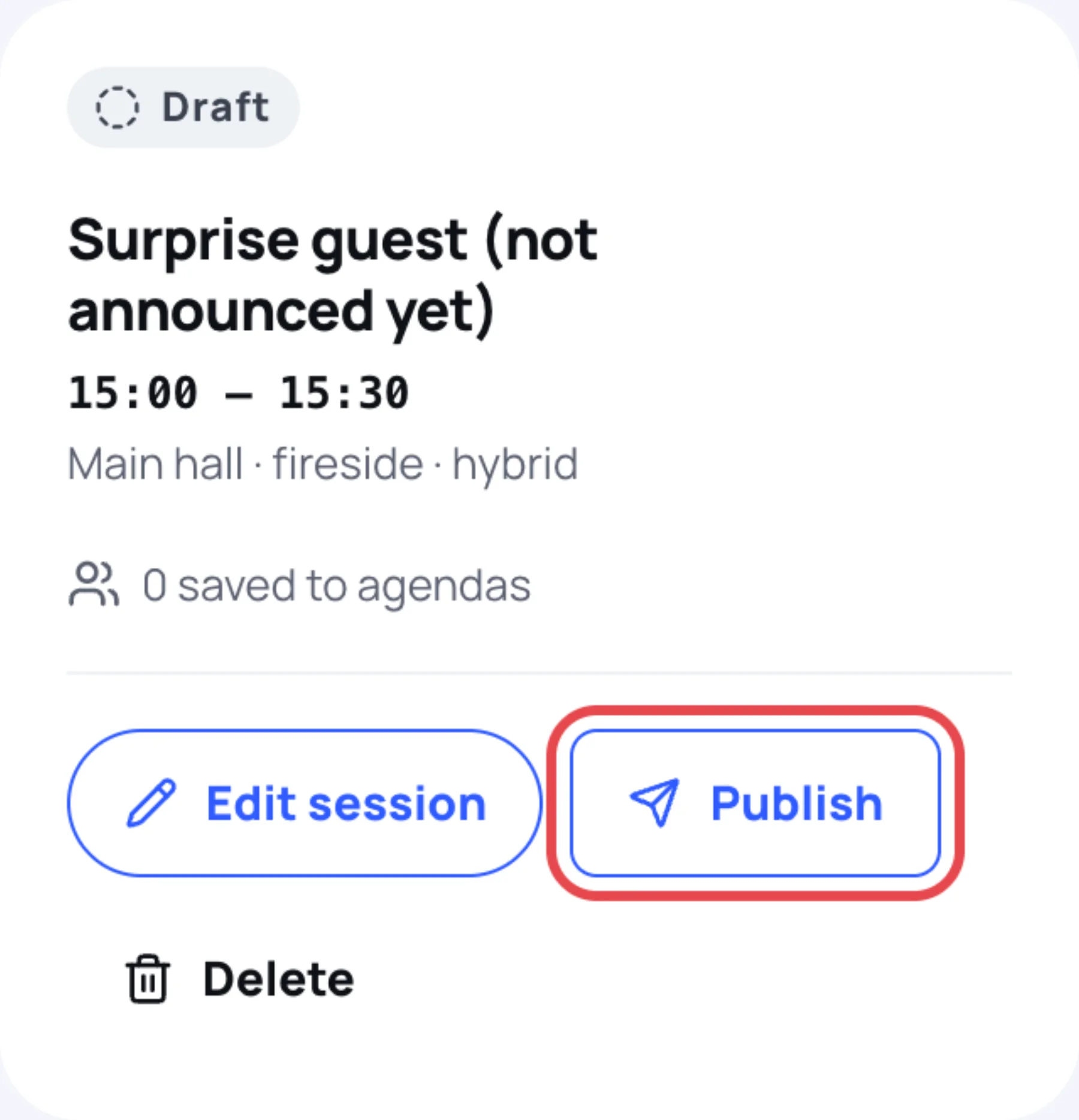
A session needs a hall before it can be published, unless its attendance is Online only. If it has none, Zufest asks you to give it one first.
To remove a session, select it, then Delete. It disappears from the programme and from every personal agenda.
Group sessions into tracks
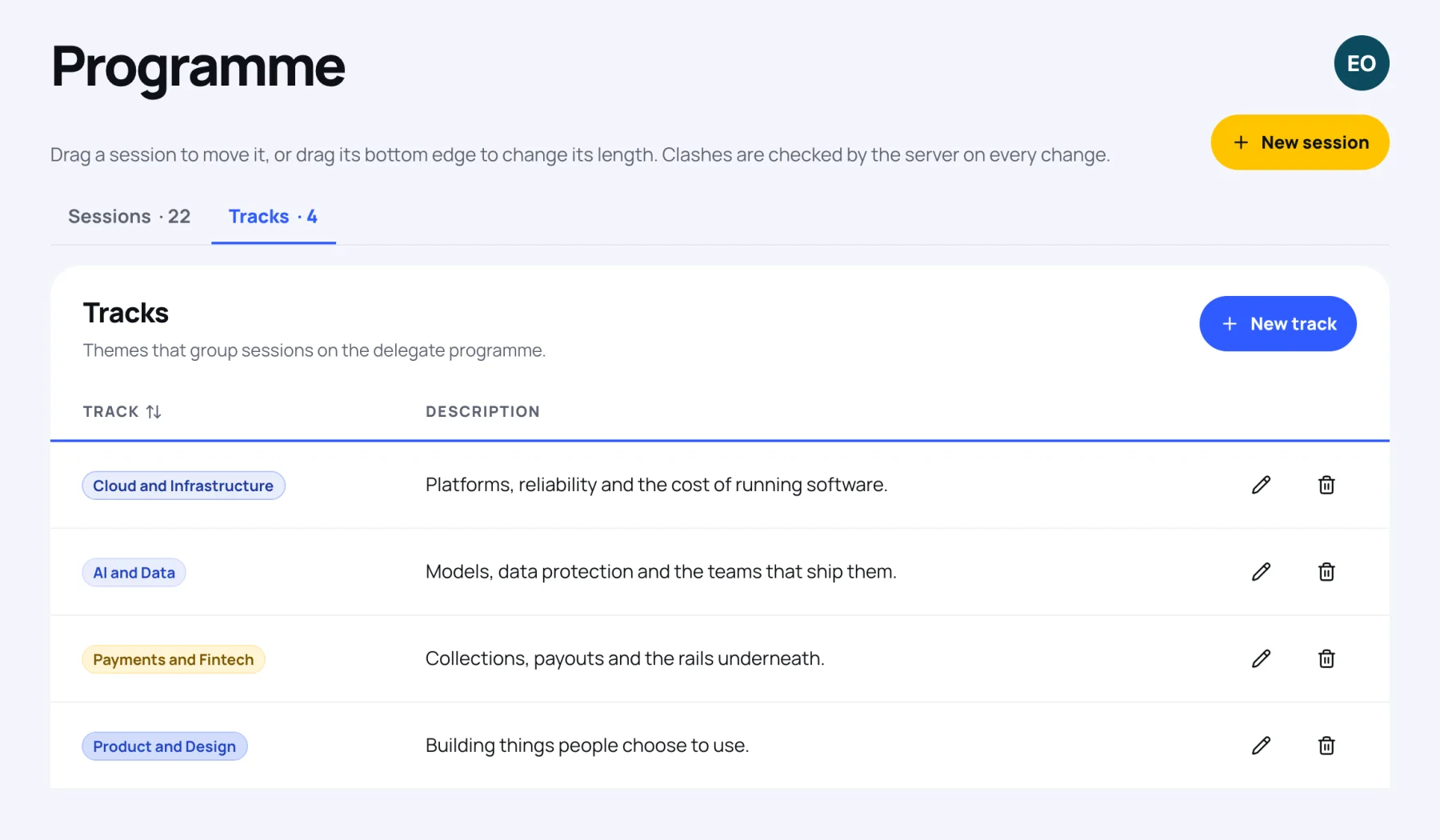
Tracks are themes, such as "AI and Data" or "Payments and Fintech". Attendees see them on the programme and can filter by them.
-
Select the Tracks tab.
-
Select New track, give it a Name, choose a Colour and add a short Description.
-
Select Save track.
Choose a track for each session in the session form. Deleting a track keeps its sessions on the programme, without a track.
On a phone
On a small screen the builder shows a list of the day's sessions instead of the grid. Change a session's hall from the list, publish it with Publish, or use the pencil to edit it.
Where to go next
Last updated