Roles and permissions
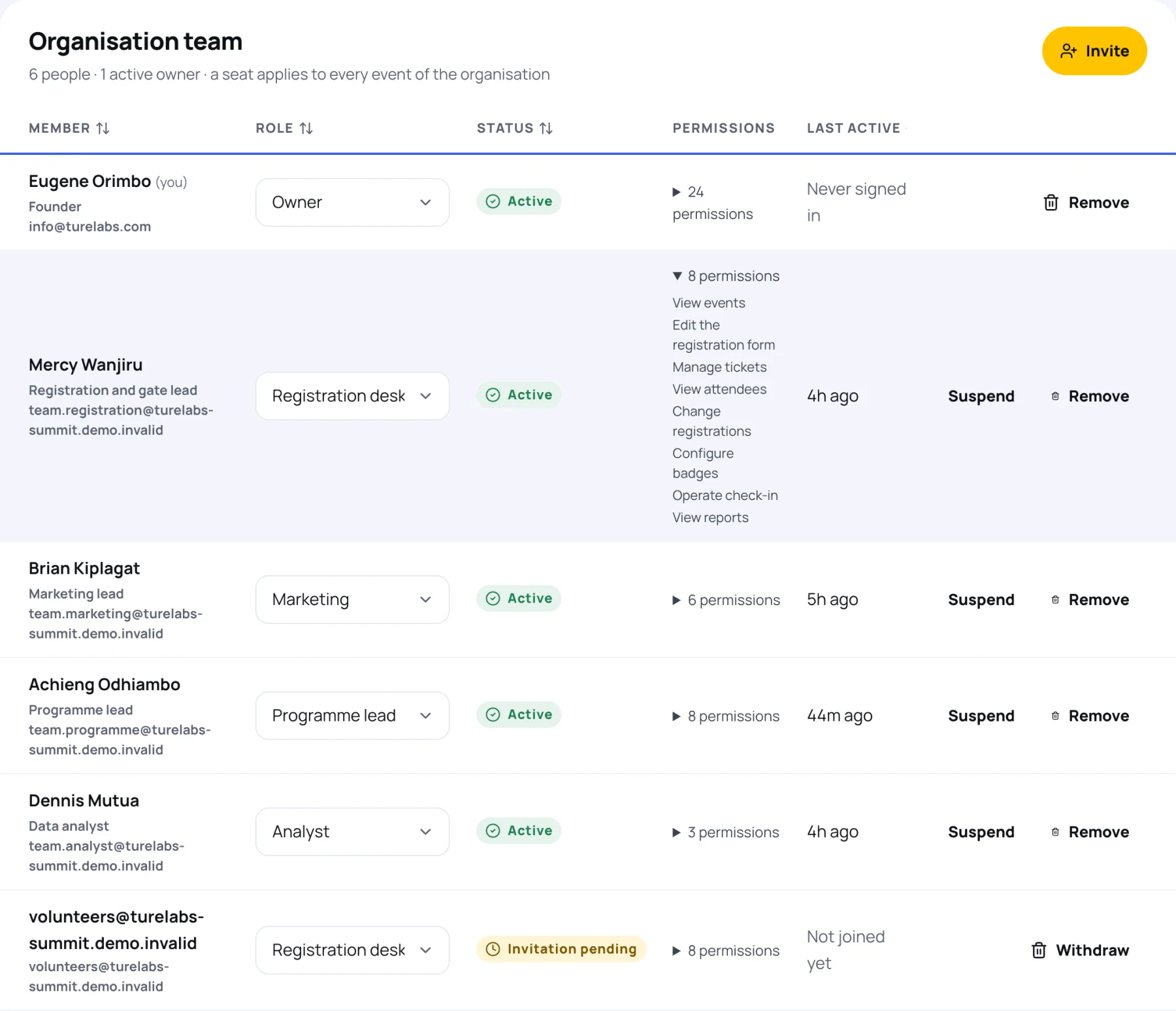
Each person on your organisation has one role. The role decides what they can do on every event the organisation runs. You can add extra permissions on top of a role, but never take any away.
The six roles
| Role | Made for | In short |
|---|---|---|
| Owner | The people responsible for the account | Everything, including the team |
| Administrator | Senior organisers | Everything except managing the team |
| Programme lead | Whoever runs the agenda | Programme, speakers, call for papers, venue, streaming, engagement |
| Marketing | Marketing and partnerships | Branding, messages, exhibitors and sponsors, engagement |
| Registration desk | Registration and the doors | Tickets, the form, attendees, badges and check-in |
| Analyst | Read-only reporting | Sees attendees and reports, changes nothing |
Every role can view the organisation's events and read reports.
What each permission means
The Permissions column on Team and roles shows how many each person holds. Select the count to see the list.
| Permission | What it lets someone do | Owner | Admin | Programme | Marketing | Registration | Analyst |
|---|---|---|---|---|---|---|---|
| View events | Open the organisation's events in the workspace | Yes | Yes | Yes | Yes | Yes | Yes |
| Create events | Start new events for the organisation | Yes | Yes | ||||
| Edit event details | Change name, dates, modules, publishing and visibility | Yes | Yes | ||||
| Delete draft events | Delete events that were never published | Yes | Yes | ||||
| Edit the organisation | Change the organisation's name, contact details and logo | Yes | Yes | ||||
| Edit branding | Change an event's logo, cover and badge colour | Yes | Yes | Yes | |||
| Edit the registration form | Change the questions people answer when they register | Yes | Yes | Yes | |||
| Manage tickets | Create and change tickets, add-ons and promo codes | Yes | Yes | Yes | |||
| View attendees | See attendees, orders, payments and meetings | Yes | Yes | Yes | Yes | ||
| Change registrations | Approve, reject, cancel, edit and transfer registrations | Yes | Yes | Yes | |||
| Record bank transfers | Confirm an order once its money has arrived by hand | Yes | Yes | ||||
| Issue refunds | Send money back to a payer | Yes | Yes | ||||
| Manage exhibitors | Approve stands, run sponsorship and exhibitor requests | Yes | Yes | Yes | |||
| Manage speakers | Add speakers and send speaker profile requests | Yes | Yes | Yes | |||
| Edit the programme | Build sessions, tracks and the call for papers | Yes | Yes | Yes | |||
| Review talk proposals | Score call-for-papers proposals | Yes | Yes | Yes | |||
| Manage venue and halls | Floor plans, halls and points on the map | Yes | Yes | Yes | |||
| Configure badges | Design badges | Yes | Yes | Yes | |||
| Operate check-in | Scan badges at the gate and run the kiosk | Yes | Yes | Yes | |||
| Send messages | Send announcements and campaigns | Yes | Yes | Yes | |||
| Run engagement and moderation | Polls, quizzes, surveys, rewards and moderating the community | Yes | Yes | Yes | Yes | ||
| Configure streaming | Live stages, the control room, recordings and discussion rooms | Yes | Yes | Yes | |||
| View reports | Read reports and download exports | Yes | Yes | Yes | Yes | Yes | Yes |
| Manage the team | Invite, change, suspend and remove team members | Yes |
The screens in the sidebar follow these permissions. Someone without a permission does not see its screen at all. If they open a link to it, Zufest shows "That screen needs another permission" and names what is missing.
Add extra permissions
When you invite someone, tick Extra permissions to add to their role. For example, a Registration desk member who also sends the joining instructions could get Send messages.
- Extra permissions only add. To give someone less, pick a narrower role.
- Manage the team cannot be granted this way. It comes only with the Owner role.
- Record bank transfers and Issue refunds handle money. Grant them only to people who look after your accounts.
Organisers and attendees are separate
Holding a seat on the organisation does not give you a place at the event, and a place at the event never gives organiser rights. To take part in the event as an attendee (vote in polls, network, ask questions), an organiser needs a registered place like anyone else. See switch between organiser and attendee views.
Last updated