Two-step sign-in for owners and admins
Owners and administrators can reach attendee lists, payments and refunds. Two-step sign-in (shown in the app as Two-factor authentication) asks for a code from your phone after your password, so someone who learns your password still cannot get in.
Turn it on
-
Open your account menu and choose Settings.
-
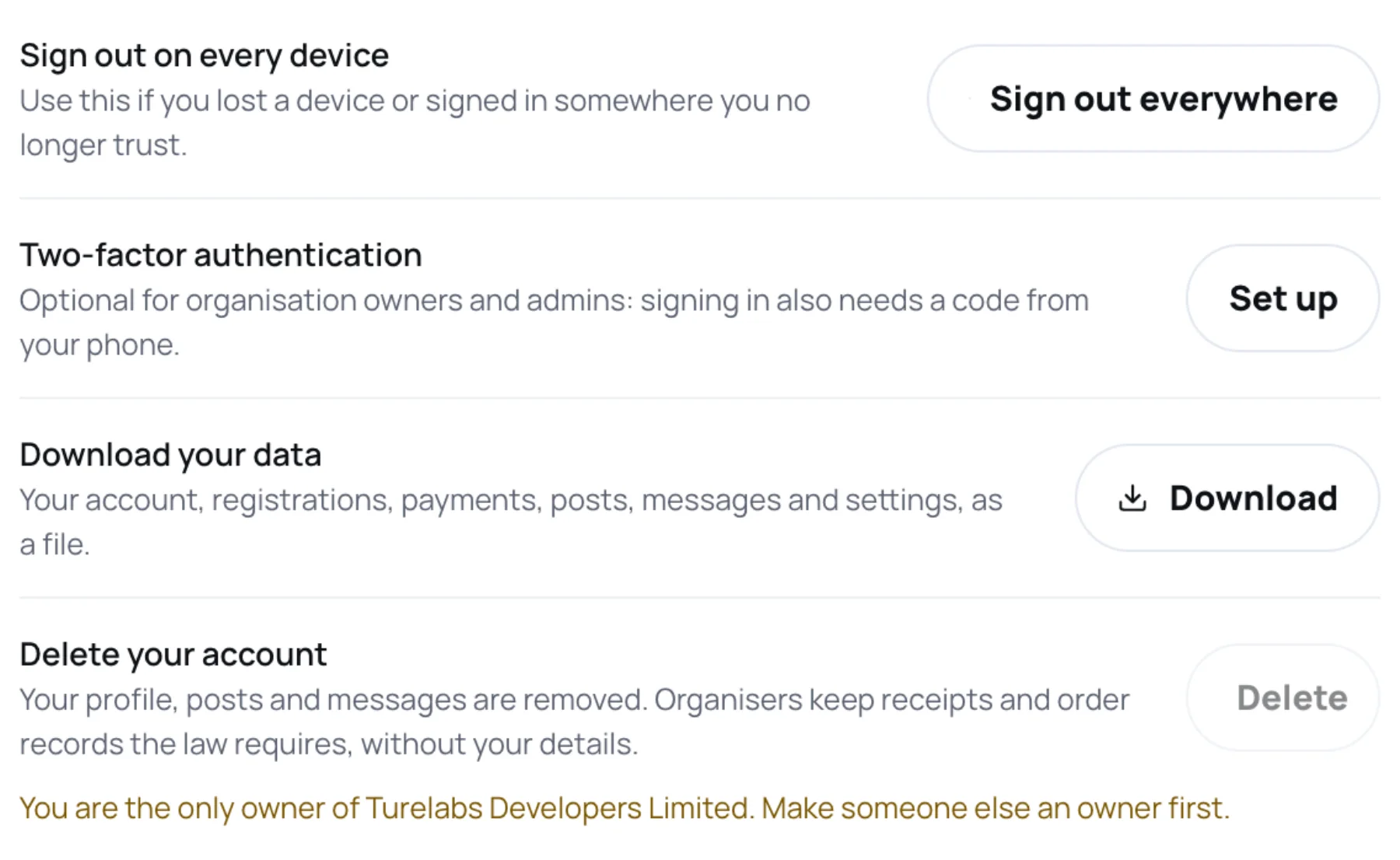
Find Two-factor authentication: "Optional for organisation owners and admins: signing in also needs a code from your phone."
-
Select Set up.
-
Under Scan this code, add an account in your authenticator app and scan the QR code, or type in the key shown under it.
-
Enter the six-digit code the app shows in Code from the app, and select Turn on.
-
Zufest shows Save your recovery codes. Copy them somewhere safe, away from your phone, then select I have saved them.
The row now reads "On." with the number of recovery codes you have left. Zufest also emails you whenever two-step sign-in is turned on or off, or recovery codes are replaced, so you notice a change you did not make.
Sign in with a code
-
Sign in with your email and password as usual.
-
On Enter your sign-in code, type the code from your authenticator app. Codes change every 30 seconds.
-
Optionally tick Trust this device for 30 days. That browser then signs in without a code until the date shown. Leave it unticked on a shared computer.
-
Select Verify and sign in.
If you do not have your phone, select Use a recovery code and type one of your saved codes. Make a new set afterwards.
Get new recovery codes
-
Open Settings and find Two-factor authentication.
-
Select New codes.
-
Enter your Password and a current Code from the app, then select Replace codes.
-
Save the new codes. The old ones stop working.
Forget trusted devices
While two-step sign-in is on, Trusted devices under Two-factor authentication in Settings shows each browser that skips the code and the date it is trusted until. Select Forget for one, or Forget all trusted devices. Changing your password or turning two-step sign-in off forgets them all.
Turn it off
-
Open Settings and find Two-factor authentication.
-
Select Turn off.
-
Enter your Password and a current Code from the app, and confirm. Signing in then needs only your password.
If you are locked out
If you have lost both your phone and your recovery codes, select Lost your phone and your codes? on the sign-in code screen and contact Zufest support.
Last updated