Save and contact a stand
Keep a list of the stands you want to see, send a stand's team a question, or book a time to meet them at the stand or on a video call. You choose each time whether the stand gets your contact details.
Save a stand
On the stand's page, select the bookmark at the top right of the cover picture. In the directory, use the bookmark on the stand's card. A message confirms "Saved to your list". Select it again to remove the stand.
Find what you saved
-
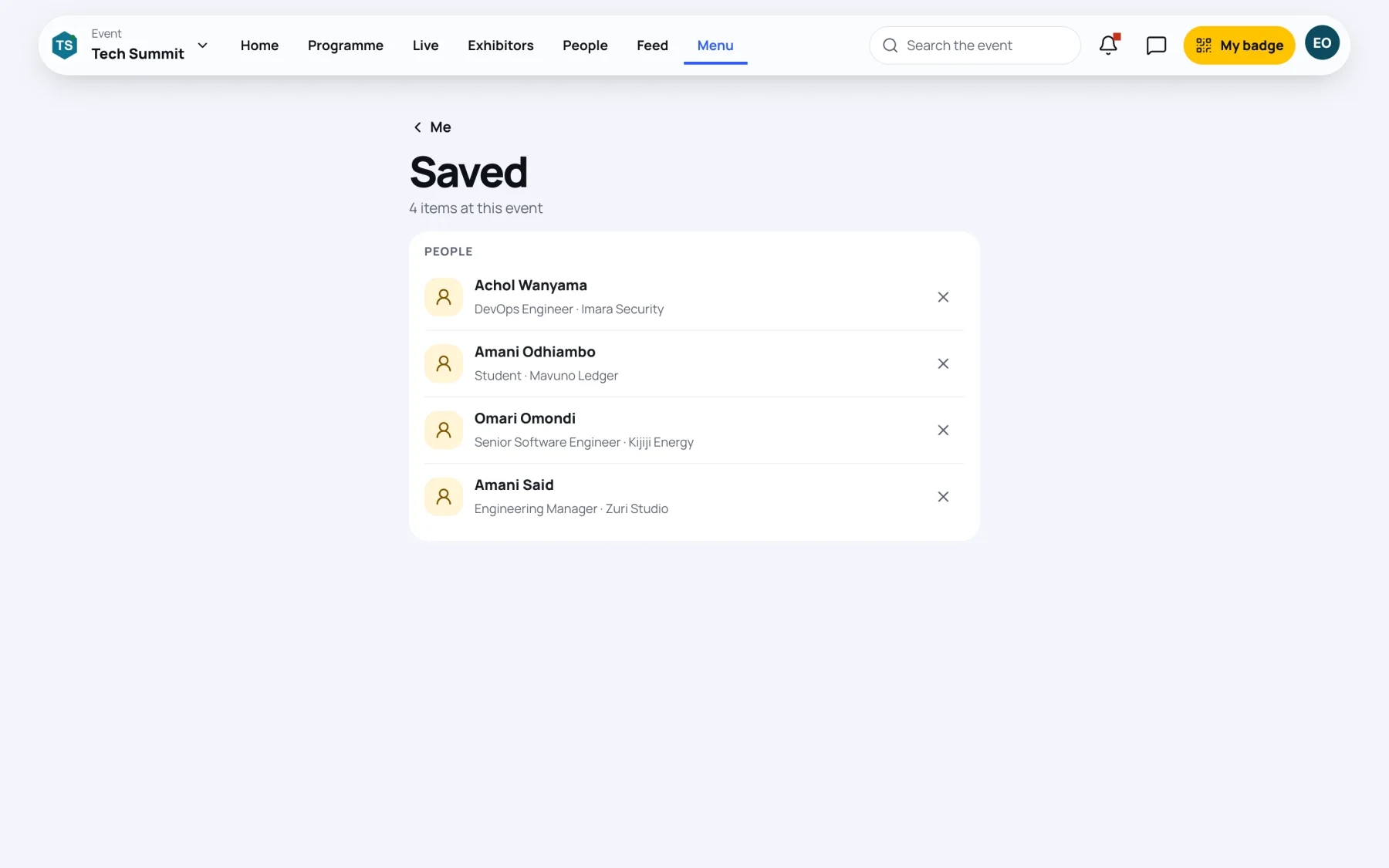
Open Menu, then Saved. On a phone you can also select Me, then Saved.
-
Saved lists everything you kept at this event, grouped by kind: recordings, Stands, Posts and People.
-
Select an item to open it, or the cross to remove it. If you remove something by mistake, select Undo in the message that appears.
In the exhibitor directory, the Saved tab shows only your saved stands.
Send an enquiry
-
On the stand's page, select Contact the team.
-
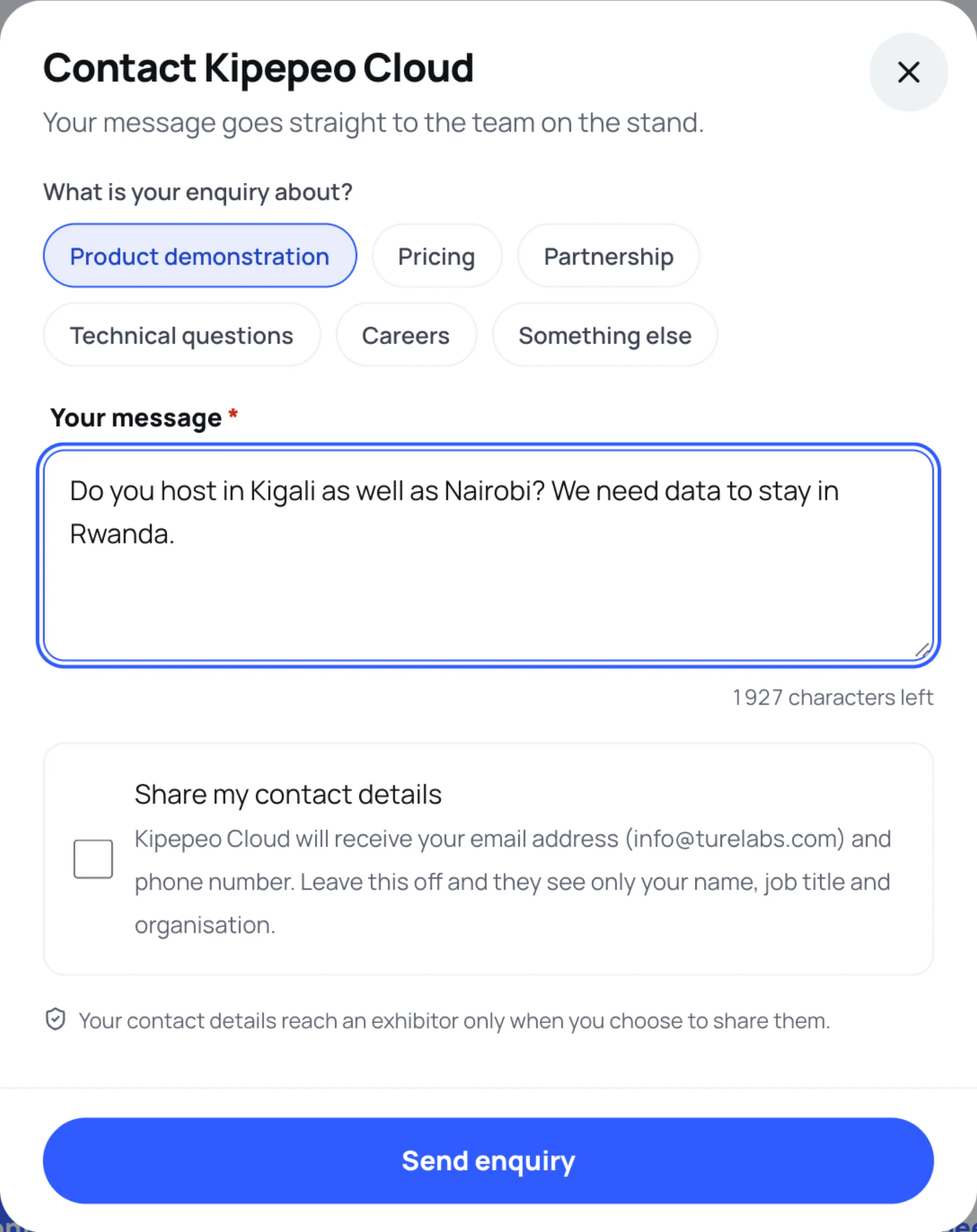
Under What is your enquiry about?, choose Product demonstration, Pricing, Partnership, Technical questions, Careers or Something else.
-
Write Your message.
-
Decide whether to tick Share my contact details. If you tick it, the stand receives your account email address and phone number, and you can add a Callback number (optional). Leave it off and they see only your name, job title and organisation.
-
Select Send enquiry.
The message goes straight to the team on the stand. The confirmation tells you whether they can contact you directly.
Book a meeting with the stand
-
On the stand's page, select Book a meeting.
-
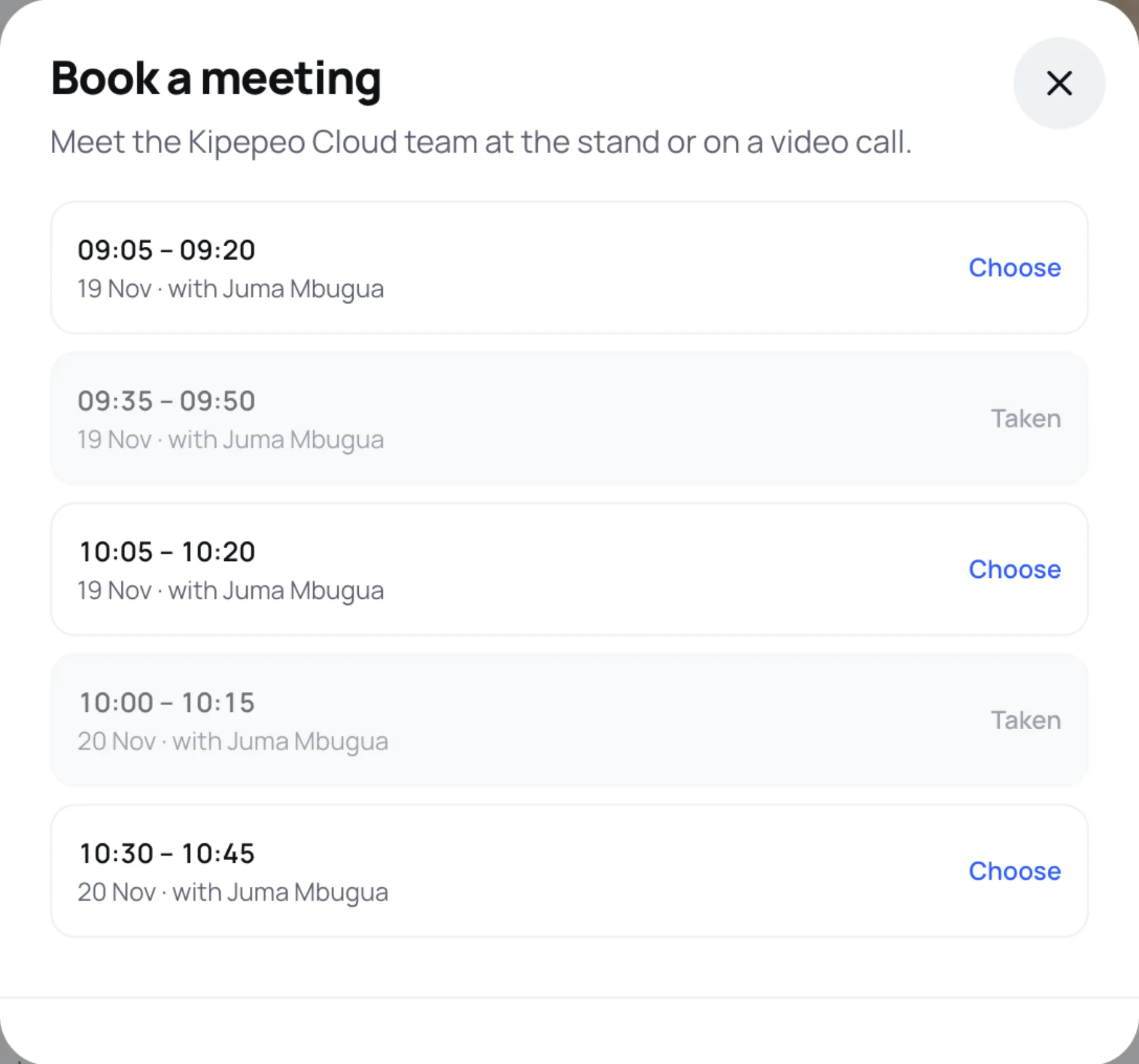
Pick a slot. Each slot shows its time, day and the team member you will meet. Slots already booked show Taken.
-
Select Choose on a free slot.
-
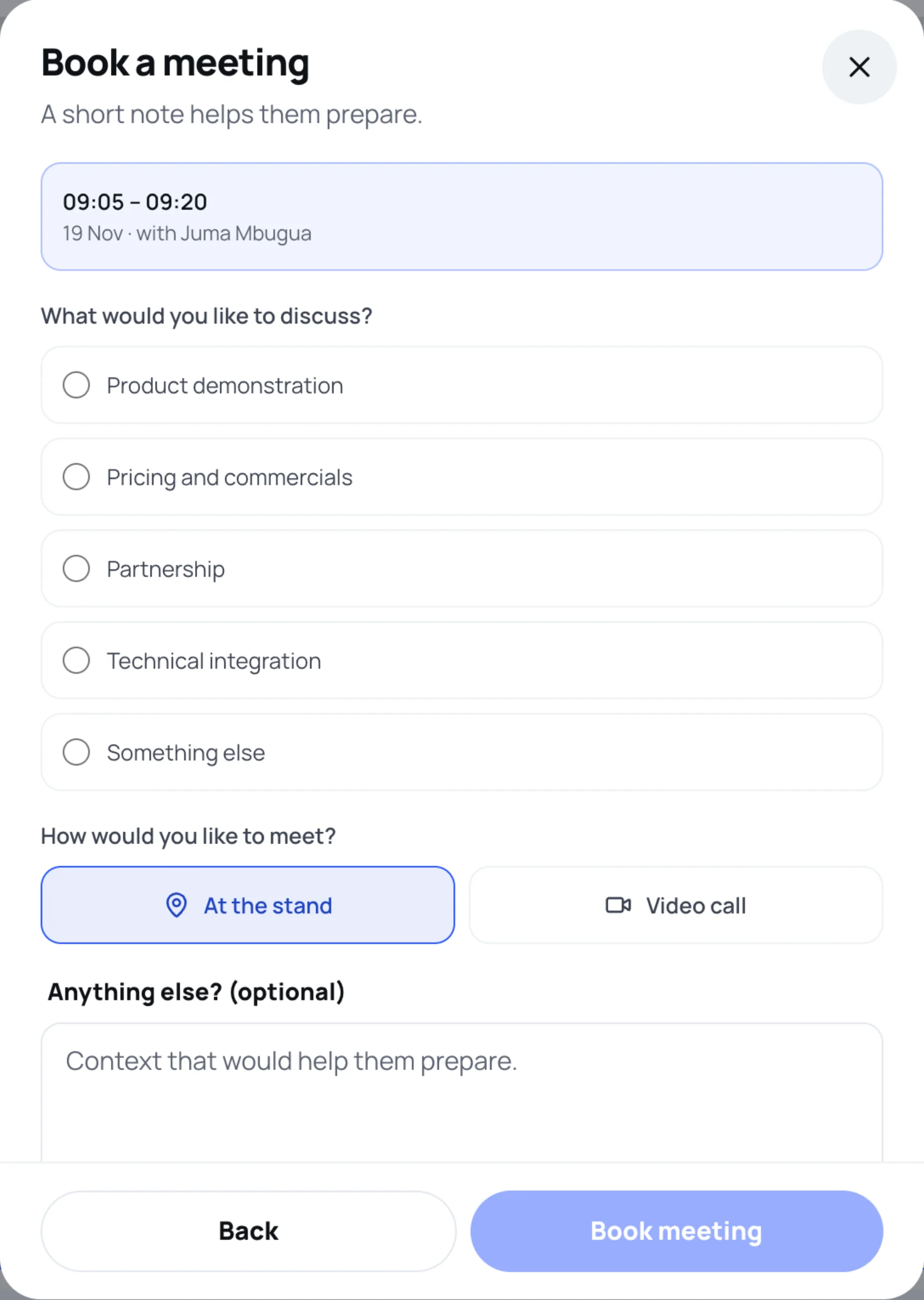
Under What would you like to discuss?, choose a topic.
-
Under How would you like to meet?, choose At the stand or Video call.
-
Optional: add context in Anything else? (optional).
-
Decide whether to tick Share my contact details with the stand. Without it they see only your name, job title and organisation.
-
Select Book meeting.
You see "You are booked in" with who you will meet and how. Select Back at any point to choose another slot.
Change or cancel a stand meeting
Once you have booked, the stand's page shows Manage meeting in place of Book a meeting, with a line naming who you are meeting.
-
Select Manage meeting.
-
Select Cancel meeting and confirm. The slot opens up for someone else.
To meet another attendee rather than a stand, see Book a meeting.
Last updated