Scan visitors and capture leads
Every conversation at your stand can become a lead. Leads arrive in your stand's Leads inbox from four places, and the visitor always decides whether you get their email and phone.
Where leads come from
| Source | How it happens |
|---|---|
| Badge scan | You scan the visitor's badge at the stand |
| Enquiry | The visitor selects Contact the team on your booth page and sends a message |
| Meeting booked | The visitor books one of your meeting slots |
| Shared details | The visitor selects Share my details with this stand on your booth page |
Your team is told about new leads in the app.
Scan a badge
-
Open your stand's Leads (from Leads in the You are on this stand's team bar, or the stand tools menu).
-
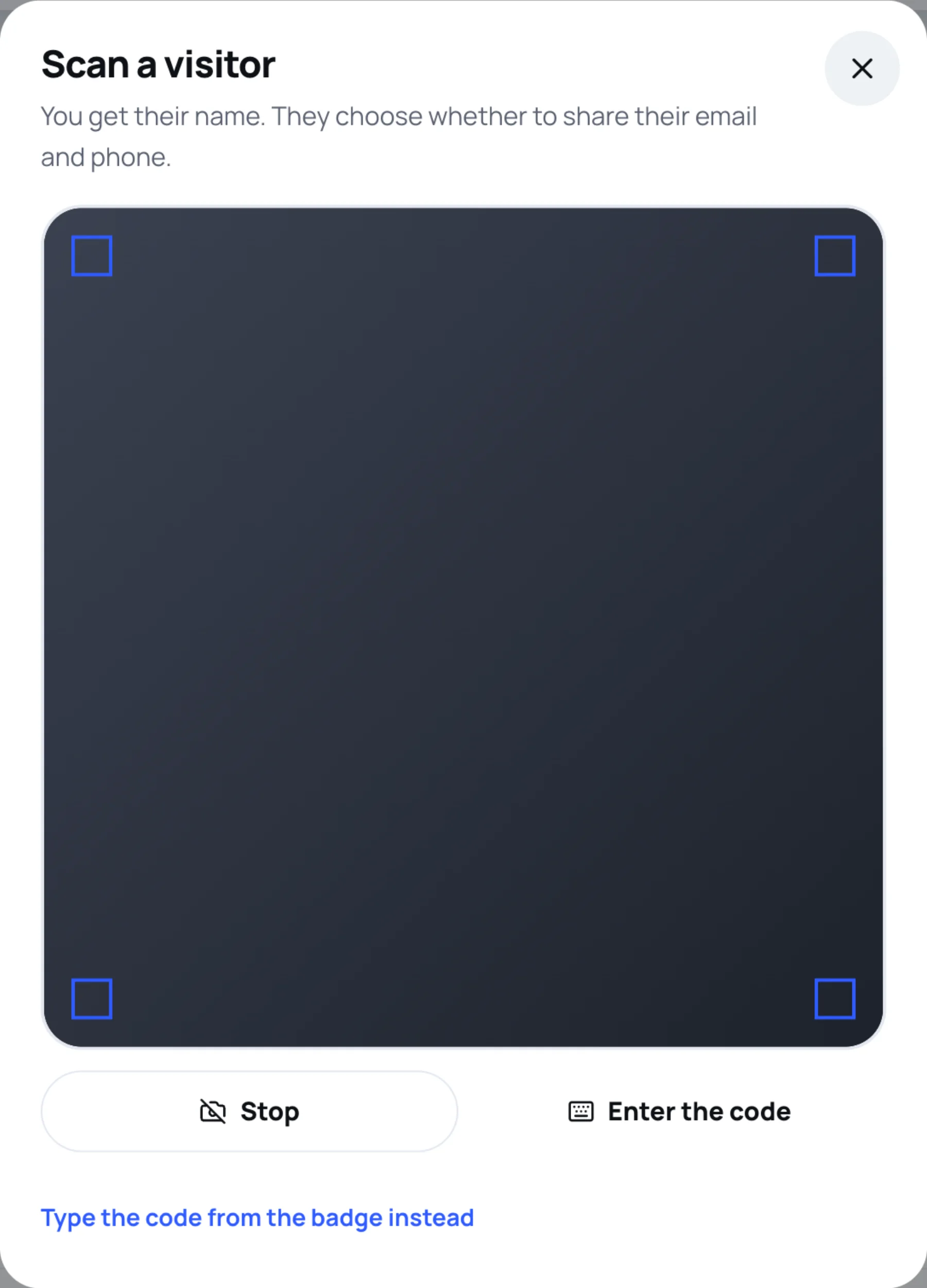
Select Scan a badge. Scan a visitor opens: "You get their name. They choose whether to share their email and phone."
-
Allow the camera if your browser asks, and point it at the visitor's badge.
-
If the camera cannot read it, select Type the code from the badge instead, enter the Badge code and select Save.
-
Zufest shows the visitor's name and "Saved to your leads. They have been asked to share their details." If you scanned them before, it says "Already in your leads from an earlier scan." instead.
-
Select Scan the next visitor to carry on.
What the visitor sees
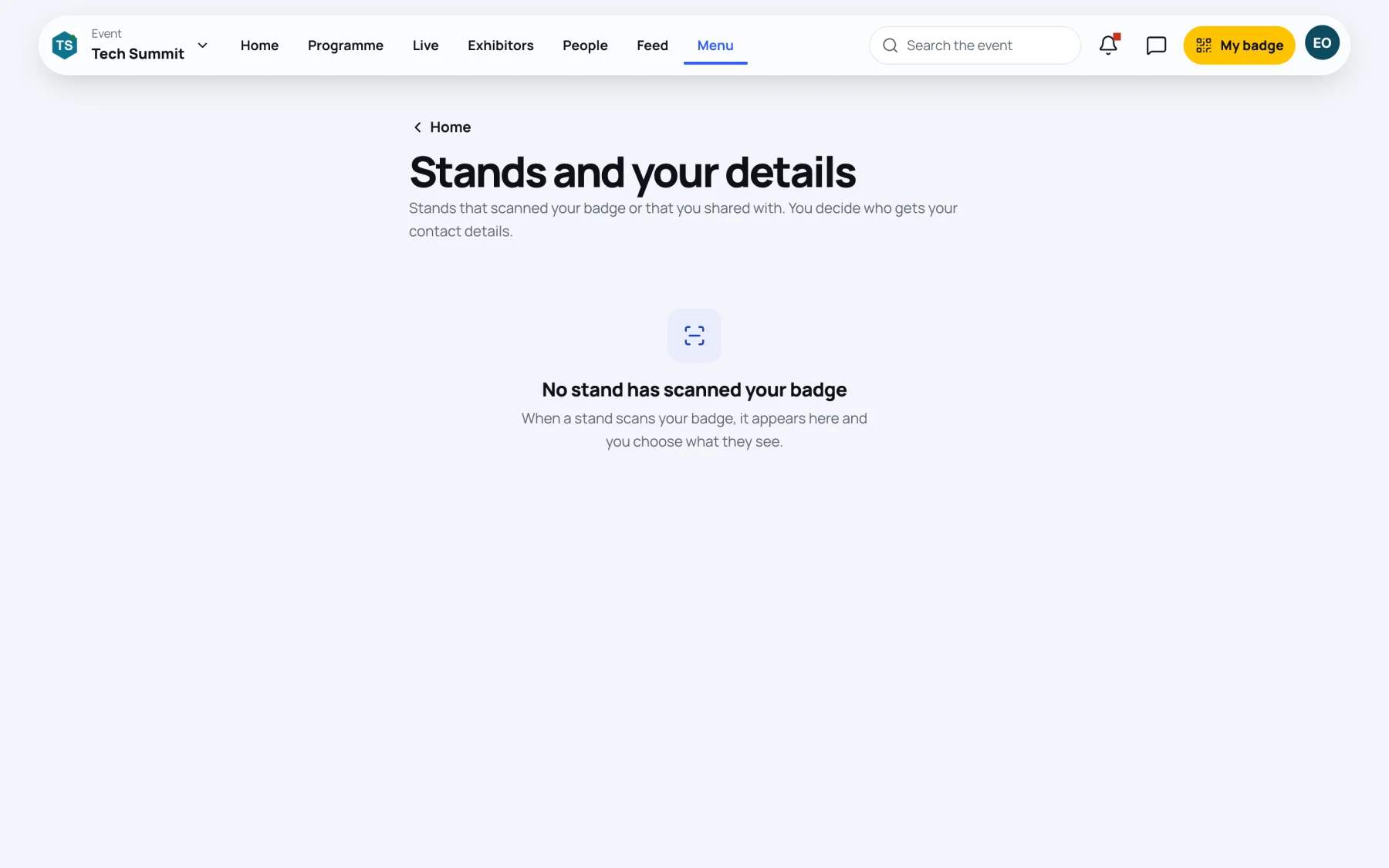
After a scan, the visitor opens Menu, then Stands you visited, and finds your stand on Stands and your details: "Stands that scanned your badge or that you shared with. You decide who gets your contact details." For each stand they choose Share my details or Don't share, and they can Stop sharing later.
What visitors send you
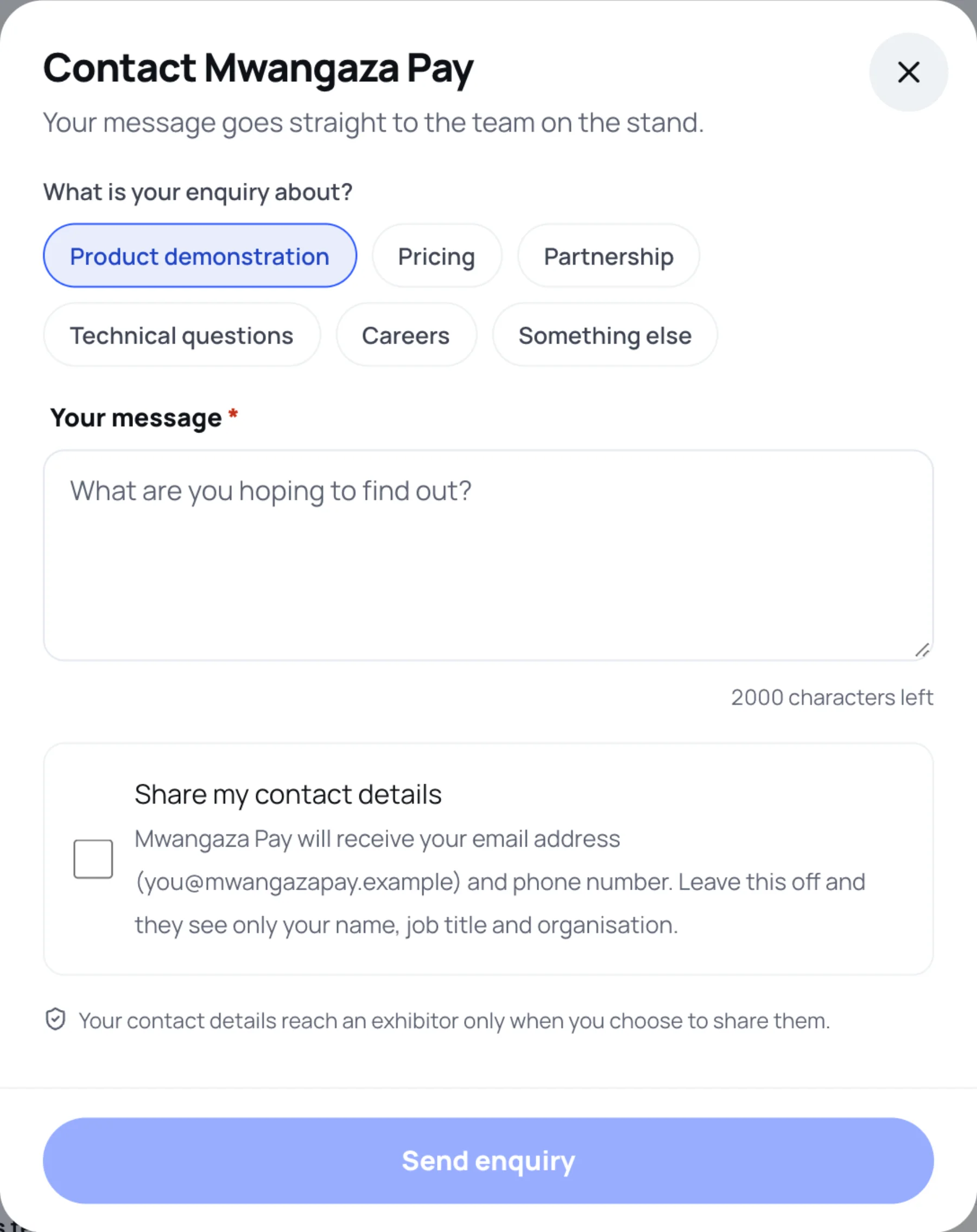
When a visitor contacts the team, they choose a topic, write a message and decide whether to tick Share my contact details. If they leave it off, you see only their name, job title and organisation.
If a scan is refused
| Message | What it means |
|---|---|
| "This badge is for another event." | The badge belongs to a different event |
| "No valid badge with this code at this event." | The code is wrong, the badge was revoked, or the place is not registered |
| "That is not a badge code." | The camera read something other than a Zufest badge |
| "That is your own badge." | You scanned yourself |
If two of your team scan the same visitor at the same moment, you still get one lead.
Last updated