Register for an event
Registering takes three steps: choose your tickets, give the details for each person, then pay or confirm. You can start without a Zufest account. The last step creates one for you, so your ticket and badge are kept in it.
Look at the event
-
Open the registration link. You see the event's page: its dates, venue, organiser and the lowest ticket price.

On a phone, the lowest price and Get tickets stay in a bar near the bottom of the screen as you scroll.

-
Scroll down to read About, the Highlights, the Speakers, a preview of the programme and the Exhibitors.
-
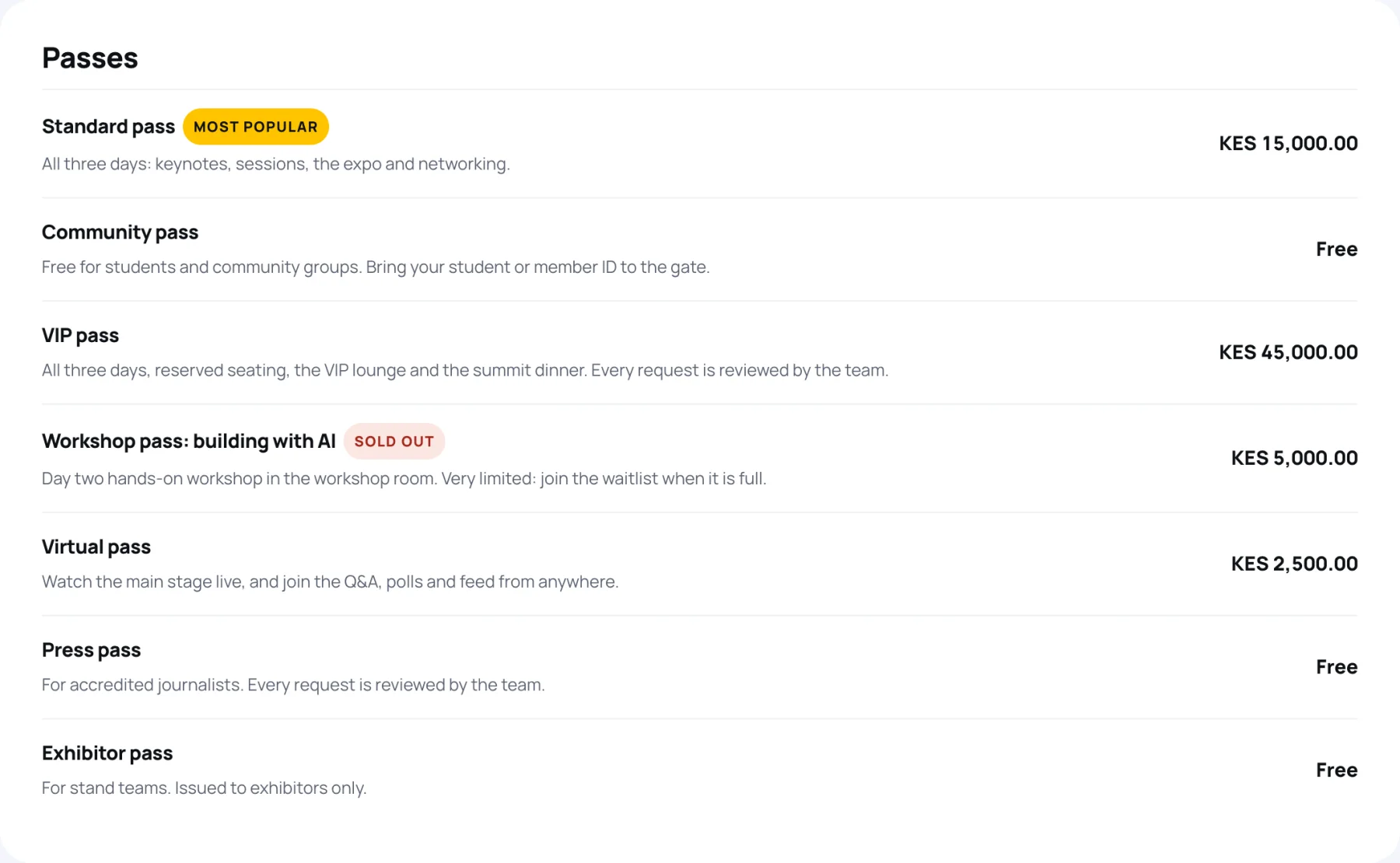
Check the Passes. Each pass shows what it includes and its price. Sold out means you can only join the waitlist.
-
Select Get tickets.
Step 1: choose your tickets
-
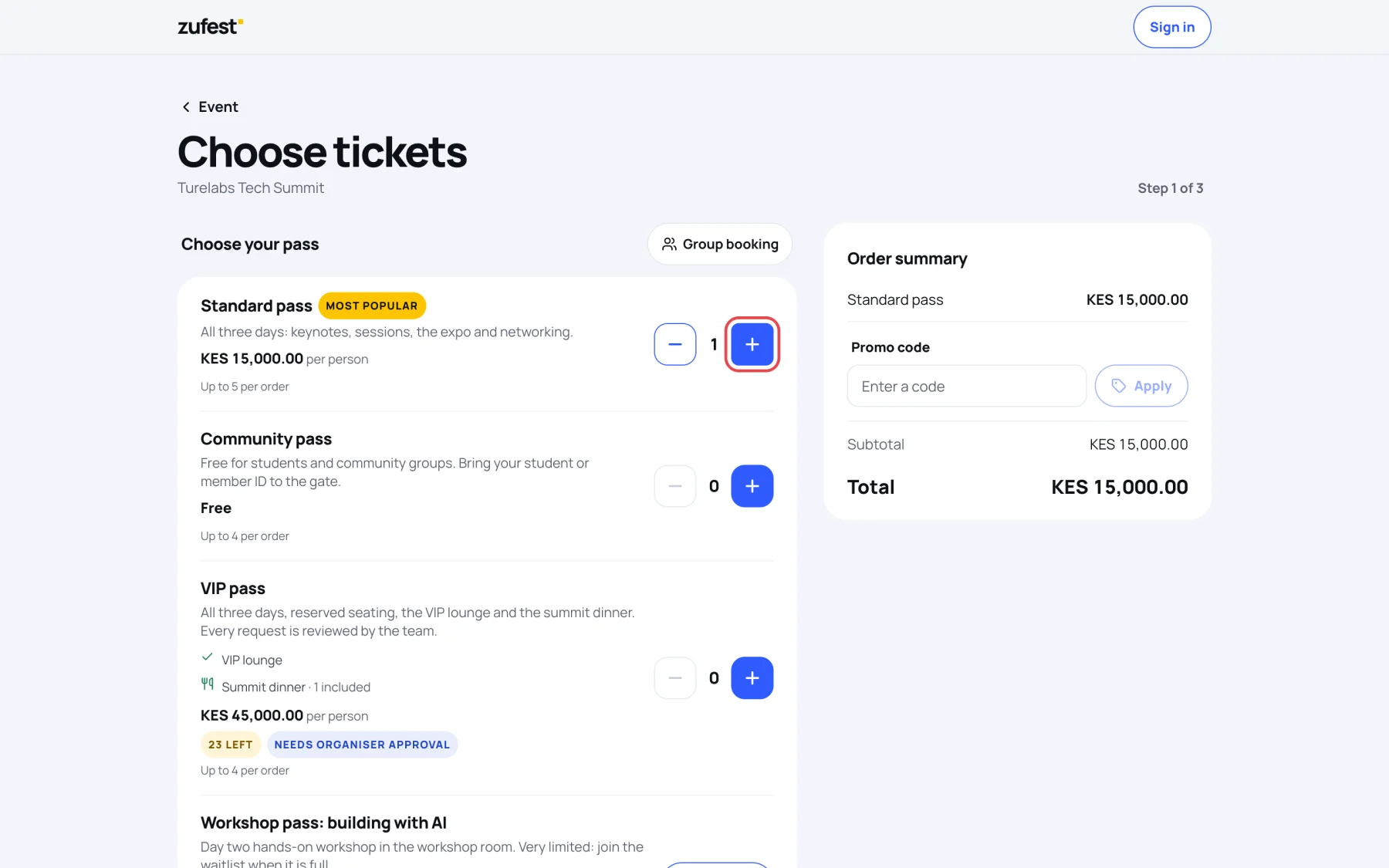
Select + beside the pass you want. The Order summary on the right updates with the total.
-
Read the labels under each pass:
Label What it means Most popular The organiser's suggested pass 23 left Only a few places remain Needs organiser approval The organising team reviews your request before your place is confirmed. See Waitlists and reviewed tickets Sold out with Join waitlist No places remain. You can queue for one Up to 5 per order The most of this pass one order can hold -
Select Continue to your details.
Book for a group
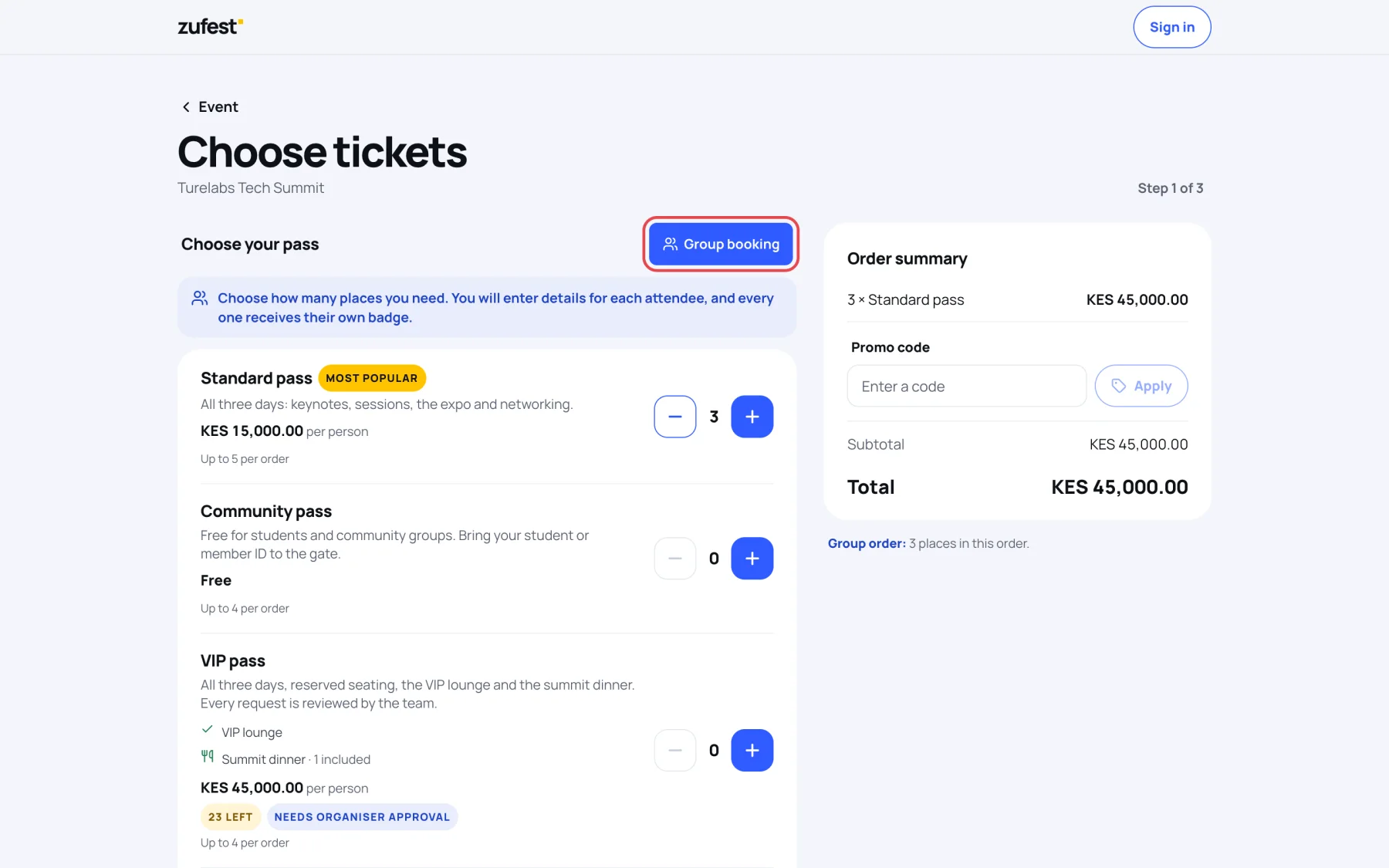
To book places for colleagues in one order, select Group booking, then add as many places as you need. You enter details for each person, and every one of them gets their own badge.
Step 2: your details
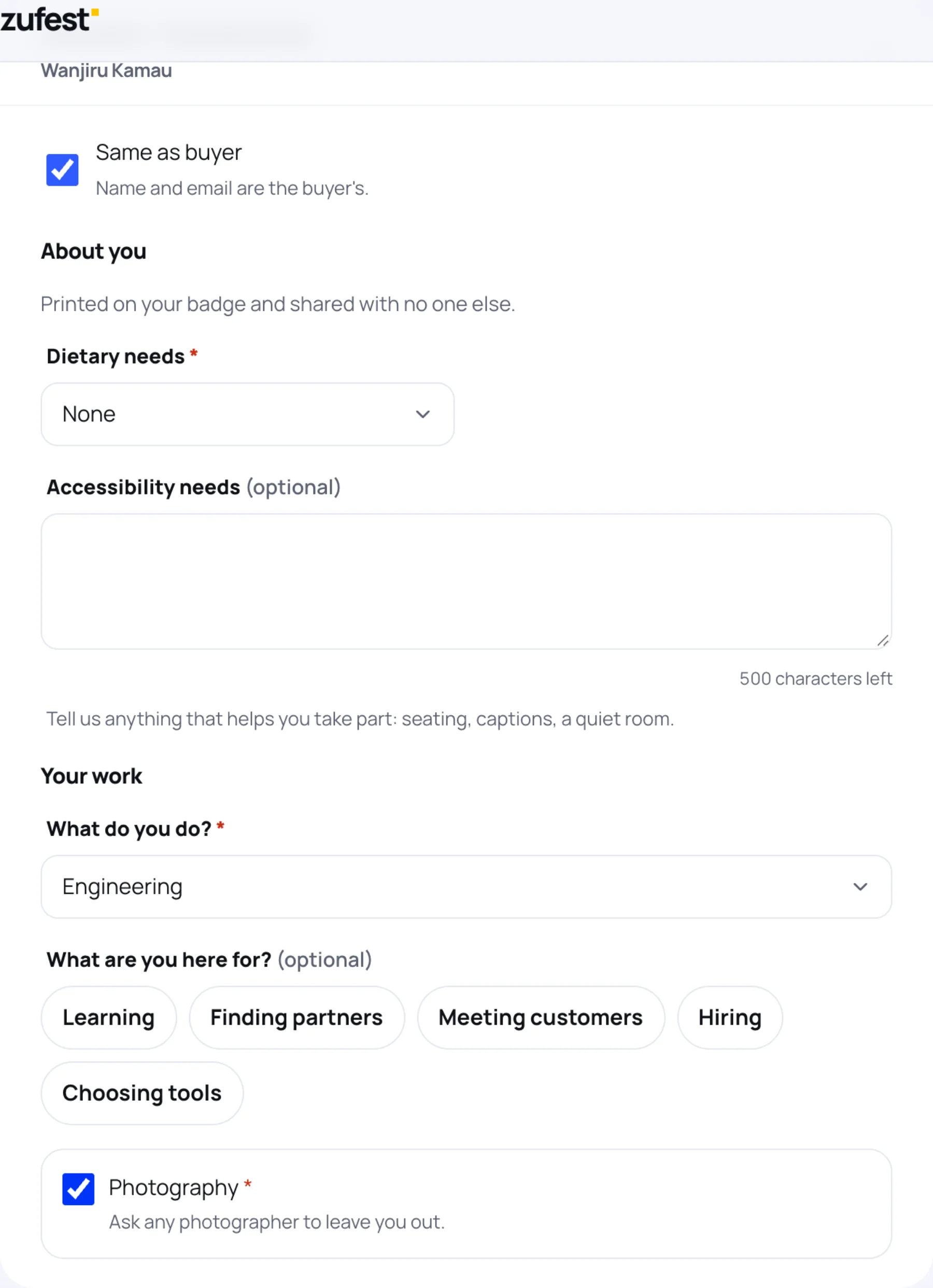
The organiser decides which questions are asked. Turelabs Tech Summit asks for dietary and accessibility needs, your role and what you are there for.
-
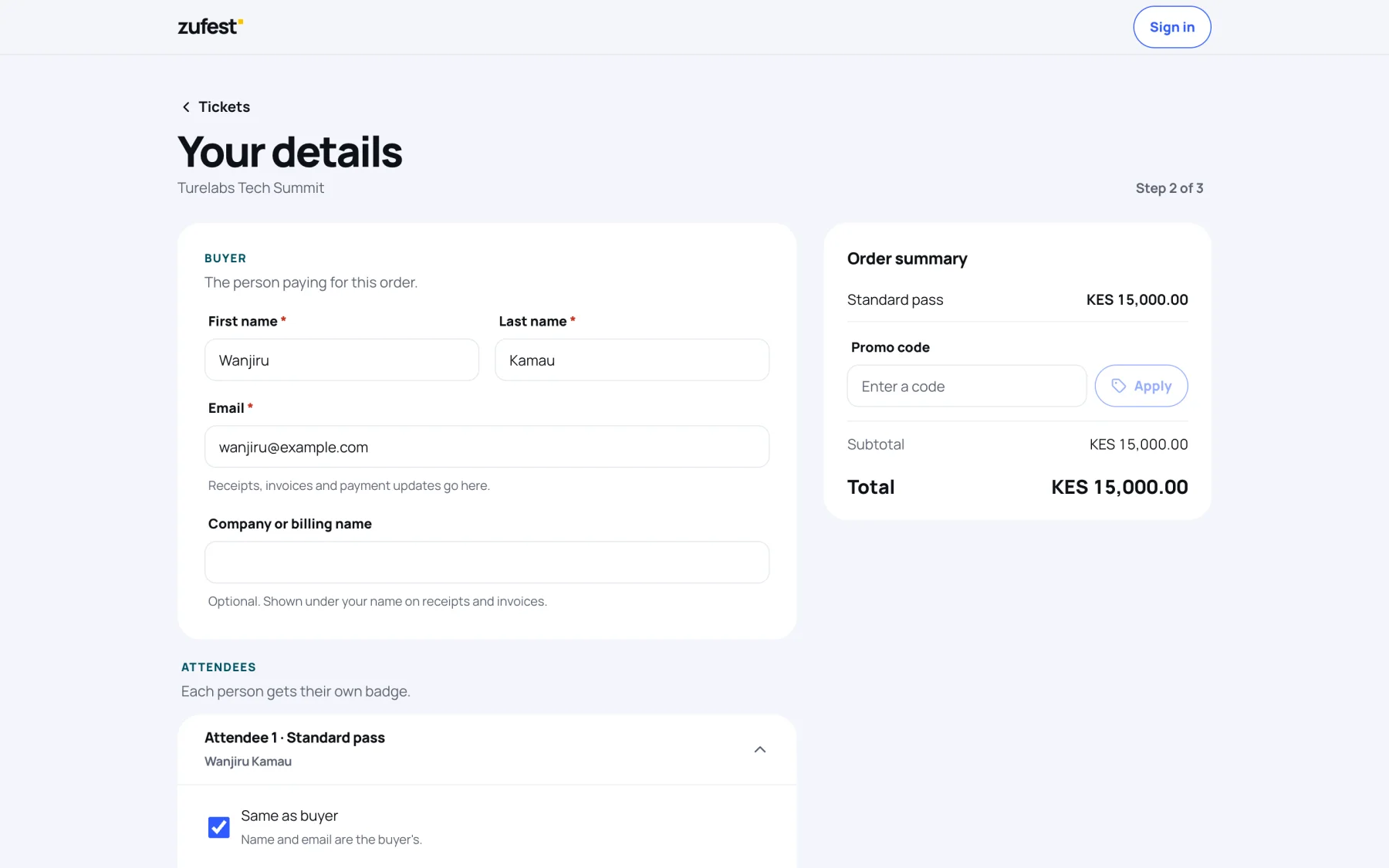
Under Buyer, enter the First name, Last name and Email of the person paying. Receipts, invoices and payment updates go to this address. Company or billing name is optional and is printed on receipts.
-
Under Attendees, fill in one card for each place. On the first card, Same as buyer is ticked, so the buyer's name and email are used. Untick it if the place is for someone else.
-
Answer the organiser's questions. Fields marked * are required.
-
Select Continue. If a field needs fixing, the card opens and the field is highlighted.
Add-ons
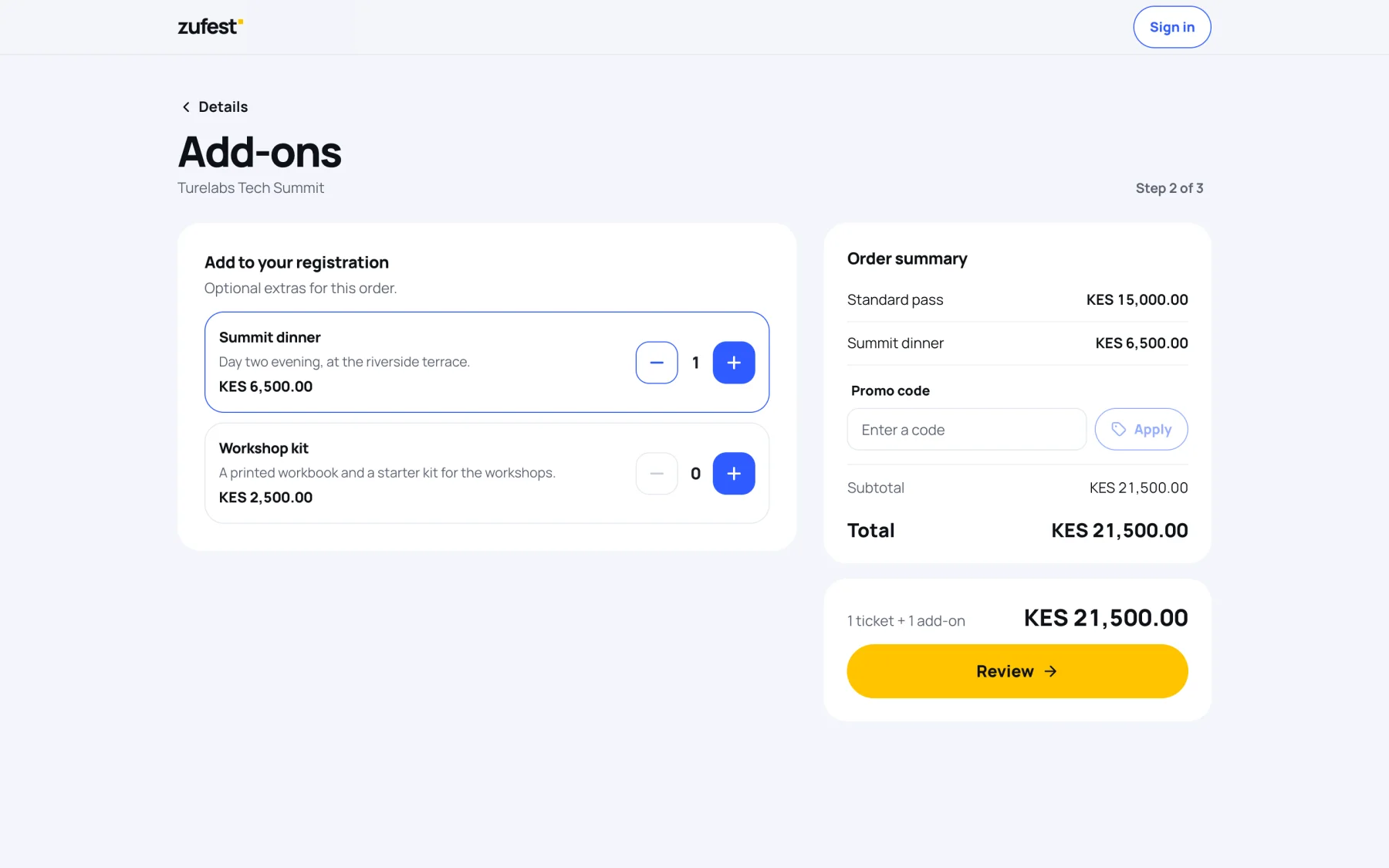
If the event sells extras, you see them next. They are optional.
-
Select + beside an add-on to include it. At Turelabs Tech Summit you can add the Summit dinner or a Workshop kit.
-
Select Review.
Use a promo code
If the organiser gave you a code, enter it in the Order summary on any step.
-
Type the code under Promo code.
-
Select Apply. When the code is accepted, Zufest shows Code applied and the discount appears in the summary.
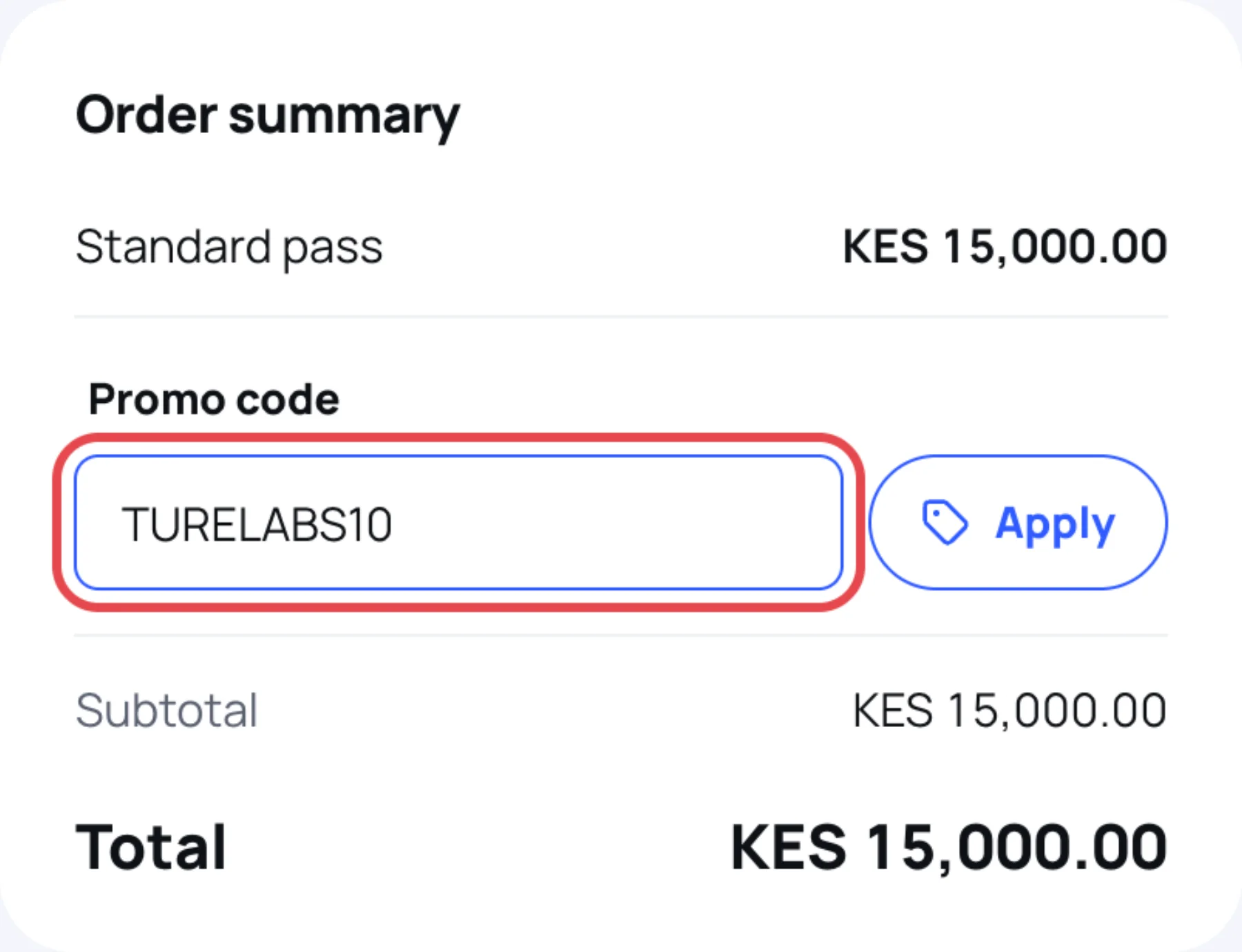
A code may work only for some passes, or only until a date. The server checks it again when you place the order.
Step 3: pay or confirm
-
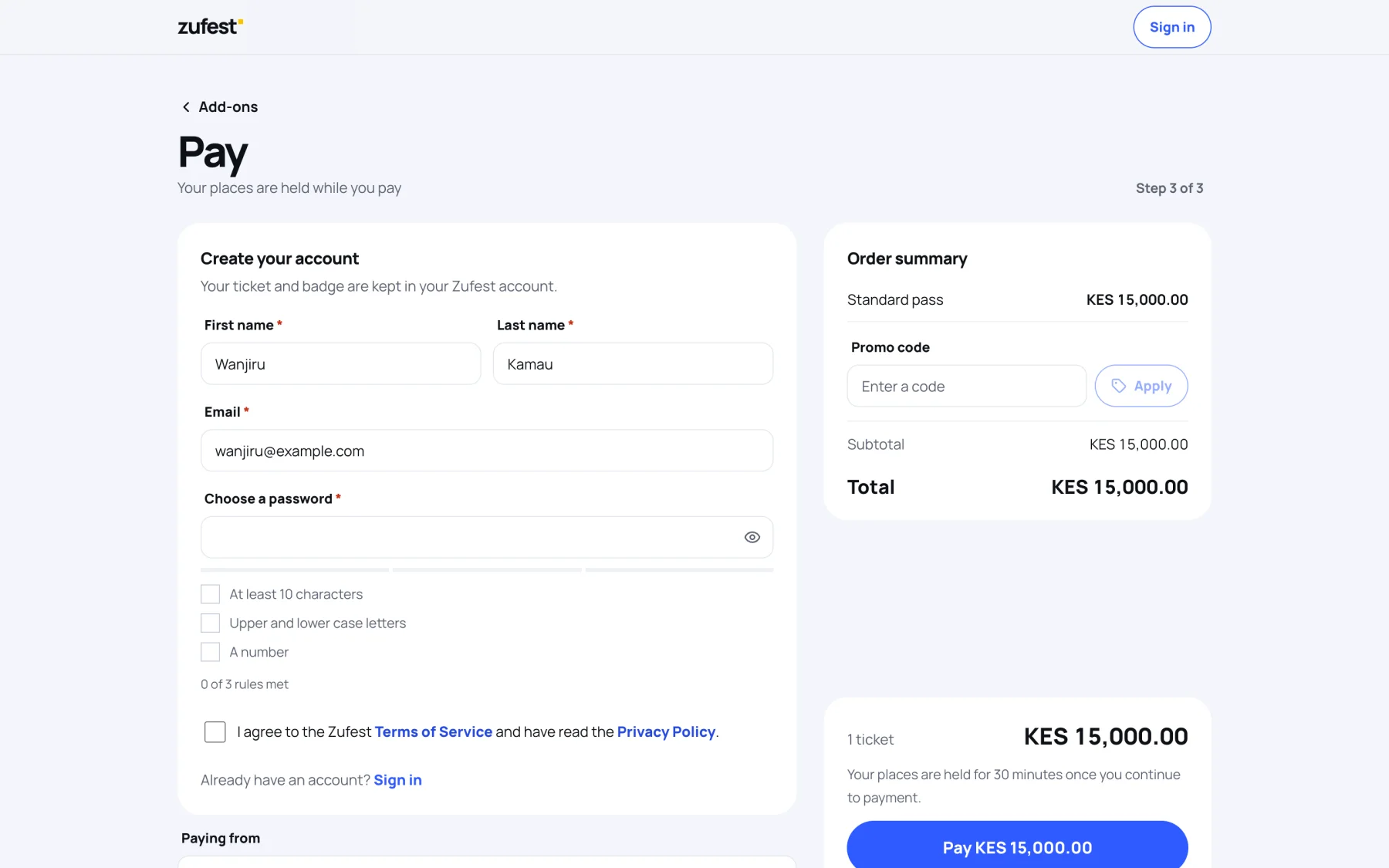
If you are not signed in, Zufest asks you to Create your account. Your name and email come from the buyer details. Choose a password, tick the box to agree to the terms, and continue. If you already have an account, select Sign in under the form instead.
-
Under Paying from, choose the country you are paying from. The payment methods on offer depend on it.
-
Under How would you like to pay?, choose a method.
-
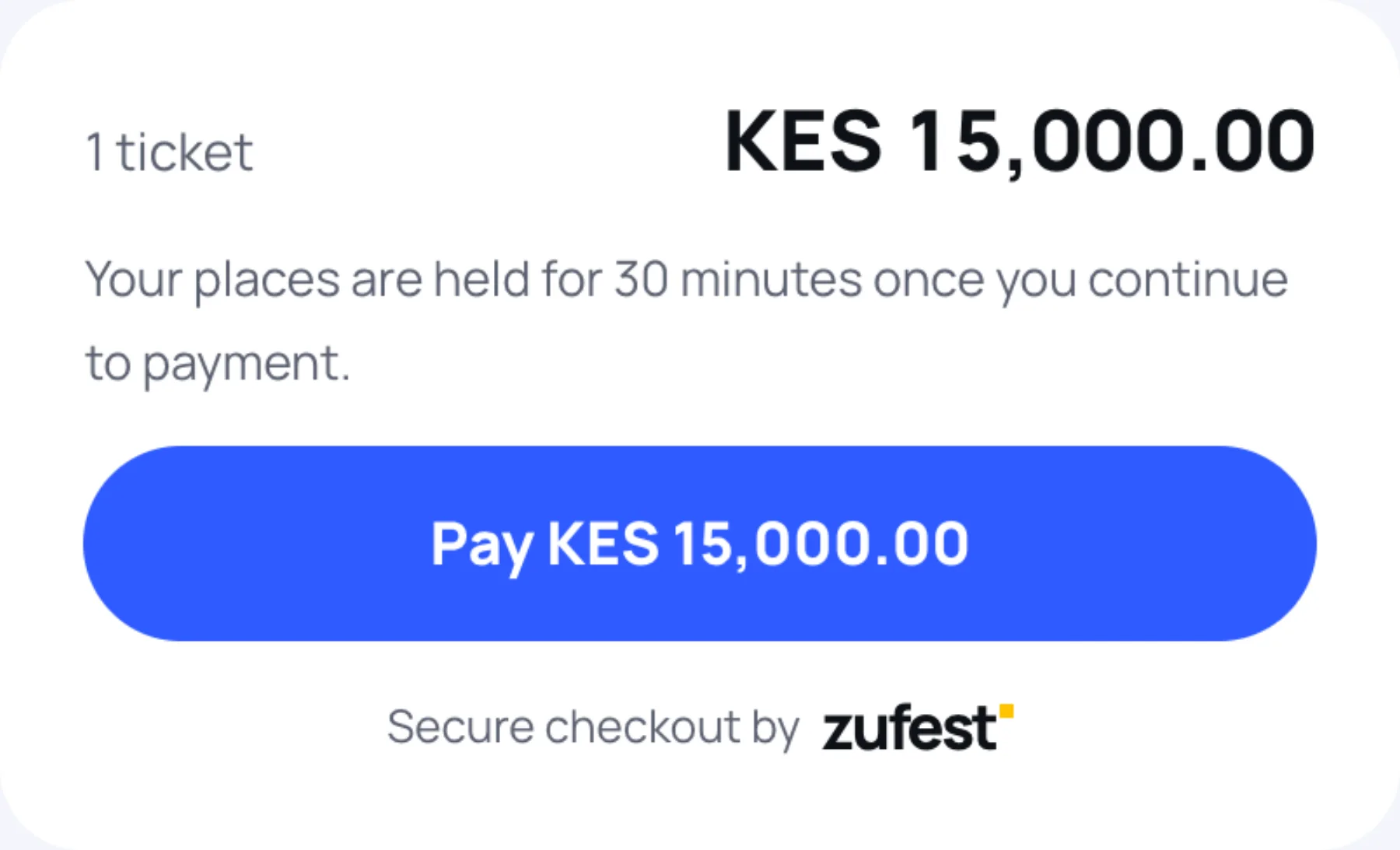
Check the total and the note above the button. It says how long your places are held.
-
Select the button. Its words tell you what happens next:
Button What happens Complete registration A free order. Your place is confirmed straight away Pay and the amount You pay now, on your phone or the payment provider's page Place order for and the amount You pay the organiser directly and send them your payment reference Request invoice for and the amount The organiser sends you an invoice to pay
For what happens after you select it, see Pay for your order.
When it is done
Zufest shows the result with your order Reference and the email address you registered with:
| Result | What it means |
|---|---|
| You are registered | Your place is confirmed. Select View my badge |
| Registration received | The organising team is reviewing your request |
| Place held, awaiting payment | Your place is held until you finish paying |
| You are on the waitlist | You are queued, with your position shown |
Select My registration to see the order at any time. See Your registration.
Last updated