Post an announcement
Announcements are short notices shown inside the event to everyone with a place: a room change, lunch times, shuttles. This page shows you how to post one, and how an urgent one also reaches people's phones.
Open announcements
-
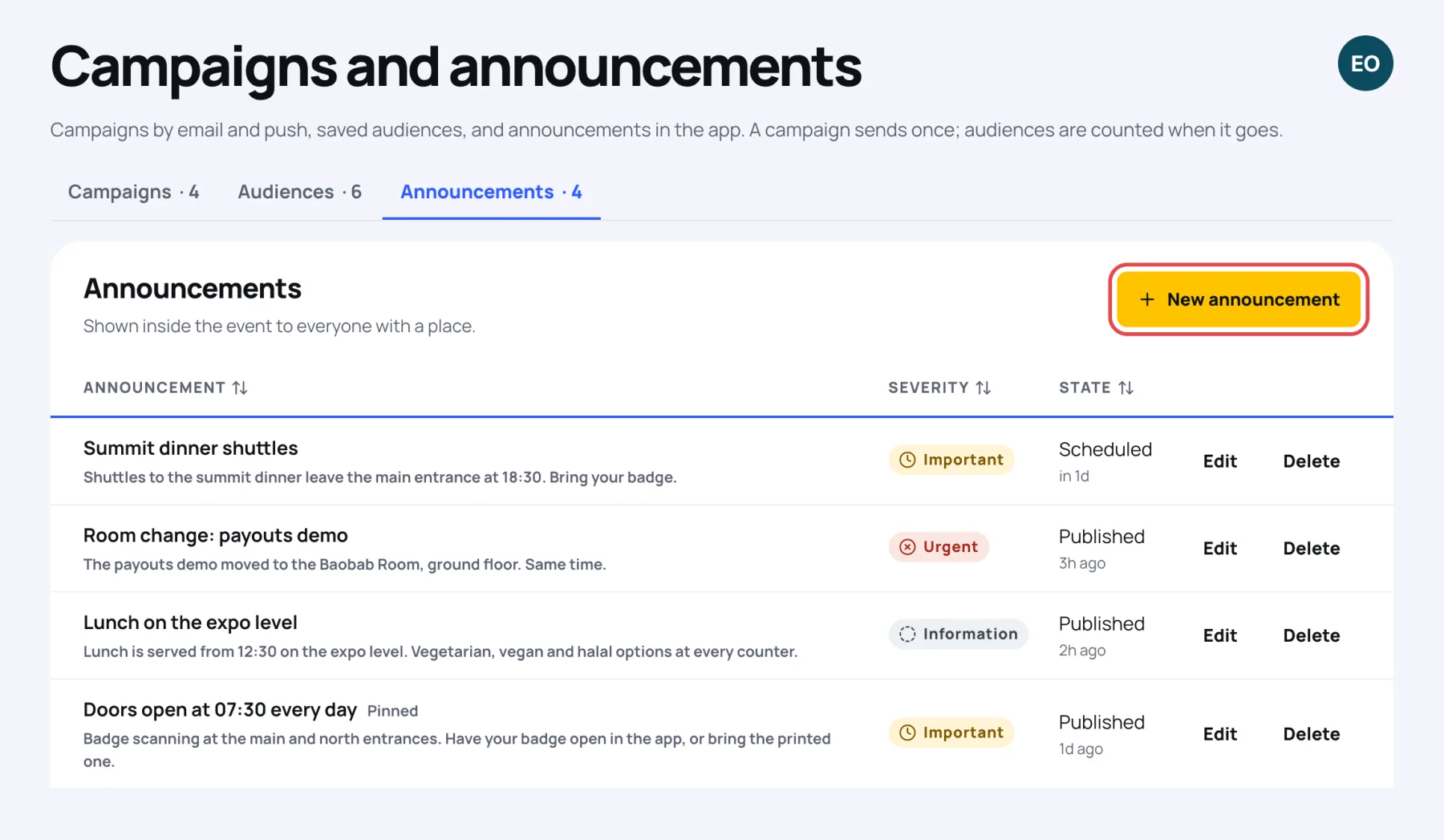
In the sidebar, under Engage, select Campaigns and announcements.
-
Select the Announcements tab. The list shows each announcement with its Severity and State (Draft, Scheduled or Published). A pinned one says Pinned beside its title.
Write the announcement
-
Select New announcement.
-
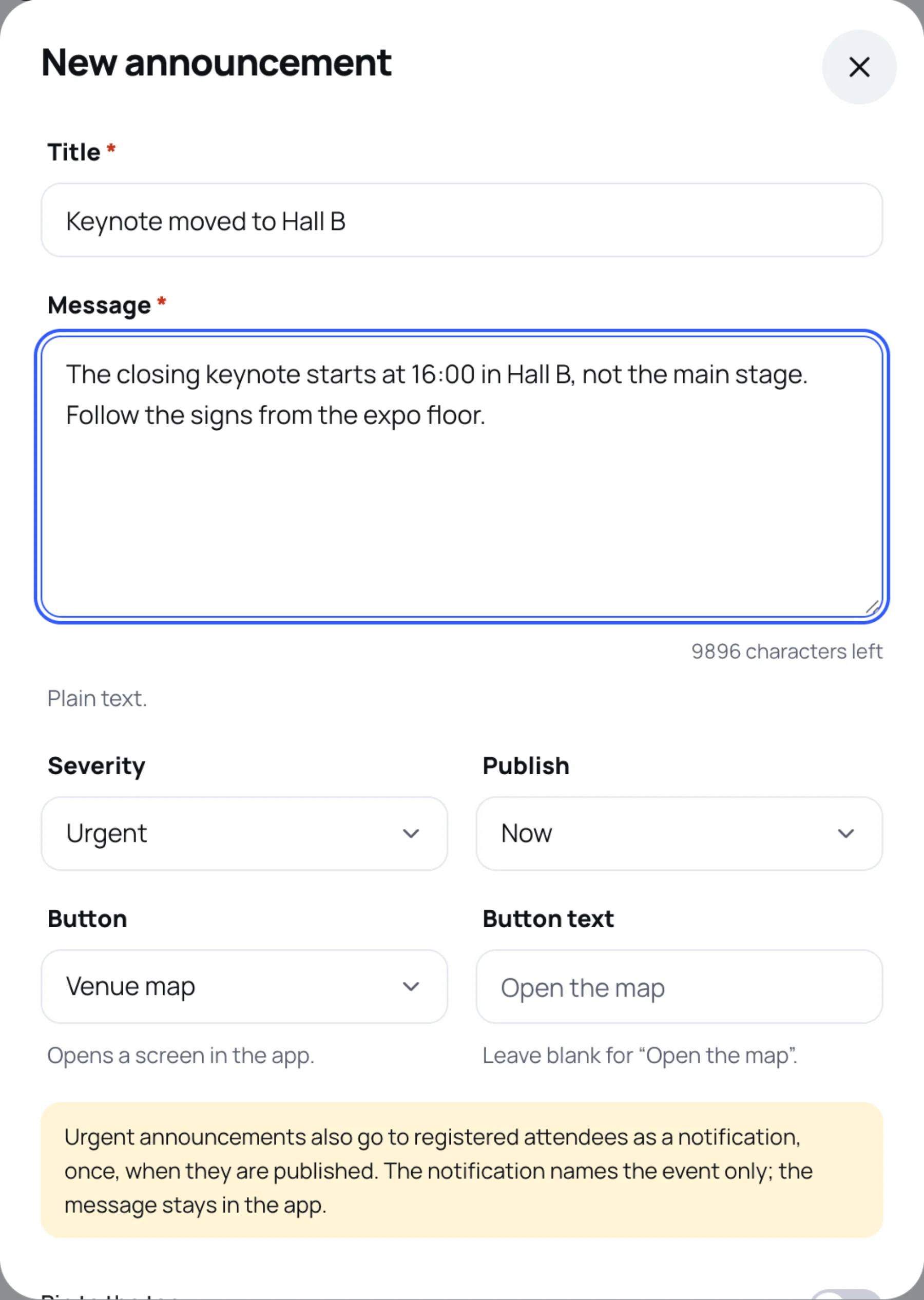
Type a Title, for example "Keynote moved to Hall B".
-
Type the Message. It is plain text: say what changed, where and when.
-
Choose the Severity:
- Information: everyday news.
- Important: something attendees should not miss.
- Urgent: a change people need to know now. It is also pushed to phones (see below).
-
Choose when to Publish: Now, At a set time (then set Publish at, in the event's time zone) or Keep as draft.
-
Optionally, add a Button that opens a screen in the app, such as the programme, a session, a stage, the venue map or the exhibitors. For a session or a stage, choose which one. Leave Button text blank to use the suggested wording.
-
Switch on Pin to the top to keep it above newer announcements.
-
Select Save.
When an urgent announcement is pushed
An Urgent announcement also goes to registered attendees as a push notification, once, when it is published. A scheduled urgent one is pushed when its time comes.
Edit or delete an announcement
Select Edit on its row to change it, or Delete to take it down. Attendees see the change the next time the announcements load.
Last updated