Discussion rooms
Discussion rooms are smaller spaces beside the stages: a text chat, an audio room or a video room, each with a message thread. Use them for follow-up questions after a talk, office hours with investors, or a place for founders to meet.
See your rooms
-
In the organiser sidebar, under Content, select Discussion rooms. This opens the Discussion rooms tab of Stages and recordings.
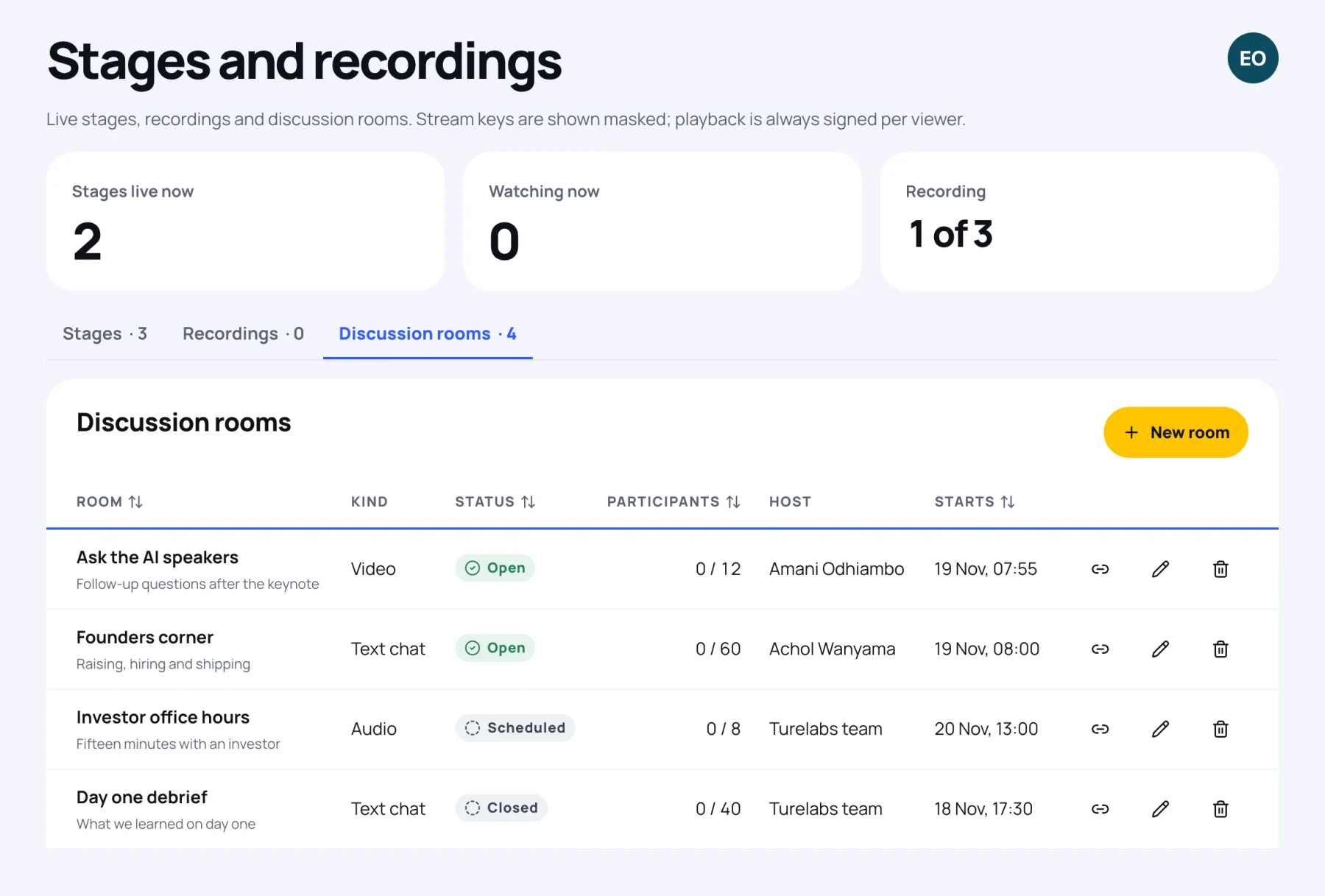
Each room shows its Kind, its Status (Open, Full, Scheduled or Closed), how many people are in it against its capacity, the Host and when it Starts. The link icon copies the attendee link to the room.
Add a room
-
Select New room.
-
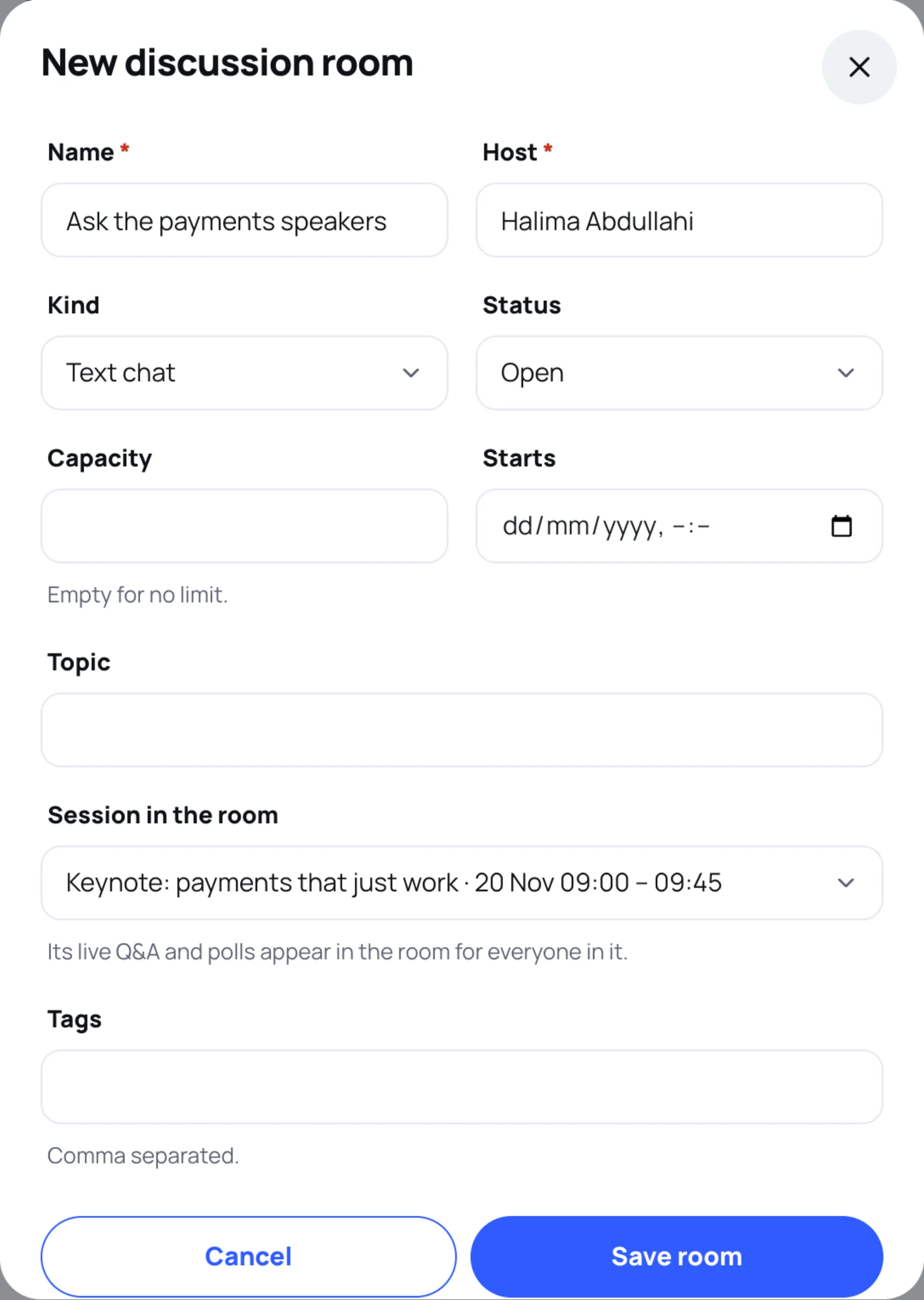
Type a Name and the Host, the person who looks after the room. Both are required.
-
Choose the Kind:
- Text chat: messages only.
- Audio: people join with their microphone.
- Video: people join with their camera and microphone, and can share their screen.
-
Choose the Status. Only an Open room takes people.
-
Set a Capacity, the number of seats, or leave it empty for no limit. Set Starts to show attendees when the room begins.
-
Add a Topic: one line under the room's name.
-
Under Session in the room, choose a session if the room follows one. Its live Q&A and polls then appear in the room for everyone in it.
-
Add Tags if you use them, separated by commas.
-
Select Save room.
Seats
A seat is held while someone has the room open. If they close the tab or lose their connection, the seat is freed within a few minutes, so a full room does not fill up with people who have left.
Close a room
Edit the room and set its Status to Closed. In an audio or video room, closing it ends the call for everyone in it. The messages stay readable.
Moderate the messages
Messages that need review are held, and you can publish or remove them under Community moderation, then Room chat. Reports about room messages arrive under Message reports. See Moderate the community.
For what attendees see, see Discussion rooms.
Last updated